
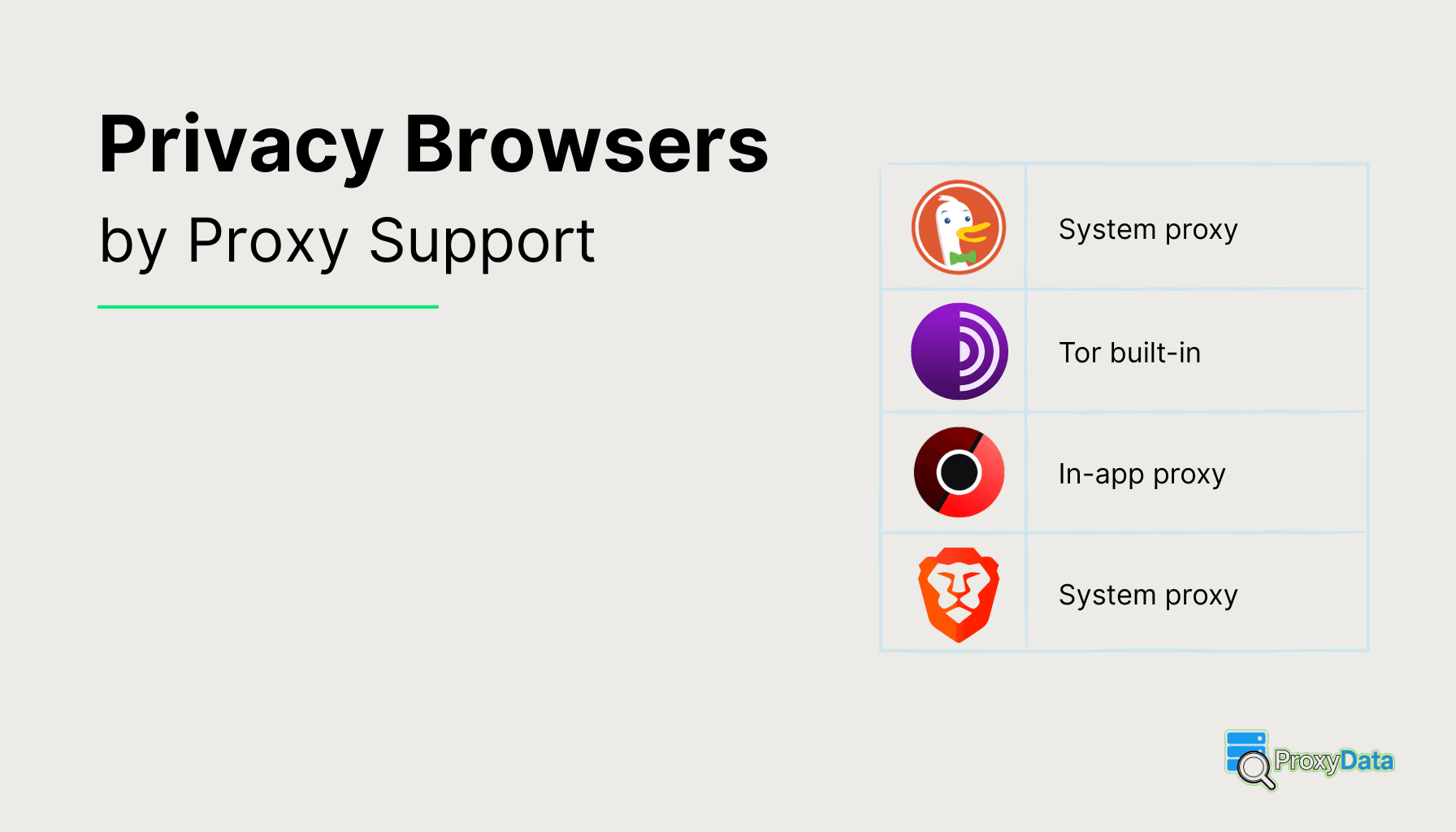
Privacy-focused browsers are a middle ground between standard browsers and anti-detect tools. They are still “normal” browsers in everyday use, but with tighter defaults and built-in features that reduce tracking and limit what websites can learn about the user and the device. Unlike anti-detect browsers, they usually do not revolve around running dozens of isolated identities at once, but they often give you cleaner privacy controls and a more hardened browsing setup out of the box.
Proxy support varies a lot in this category. Some privacy browsers expose full proxy settings (similar to classic Firefox-style network options), while others rely on the operating system proxy or extensions and keep the browser UI minimal. The table below compares 20+ privacy browsers by proxy support and links to detailed proxy setup guides where available.
If you want a simple overview of standard vs privacy-focused vs anti-detect browsers, see Browser Types.
Privacy browsers: proxy support
| Browser | Platforms | Engine | Proxy support | Proxy settings location | Proxy Extensions |
|---|---|---|---|---|---|
| Tor Browser | Windows; macOS; Linux; Android | Gecko (Firefox ESR based) | Firefox-style HTTP/HTTPS/SOCKS proxies; can also use system proxy or PAC | In-browser: Settings > Network Settings Tor Browser proxy guide ↓ |
Firefox-based but the Tor Project explicitly advises not to install extra extensions, so proxy extensions are not recommended |
| Mullvad Browser | Windows; macOS; Linux | Gecko (Firefox ESR based) | Firefox-style HTTP/HTTPS/SOCKS proxies; can also use system proxy or PAC | In-browser: Settings > Network Settings Mullvad Browser proxy guide ↓ |
Same security model as Tor Browser, extra extensions are discouraged, so proxy extensions are not recommended |
| LibreWolf | Windows; macOS; Linux | Gecko (Firefox based) | Firefox-style HTTP/HTTPS/SOCKS proxies; can also use system proxy or PAC | In-browser: Settings > Network Settings LibreWolf proxy guide ↓ |
Firefox-compatible: FoxyProxy Standard, FoxyProxy Basic, Proxy Switcher & Manager |
| GNU IceCat | Linux; other Unix-like; Windows | Gecko (Firefox based) | Firefox-style HTTP/HTTPS/SOCKS proxies; can also use system proxy or PAC | In-browser: Preferences > Network / Connection settings | Firefox ESR fork that can run compatible WebExtensions such as FoxyProxy Standard, FoxyProxy Basic, Proxy Switcher & Manager, subject to project policies |
| Waterfox | Windows; macOS; Linux | Gecko (Firefox based) | Firefox-style HTTP/HTTPS/SOCKS proxies; can also use system proxy or PAC | In-browser: Settings > Network Settings Waterfox proxy guide ↓ |
Supports WebExtensions and some legacy add-ons; FoxyProxy Standard, FoxyProxy Basic, Proxy Switcher & Manager are usable |
| Brave | Windows; macOS; Linux; Android; iOS | Blink (Chromium based) | Follows OS proxy configuration; no dedicated per-browser proxy list | System network settings (brave://settings/system opens OS dialog) Brave proxy guide ↓ |
Desktop: Chromium-based, can use FoxyProxy, Proxy SwitchyOmega, Proxy Switcher & Manager, Simple Proxy Switcher; Mobile: no extension support |
| DuckDuckGo Privacy Browser | Android; iOS | WebKit / WebView (depends on platform) | Uses OS-level proxy or VPN only; no manual proxy fields in the browser | System Wi-Fi / mobile network / VPN settings | Does not support third-party extensions, no proxy extensions |
| Firefox Focus | Android; iOS | Gecko / WebKit (mobile, depends on platform) | Uses OS-level proxy or VPN only; no manual proxy fields in the browser | System Wi-Fi / mobile network / VPN settings | No add-on support, no proxy extensions |
| Epic Privacy Browser | Windows; macOS | Blink (Chromium based) | Uses OS proxy for custom proxies; built-in encrypted Epic proxy is not a user-defined external proxy | System network settings; in-app encrypted proxy toggle Epic Privacy proxy guide ↓ |
Ships with its own encrypted proxy and a closed add-on model; no general-purpose proxy manager extensions for external proxies |
| SRWare Iron | Windows; macOS; Linux | Blink (Chromium based) | Follows OS proxy configuration; no separate per-browser proxy dialog | System network settings (same model as Chrome) SRWare Iron proxy guide ↓ |
Chromium-based, can use FoxyProxy, Proxy SwitchyOmega, Proxy Switcher & Manager, Simple Proxy Switcher |
| FreeNet Browser | Windows (desktop clients) | Custom engine (IE/Trident wrapper) | Access typically via local Freenet client; regular external HTTP/SOCKS proxy settings are not clearly documented | Works together with Freenet client / system proxy FreeNet proxy guide ↓ |
Freenet is usually accessed through a local HTTP proxy with a regular browser; there is no separate proxy extension store for a dedicated “Freenet browser” |
| Ungoogled Chromium | Windows; macOS; Linux | Blink (Chromium based) | Uses system proxy by default; HTTP/HTTPS/SOCKS proxies can be set via command-line flags instead of a GUI dialog | System network settings or command-line flags Ungoogled Chromium proxy guide ↓ |
Can load Chrome extensions only via manual side-loading, there is no direct Chrome Web Store integration; proxy extensions via a store are not available by default |
Tor Browser
Tor Browser routes traffic through the Tor network (onion routing), and it is built to reduce tracking by isolating site data and making fingerprinting harder. It also ships with adjustable security levels that trade convenience for tighter protections.
For proxy management, Tor Browser is already a routing layer. In normal use, you do not plug in a classic proxy per site or per tab. The practical options are: use Tor as-is, or if your network requires an upstream HTTP or SOCKS proxy to reach the Tor network, set that in Tor Browser Connection Settings (and use bridges if needed).
Full guide with screenshots: Tor Browser Proxy Settings.
Mullvad Browser
Mullvad Browser is built to reduce persistent identifiers and make users look more alike, so fingerprinting gets harder. It is designed to be used with a VPN (including Mullvad VPN), since it does not route your traffic through Tor by default.
Proxy options are basically “Firefox-style”: you can run it over a VPN, set a system proxy, or configure a manual proxy / auto-config (PAC) in the browser network settings. If you care about keeping less local trace, its private session behavior is meant to keep cookies temporary and discard them when the session ends.
See also: Configuring proxies in Mullvad Browser
LibreWolf
LibreWolf is a Firefox-based browser focused on cutting down telemetry and default tracking, with hardened privacy defaults. It aims to be “less chatty” out of the box, and it commonly relies on stronger built-in protections plus content blocking rather than extra add-ons.
For proxies, you get the familiar Firefox path: system proxy, manual proxy (HTTP, HTTPS, SOCKS), or an auto-config (PAC) URL. If you want fast switching per task, a proxy-switching extension is usually the cleanest option, because the built-in settings are global for the whole browser session.
Detailed guide: LibreWolf proxy configuration
Waterfox
Waterfox is another Firefox-based option that focuses on user choice and reduced data collection, with features like private tabs in a regular window and “clean link” tools that remove tracking parameters from URLs. It also highlights DoH support and cookie-banner handling as quality-of-life privacy features.
Proxy management follows the Firefox model: manual proxy settings, system proxy, or PAC. If you need different proxies for different workflows, you can either swap the global proxy in settings or use a proxy extension to switch without touching OS settings.
Full guide with screenshots: Waterfox proxy setup for HTTP, HTTPS and SOCKS
Brave
Brave is Chromium-based and ships with its own tracker and ad blocking (Shields), plus extras like private windows and optional Tor windows, and it puts a lot of effort into reducing fingerprinting and cross-site tracking.
For classic proxy use, Brave typically relies on your operating system proxy settings rather than offering rich per-profile proxy controls inside the browser. If you need per-site or quick switching, that’s usually done with an extension.
See also: How to setup proxies in Brave
Epic Privacy
Epic is a Chromium-based privacy browser that focuses on “always private” behavior, aggressive tracker blocking, and reduced fingerprinting. A standout feature is its built-in encrypted proxy toggle, which is meant to hide your IP from websites when you turn it on.
Proxy options here are: use Epic’s built-in encrypted proxy when that fits your goal, use the system proxy for a standard upstream proxy, or use a proxy extension for switching behavior (since Chromium-style settings are usually more limited than Firefox-style ones).
Full guide with screenshots: Epic Privacy Browser Proxy Settings.
SRWare Iron
SRWare Iron is a Chromium-based browser positioned around removing Google-specific tracking behaviors found in stock Chrome, such as unique identifiers and background reporting features. The goal is to keep the Chromium experience while cutting back on Google-linked “phone home” pieces.
Proxy management is the typical Chromium story: it mostly follows system proxy settings. For anything beyond that (quick switching, per-site routing), you normally use an extension, because the browser-level proxy controls are not as flexible as Firefox-family browsers.
Full guide with screenshots: SRWare Iron Proxy Settings.
FreeNet Browser
FreeNet Browser is centered on access to the Freenet ecosystem, which is built around decentralized publishing and “freesites” rather than the regular web. That makes it feel less like a mainstream browser and more like a gateway into a separate network.
Proxy-wise, the key idea is that access is commonly mediated through a local HTTP proxy that connects your browser to the Freenet node. So the practical “proxy management” is mostly about configuring the browser to point at that local proxy endpoint and keeping the local node running.
Full guide with screenshots: FreeNet Browser Proxy Settings.
Ungoogled Chromium
Ungoogled Chromium strips Google web-service ties from Chromium and aims to prevent background connections to Google endpoints. A common technique discussed in its documentation is domain substitution, where Google service domains are replaced with non-functional placeholders to stop silent calls.
For proxies, it behaves like Chromium: you usually set a system proxy, and if you need switching or per-site routing you do it with an extension. If your workflow depends on Google-linked features (sync, Safe Browsing, etc.), plan around replacements, because this browser intentionally removes a lot of that surface.
Full guide with screenshots: Ungoogled Chromium Proxy Settings.
Related guides