
SRWare Iron is a Chromium based browser focused on stripping out tracking and extra services. This article explains how to route its traffic through a proxy server in several ways. It is part of a broader overview of privacy browsers, which can be found in our main guide to privacy focused browsers.
SRWare Iron follows the typical Chromium model: it does not have its own proxy dialog but links to the system proxy configuration. That system profile then applies to Iron and other apps that use it. In addition, the browser works with Chrome compatible proxy extensions and can be used together with standalone proxy clients on the device.
How to set up proxy settings in SRWare Iron
This method uses the browser menu to open the operating system’s proxy panel and configure the proxy there.
Step 1. Open SRWare Iron settings
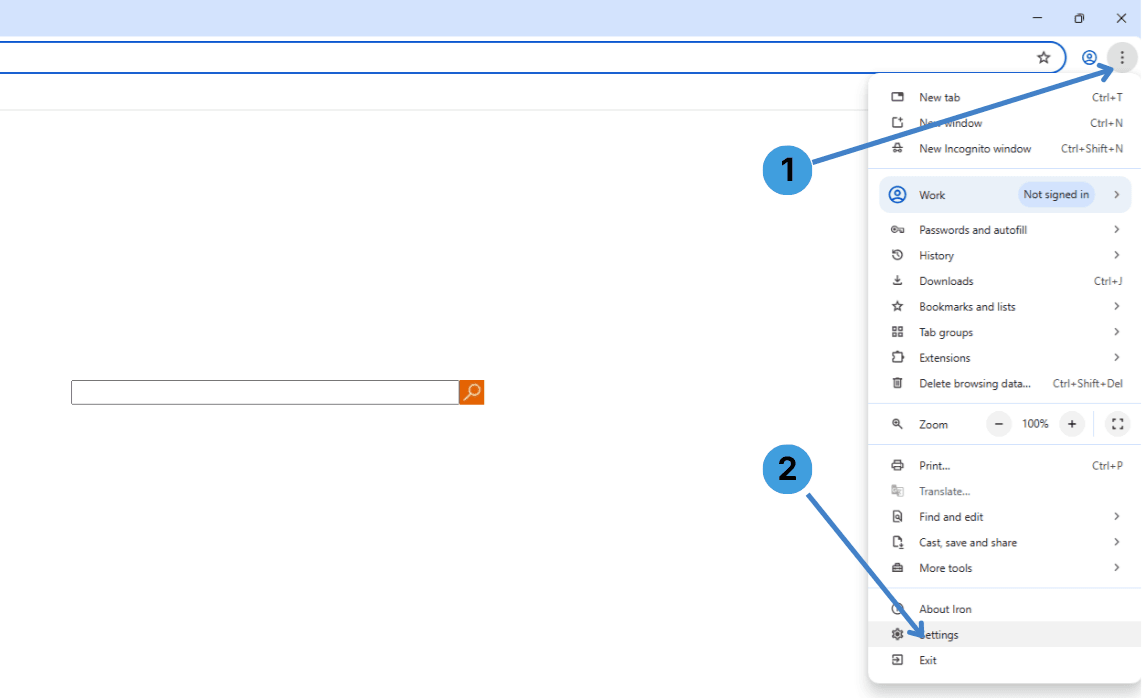
- Click the three dots menu button in the top right corner of the Iron window (1).
- In the menu that appears, choose “Settings” (2).
Step 2. Go to the System section
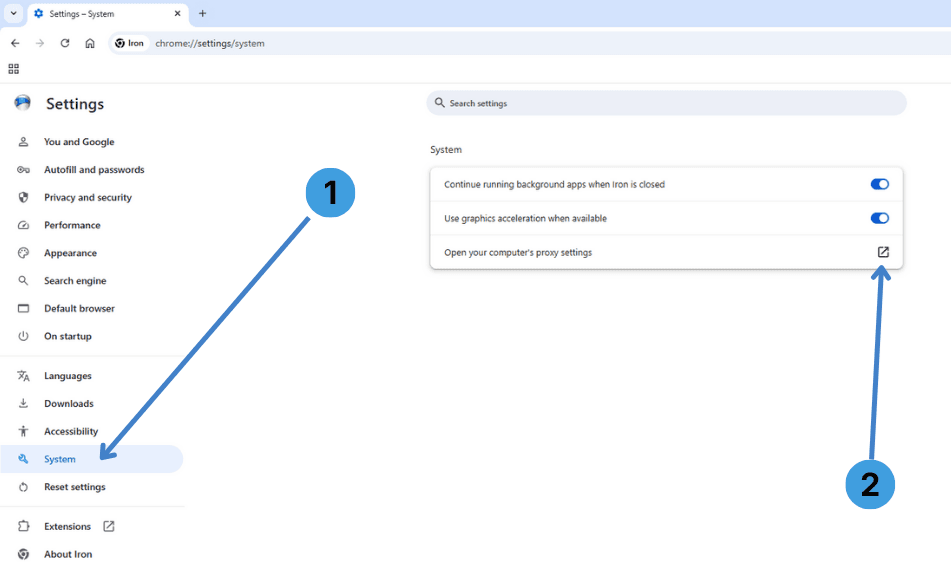
- In the left sidebar of the settings page, select “System” (1).
- On the right, click “Open your computer’s proxy settings” (2). A system settings window with proxy options opens.
Step 3. Open manual proxy configuration
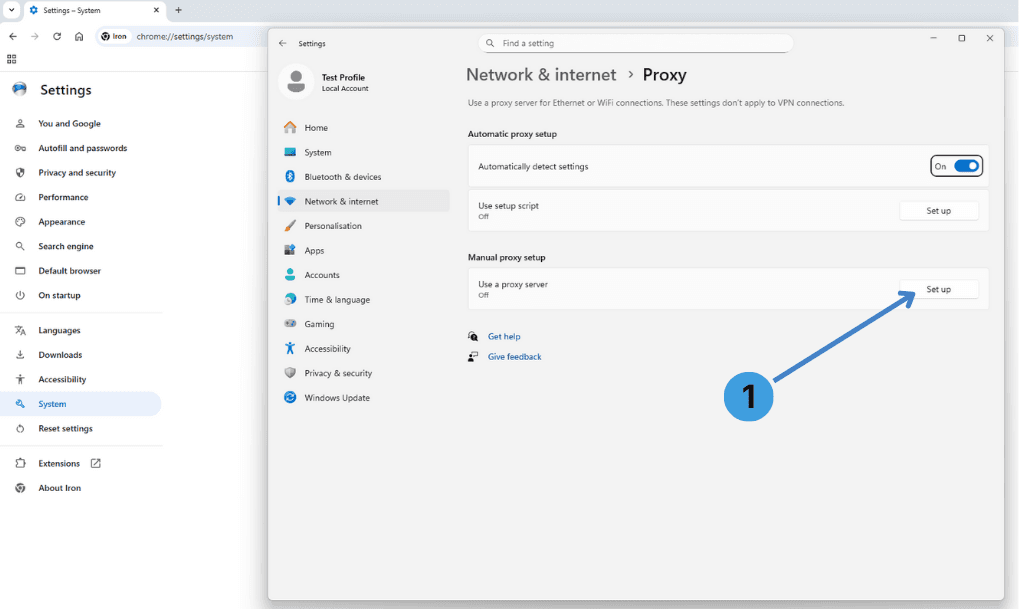
- In the system proxy window, find the “Manual proxy setup” block and press “Set up” (1) next to “Use a proxy server”.
Step 4. Enter proxy address and port
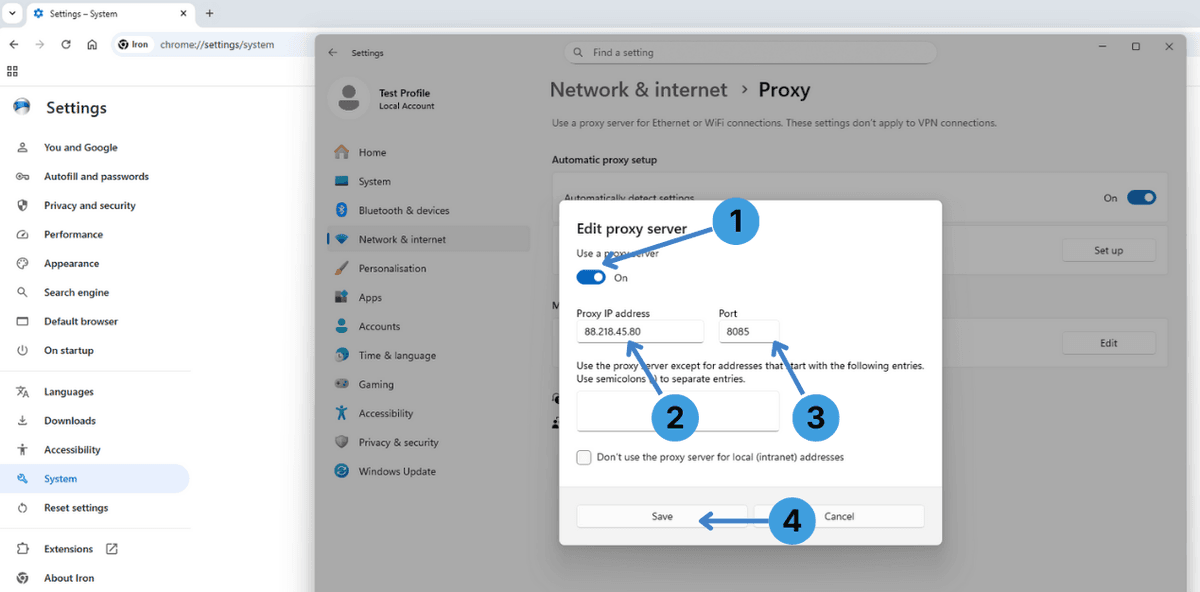
- Enable “Use a proxy server” (1).
- In “Proxy IP address” (2), enter the proxy host or IP provided by your proxy service.
- In “Port”(3), type the port number from your proxy details (for example 8080 or 3128).
- Optional: in the large text box below you can list addresses that should bypass the proxy, separated by semicolons.
- Click “Save” (4) to apply the settings. After this, SRWare Iron traffic will go through the configured proxy.
If your proxy requires Username/Password authentication, the browser will show a login prompt when you first open a website through the proxy. Enter the credentials from your proxy provider.
Step 5. Turn the proxy off
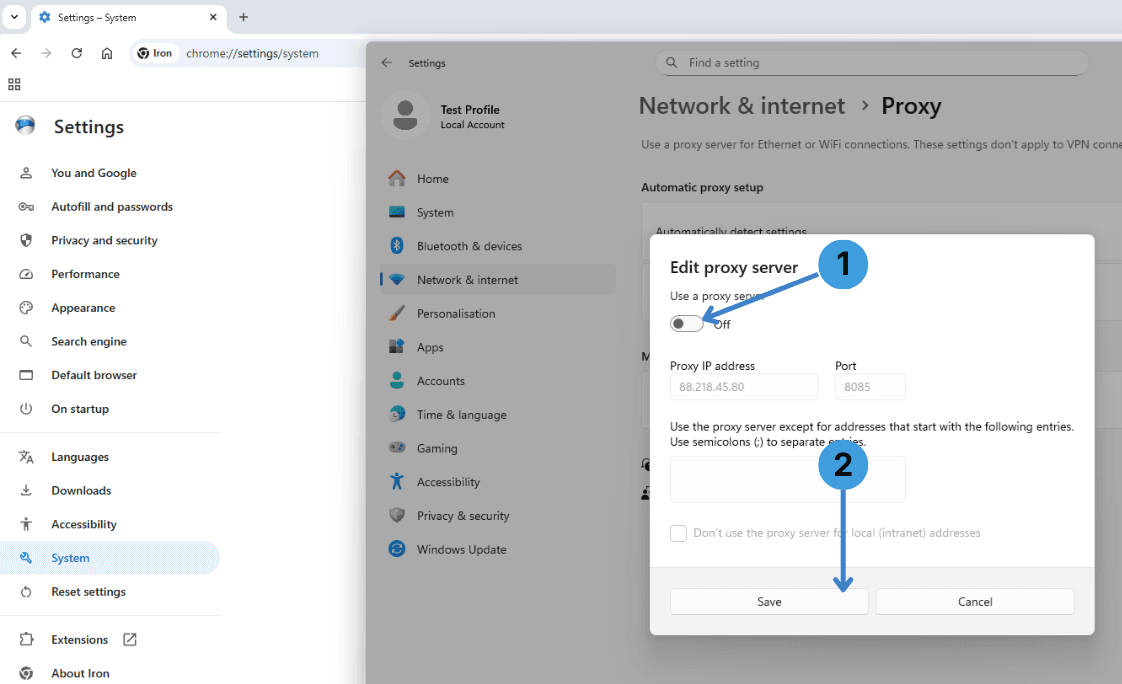
- To disable the proxy later, open the same “Edit proxy server” dialog and switch “Use a proxy server” to Off (1).
- Click “Save” (2) so that connections from SRWare Iron go directly again.
Alternative: using proxy extensions in SRWare Iron
SRWare Iron supports extensions from the Chrome Web Store, including popular proxy managers. An alternative to changing system settings is to install a proxy extension such as SwitchyOmega, FoxyProxy, or Proxy Switcher and configure your proxy profiles inside it. This keeps proxy control inside the browser and lets you switch between multiple proxies quickly. For a general overview of how such tools work, see this guide to proxy browser extensions.
Alternative: routing SRWare Iron through standalone proxy clients
Another option is to use a desktop proxy client that redirects traffic for selected applications. Tools like Proxifier or ProxyCap can capture connections from SRWare Iron and send them through a proxy without changing the browser or system settings directly. This is useful when you want one central place to control proxies for several programs at once. More details about these tools are collected in our article about standalone proxy clients.
Conclusion
SRWare Iron can work with proxies through the operating system’s proxy profile, via Chrome compatible proxy extensions, or through external proxy clients. Choose the method that fits your workflow and how often you need to switch or manage multiple proxy servers.