
This article shows the main ways to configure a proxy server in LibreWolf. The focus is on the native connection dialog, plus a few alternative options that users often rely on. LibreWolf is also covered in this overview of privacy focused browsers.
LibreWolf and proxy support
LibreWolf is a Gecko based browser that follows Firefox quite closely but with extra privacy tweaks. It includes its own Connection Settings window where you can set HTTP and SOCKS proxies directly, or switch to system settings. On top of that, LibreWolf can usually work with Firefox style proxy extensions and with standalone desktop proxy tools.
Step by step: configuring a proxy in LibreWolf
LibreWolf uses a built in proxy dialog, not the system proxy panel. The four screenshots below show how to open this dialog, add proxies and then turn them off again.
Step 1. Open the LibreWolf menu and Settings
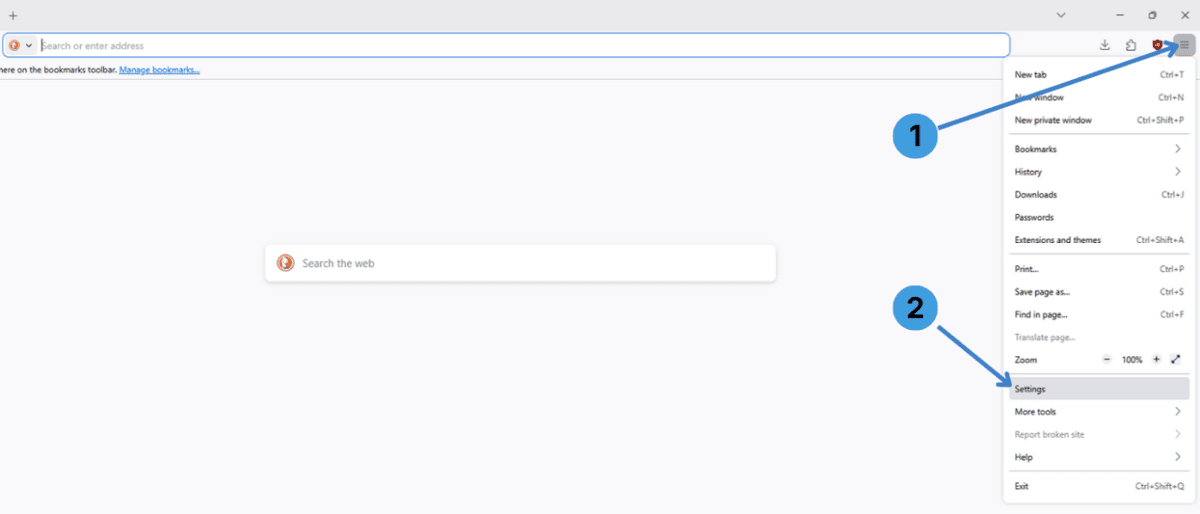
- Click the main menu button in the top right corner of the browser window (1).
- In the dropdown list, choose Settings (2) to open the settings tab.
Step 2. Go to Network Settings
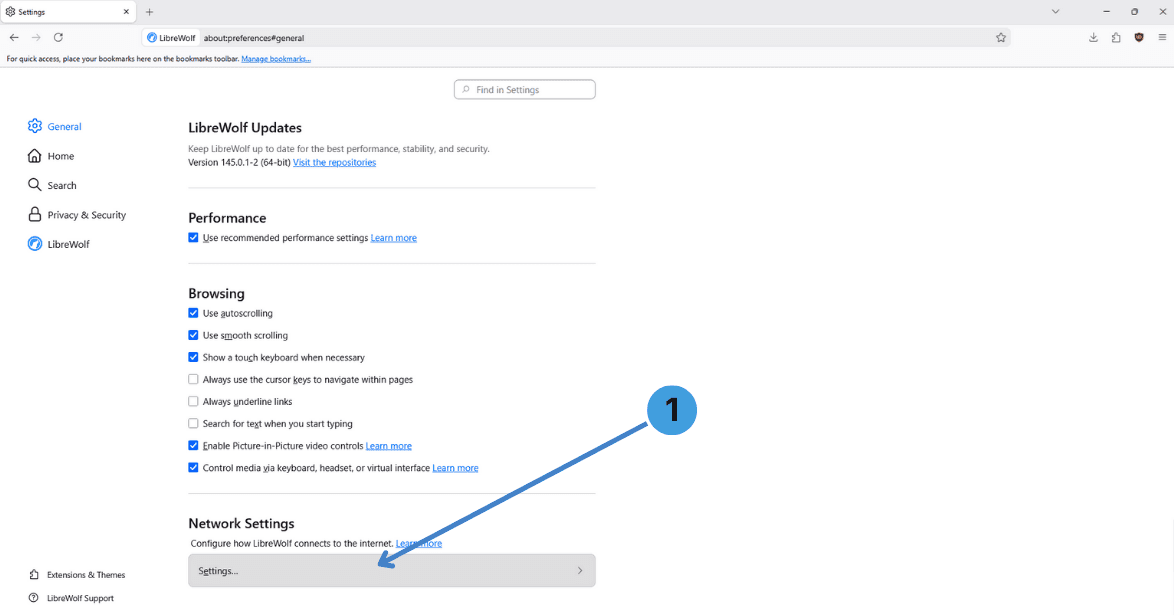
- In the General section, scroll down to Network Settings and press the Settings… button (1).
This opens the Connection Settings window where proxy options are configured.
Step 3. Configure HTTP and SOCKS proxies
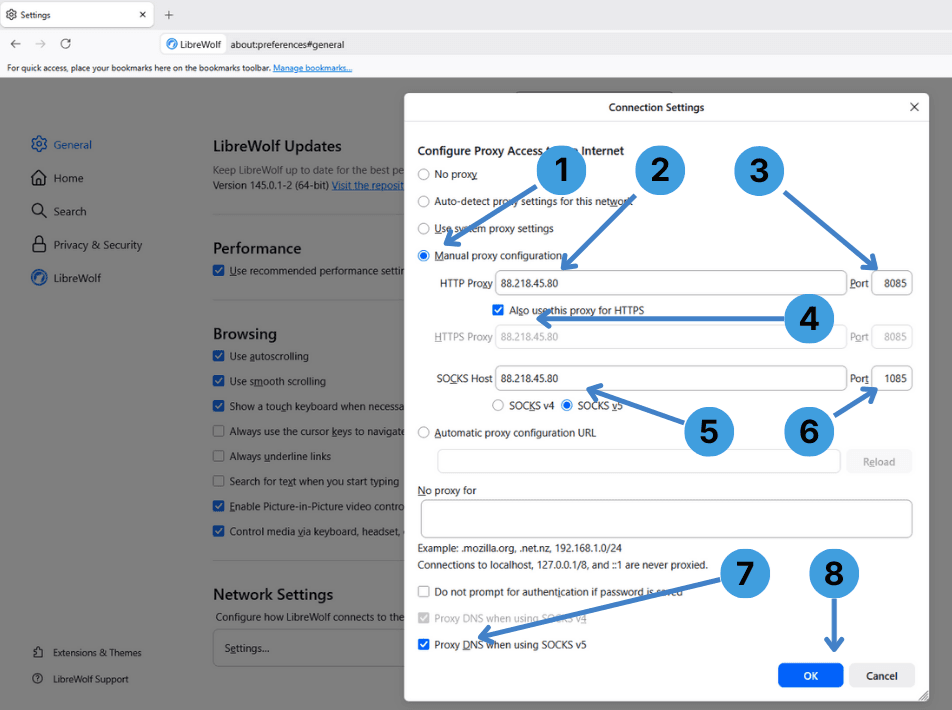
- Select Manual proxy configuration (1) so LibreWolf uses the values you enter.
- In the HTTP Proxy field (2), type the proxy server address or IP from your provider.
- In the Port field next to it (3), enter the HTTP proxy port (for example 8085).
- Tick Also use this proxy for HTTPS (4) if the same server and port should handle HTTPS traffic.
- In the SOCKS Host field (5), enter the SOCKS proxy address if you want to use a SOCKS server.
- In the SOCKS Port field (6), set the SOCKS port (for example 1085).
- Choose SOCKS v5 in the radio buttons (5 area) and tick Proxy DNS when using SOCKS v5 (7) if DNS requests should also go through the SOCKS proxy.
- When everything is filled in, click OK (8) to save the configuration and start using the proxy.
If the proxy requires Username/Password authentication, LibreWolf will ask for these credentials when you first open a site.
Step 4. Turn the proxy off again
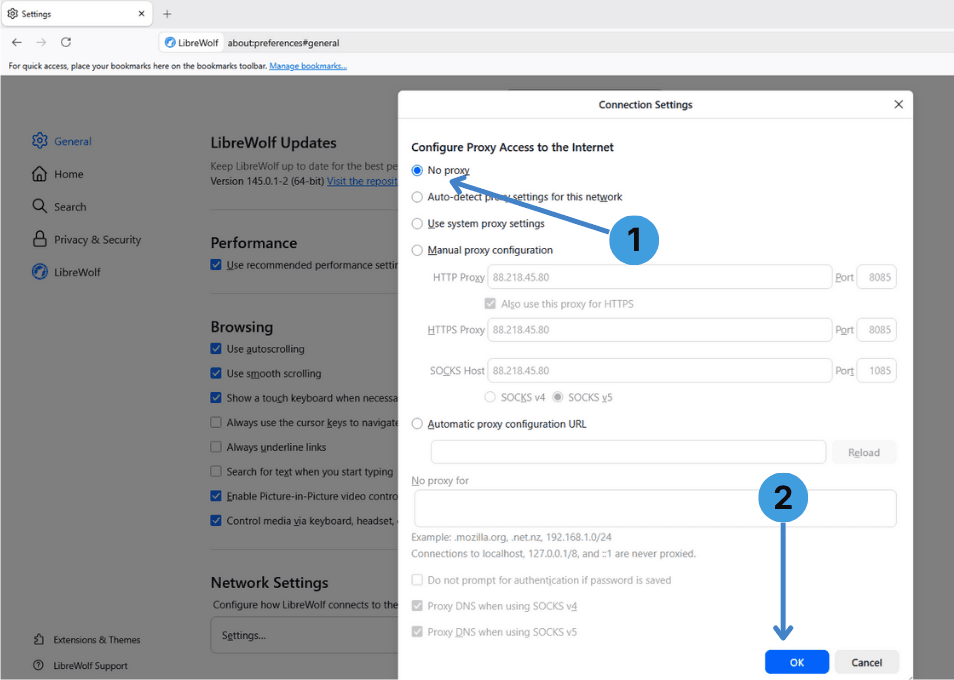
- In the Connection Settings window, select No proxy (1) to return to direct access.
- Click OK (2) to confirm. LibreWolf will stop using the proxy and connect directly.
Alternative: using proxy extensions in LibreWolf
LibreWolf is generally compatible with Firefox style add ons, including proxy managers. Extensions such as FoxyProxy or similar tools let you keep multiple proxy profiles, quickly switch between them and set URL based rules. For a broader overview of these tools and how they work, see this guide to proxy browser extensions. Follow the installation and setup instructions provided by the extension developer.
Alternative: using standalone proxy clients with LibreWolf
Another option is to use a standalone proxy client on the desktop. Programs like Proxifier or ProxyCap can route selected application traffic, including LibreWolf, through a proxy without changing browser settings. This can be convenient when you want central control over several programs. A short overview of these tools can be found in this article on standalone proxy clients.
Conclusion
LibreWolf gives several ways to work with proxies: a built in connection dialog, optional proxy extensions and external proxy clients. Choose the native settings if you only need a single proxy inside LibreWolf, or use extensions and standalone tools when you manage many profiles or want to control traffic from multiple applications.