
Brave Browser can work through a proxy server, which is handy for automation tasks, multiple accounts, or testing from different locations. This article shows the main ways to connect Brave to a proxy. It is part of a wider overview of privacy browsers in the privacy browsers overview.
Brave Browser and proxy support
Brave is based on the Chromium engine, similar to Google Chrome. It does not have its own full proxy dialog and instead links to the operating system network proxy settings from the System page in Brave. Besides using the system proxy panel, Brave can also rely on proxy extensions from the Chrome Web Store and on standalone proxy clients that redirect app or system traffic.
How to set up proxy settings in Brave
Brave configures proxy usage through the operating system’s proxy window, which is opened from the browser’s System settings.
Step 1. Open Brave settings
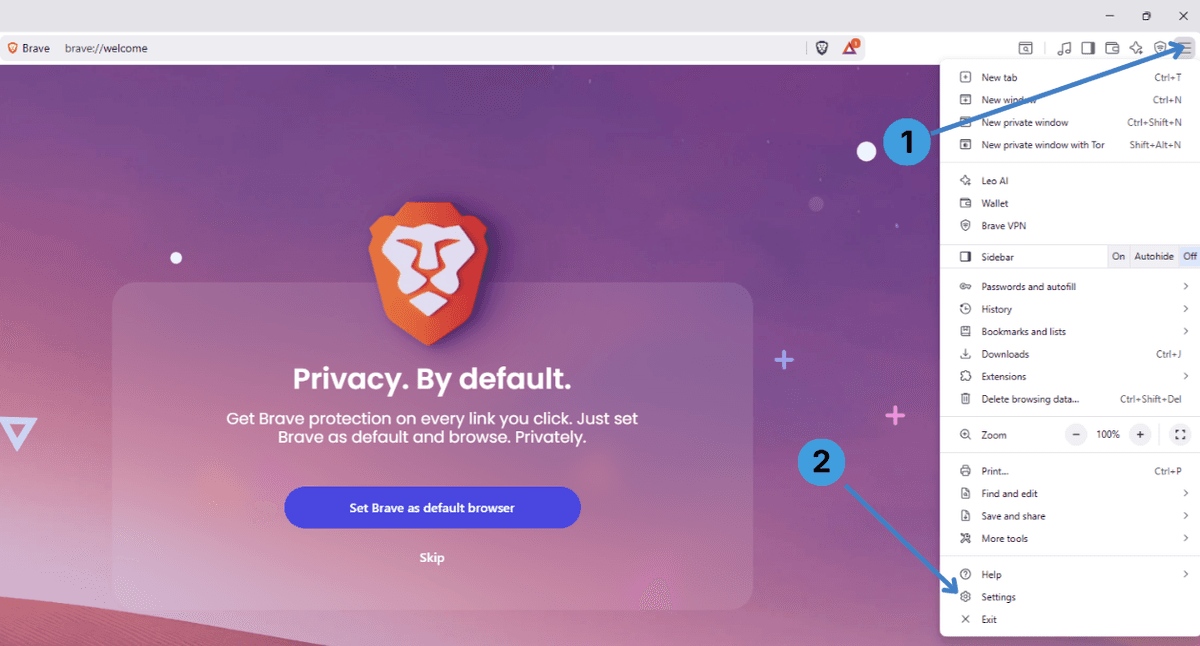
- Click the menu button with three lines in the upper right corner of Brave (1).
- In the menu that appears, select Settings at the bottom (2).
Step 2. Go to the System section
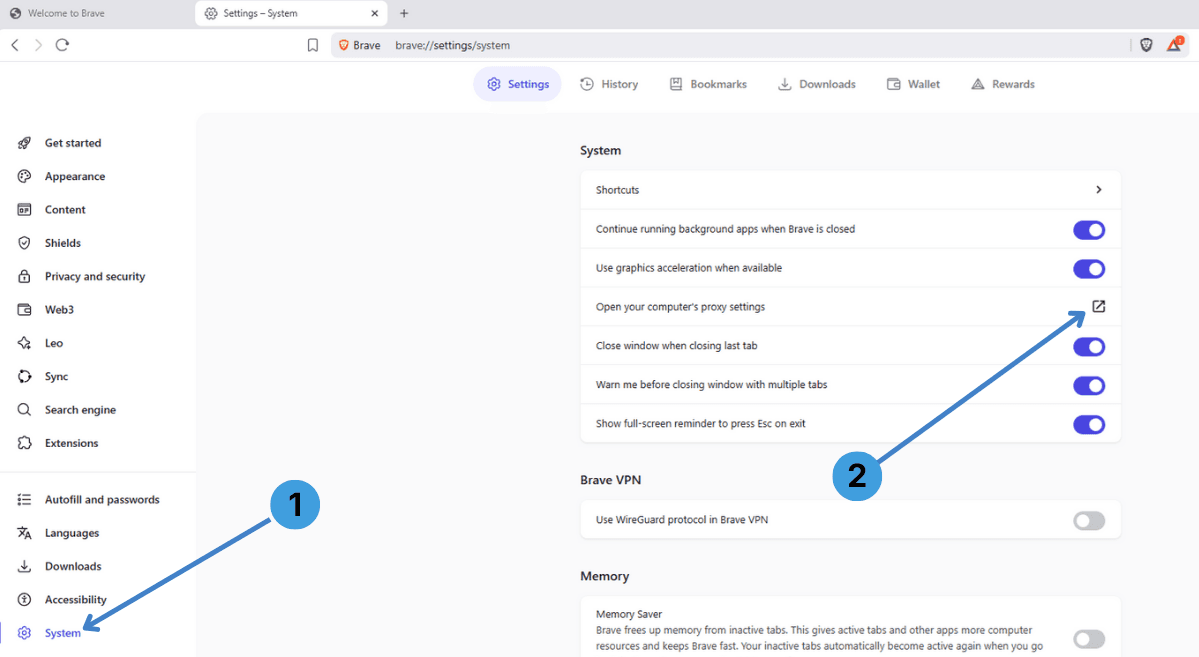
- In the left sidebar of the Settings page, click System (1).
- On the right side, find the line Open your computer's proxy settings and press the button with the external-link icon (2). This opens the system proxy configuration window.
Step 3. Open manual proxy setup
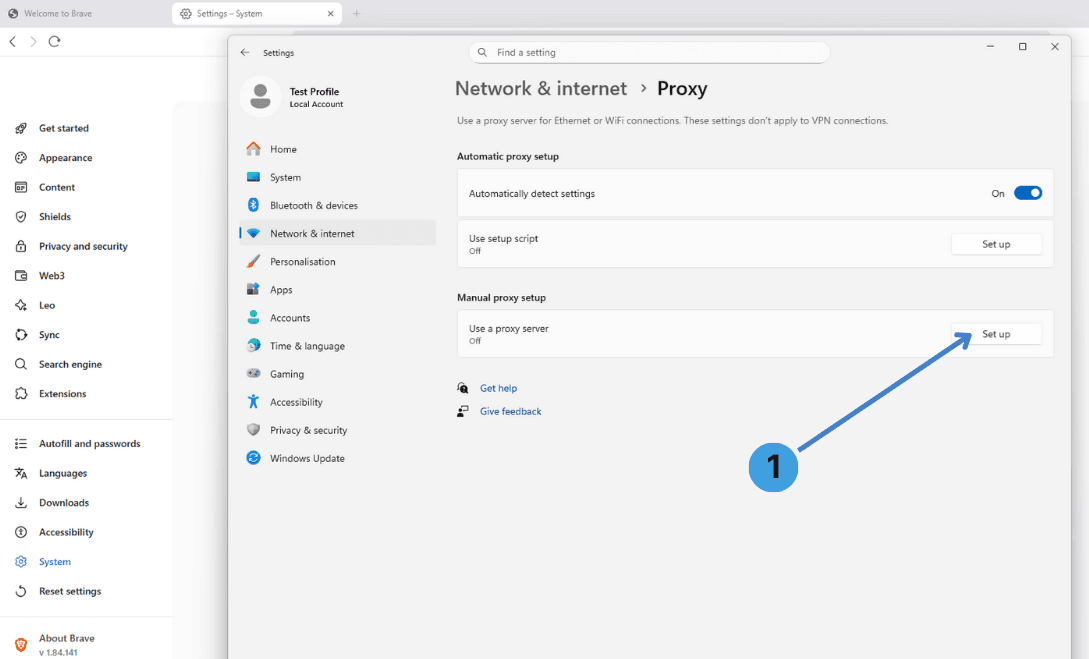
- In the system Proxy window, scroll to Manual proxy setup and click Set up next to Use a proxy server (1).
Step 4. Enable the proxy and enter its details
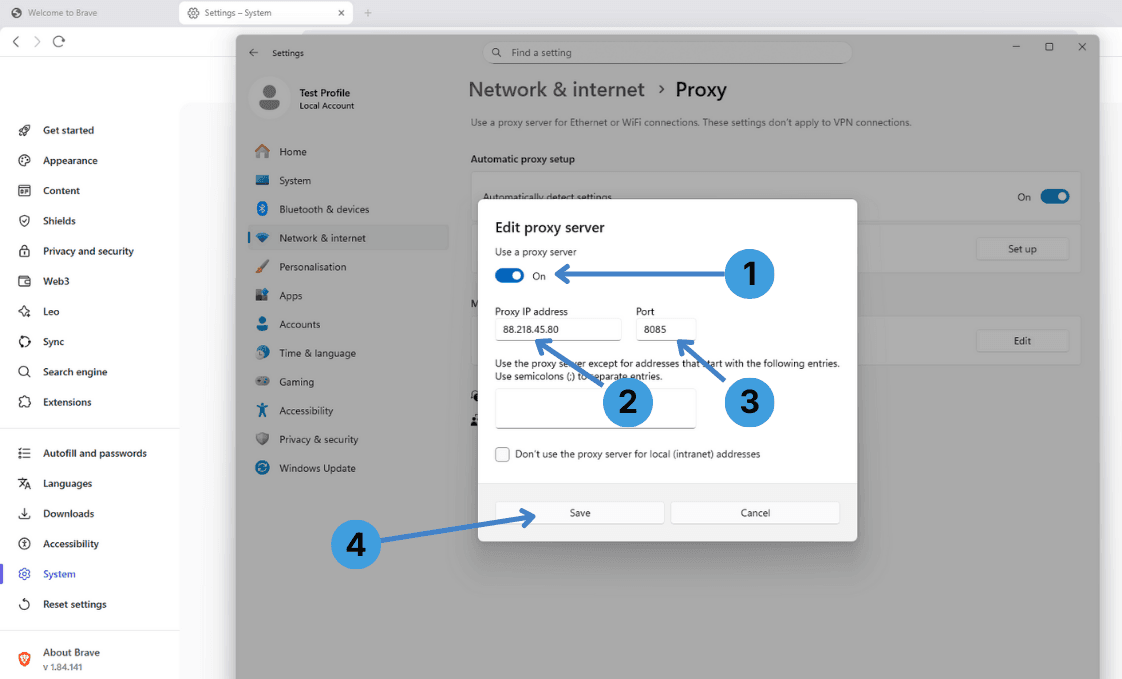
- In the Edit proxy server dialog, turn on the Use a proxy server switch (1).
- In Proxy IP address, enter the proxy server address (for example, 88.218.45.80) (2).
- In Port, type the port number used by the proxy, such as 8085 (3).
- The IP address (or hostname) and port are provided by the proxy service.
- If your proxy requires Username/Password authentication, Brave will prompt for these the first time you open a site through the proxy.
- Click Save to apply the settings (4). From now on, Brave traffic will go through this proxy while the system proxy is enabled.
Step 5. Turn the proxy off
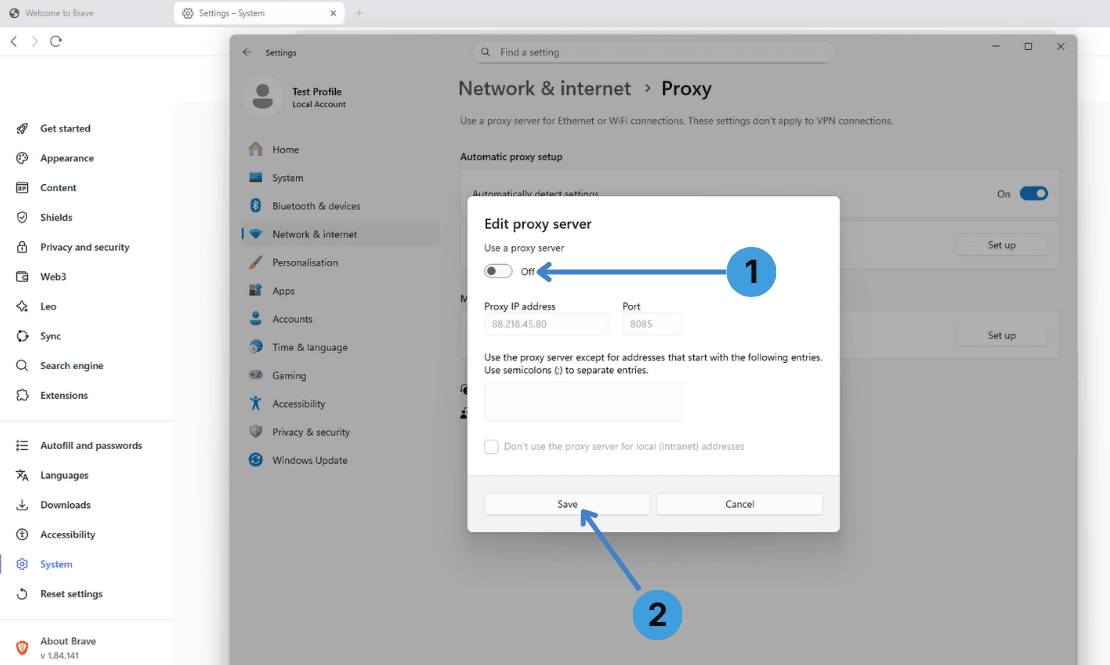
- To stop using the proxy, open the same Edit proxy server dialog again and switch Use a proxy server to Off (1).
- Press Save (2). The system goes back to a direct internet connection, and Brave will no longer use the proxy.
Alternative: Using proxy extensions in Brave
Another option for using a proxy with Brave is to install a proxy manager extension. Brave supports extensions from the Chrome Web Store, so tools like SwitchyOmega, FoxyProxy, Proxy Switcher, or Proxy Switcher and Manager can usually be added without issues. These extensions let you store multiple proxy profiles and quickly switch between them without changing the system proxy. For a broader overview of such tools, see the guide to proxy extensions.
Alternative: Using standalone proxy clients with Brave
If you want to control traffic for several apps at once or need rules per process, you can use a standalone proxy client on the computer. Programs such as Proxifier or ProxyCap can redirect connections from Brave (and other software) through a chosen proxy server, sometimes without changing any browser settings at all. This method is convenient when the browser has limited proxy options or when many apps should follow the same proxy rules. You can read more about this approach in the standalone proxy clients overview.
Conclusion
Brave Browser can work with proxies through the system proxy settings, through proxy extensions, or with the help of standalone proxy clients. Choose the method that matches how you work: system settings for a single proxy for all apps, extensions for quick profile switching inside the browser, or external tools for central control of multiple programs. Together with the related documentation on extensions and standalone clients, this gives enough options to connect Brave to almost any proxy setup.