
Tor Browser can use an upstream proxy before connecting to the Tor network. This guide explains how to turn that option on, enter your proxy details, and later switch it off again. It is part of a wider overview of privacy browsers in the main privacy browser proxy guide.
Tor Browser is based on Mozilla Firefox ESR and uses the Gecko engine. Unlike many regular browsers, it has its own connection screen and a dedicated Connection section in settings, so proxy control is handled inside Tor Browser rather than through system network options. External tools and extensions are possible but are usually secondary choices.
Step by step: proxy setup in Tor Browser
In Tor Browser the proxy is configured through the built in Connection settings dialog.
Step 1. Open the connection setup screen
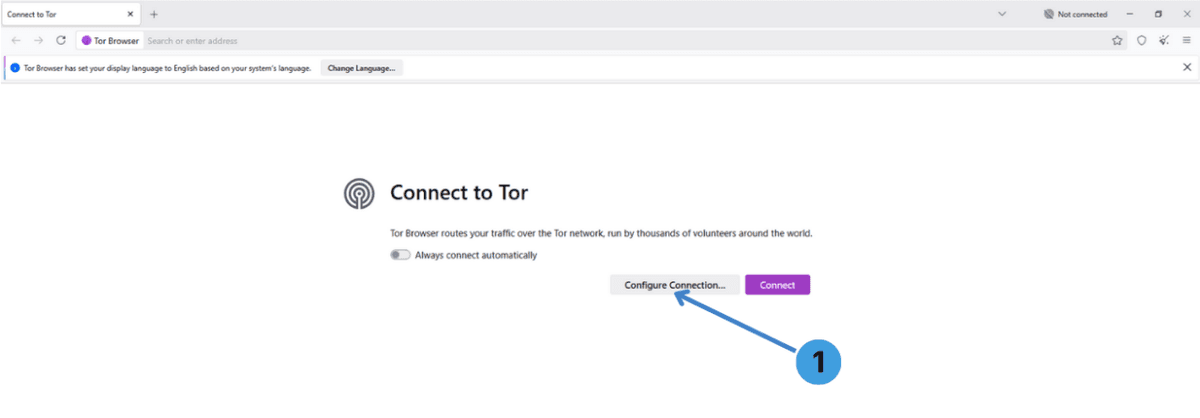
On the initial "Connect to Tor" page, click "Configure Connection..." marked as 1 on the first screenshot. This opens the Tor connection options instead of connecting immediately.
Step 2. Open advanced connection settings
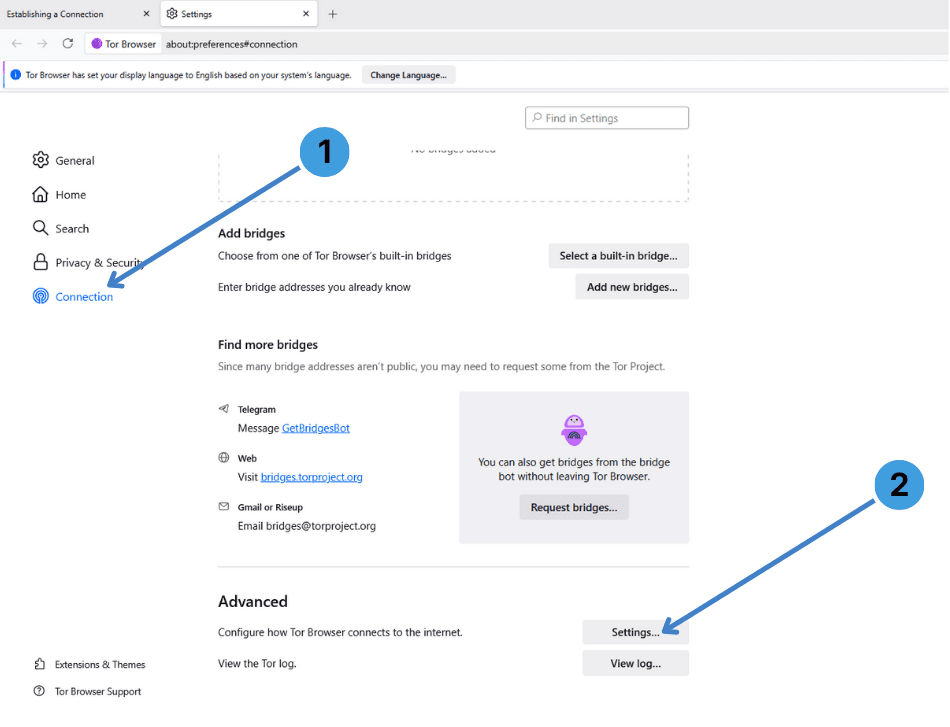
In the main settings tab, select "Connection" in the left sidebar, labeled 1 on the second screenshot. Scroll to the "Advanced" section and click the "Settings..." button marked as 2 to open the detailed connection dialog.
Step 3. Enable proxy mode and choose proxy type
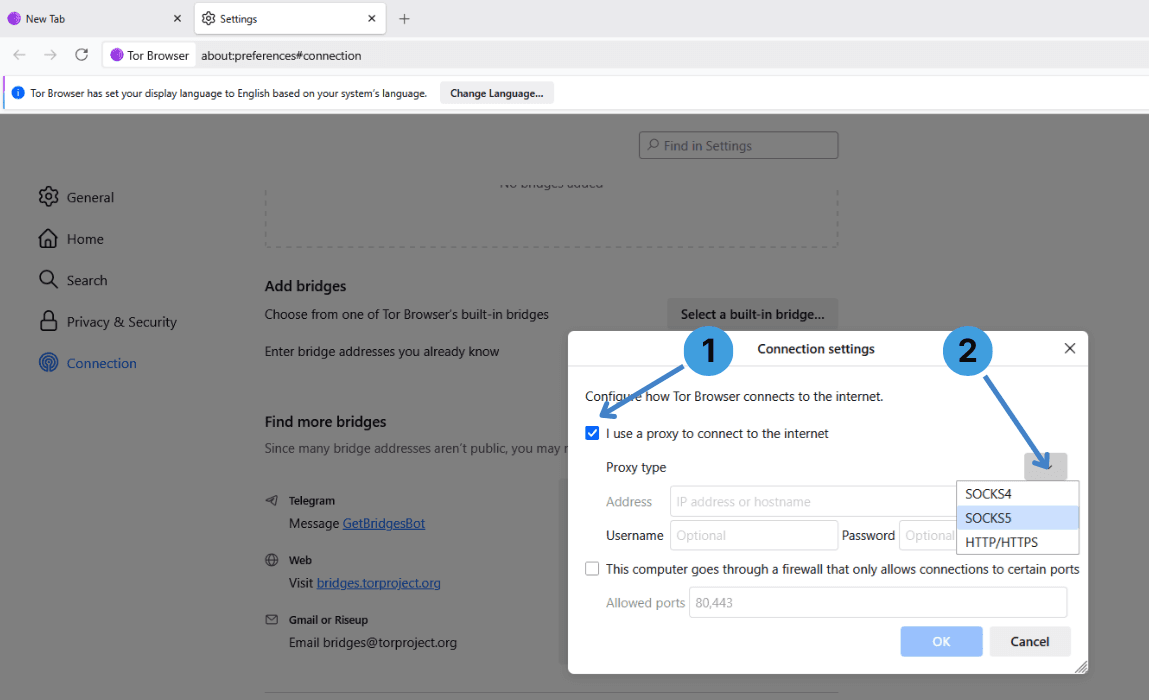
In the "Connection settings" window, tick "I use a proxy to connect to the internet" shown as 1 on the third screenshot.
Next, open the "Proxy type" dropdown indicated as 2 and pick the protocol your provider supports, for example SOCKS5, SOCKS4 or HTTP/HTTPS.
Step 4. Enter proxy address and authentication
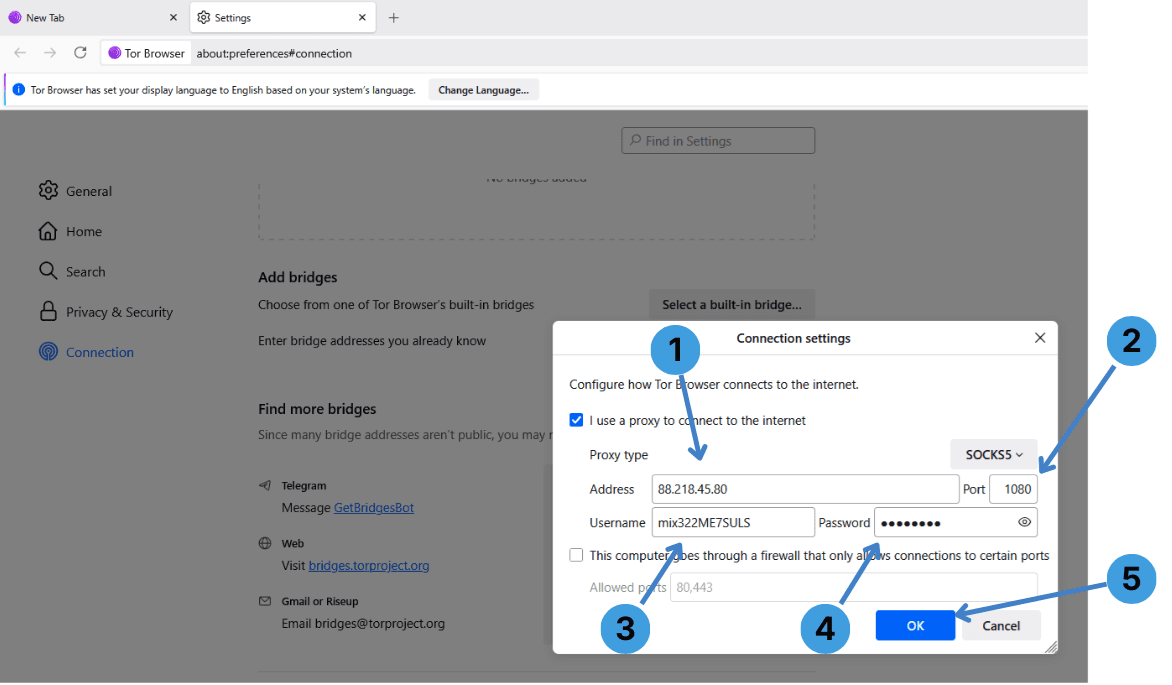
Still in the "Connection settings" window:
- In the "Address" field marked as 1, type the proxy IP address or hostname.
- In the "Port" box labeled 2, enter the port number given by your provider, such as 1080.
- If your proxy uses Username/Password authentication, enter your Username in the field marked as 3 and your password in the adjacent box.
- If your network only allows specific outbound ports, you can enable the firewall option and adjust the "Allowed ports" list shown as 5. Most users can leave this unchecked.
- When everything is filled in, click "OK" indicated as 4 to save the proxy configuration and return to the Connection page.
After this, Tor Browser will send its traffic through your configured proxy first, and only then into the Tor network.
Step 5. Disable the proxy again
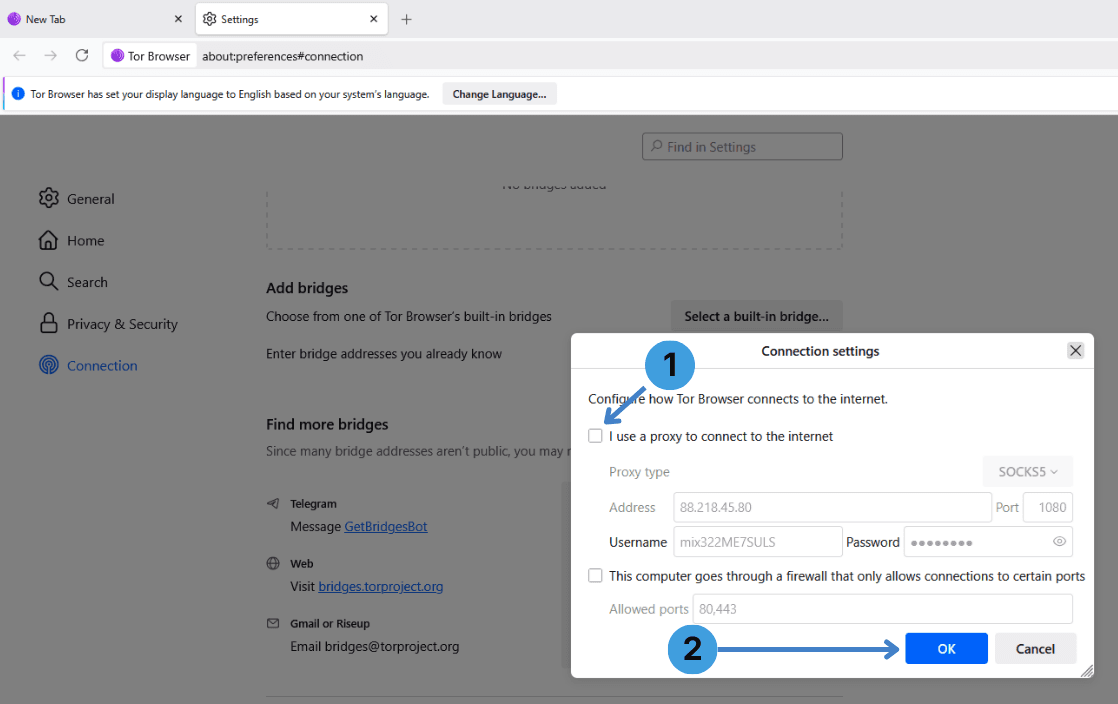
To stop using the upstream proxy, open "Settings" → "Connection" → "Settings..." again. In the "Connection settings" dialog, clear the checkbox "I use a proxy to connect to the internet" highlighted as 1 on the fifth screenshot, then click "OK" marked as 2. Tor Browser will go back to connecting directly to the Tor network.
Alternative: using proxy extensions with Tor Browser
Tor Browser is technically built on Firefox ESR, but the standard package is locked down and not designed for installing extra extensions like SwitchyOmega, FoxyProxy, Proxy Switcher or similar tools. While advanced users might force additional add ons, this is outside the normal usage pattern of Tor Browser and can change its behavior in ways that the Tor Project does not recommend. For browsers where extensions are fully supported, typical workflows are covered in this article about proxy extensions for web browsers.
Alternative: using standalone proxy clients with Tor Browser
Another option is to keep Tor Browser settings untouched and route its traffic through a desktop proxy client such as Proxifier or ProxyCap. These programs can redirect the connections of selected applications, including Tor Browser, through a configured proxy server or chain of proxies. This approach is described in more detail in this guide to standalone proxy clients.
Conclusion
Tor Browser lets you attach an upstream proxy directly in its Connection settings and turn it off just as easily when it is no longer required. Depending on your setup, you can either rely on this built in dialog or control the proxy at the system level with dedicated proxy clients. Choose the method that best fits how you already manage other tools and network software.