
Waterfox is a Firefox based browser that allows you to route traffic through different proxy servers. This article shows the main ways to add and disable a proxy in Waterfox, plus a few alternative tools that you can combine with the browser. For more background on privacy oriented browsers in general, see main guide to private browsers.
Waterfox and proxy support
Waterfox runs on the Gecko engine and keeps almost the same connection dialog as Firefox. You can configure a proxy directly in the browser via the connection settings window, or tell Waterfox to rely on system proxy rules. In addition, many Firefox style proxy extensions and standalone desktop proxy clients work fine with Waterfox.
How to set up proxy settings in Waterfox
This section uses Waterfox’s built in connection dialog where HTTP and SOCKS proxies are entered manually.
Step 1. Open the Waterfox menu and Settings
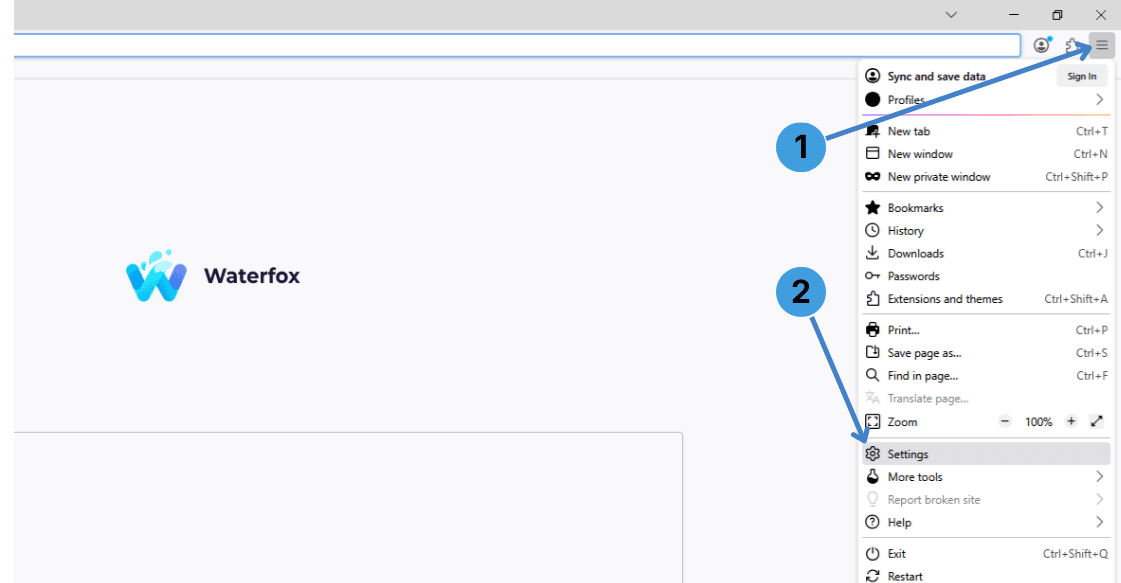
Click the three line menu button in the top right corner of the browser window.
In the menu that appears, choose Settings at the bottom.
Step 2. Go to Network Settings
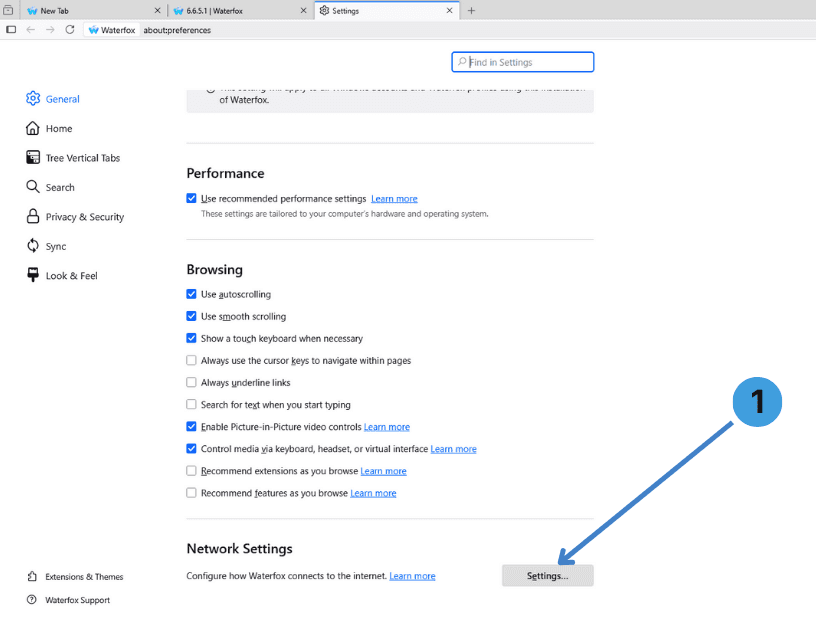
On the Settings page, scroll down until you see the Network Settings block.
Click the Settings… button there. This opens the Connection Settings window where all proxy options are located.
Step 3. Add HTTP and/or SOCKS proxy
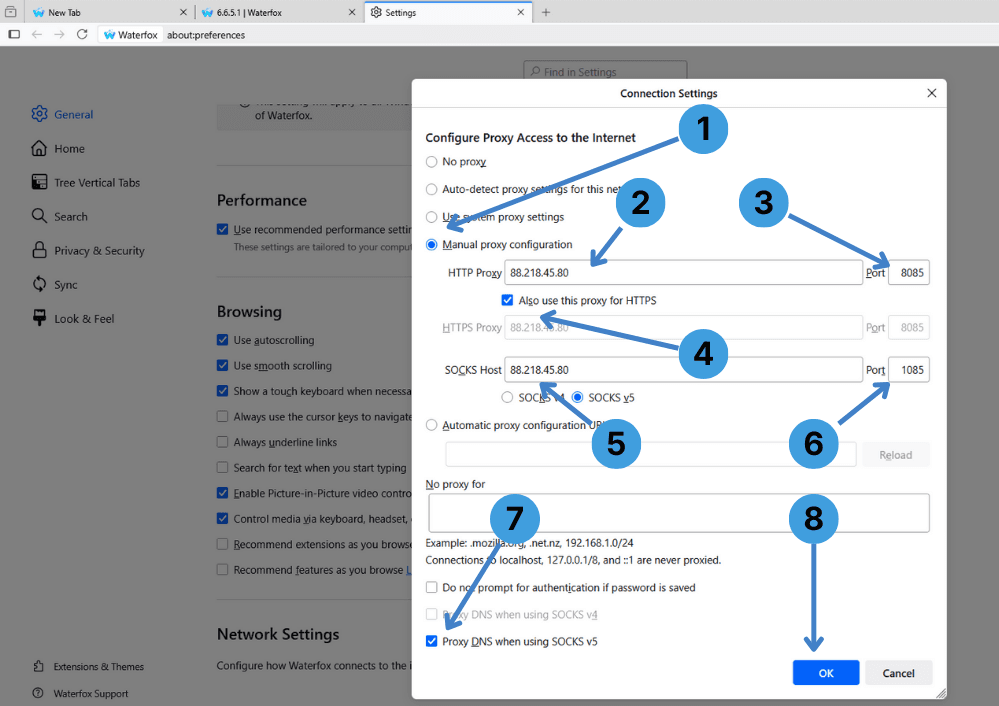
In the Connection Settings window you see several numbered elements:
- Select Manual proxy configuration so that Waterfox uses the proxy servers you define here.
- In HTTP Proxy, enter the proxy IP or hostname, and in the Port field beside it type the HTTP proxy port (for example, 8085).
- Tick Also use this proxy for HTTPS if the same server and port should handle secure HTTPS traffic. Leave it unchecked if HTTPS has different details.
- In SOCKS Host, type the SOCKS proxy address if you also use a SOCKS proxy, and
- choose SOCKS v5 if your provider gives SOCKS5 access.
- Enter the SOCKS port number in the Port box next to the SOCKS host (for example, 1085).
- Optionally fill the No proxy for field if there are domains or local addresses that must always bypass the proxy.
- When all fields are filled, click OK to apply the proxy settings. Waterfox will now send traffic through the proxy. If the server requires Username/Password, a prompt will appear when you first open a site.
Step 4. Turn the proxy off in Waterfox
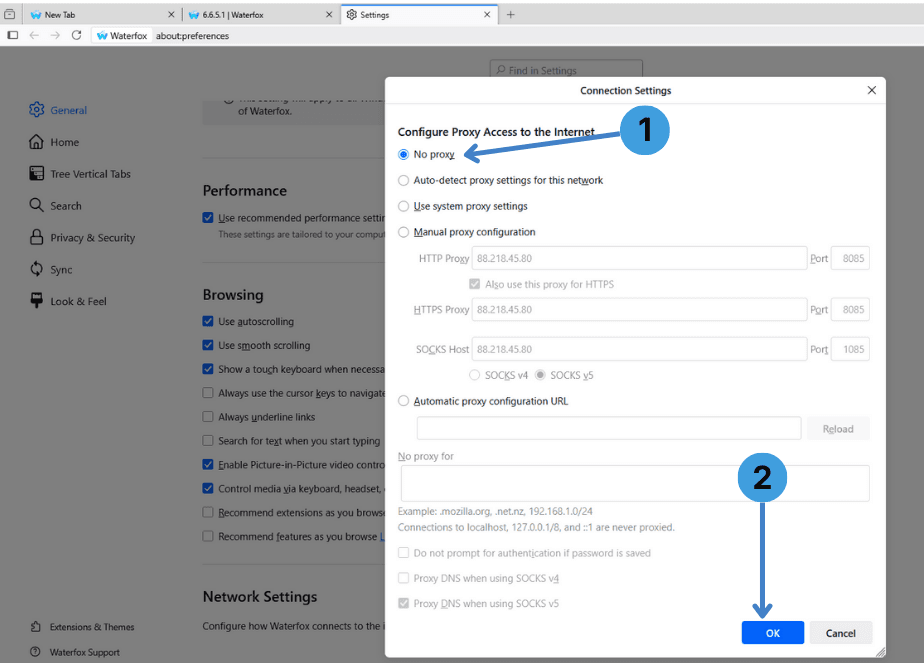
To disable the proxy and go back to a direct connection:
- Open Settings → Network Settings → Settings… again and, in the Connection Settings dialog, choose No proxy at the top.
- Click OK to confirm. Waterfox will stop using the proxy and use the regular network connection instead.
Alternative: using proxy extensions in Waterfox
Instead of changing the connection dialog every time, you can use proxy manager extensions. Waterfox supports many Firefox compatible add ons such as SwitchyOmega or ZeroOmega, FoxyProxy, Proxy Switcher, and Proxy Switcher and Manager. These tools let you store several proxy profiles, switch between them quickly, or define rules per website. A broader overview is given in this detailed explanation of proxy extensions.
Alternative: using standalone proxy clients with Waterfox
Standalone proxy clients work on the operating system level and can route traffic from Waterfox through a proxy without touching the browser settings. Programs like Proxifier or ProxyCap create rules that send connections from specific applications through HTTP, HTTPS, or SOCKS gateways, sometimes for the whole system. Typical use cases and general concepts are described in this reference on standalone proxy tools.
Conclusion
Waterfox provides flexible proxy control through its own connection settings, so HTTP and SOCKS servers can be added or disabled with just a few clicks. For users who regularly switch between multiple proxy profiles or want to manage connections for several apps together, extension based tools and standalone proxy clients give extra control. Choose the method that best matches how you work with Waterfox and your proxy service.