
Mullvad Browser allows traffic to go through a proxy server using its own network settings dialog. This article walks through enabling and disabling a proxy in the browser and mentions two alternative approaches with extensions and desktop proxy clients. For other privacy-focused browsers, see our central guide to privacy friendly browsers.
Mullvad Browser and proxy support
Mullvad Browser is based on Firefox ESR and uses the Gecko engine. Proxy support is handled inside the browser through the Connection Settings window, where you can choose no proxy, system proxy, or manual configuration. On desktop platforms it also accepts Firefox-compatible proxy extensions, and you can route its traffic through external tools that work at the application or system level.
Step by step: configuring proxy settings in Mullvad Browser
Mullvad Browser uses its built-in connection settings, not the operating system proxy panel.
Step 1. Open Mullvad Browser settings
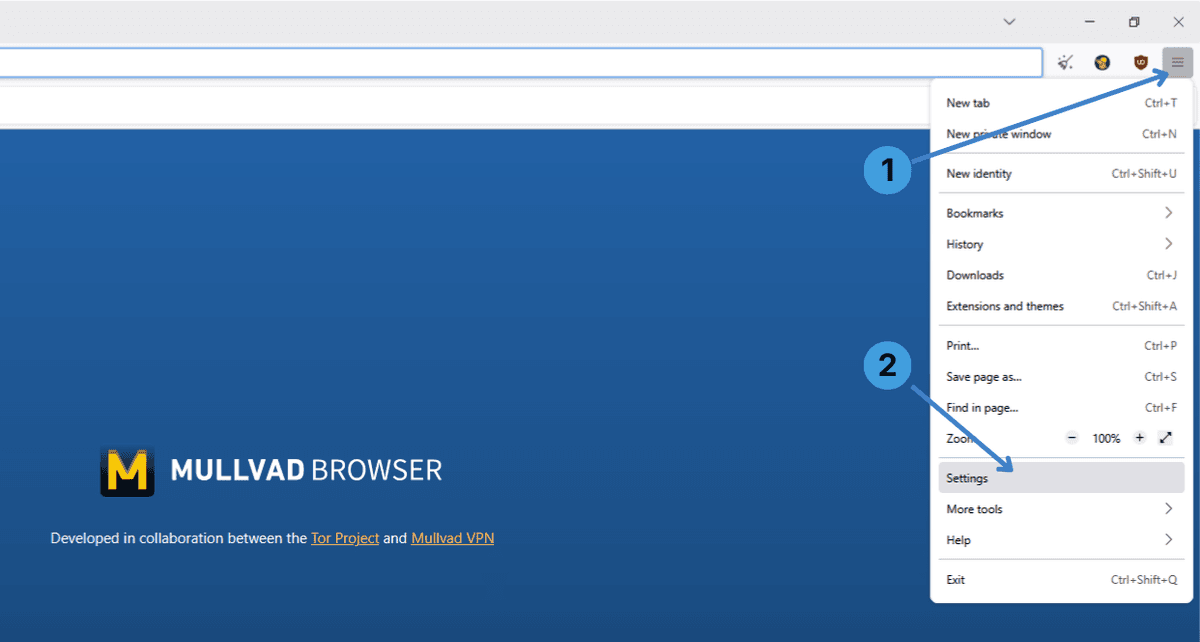
Use the controls shown on the first screenshot.
- Step 1: Click the menu button with three horizontal lines in the top-right corner.
- Step 2: In the drop-down menu, select Settings.
Step 2. Open Network Settings
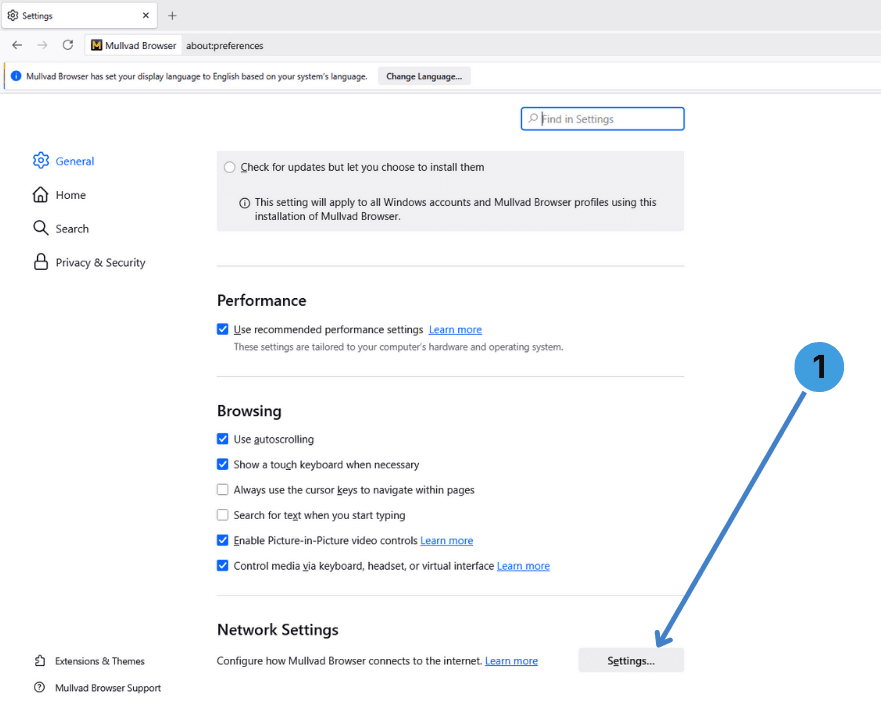
- Step 1: In the Settings tab, scroll to the Network Settings section and press the Settings… button. This opens the Connection Settings dialog.
Step 3. Add and configure a proxy
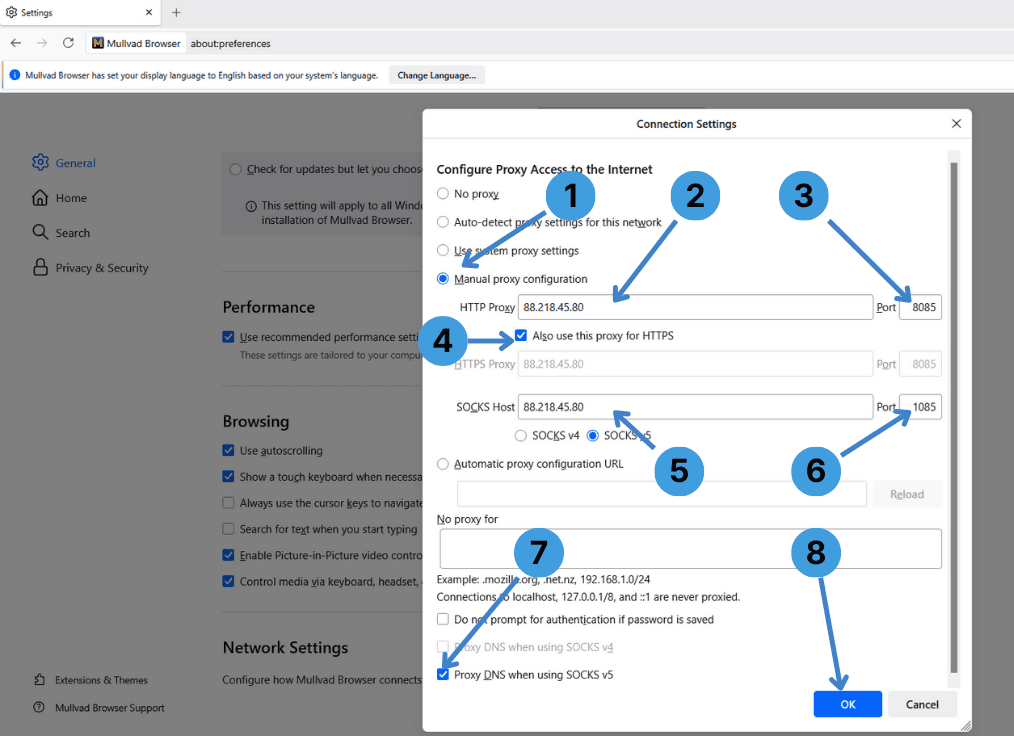
In the Connection Settings window you can specify the proxy server details. Match the labels with the numbers on the third screenshot.
- Step 1: Select Manual proxy configuration. This activates the proxy input fields.
- Step 2: In the HTTP Proxy field, type the proxy server IP address or hostname, for example 88.218.45.80.
- Step 3: In the Port field next to HTTP Proxy, enter the HTTP or HTTPS port used by your proxy, such as 8085.
- Step 4: Enable Also use this proxy for HTTPS if the same server and port should handle HTTPS connections.
- Step 5: In SOCKS Host, enter the SOCKS proxy IP or hostname, again 88.218.45.80 in the example.
- Step 6: In the Port field next to SOCKS Host, type the SOCKS port, such as 1085.
- Step 7: In the No proxy for box you can list addresses that should bypass the proxy, for example local networks or specific domains.
- Step 8: When all values are correct, click OK to save changes and start using the proxy.
If your proxy requires Username/Password authentication, Mullvad Browser will prompt for credentials on first connection and can remember them for later sessions.
Step 4. Disable the proxy in Mullvad Browser
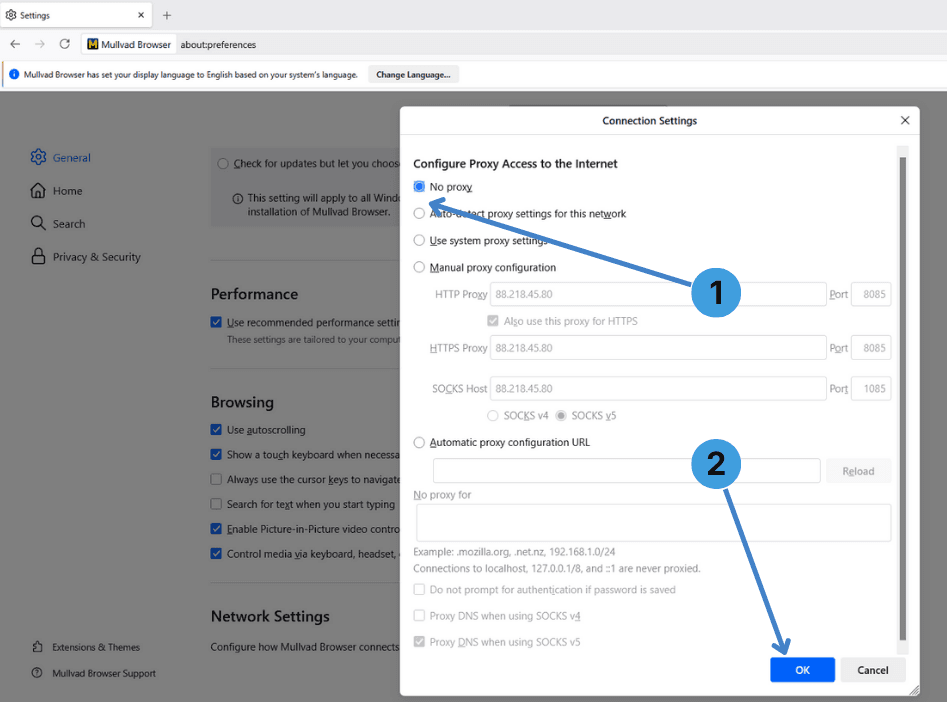
To stop using a proxy, reopen the Connection Settings dialog as in Steps 1 and 2 and follow the actions marked on the last screenshot.
- Step 1: Choose No proxy at the top of the dialog.
- Step 2: Click OK to confirm. All connections will now go directly without a proxy.
Alternative: proxy extensions in Mullvad Browser
Mullvad Browser supports Firefox-style add-ons, so another option is to manage proxies through extensions such as SwitchyOmega, ZeroOmega, or FoxyProxy. These tools let you store several profiles, switch between them quickly, and define per-site rules inside the browser. A general overview of such tools is available in our reference on proxy extensions for browsers. Exact installation steps may vary depending on where you obtain the extension and the current Mullvad Browser policies.
Alternative: using standalone proxy clients with Mullvad Browser
You can also keep Mullvad Browser itself unchanged and route its traffic through a separate proxy client. Programs like Proxifier or ProxyCap run on the system and redirect selected applications through a proxy server. This is useful if you want to control several programs at once or if browser settings are locked. For more background on these utilities, see our summary of desktop proxy client tools.
Conclusion
Mullvad Browser can work with proxies through its own manual connection settings, through dedicated proxy extensions, or by relying on external proxy clients. Choose the method that best matches how you manage other applications and how often you need to switch between different proxy servers.