
FreeNet Browser is usually accessed through a regular web browser window, so proxy configuration depends on that browser and the system it runs on.
This article shows how to connect FreeNet Browser through a proxy and is part of a broader guide to privacy-focused browsers: overview of privacy-oriented browsers.
FreeNet Browser and proxy support
FreeNet Browser works inside a standard browser (in this example, Google Chrome), which means it does not offer its own proxy dialog. Instead, the browser opens the operating system’s proxy panel, where a manual HTTP proxy can be set for all apps that follow system settings. In addition, Chromium based browsers allow proxy extensions, and traffic can also be redirected by external proxy clients.
Step by step: configuring a proxy in FreeNet Browser
In this setup, FreeNet Browser uses the system proxy settings opened from the Chrome menu.
Step 1 – Open browser settings
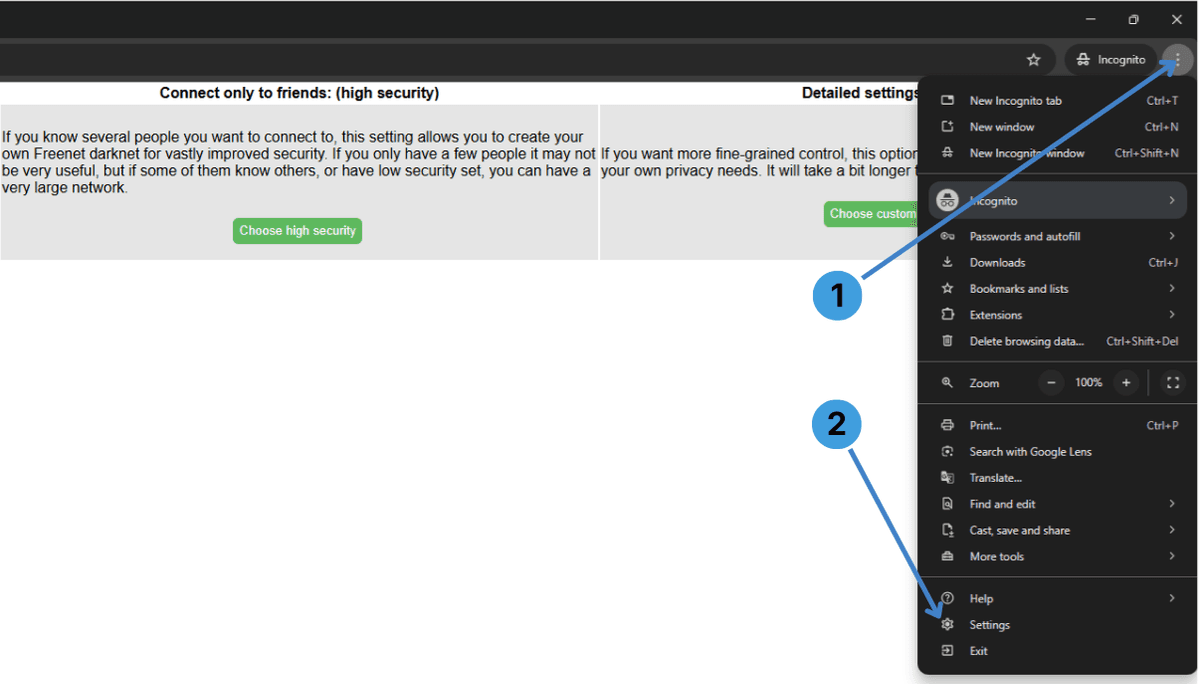
On the FreeNet Browser window:
- Click the menu button with three dots in the top right corner (marker 1 on the screenshot).
- In the menu that appears, choose Settings (marker 2).
Step 2 – Go to the System section
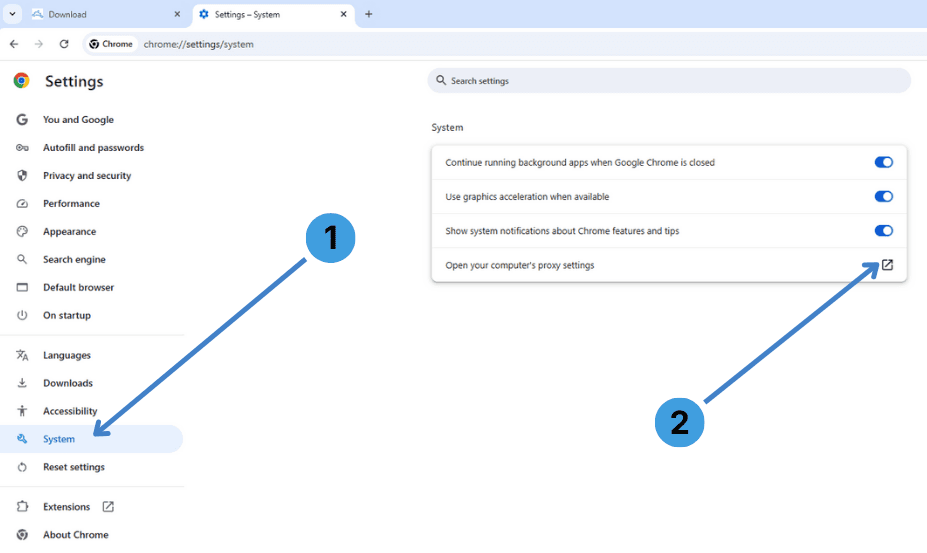
In the Chrome settings tab:
- In the left sidebar, click System (marker 1).
- On the right side, select Open your computer’s proxy settings (marker 2).
This opens the system “Proxy” configuration window.
Step 3 – Open manual proxy setup
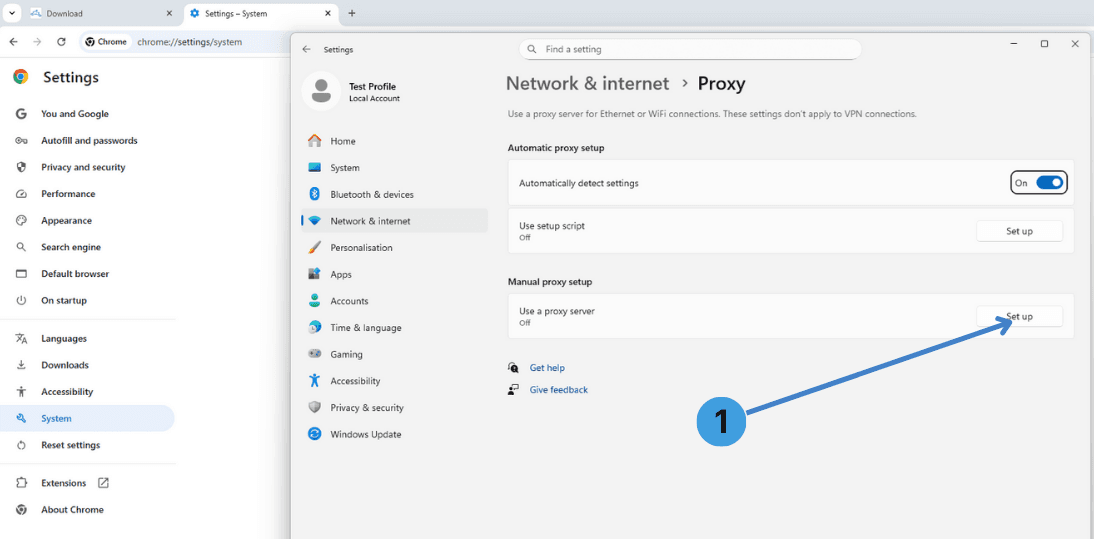
In the system “Proxy” window:
- In the Manual proxy setup block, click Set up next to Use a proxy server (marker 1).
The Edit proxy server dialog will appear.
Step 4 – Add proxy details
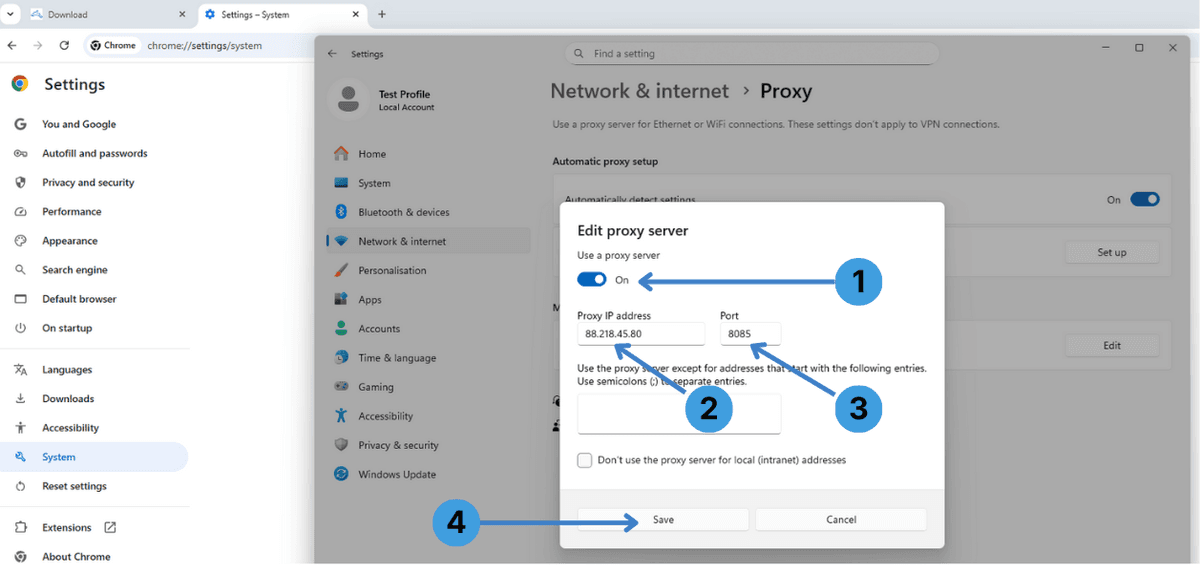
In the Edit proxy server dialog:
- Turn Use a proxy server to On using the switch (marker 1).
- In Proxy IP address (marker 2), type the proxy server host or IP address given by your provider, for example 88.218.45.80.
- In Port (marker 3), enter the port number from your provider, such as 8085.
These two fields together point the system to your proxy endpoint. - Click Save (marker 4) to apply the settings.
From now on, FreeNet Browser (and other apps that rely on system proxy settings) will send traffic through this proxy.
Step 5 – Turn the proxy off
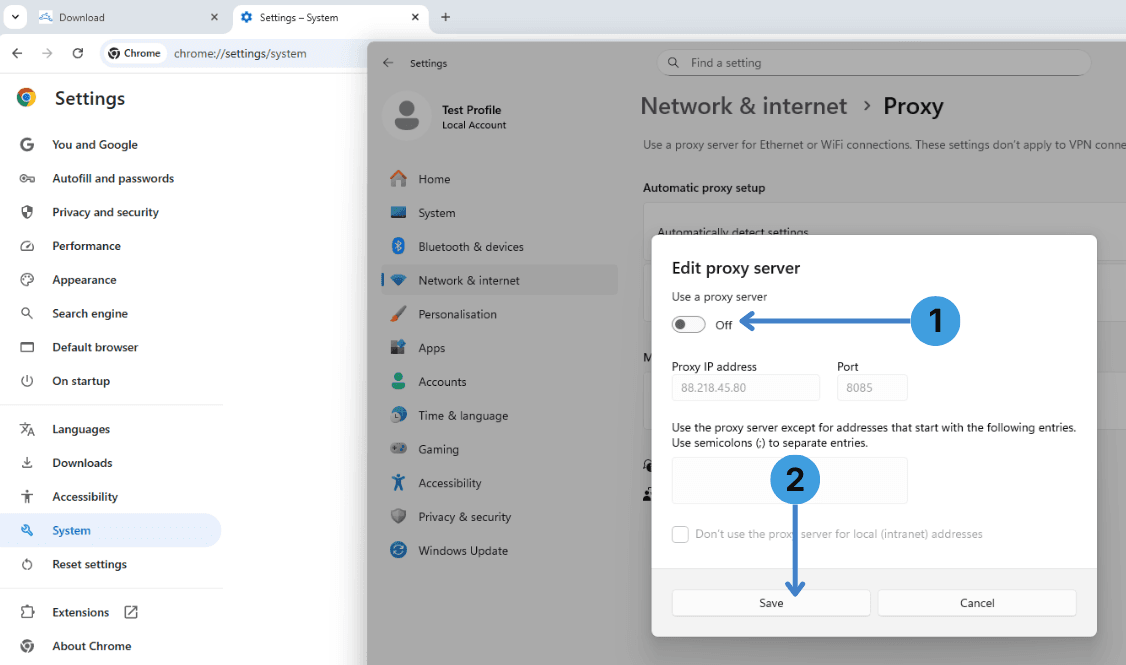
To stop using the proxy:
- Open the same Edit proxy server window again and switch Use a proxy server to Off (marker 1).
- Click Save (marker 2) to return to a direct connection.
Alternative: using proxy extensions in FreeNet Browser
If you access FreeNet through a Chromium based browser that supports extensions, another option is a proxy manager extension. Tools such as SwitchyOmega, FoxyProxy or Proxy Switcher can keep several proxy profiles, assign them to different tabs, and avoid changing system wide settings every time.
For more background on this method, see the article proxy management browser extensions.
Alternative: using standalone proxy clients with FreeNet Browser
Standalone proxy clients sit between applications and the network stack and can route traffic from selected programs or the whole device through a proxy. This can be useful if the browser has limited proxy controls or if multiple browsers and apps should share one central proxy configuration. Popular examples are Proxifier and ProxyCap. You can read more about this approach in the guide standalone proxy client software.
Conclusion
FreeNet Browser can work through a proxy by using the system proxy panel opened from the Chrome settings menu. Users who need per-tab or per-site control can instead rely on proxy extensions or external proxy clients. Choose the option that best matches how you prefer to organize and switch your proxy profiles.