
This article explains the main ways to use a proxy server in Epic Privacy Browser. It covers system level settings, extension based control, and external proxy clients. The tutorial is part of a wider guide to privacy browsers and proxy options.
Epic Privacy Browser and proxy support
Epic Privacy Browser is built on the Chromium engine, similar to Google Chrome, so the interface and settings pages look familiar to most Chromium users. Epic offers its own encrypted proxy feature and can also work with many Chrome Web Store extensions, although the project keeps extension use relatively limited for privacy reasons. For external HTTP or SOCKS servers, the simplest option is to point Epic to the operating system’s proxy settings, which is what the steps below use.
Step by step: configuring a proxy in Epic Privacy Browser
Epic does not have a separate proxy form for external servers; instead it opens the system proxy panel and uses whatever is configured there. Any change here will affect Epic and other applications that rely on these system settings.
Step 1 – Open Epic settings
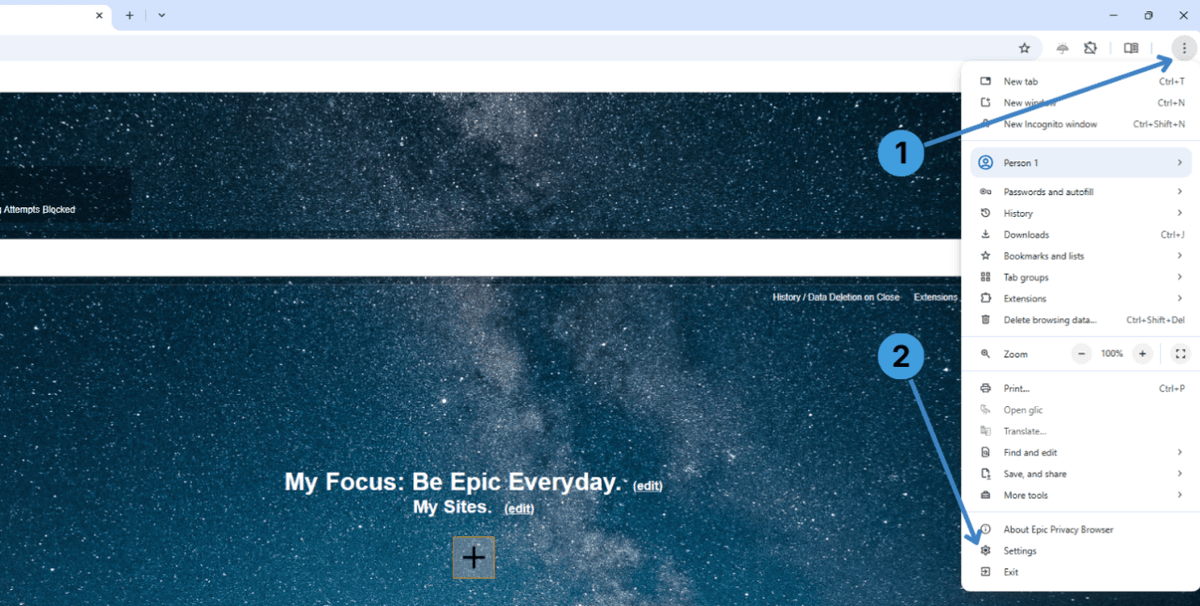
- Click the three dots menu in the top right corner of Epic (marker 1 on the first screenshot).
- In the menu that opens, select Settings at the bottom (marker 2).
This opens the main settings page in a new tab.
Step 2 – Go to the System section and open proxy settings
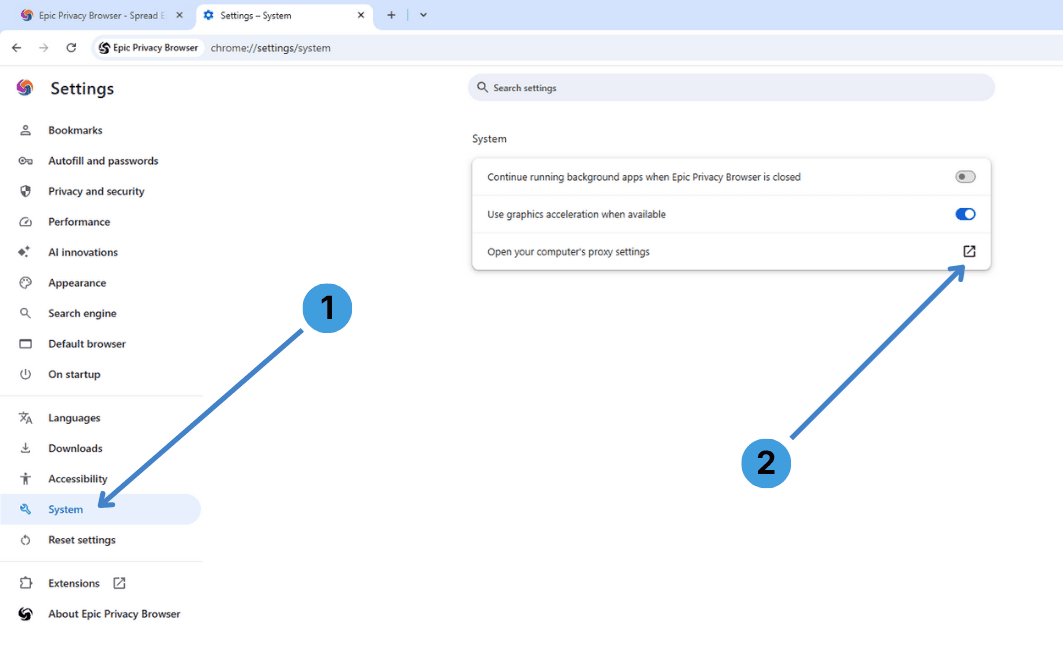
- In the left sidebar of the settings tab, choose System (marker 1 on the second screenshot).
- On the right, click Open your computer’s proxy settings (marker 2).
A separate system settings window with network and proxy options appears.
Step 3 – Start configuring the manual proxy
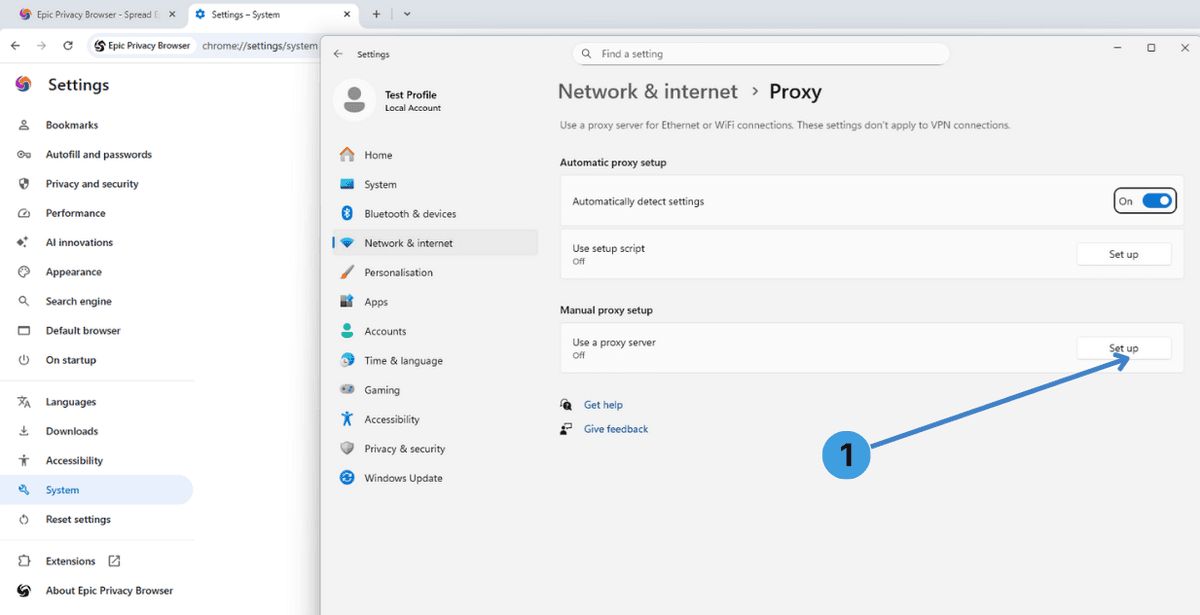
- In the system Proxy page, find the Manual proxy setup section and click Set up next to Use a proxy server (marker 1 on the third screenshot).
An Edit proxy server dialog opens.
Step 4 – Enter proxy IP and port
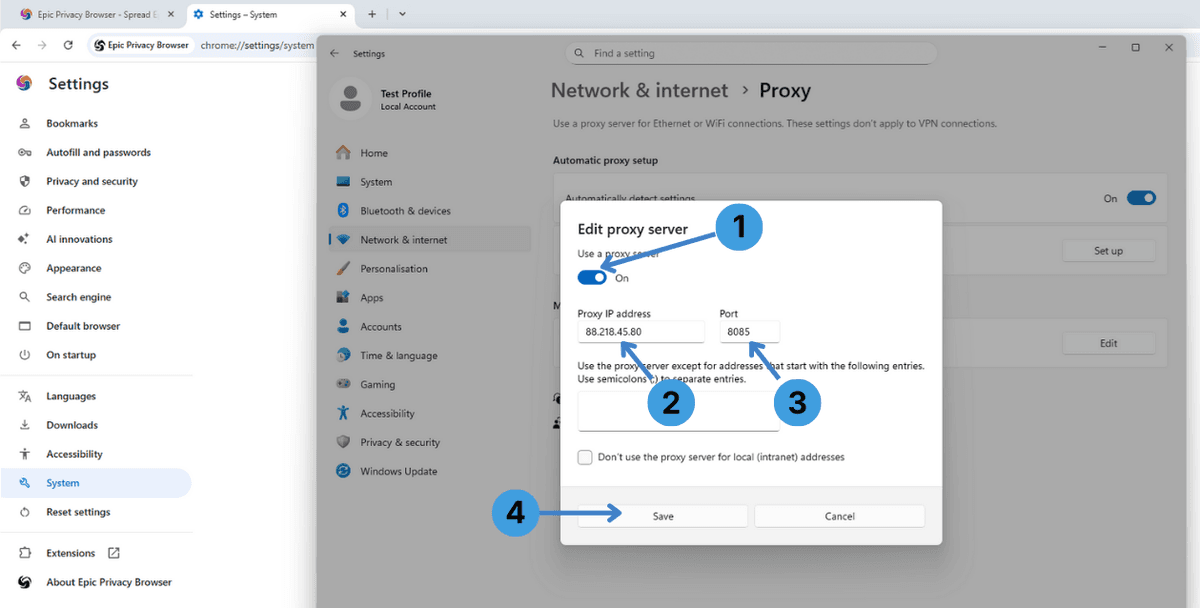
- Turn on Use a proxy server with the switch at the top of the dialog (marker 1 on the fourth screenshot).
- In Proxy IP address, enter the hostname or IP of your proxy server (marker 2).
- In Port, enter the port number given by your proxy provider (marker 3).
- Optionally, in the large text field below, you can list addresses that should bypass the proxy, separated by semicolons.
- Click Save to apply the settings (marker 4).
From now on, Epic will send web traffic through this proxy server, together with other programs that use the same system proxy configuration. If the proxy requires Username/Password authentication, the system or browser usually shows a login prompt when you first open a website through it.
Step 5 – Turn the proxy off again
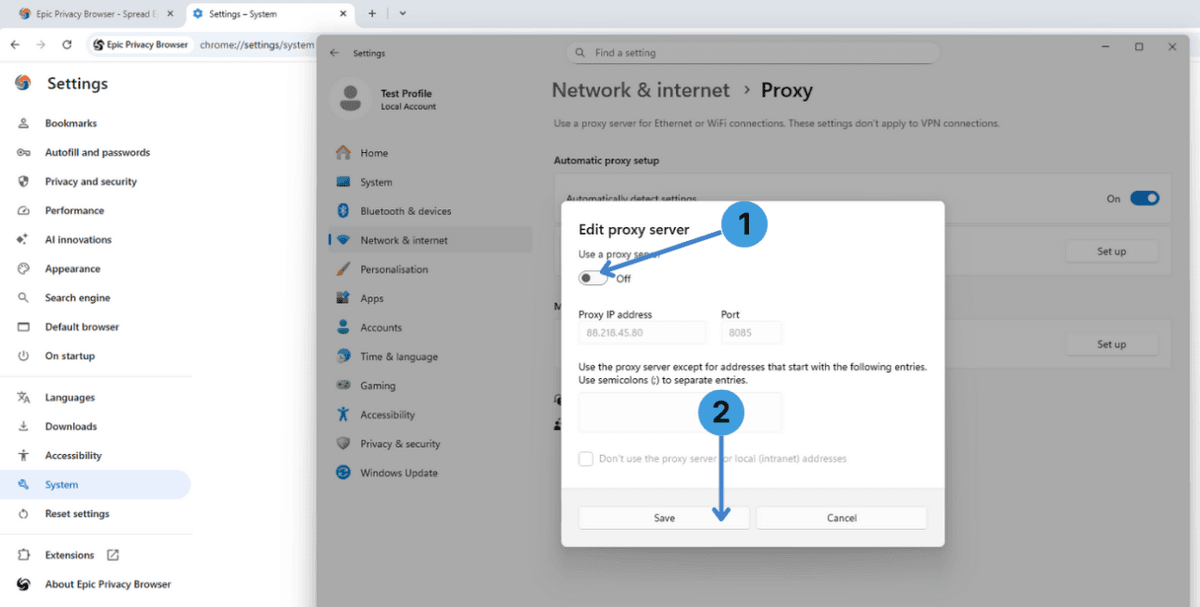
- When you want to go back to a direct connection, open the same Edit proxy server dialog, then switch Use a proxy server to Off (marker 1 on the fifth screenshot).
- Leave the address fields as they are (they stay stored for later use) and press Save (marker 2).
Epic will now work without the manual proxy while keeping your previous proxy details ready for the next session.
Alternative: using proxy extensions in Epic Privacy Browser
Another option is to control proxies through browser extensions. Epic is Chromium based and can usually run many Chrome Web Store add ons, although the project warns that some extensions can weaken privacy and therefore keeps support more restricted than Chrome itself.
Popular proxy managers that often work in Chromium browsers include:
- SwitchyOmega / ZeroOmega
- FoxyProxy
- Proxy Switcher
- Proxy Switcher and Manager
These tools let users define multiple proxy profiles, switch between them per tab or per site, and store different credentials. A general overview of such extensions is available in this explanation of proxy browser extensions.
Alternative: routing Epic through standalone proxy clients
If you prefer not to touch system proxy settings or rely on extensions, standalone proxy clients are another route. Tools such as Proxifier or ProxyCap run on the desktop and redirect traffic from selected applications (including Epic Privacy Browser) through one or more proxy servers. This can be useful when the browser’s own settings are limited or when several programs must follow the same proxy rules. A short description of these tools can be found in this article about standalone proxy clients.
Conclusion
Epic Privacy Browser can work with external proxies either by using the operating system’s proxy settings, by adding proxy extensions, or by passing its traffic through separate proxy clients. Each method fits a different workflow, so it is worth choosing the one that matches how you use Epic day to day. For more context, the related documentation on extensions and standalone clients helps compare these options across different browsers and tools.