
Ungoogled Chromium can work through HTTP or SOCKS proxies, which is useful for traffic routing and account work.
This article explains several practical ways to connect Ungoogled Chromium through a proxy server. It is part of a larger guide; more context on privacy-focused browsers is available in the overview of privacy oriented browsers.
Ungoogled Chromium and proxy support
Ungoogled Chromium is a privacy-focused browser based on the Chromium engine. Like Chrome, it does not have its own full proxy dialog and instead relies on the operating system’s proxy settings, opened via a link in the browser settings. On top of that, it can use Chrome-compatible extensions for per-profile proxy control, and it also works with external desktop proxy clients that route application traffic.
Step by step: configuring a proxy in Ungoogled Chromium
Ungoogled Chromium uses the system proxy configuration. The browser simply opens the system proxy panel, and all connections from Ungoogled Chromium follow those settings.
Follow the steps in the same order as on the screenshots.
Step 1. Open Ungoogled Chromium settings
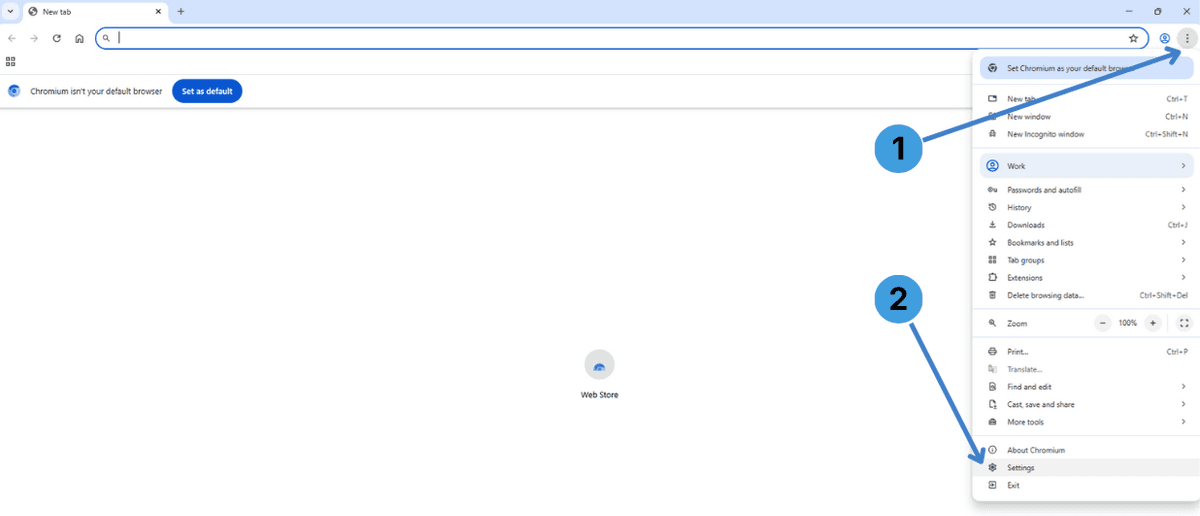
- Click the three-dot menu button in the top-right corner of the browser window (marker 1 on the first screenshot).
- In the drop-down menu, click Settings at the bottom (marker 2).
Step 2. Go to the system proxy section
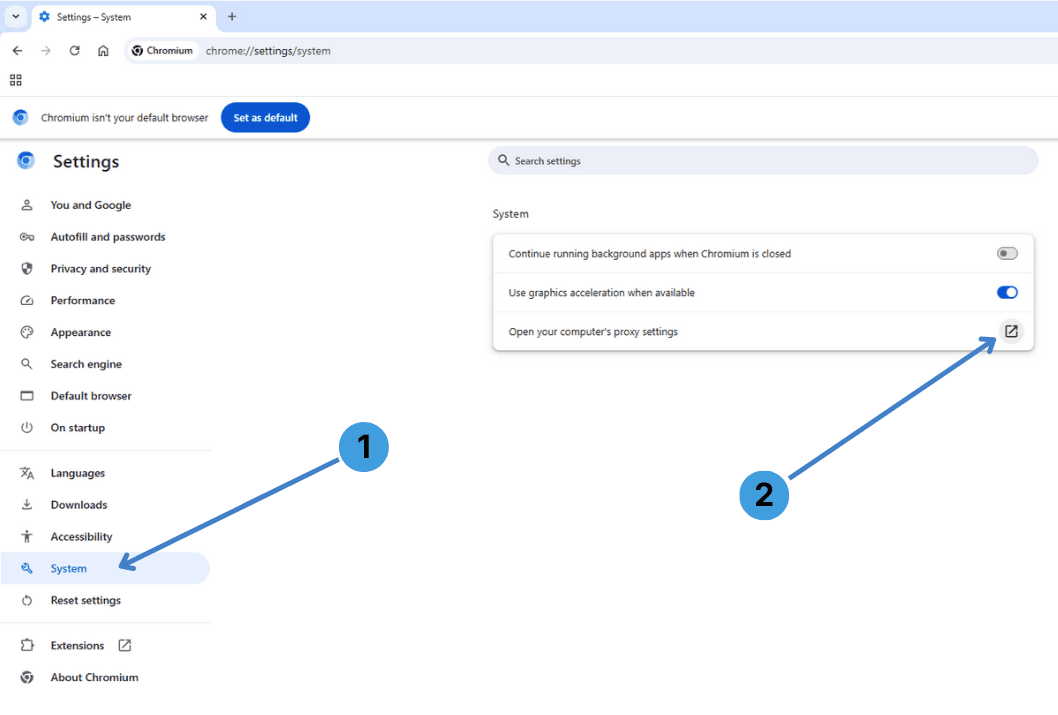
- In the Settings tab, choose System in the left sidebar (marker 1 on the second screenshot).
- On the right side, click Open your computer’s proxy settings (marker 2). The operating system proxy window will appear.
Step 3. Open manual proxy setup
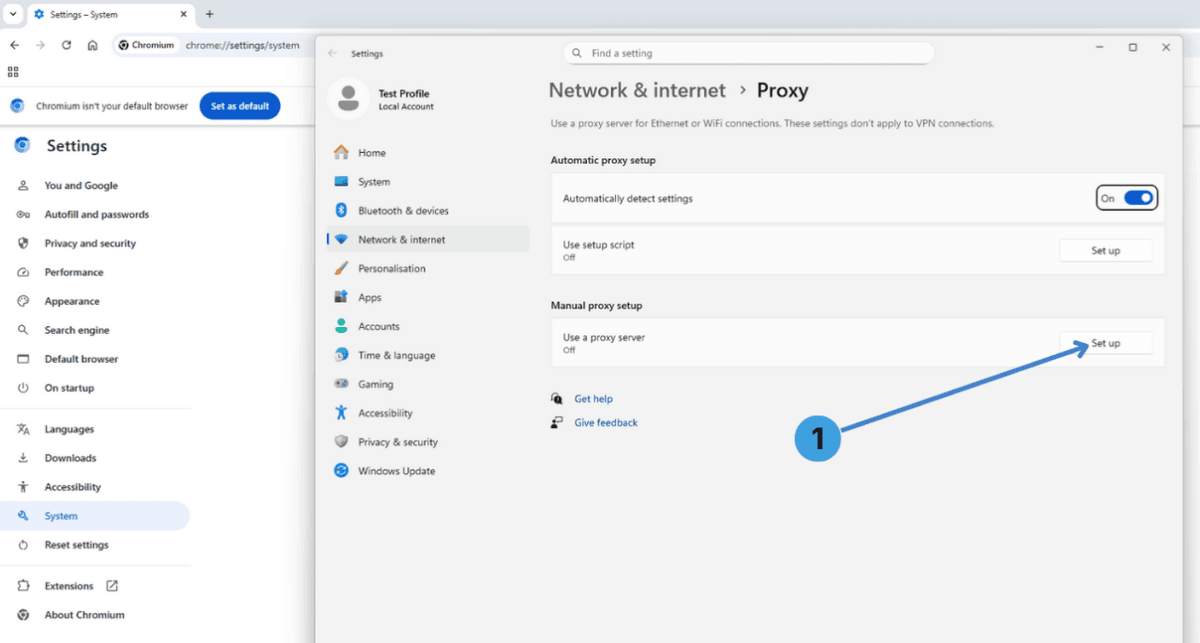
- In the system Proxy window, find the Manual proxy setup section and click Set up next to Use a proxy server (marker 1 on the third screenshot).
Step 4. Enter proxy address and port
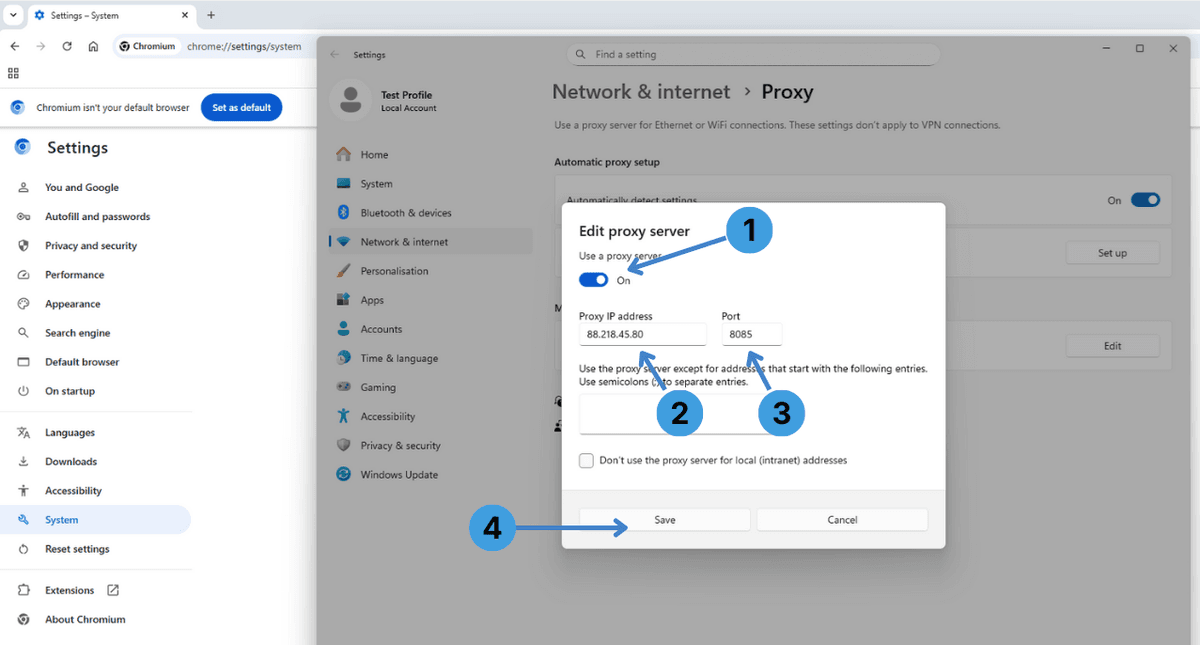
- In the Edit proxy server dialog:
- Turn Use a proxy server to On (marker 1 on the fourth screenshot).
- In Proxy IP address (marker 2), enter the server address provided by your proxy service (for example
88.218.45.80). - In Port (marker 3), type the port number from your provider (for example
8085). - Click Save (marker 4) to apply the proxy.
If the proxy requires Username/Password authentication, the browser will later prompt for these credentials when you open a website.
Step 5. Turn the proxy off again
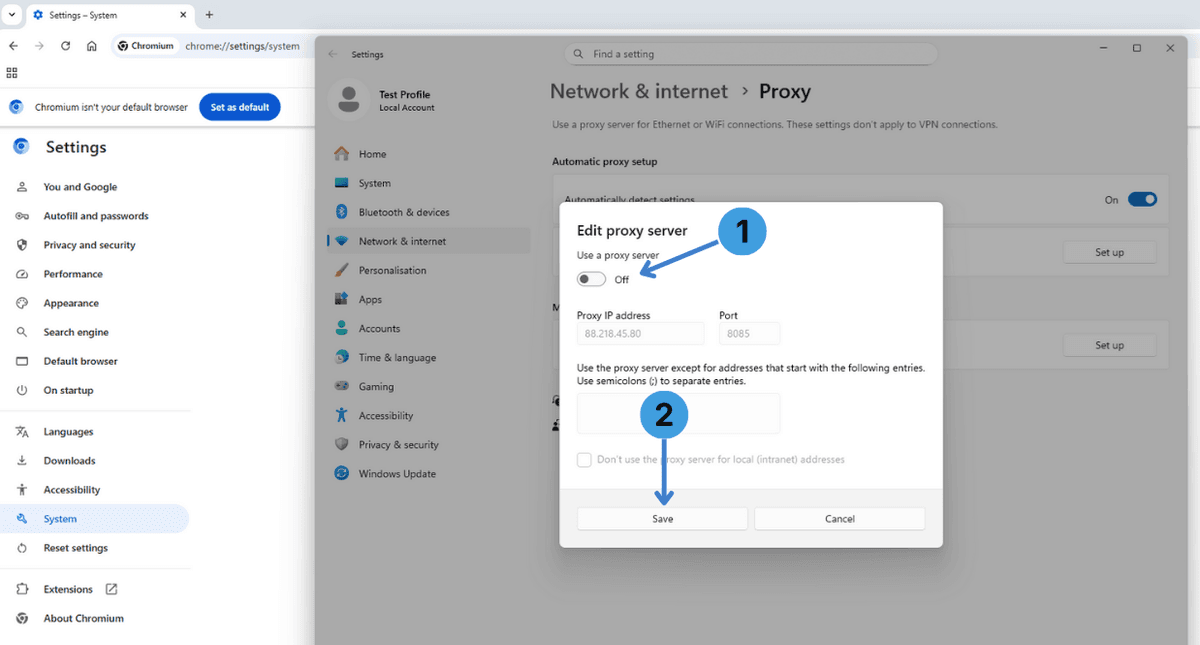
- To stop using the proxy, reopen the same Edit proxy server dialog:
- Set Use a proxy server to Off (marker 1 on the fifth screenshot).
- Confirm by clicking Save (marker 2).
Ungoogled Chromium will then connect without using the proxy server.
Alternative: using proxy extensions in Ungoogled Chromium
Another way to control proxies is through browser extensions. Since Ungoogled Chromium is Chromium-based, it can work with many proxy managers designed for Chrome, such as SwitchyOmega, FoxyProxy, Proxy Switcher, or Proxy Switcher and Manager. These add-ons let you switch between multiple HTTP(S) or SOCKS proxies, set rules per site, and quickly toggle profiles without changing system-wide settings.
For a general overview of this method and popular add-ons, see the guide to proxy browser extensions.
Alternative: using standalone proxy clients with Ungoogled Chromium
Standalone proxy clients sit between applications and the network stack and can route traffic from the whole system or selected programs through one or several proxies. Tools such as Proxifier or ProxyCap can be configured to apply a given proxy only to Ungoogled Chromium, while keeping other programs on a direct connection or on different proxies.
A broader explanation of this approach and typical tools is available in the reference on standalone proxy clients.
Conclusion
Ungoogled Chromium can work with proxies by using the system proxy settings, by installing proxy extensions, or by running through an external proxy client. Choose the method that best matches how many profiles you manage and whether you need browser-only or system-wide proxy control. For more advanced setups, you can combine the browser guide here with the documentation on extensions and standalone proxy software.