
QQ Browser does not have a full proxy dialog of its own and instead uses the proxy configuration from Windows.
This article shows how to point QQ Browser traffic through a proxy and how to disable it again. It is part of a broader overview of proxy configuration in standard browsers that can be found in our guide to regular web browsers.
QQ Browser and proxy support
QQ Browser for Windows is built on a Chromium engine. On desktop it relies on the Windows system proxy settings that apply to all browsers and apps using the standard network stack. There is only a shortcut inside QQ Browser that opens the Windows "Proxy" panel. In addition, QQ Browser supports browser extensions, so proxy add-ons are another option if you prefer per tab or per site control.
Step by step: proxy setup in QQ Browser
QQ Browser on Windows uses the system proxy configuration. The five screenshots below show the full path to enable and disable a manual proxy.
1 – Start page and main menu
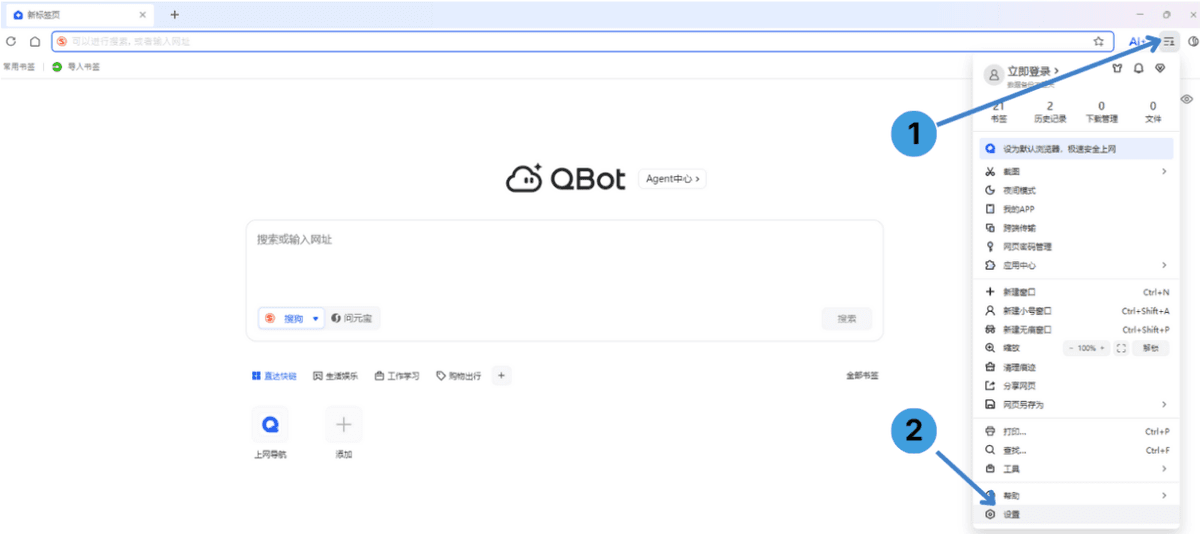
- Click the main menu button in the top right corner of QQ Browser.
- In the drop down menu choose Settings at the bottom.
2 – Network preferences and system proxy
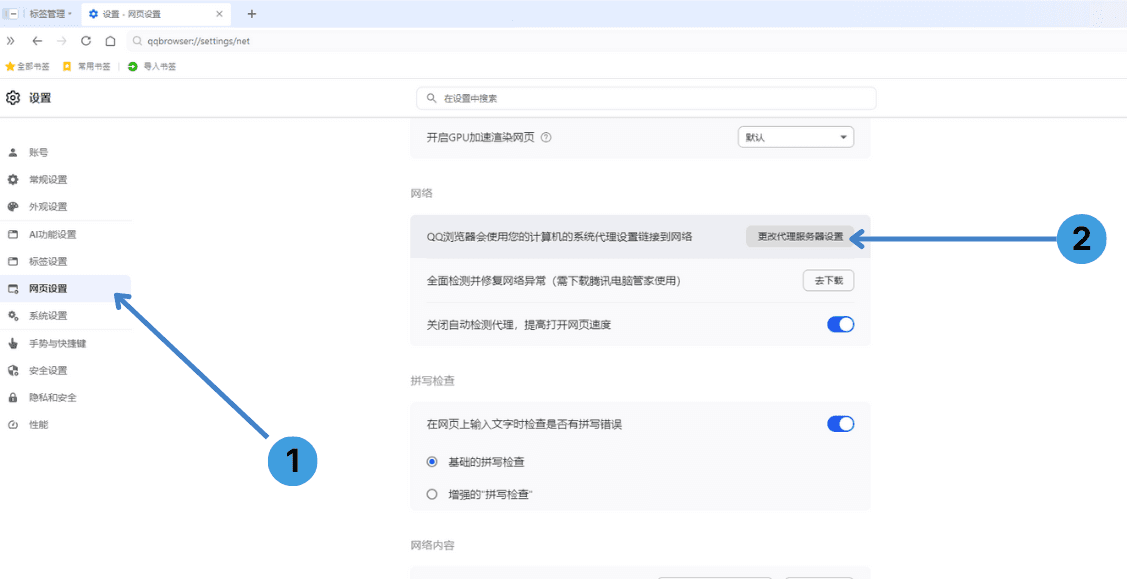
- In the left sidebar of the Settings page select Network settings.
- On the right side click Change proxy server settings to open the Windows proxy panel.
3 – Windows proxy configuration panel
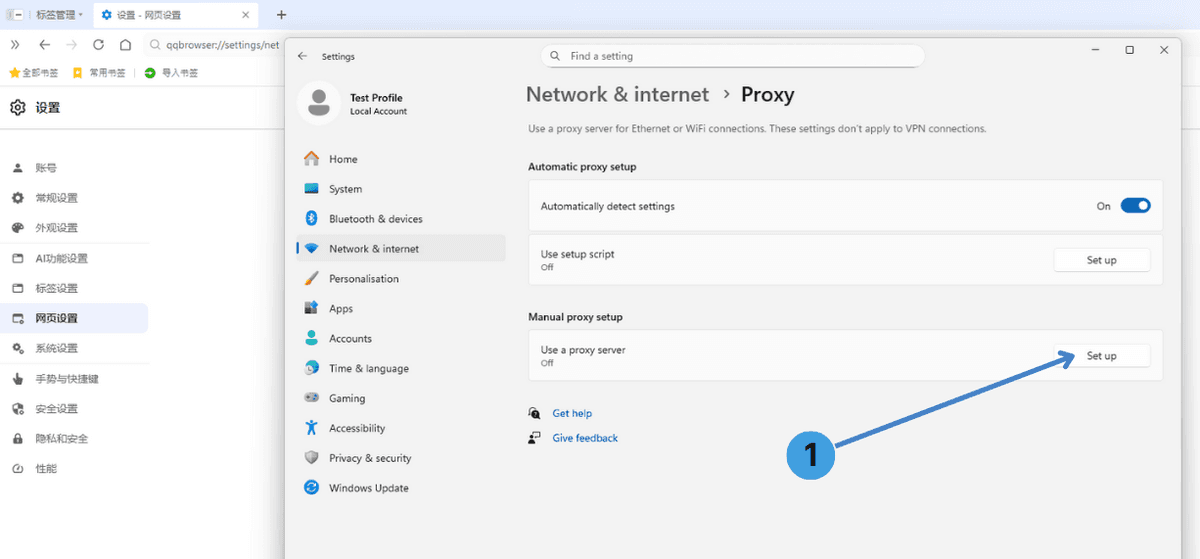
- In the Windows Network & internet → Proxy window, in the Manual proxy setup section, click Set up.
4 – Manual proxy server enabled
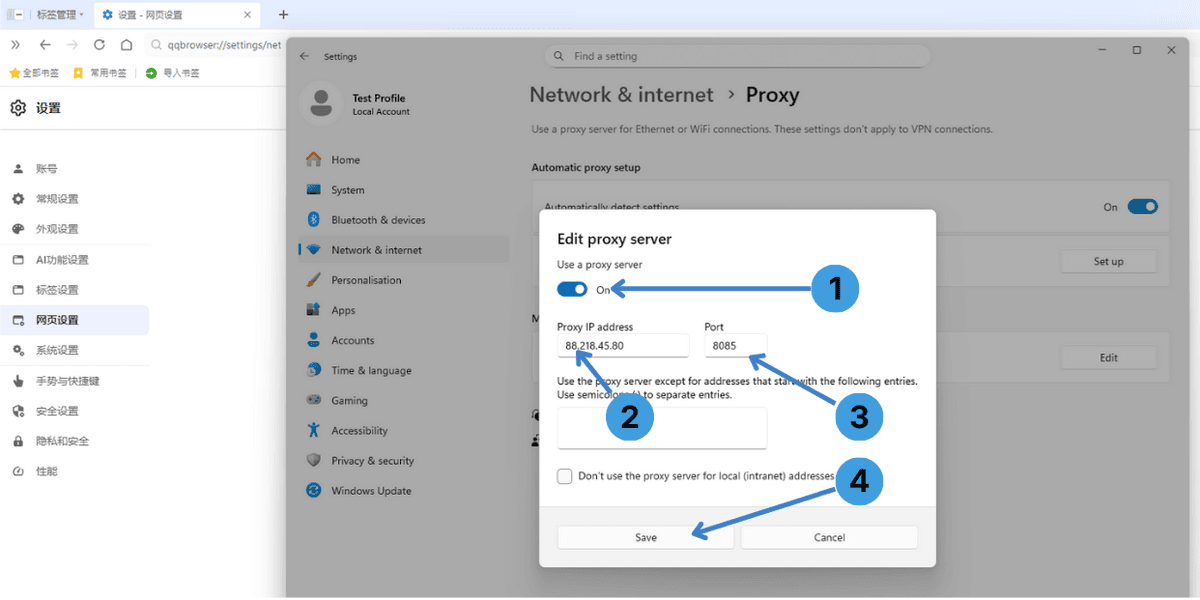
- In the Edit proxy server window switch Use a proxy server to On.
- In the Proxy IP address field enter the IP address or hostname from your proxy provider.
- In the Port field type the port number that belongs to this proxy.
- Click Save to apply and start using this proxy for QQ Browser and other apps that follow the Windows system proxy.
5 – Manual proxy server disabled
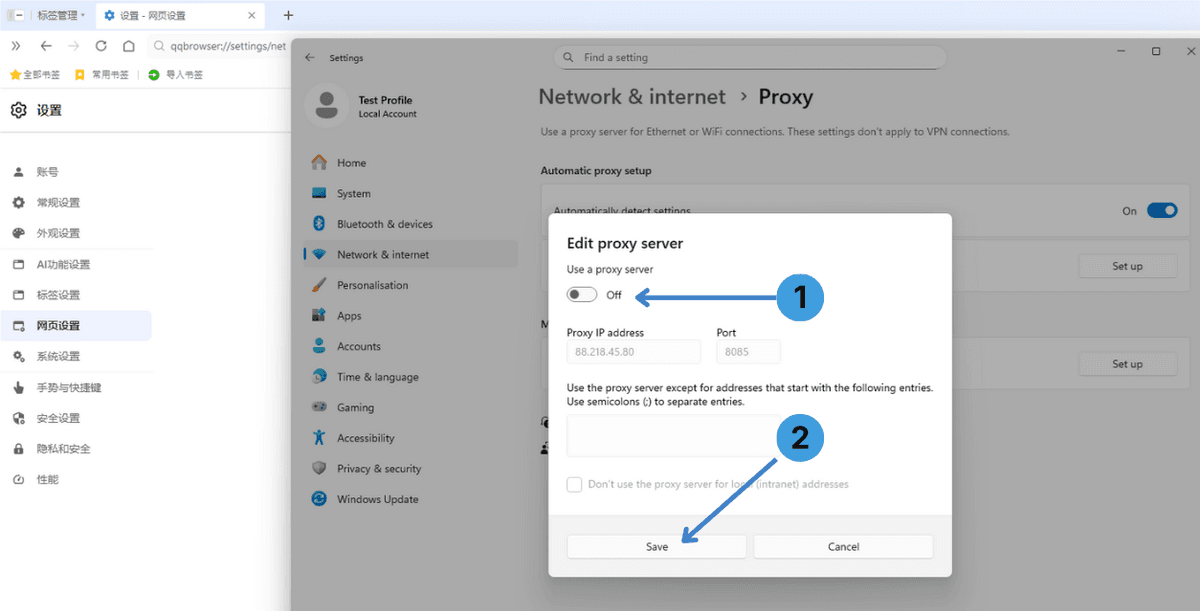
- When you want to stop using the proxy, open the same Edit proxy server window and switch Use a proxy server to Off.
- Click Save so Windows and QQ Browser go back to a direct connection.
Alternative: proxy extensions in QQ Browser
Instead of changing the Windows proxy for the whole system, you can control proxies inside the browser with extensions. QQ Browser supports an extension system, so tools like SwitchyOmega, FoxyProxy and similar managers can often be installed and used to assign different proxies to different tabs or websites. For a general overview of how these tools work and what they can do, see the guide to proxy extension tools.
This method is useful when you want quick switching between several proxy profiles without touching system settings.
Routing QQ Browser traffic through standalone proxy clients
Another option is to run a desktop proxy client such as Proxifier or ProxyCap. These programs sit between applications and the network stack and can redirect selected app traffic, including QQ Browser, through one or more proxies. This approach is handy if you want one place to manage proxies for several programs at once or if the browser proxy settings are too limited. A general overview of such software is available in the separate overview of standalone proxy clients.
Conclusion
QQ Browser follows the system proxy configuration, so the usual way to add a proxy is to change the Windows proxy settings through the shortcut in the browser. For more flexible control you can also rely on proxy extensions or standalone proxy clients. Choose the option that best matches how often you switch proxies and whether you want the proxy to apply to QQ Browser only or to the whole system.