
SlimBrowser allows manual proxy configuration inside the browser, so you can direct its traffic through HTTP or SOCKS servers.
This article explains how to turn the proxy on and off, and briefly covers other ways to route SlimBrowser traffic through a proxy.
SlimBrowser is one of the browsers covered in our wider reference on regular web browsers, described in our overview of standard browser setups.
SlimBrowser and proxy support
SlimBrowser is a desktop browser for Windows that offers its own connection dialog for proxy settings. From this dialog you can choose no proxy, use the system proxy, auto detect settings, set an automatic configuration URL, or define servers manually. SlimBrowser can also work together with proxy extensions if your build supports add ons, and it can be placed behind external desktop proxy clients that handle traffic for the whole system.
Step by step: configuring a proxy in SlimBrowser
SlimBrowser uses a built in connection window rather than the operating system settings. The screenshots show numbered markers that match the steps below.
Step 1. Open SlimBrowser settings
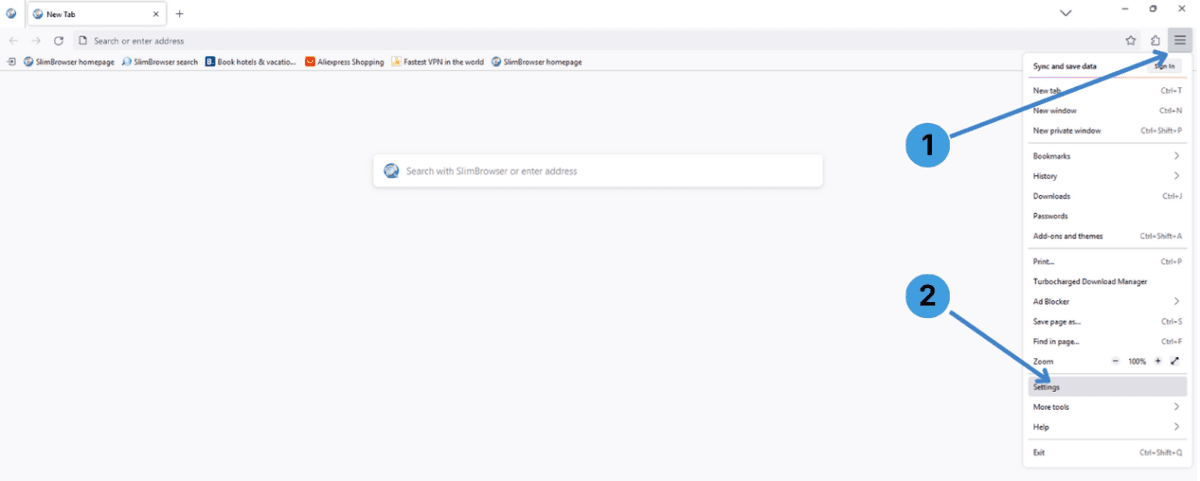
- Click the main menu button in the top right corner of the window (1).
- In the menu that opens, choose “Settings” (2) to open the settings tab.
Step 2. Open the network and connection dialog
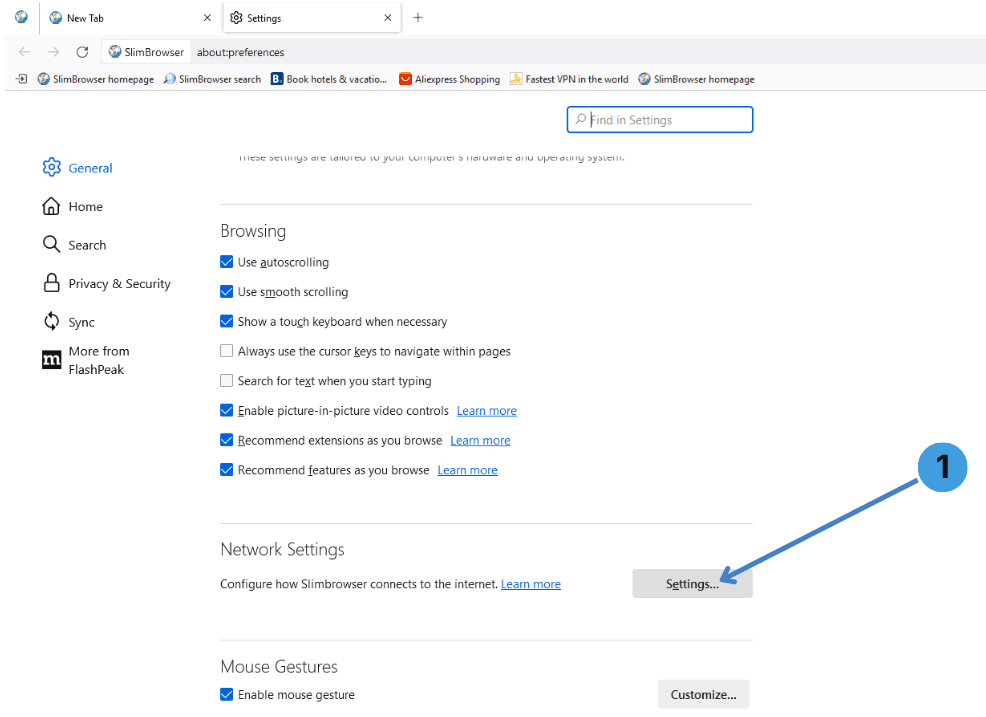
- In the Settings tab, stay on the General section.
- Scroll to the Network Settings block and click the “Settings…” button (1).
This opens the Connection Settings window where proxy options are configured.
Step 3. Set up the proxy configuration
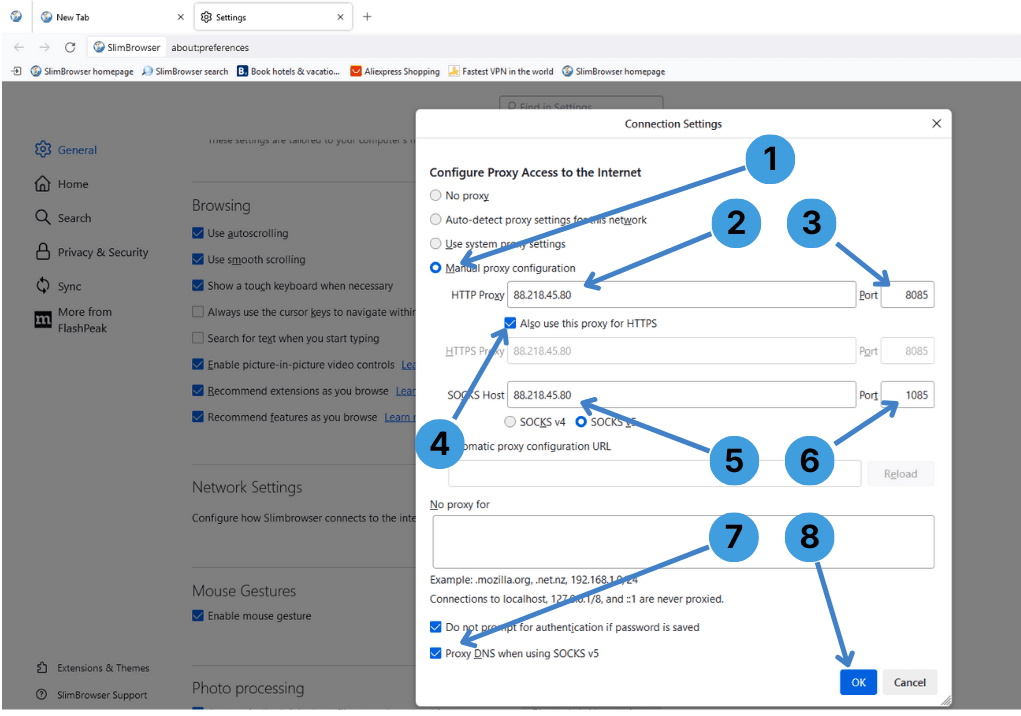
In the Connection Settings window:
- Select “Manual proxy configuration” (1). This tells SlimBrowser to use the servers you enter instead of the system proxy.
- In the HTTP Proxy field (2), type the proxy server address or IP, for example 88.218.45.80.
- In the Port box next to it (3), enter the HTTP proxy port, such as 8085.
- Tick “Also use this proxy for HTTPS” (4) if the same server and port should handle secure HTTPS traffic.
- If you want to use a SOCKS proxy, fill in the SOCKS Host field (5) with the SOCKS server address and select the desired SOCKS version (usually SOCKS v5).
- Enter the SOCKS Port (6), for example 1085.
- In the “No proxy for” box (7), list any domains or IP ranges that should bypass the proxy (for instance local addresses). Separate entries with commas.
- Review the optional checkboxes below if needed (for example, whether to send DNS requests through the SOCKS proxy).
- Click “OK” (8) to apply the proxy configuration and close the window.
SlimBrowser will now send web requests through the servers you specified.
Step 4. Disable the proxy configuration
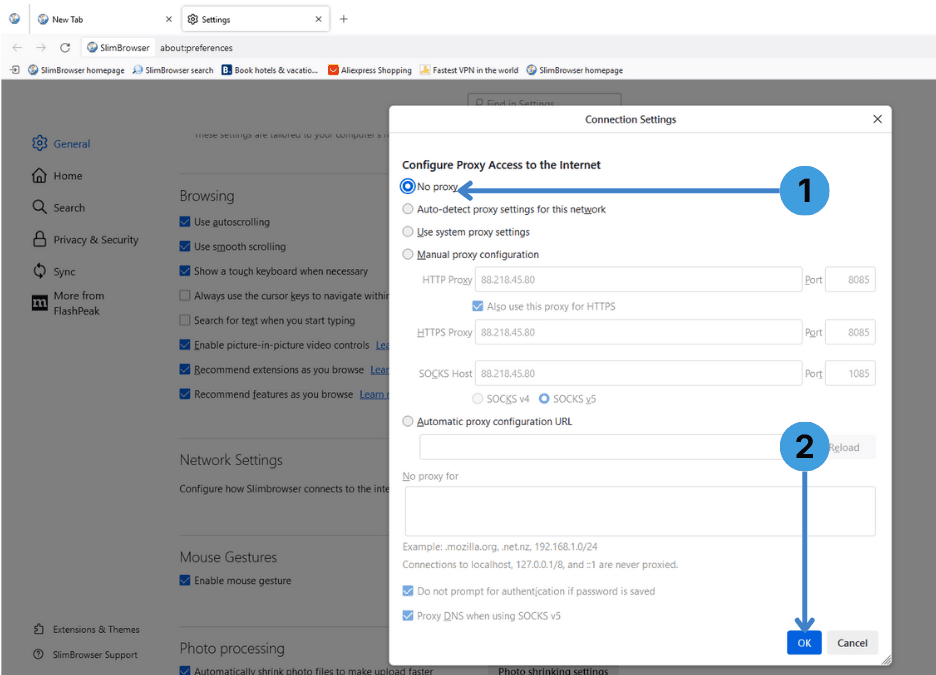
To return to a direct connection:
- Open the Connection Settings window again via Settings → Network Settings → Settings….
- Choose “No proxy” (1) at the top of the window.
- Click “OK” (2) to confirm. SlimBrowser will stop using the proxy and connect directly.
Alternative: proxy extensions in SlimBrowser
If your version of SlimBrowser supports extensions or add ons, another option is to install a proxy manager extension. Tools such as SwitchyOmega, FoxyProxy, Proxy Switcher and similar add ons let you create multiple proxy profiles, switch between them quickly, and define rules for different sites.
General recommendations for these tools are collected in overview of proxy extensions for browsers.
Alternative: using standalone proxy clients with SlimBrowser
You can also place SlimBrowser behind a standalone proxy client that handles connections for the entire computer. Programs such as Proxifier or ProxyCap intercept outgoing traffic from selected applications and forward it through a proxy server without changing settings inside the browser.
A broader explanation of how these tools work and when they are useful is available in our dedicated page about standalone proxy clients.
Conclusion
SlimBrowser gives you a direct way to define HTTP and SOCKS proxies through its connection dialog, and you can easily turn the proxy off again when needed. For more flexible setups, proxy extensions or external desktop proxy clients can control multiple profiles or whole system traffic. Choose the method that fits how you work so that SlimBrowser behaves consistently with the rest of your tools.