
SeaMonkey allows manual configuration of HTTP and SOCKS proxies as well as system-wide settings. This guide explains the main ways to connect SeaMonkey through a proxy. It is part of a broader overview of proxy setup in standard browsers, described in more detail in the main guide to regular browser proxy settings.
SeaMonkey is based on Mozilla’s Gecko platform and includes its own proxy dialog in the Preferences menu. You can point the browser directly to an HTTP or SOCKS5 proxy, use an automatic configuration URL (PAC), or fall back to system proxy settings. Extensions and external proxy clients can also be used, although the built-in dialog is usually the most direct option.
Step by step: configuring a proxy in SeaMonkey
SeaMonkey uses its own internal proxy settings window rather than redirecting you to the operating system network panel.
Open the proxy preferences
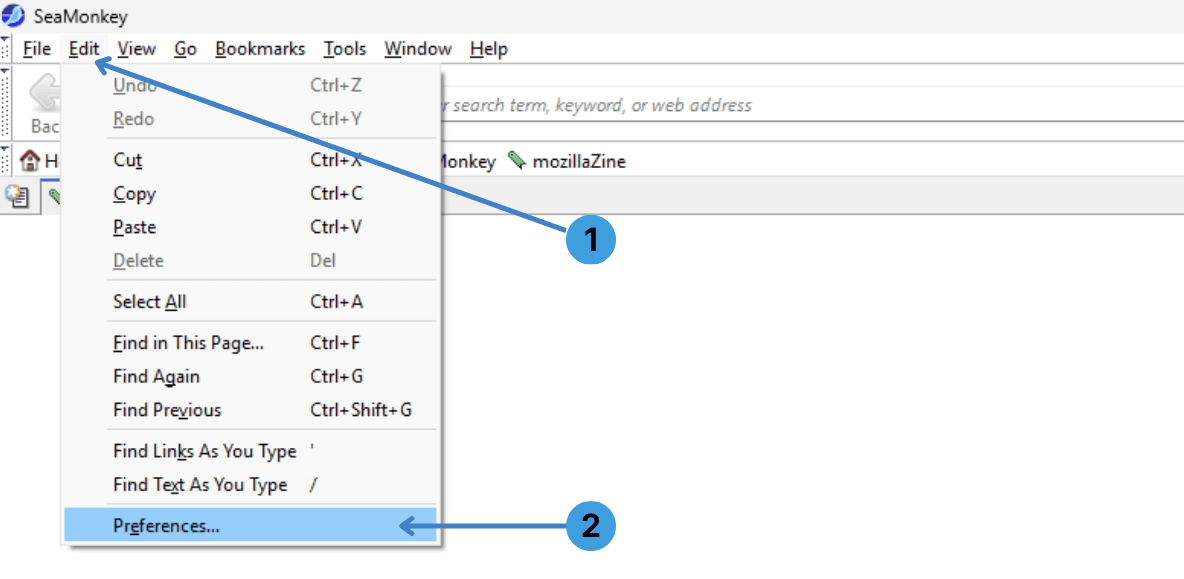
Follow the first screenshot:
- Step 1. In the top menu, click Edit.
- Step 2. At the bottom of the menu, choose Preferences… to open the SeaMonkey Preferences window.
Configure HTTP and SOCKS proxies
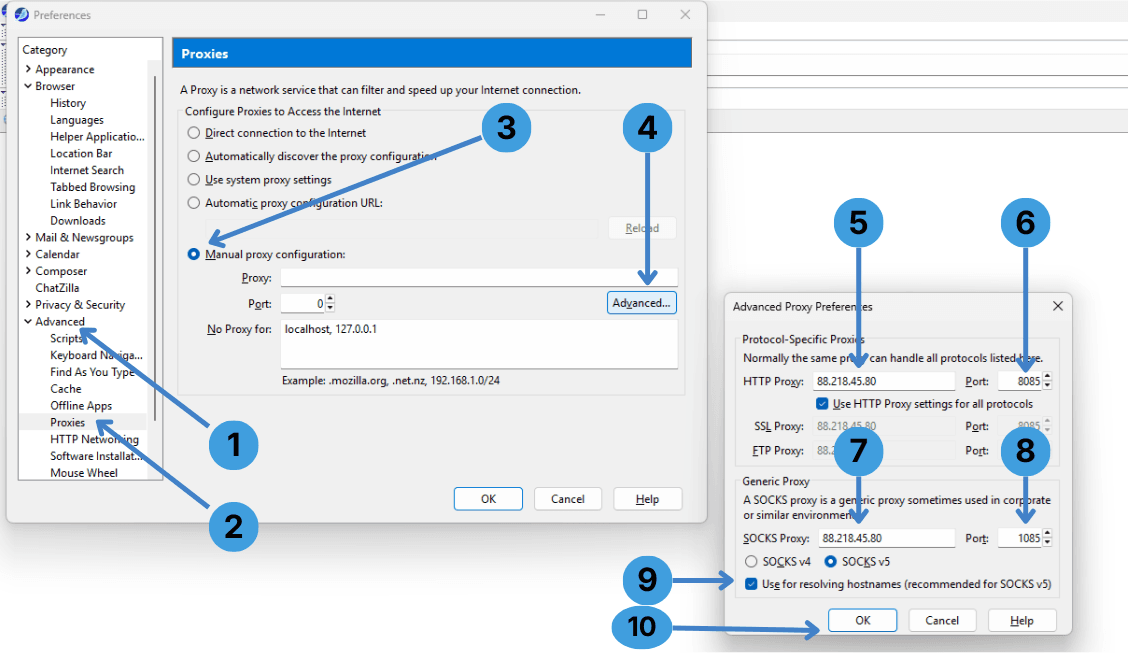
Now use the options from the second screenshot:
- Step 1. In the left Category list expand Advanced.
- Step 2. Under Advanced, select Proxies.
- Step 3. In the right pane, choose Manual proxy configuration so SeaMonkey will use the proxy values you enter.
- Step 4. Click the Advanced… button to open the detailed proxy dialog.
In the Advanced Proxy Preferences window:
- Step 5. In the HTTP Proxy field, enter the proxy server hostname or IP address.
- Step 6. In the Port field next to HTTP Proxy, enter the port number provided by your proxy service (for example, 8085).
- Step 7. Enable Use HTTP Proxy settings for all protocols if the same HTTP proxy should handle SSL and other protocols as well.
- Step 8. In the SOCKS Proxy section, set the SOCKS proxy port if you also use a SOCKS server (for example, 1085).
- Step 9. Tick Use for resolving hostnames (recommended for SOCKS v5) so DNS lookups are sent through the SOCKS proxy instead of directly.
- Step 10. Click OK in the Advanced Proxy Preferences window, then confirm back in the main Proxies dialog with OK so SeaMonkey saves the settings.
If your proxy requires Username/Password authentication, SeaMonkey will prompt for credentials the first time it connects through that proxy.
Disable the proxy in SeaMonkey
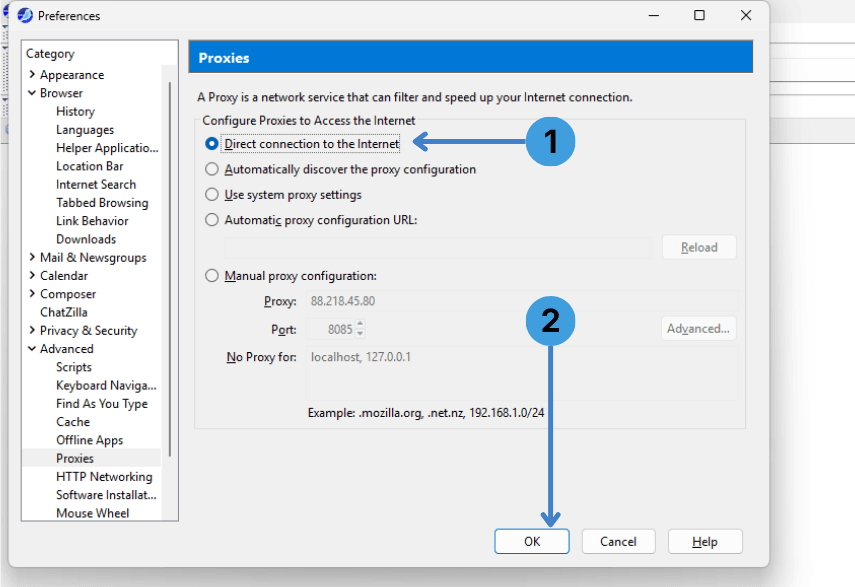
To return to a direct connection later, use the options shown in the third screenshot:
- Step 1. In Preferences → Advanced → Proxies, select Direct connection to the Internet.
- Step 2. Click OK so the browser stops using any proxy configuration.
Alternative: proxy extensions in SeaMonkey
Besides the built-in Proxies dialog, some SeaMonkey builds can use browser extensions to manage proxies. If a compatible version of tools such as SwitchyOmega, FoxyProxy or similar managers is available for your SeaMonkey release, you can install it and switch between multiple proxy profiles from the toolbar instead of changing the Preferences each time. Compatibility depends on your SeaMonkey version, so always check the add-on’s documentation.
For a general overview of how these tools work across different browsers, see the guide to proxy management extensions.
Alternative: using standalone proxy clients with SeaMonkey
Another option is to send SeaMonkey traffic through a desktop proxy client. Programs like Proxifier or ProxyCap sit between applications and the network stack and redirect selected programs (including SeaMonkey) through a proxy server. This is useful when you want one central place to manage multiple proxies or apply the same rules to several applications at once.
You can read more about these tools and their typical configuration in the article on standalone proxy clients.
Conclusion
SeaMonkey supports several proxy configuration methods: a native Proxies dialog for HTTP and SOCKS servers, optional use of system settings or PAC files, and, where available, extensions and external proxy clients. Choose the path that matches your setup, whether you prefer direct control in Preferences, quick switching via an extension, or central management in a separate proxy client.