
Slimjet allows traffic to be routed through HTTP or SOCKS proxies. This article explains how to configure proxy profiles in Slimjet, enable them when needed, and return to a direct connection. Slimjet is also covered in our main guide to regular web browsers at our main guide to regular web browsers.
Slimjet is a Chromium based browser, so it supports Chrome style extensions and the Chromium networking stack. It provides its own proxy profile manager in the Settings menu, with options for direct connection, using the system proxy, or using a custom profile. Because it supports Chrome extensions, Slimjet can also work with proxy extensions, and it can be used together with external desktop proxy clients that redirect application traffic.
Detailed steps to set up a proxy in Slimjet
Slimjet uses a built in proxy profile window inside the browser, rather than just forwarding you to the operating system proxy panel.
Step 1 – Open Slimjet settings
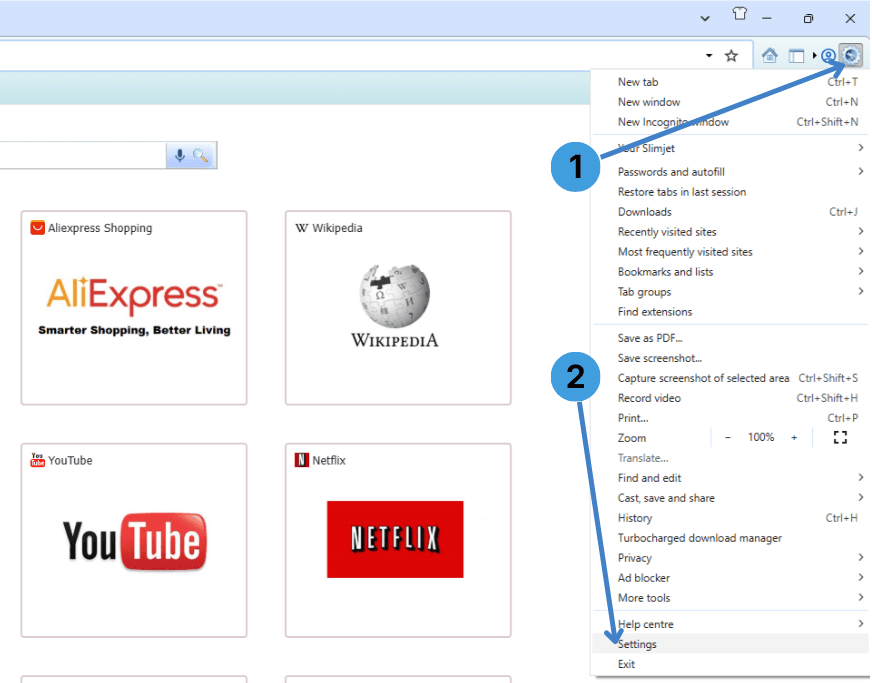
On the main Slimjet window, click the browser menu button in the top right (label 1 on the first screenshot).
From the menu that opens, choose Settings at the bottom of the list (label 2).
Step 2 – Open the System proxy section
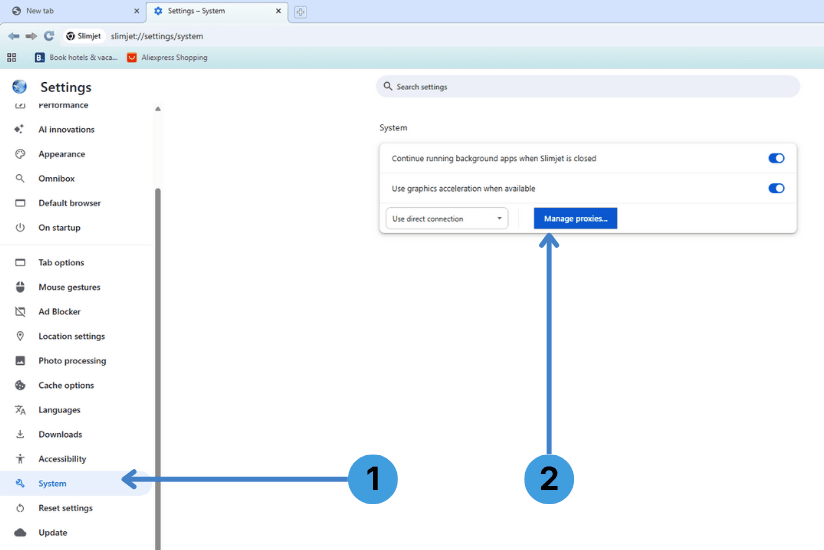
In the Settings tab, select System in the left sidebar (label 1 on the second screenshot).
In the System panel on the right, click the Manage proxies… button (label 2). This opens the Manage proxies dialog where profiles are stored.
Step 3 – Create and configure a custom proxy profile
In the Manage proxies window:
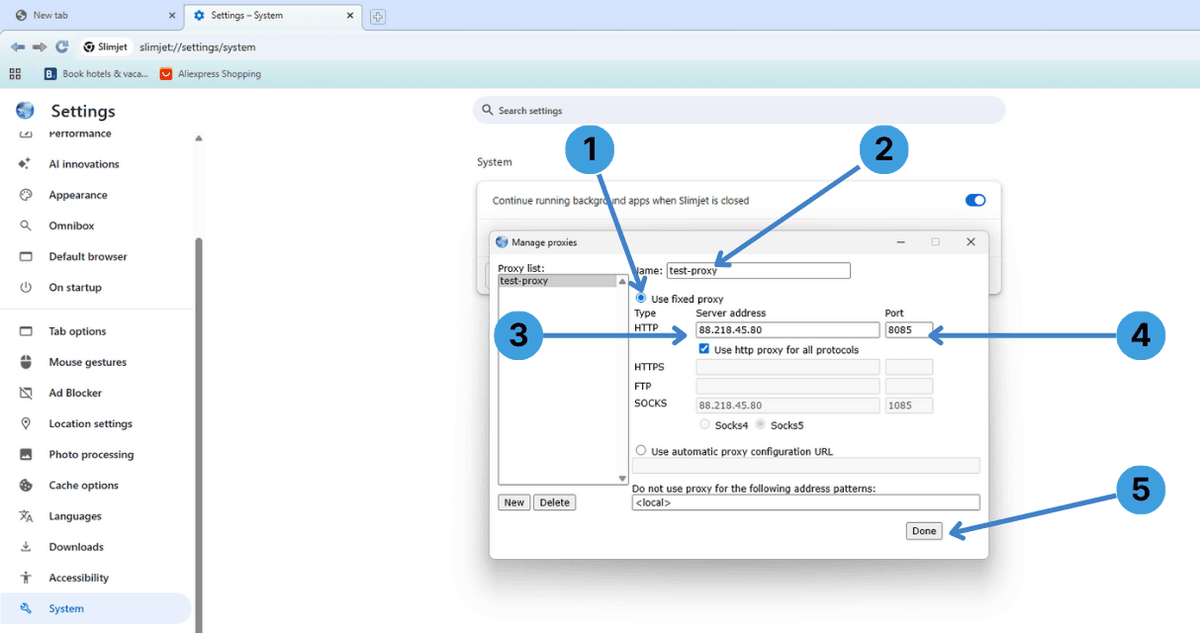
- Make sure Use fixed proxy is selected (marker 1 in the third screenshot). This tells Slimjet to use the address you enter instead of automatic settings.
- In the Name field, type a clear name for this profile, for example test-proxy (marker 2).
- Under Type → HTTP, enter your proxy server IP address or hostname in the Server address field (marker 3). Leave “Use http proxy for all protocols” checked if the same endpoint should handle HTTPS, FTP and other traffic.
- In the Port box on the right, enter the port number provided by your proxy service (marker 4).
- Optionally adjust the “Do not use proxy for the following address patterns” field if certain local addresses must bypass the proxy.
- When all values are entered, click Done (marker 5) to save the profile.
Step 4 – Enable the proxy profile
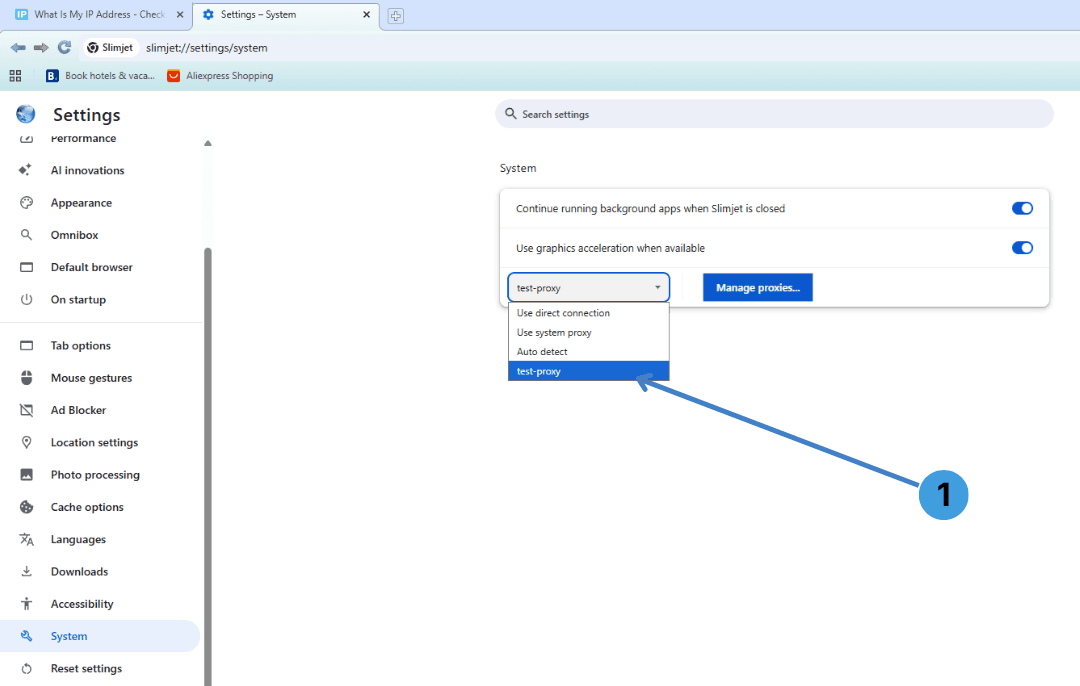
Back in the System settings, open the connection mode drop down next to “Use direct connection” (fourth screenshot).
Select your new profile, for example test-proxy (marker 1). Slimjet will now send its traffic through the proxy you configured.
Step 5 – Switch back to a direct connection
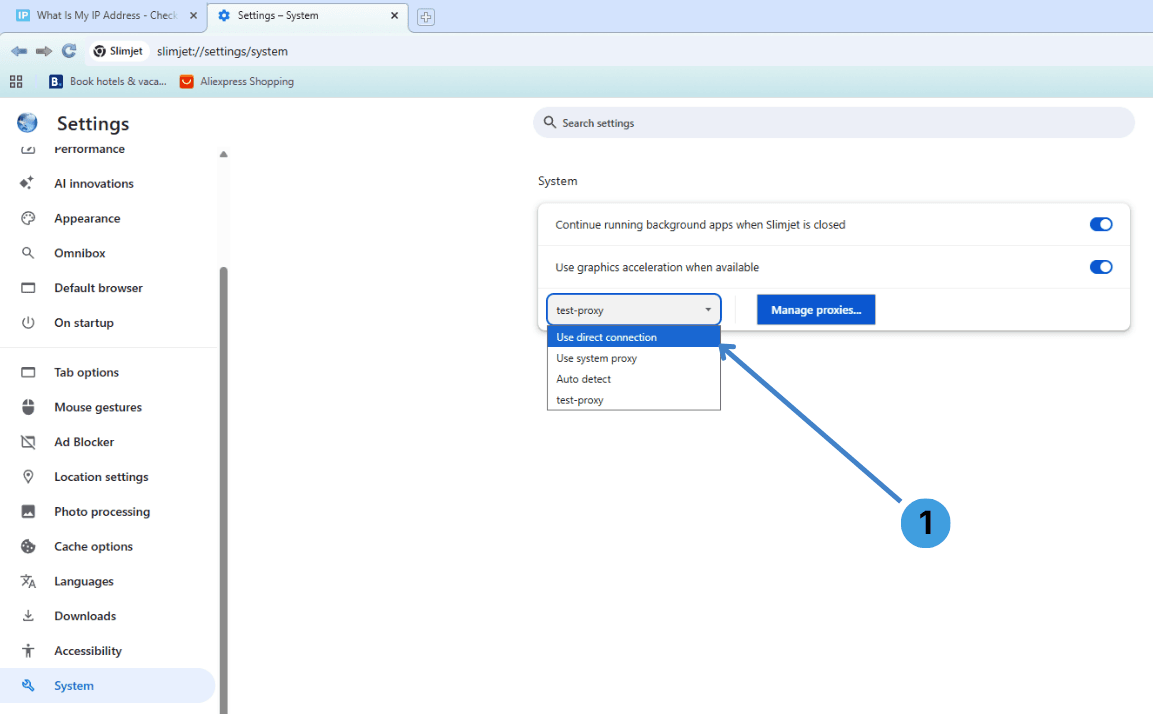
When you want to stop using the proxy, open the same drop down in the System settings again (fifth screenshot).
Choose Use direct connection (marker 1). Slimjet will reconnect without using any proxy, while your profile remains saved for later use.
Alternative: using proxy extensions in Slimjet
Because Slimjet is based on Chromium and supports Chrome extensions, another option is to install a proxy management extension from the Chrome Web Store. Tools like SwitchyOmega, ZeroOmega, FoxyProxy or Proxy Switcher allow you to define multiple proxy profiles, switch between them from the toolbar, and sometimes apply rules per site. For an overview of popular proxy add ons and how they work in different browsers, see our separate guide to proxy browser extensions. In Slimjet, these extensions work similarly to how they do in Google Chrome.
Alternative: using standalone proxy clients with Slimjet
Standalone proxy clients such as Proxifier or ProxyCap can route traffic from Slimjet (and other applications) through a proxy at the operating system level. This is useful if you want one central place to manage proxies for many programs, or if the browser settings and extensions do not cover your scenario. These tools usually let you set rules per application and per destination. More details about such software are collected in our guide to standalone proxy clients.
In summary, Slimjet lets you work with proxies through its own proxy profile manager, through Chrome compatible proxy extensions, or via external proxy clients that sit between the browser and the network. Choose the method that fits best with how you manage other tools on your system and how often you need to switch between different proxy setups.