
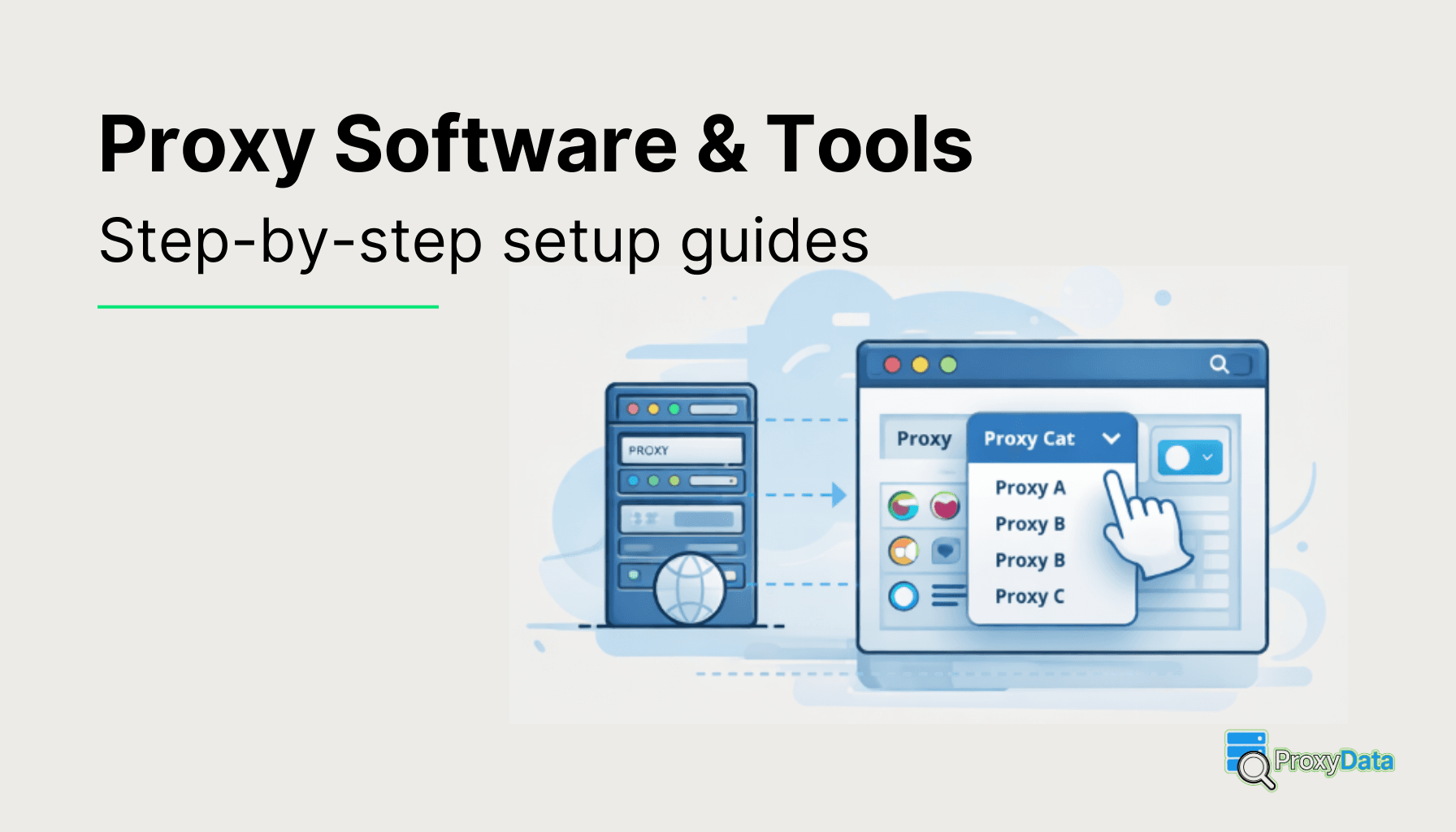
This page is a hub of step-by-step guides for setting up proxies in popular software and platforms. You will find instructions for browser based setups, proxy extensions, desktop proxy clients, automation tools, and operating system settings.
The main difference between these options is scope. Some methods apply only to one browser tab or one browser profile. Others can route traffic from selected desktop apps. System proxy settings can affect apps that respect the OS proxy configuration, but many programs still use their own proxy settings. If you are not sure where to configure a proxy, use the section list below and jump to the option that matches what you are trying to route through the proxy.
Browsers
- Anti-Detect Browsers: proxy per browser profile
- Privacy Browsers: proxy via browser settings or extension
- Regular Web Browsers: proxy via extension or browser settings
Proxy Extensions
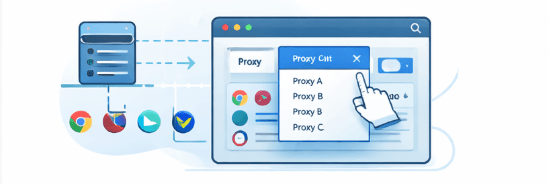
- FoxyProxy: proxy profiles, quick switching, per-site rules
- ZeroOmega / SwitchyOmega: profiles, auto switch rules, PAC support
- Proxy Switcher and Manager: profiles and switching inside the browser
- Proxy Switcher (Lynn): simple proxy switching
Standalone Proxy Clients
- Proxifier: route selected desktop apps through a proxy
- ProxyCap: app based proxy routing with rules
- Proxyman: HTTP(S) traffic inspection and debugging proxy
- SocksCap64: launch apps through a SOCKS proxy
Bots & Automation Tools
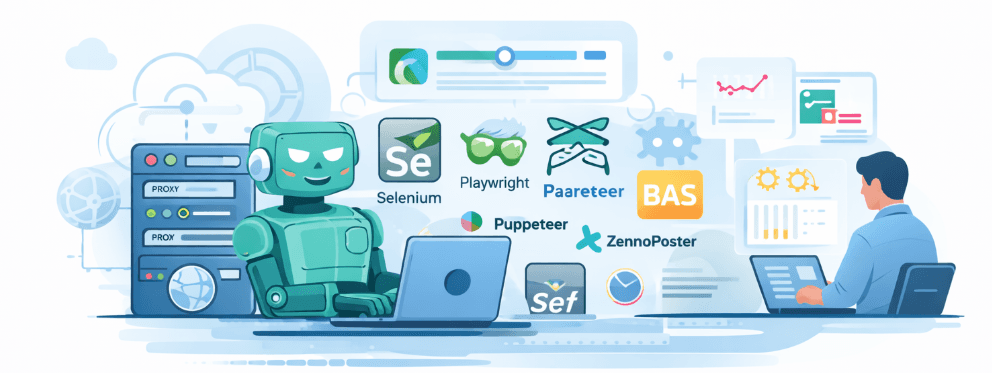
- Selenium: proxy settings in browser launch and profile config
- Playwright: proxy settings in browser context / launch config
- Puppeteer: proxy settings via launch arguments and config
- ZennoPoster: proxy settings per project / profile
- BAS (Browser Automation Studio): proxy settings per project / profile
Operating Systems
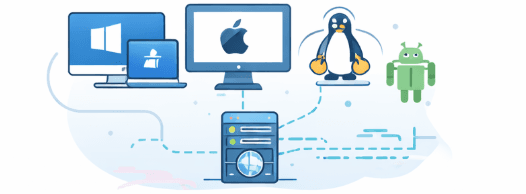
- Windows: system proxy settings
- macOS: system proxy settings
- Linux: system proxy settings
- Android: device level proxy settings (Wi-Fi)
- iOS / iPadOS: device level proxy settings (Wi-Fi)