
ZeroOmega (also known as SwitchyOmega V3) is a browser extension that lets you route traffic through different proxies without constantly changing system settings.
In this guide, we’ll walk through installation, adding a single proxy, working with proxy lists, setting up Auto Switch rules, and using PAC scripts for automatic routing. This is especially useful if you manage multiple proxy endpoints or need predictable routing for specific websites. If you’re new to this topic, start with our main overview of proxy browser extensions.
What is ZeroOmega
What ZeroOmega does
ZeroOmega is a browser extension for managing proxy settings per website, without changing your system-wide network settings. Instead of editing proxy settings every time, you create profiles once and then switch between them instantly or let the extension select the right profile automatically.
With ZeroOmega you can:
- Create multiple proxy profiles (HTTP/HTTPS/SOCKS)
- Switch proxies in one click
- Route specific websites through specific proxies using Auto Switch rules
- Use PAC (by URL or script) to apply routing rules automatically
- Export/import your setup when moving to another browser or PC
Why 2 names (ZeroOmega & SwitchyOmega)
A lot of users still call it SwitchyOmega because the original project became widely known under that name. ZeroOmega is a newer continuation/fork of the same idea and interface, so in guides you will often see both names used together to avoid confusion.
Supported browsers
ZeroOmega works in modern browsers and can be installed as a browser extension. The setup workflow is the same everywhere, with only minor UI differences between browsers.
Install ZeroOmega
| Browser | Download | Notes |
|---|---|---|
| Chrome (and most Chromium browsers) | Chrome Web Store | Works in Chrome, Brave, Opera, Vivaldi, and other Chromium browsers |
| Microsoft Edge | Edge Add-ons | Official listing in the Edge extension store |
| Firefox | Firefox Add-ons (AMO) | Best choice if you want maximum proxy control in Firefox |
In this guide, we’ll use Firefox for screenshots, because its proxy and extension behavior can differ slightly from Chromium-based browsers. However, the same ZeroOmega setup steps apply to Chrome, Edge, Opera, and other Chromium-based browsers.
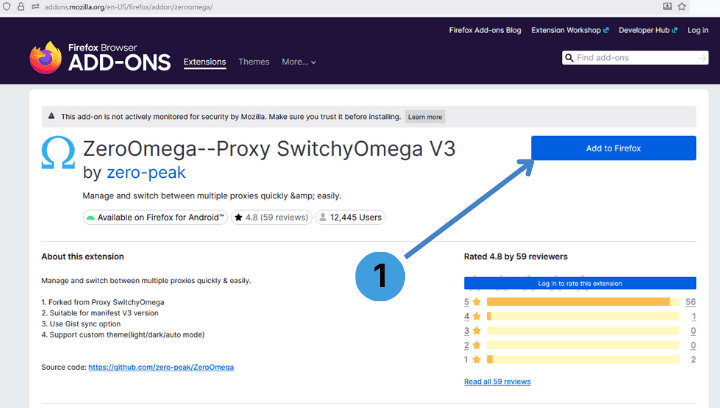
- Click “Add to Firefox” on the ZeroOmega page in Firefox Add-ons.
This starts the install process and adds the extension to your browser.
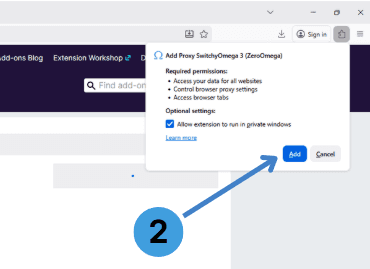
- In the confirmation popup, click “Add”.
This approves the permissions ZeroOmega needs so it can read and change Firefox proxy settings. Without this approval, the extension cannot manage proxies.
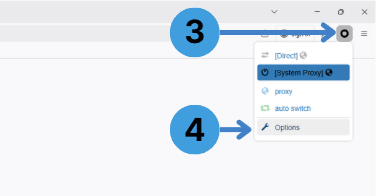
- After installation, click the ZeroOmega icon in the browser toolbar (top right).
This opens the quick menu where you can switch proxy modes and profiles. - In that menu, click “Options”.
This opens the full ZeroOmega settings page where you will add proxy profiles and set up rules like Auto Switch.
Quick Proxy Setup in ZeroOmega
For most users, this is the only step you really need. It’s the fastest and most straightforward way to add a proxy to ZeroOmega, and the screenshot below shows exactly where to click and what to fill in.
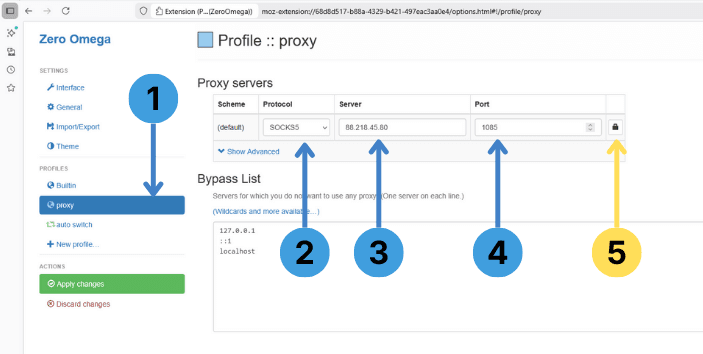
- In the left sidebar, click your profile (example: proxy).
This opens the settings page for that specific profile, where you define what proxy it should use. - Under Proxy servers, choose the proxy protocol (example: SOCKS5).
Pick the protocol that matches what your provider gave you. If you choose the wrong one, the connection will fail even if the IP and port are correct. - In Server, enter the proxy host (an IP address or a hostname).
This is the actual proxy endpoint you will connect to. - In Port, enter the proxy port (example: 1085).
The port must match exactly, otherwise the proxy will not respond. - If your proxy requires login credentials, click the authentication button on the right side of the Proxy servers row.
This opens the Username/Password popup.
Enter Username/Password (only if your proxy uses authentication)
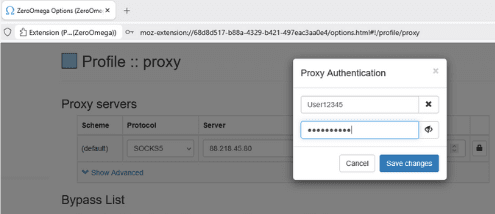
- In the Proxy Authentication popup, enter your Username and Password.
- Click Save changes.
After saving, ZeroOmega will use these credentials whenever this profile is active.
Advanced proxy list workflow
As of 2026, ZeroOmega still doesn’t support importing a proxy list with a simple copy/paste. That’s why we’ll use a practical workaround: manually add multiple proxies, create Auto Switch rules for each one, and show how PAC can simplify the same setup later.
To make it easier to follow, let’s assume we have a proxy list with 8 proxy servers, and each proxy belongs to a different country.
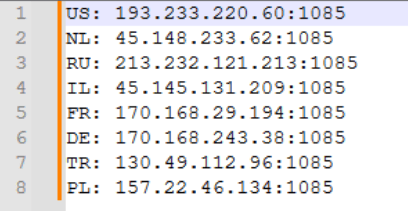
Our goal is to use ZeroOmega to route traffic in a clean, predictable way. For example, German websites should automatically open through your DE proxy, US websites through your US proxy, Turkish websites through your TR proxy, and so on.
Using Auto Switch rules
In this section, you’ll create a small rule set in ZeroOmega so your browser behaves like this:
- Listed country websites always open through the matching country proxy
(for example, a German site always uses your DE proxy) - Anything not listed opens as Direct, meaning no proxy is used
First, create 8 separate proxy profiles and name them in a way that’s easy to recognize later, for example: US-proxy, DE-proxy, TR-proxy, etc.
Create a new proxy profile in ZeroOmega
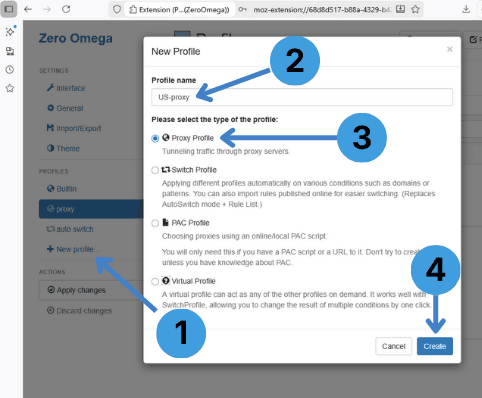
- In the left menu, click New profile...
- In Profile name, type a name for your proxy profile (for example: US-proxy)
- Under Please select the type of the profile, choose Proxy Profile
- Click Create to add the new profile
Add proxy details to the profile
Fill the profile with your US proxy details.
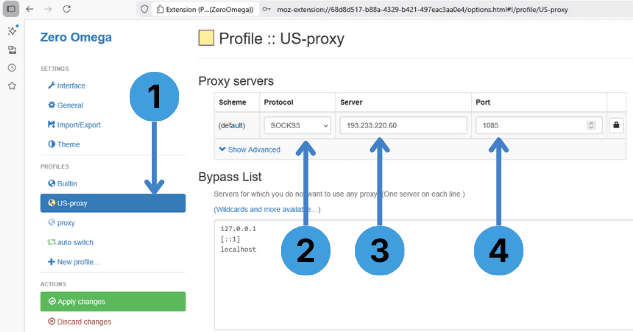
- In the left panel, select your new profile (for example: US-proxy)
- In Protocol, choose the proxy type you received (for example: SOCKS5)
- In Server, enter the proxy IP address
- In Port, enter the proxy port (for example: 1085)
Repeat the same process for all proxy profiles you need. In our example, that means creating and filling 8 separate profiles, one for each proxy server.
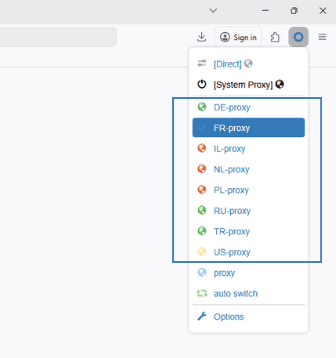
When you click the ZeroOmega icon, you’ll see the proxy profiles we just created. Next, we need to build a separate Auto Switch rule for each proxy, so specific websites always open through the correct profile.
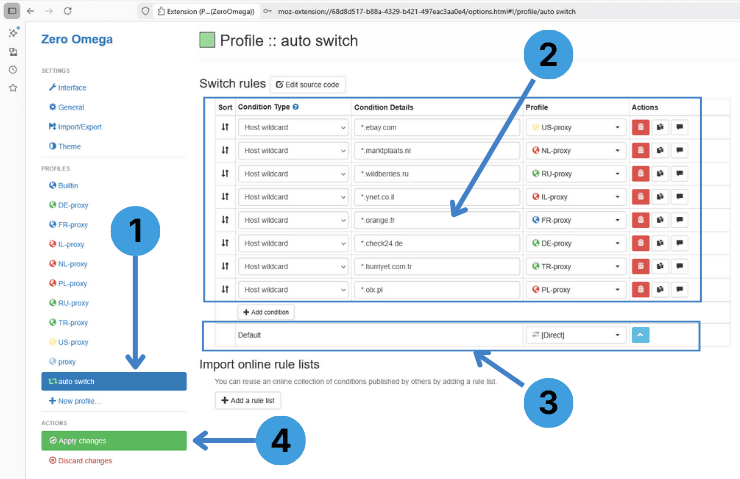
Create Auto Switch rules (use a specific proxy for specific websites)
- In the left panel, open auto switch
- In Switch rules, add your websites and select which proxy profile should be used for each one
- Use Host wildcard for domains like ebay.com, *.marketplace.nl, etc.
- In the Profile column, choose the proxy you want (US-proxy, FR-proxy, DE-proxy, etc.)
- Set the Default rule to what should be used for everything else
- Usually [Direct] (no proxy)
- Click Apply changes to save the rules
Enable Auto Switch mode in the browser
To enable Auto Switch, do the following:
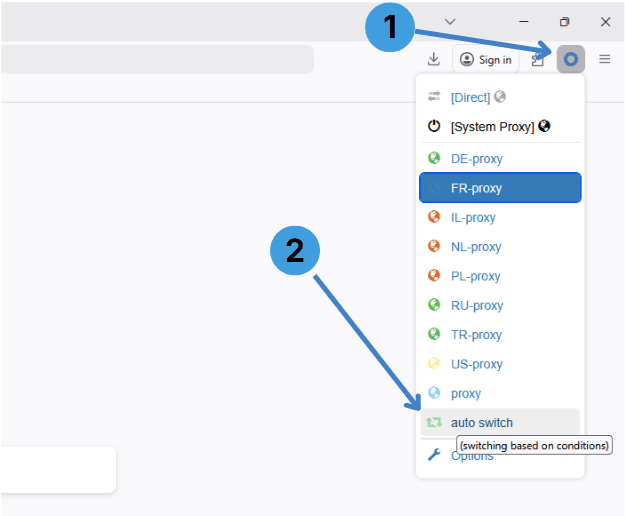
- Click the ZeroOmega extension icon in your browser toolbar
- Select auto switch (switching based on conditions)
After this, ZeroOmega will automatically choose the proxy profile based on the rules you created.
That’s it, you’ve now set up automatic routing. ZeroOmega will use the right geo proxy for the websites you listed, without you having to switch anything manually.
Looks a bit complicated? Next, we’ll show a simpler approach for more advanced setups: using a PAC configuration instead of managing a big list of Auto Switch rules.
Using PAC in ZeroOmega
What is PAC and why it’s used
A PAC file (Proxy Auto-Config) is a small script that tells the browser when to use a proxy and when to connect directly. Instead of switching profiles manually, the browser checks the PAC rules for every request and applies the correct route automatically.
People use PAC in ZeroOmega when they need:
- Automatic proxy selection based on the website
- One central ruleset instead of many “Auto Switch” entries
- Easy maintenance of a large list of domains
- A setup that can be shared across devices (PAC URL) and updated in one place
Using a ready-made PAC
Instead of creating many Auto Switch rules one by one, you can use a ready-made PAC file. We prepared a public PAC script that you can use right away in ZeroOmega. Just copy the PAC URL below and paste it into your PAC profile.
Example (ready to use):
https://raw.githubusercontent.com/proxydataio/pac-scripts/main/geo-routing.pac
This PAC script:
- Routes selected domains through specific country proxies (US, NL, RU, IL, FR, DE, TR, PL)
- Opens all other websites directly (DIRECT)
Steps to add a PAC profile in ZeroOmega
Before you start: in the left sidebar, click New profile… to add a new profile, then follow the steps below.
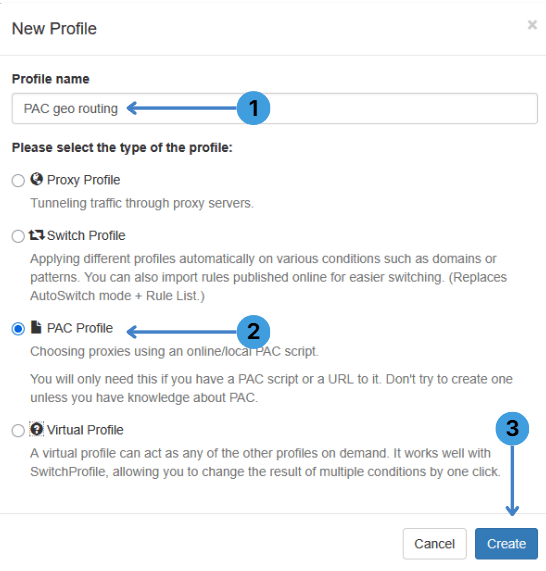
- Enter a profile name
Type a name for the new profile (for example, PAC geo routing). - Choose “PAC Profile”
Select PAC Profile as the profile type. - Create the profile
Click Create to add the new PAC profile.
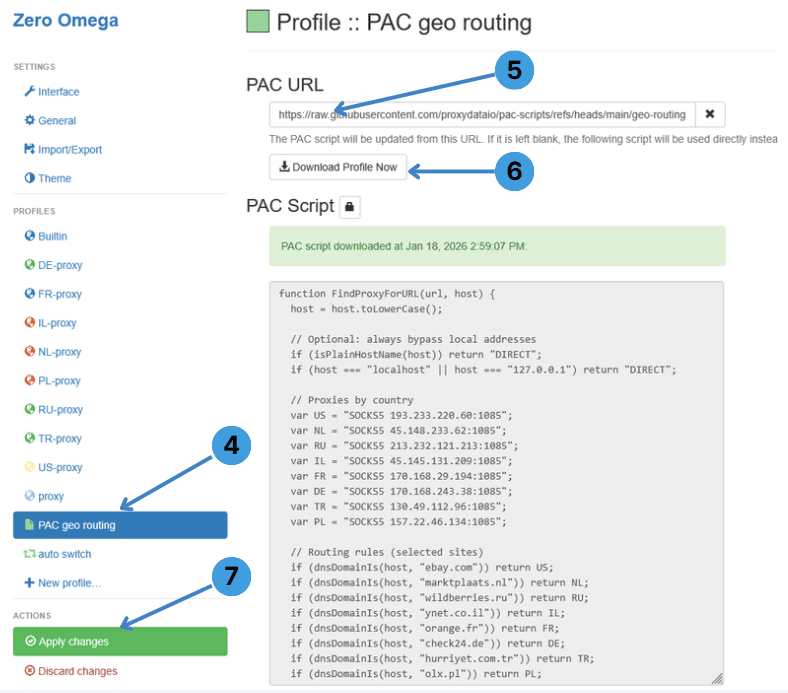
- Open the newly created profile
In the left sidebar, click your new profile (PAC geo routing) to open its settings. - Paste the PAC URL
In the PAC URL field, paste the direct link to your .pac file (Raw GitHub URL). - Download the PAC script
Click Download Profile Now to load the PAC file into ZeroOmega.
The script should appear in the PAC Script field. - Apply changes
Click Apply changes to save and activate the PAC profile.
Importing your config
When you have multiple proxy profiles and switch rules, rebuilding everything from scratch can waste a lot of time. Import/Export helps you move your ZeroOmega setup to another browser, another PC, or a new profile without re-adding every proxy and rule manually. It’s also a simple way to keep a backup before you make major changes, so you can restore a working configuration in seconds if something goes wrong.
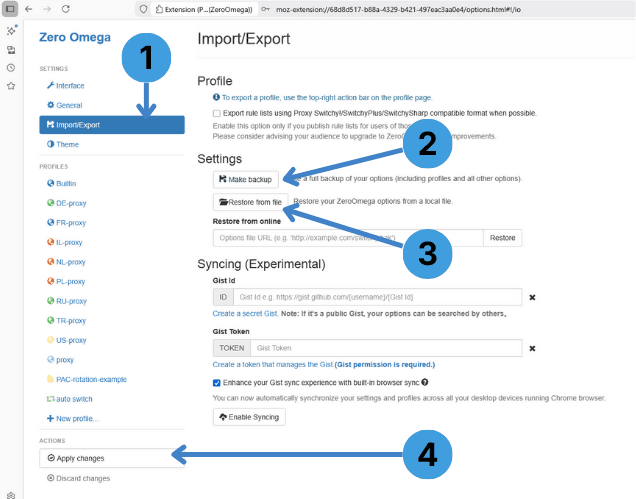
Steps (Import/Export)
- Open Import/Export in the left sidebar.
- Click Make backup to download a .bak file with your current ZeroOmega configuration.
- To restore your setup later, click Restore from file and select your saved .bak file.
- Click Apply changes to save and activate the imported configuration.
Deactivate ZeroOmega
Sometimes you don’t want to delete your profiles, you just need ZeroOmega to stop affecting your traffic. For example, you might want to browse normally for a while, test a website without proxy routing, or temporarily disable all proxy rules during troubleshooting. Deactivating takes one click, and your full configuration stays saved so you can enable it again anytime.
![Disable ZeroOmega proxy usage by opening the menu and selecting “[Direct]”](/_next/image?url=https%3A%2F%2Fproxydata.io%2Fmedia%2Fknowledge%2Farticles%2F6%2Fzeroomega-proxy-settings_inline_004.png&w=1200&q=75)
Steps (Disable proxy routing)
- Click the ZeroOmega icon and select [Direct] to disable proxy usage.
After that, all websites will open without any proxy until you switch back to a proxy profile or Auto Switch.
Final Thoughts
ZeroOmega is a practical way to manage proxies in the browser without constantly switching settings by hand. In this guide, we covered the full workflow, from installing the extension and adding a single proxy, to working with proxy lists, building Auto Switch rules, and using PAC for automatic routing based on websites.
Once your setup is ready, the last two habits make everyday use much easier: keep a backup of your configuration (so you can restore it anytime), and switch to [Direct] when you need to temporarily stop proxy routing. With these basics in place, you can maintain a clean setup, reuse it across browsers, and update your rules without turning proxy management into a daily chore.