
In this guide, we show how to install FoxyProxy and use it to work with proxies in Google Chrome and Mozilla Firefox. The same steps apply to Chromium-based browsers like Microsoft Edge and Brave, and to Gecko-based browsers like LibreWolf and Waterfox. This makes the article suitable for almost any desktop browser. In practice, there is no major difference in how you install FoxyProxy or configure proxy profiles across these browsers.
This article is part of the ProxyData.io Knowledge Base. For more extension-related guides, see our main page on proxy browser extensions.
What is FoxyProxy
FoxyProxy is a browser extension that helps you manage proxy settings more conveniently than using the browser’s default proxy menu. With FoxyProxy you can:
- Create multiple proxy profiles (HTTP, HTTPS, SOCKS and more) and switch between them quickly
- Turn proxy usage on or off without removing settings
- Use URL patterns to auto-switch proxies for specific sites (when you need that behavior)
- Import and export proxy profiles for easier setup across devices and browsers
FoxyProxy: Chrome vs Firefox Differences
FoxyProxy has two main variants: one for Chrome (and other Chromium browsers) and one for Firefox. They work similarly, but Firefox adds two SOCKS5 options that Chrome does not.
Firefox-only SOCKS5 options
- Proxy DNS (remote DNS)
Firefox can resolve website hostnames through the proxy instead of using your local DNS.
Why it matters: if your network or ISP blocks sites via DNS, remote DNS can fix “site won’t open” cases by avoiding local DNS filtering. - SOCKS5 Username/Password
Firefox FoxyProxy supports SOCKS5 proxies with Username/Password authentication.
In Chrome and other Chromium browsers, those fields are disabled in FoxyProxy, so credential-based SOCKS5 auth is not available there.
Why it matters: you can use the proxy without IP whitelisting, and it keeps working when you switch networks.
In the screenshots below, we highlight these UI differences on purpose, so you can quickly see what is available in Firefox FoxyProxy vs the Chrome/Chromium version
Install and Set Up FoxyProxy in Chrome
Download FoxyProxy from the official extension store for your browser.
Use the links below so you install the correct version and avoid fake copies.
| Browser | Download | Notes |
|---|---|---|
| Chrome (and most Chromium browsers) | Chrome Web Store | Works in Chrome, Brave, Opera, Vivaldi, and other Chromium browsers |
| Microsoft Edge | Edge Add-ons | Official FoxyProxy listing in the Edge store |
| Firefox | Firefox Add-ons (AMO) | Firefox version of FoxyProxy Standard with full profile support |
Once FoxyProxy is installed, continue with the step-by-step setup below.
The interface may look slightly different between browsers, but the settings and workflow are the same.
1. Install FoxyProxy from the Chrome Web Store
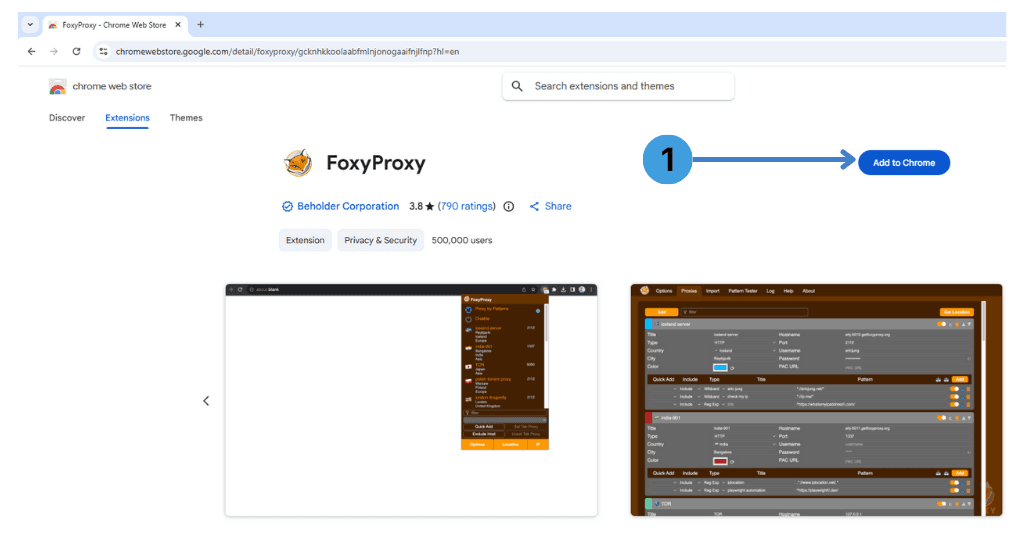
Click Add to Chrome on the FoxyProxy page in the Chrome Web Store.
2. Confirm the FoxyProxy Installation
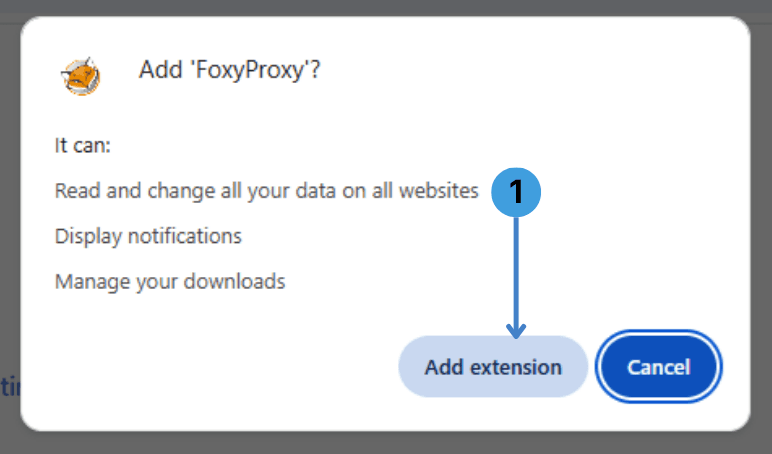
In the pop-up window, click Add extension to finish the installation.
3. Pin FoxyProxy to the Chrome Toolbar
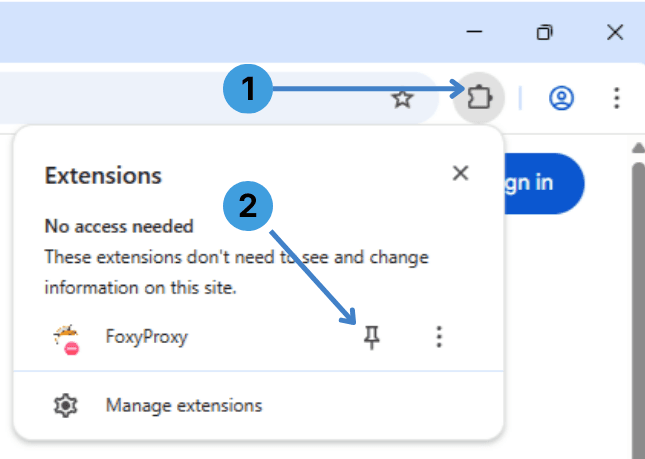
- Click the Extensions icon (puzzle piece) in the browser toolbar.
- Click the Pin icon next to FoxyProxy so it stays visible.
4. Open FoxyProxy Options
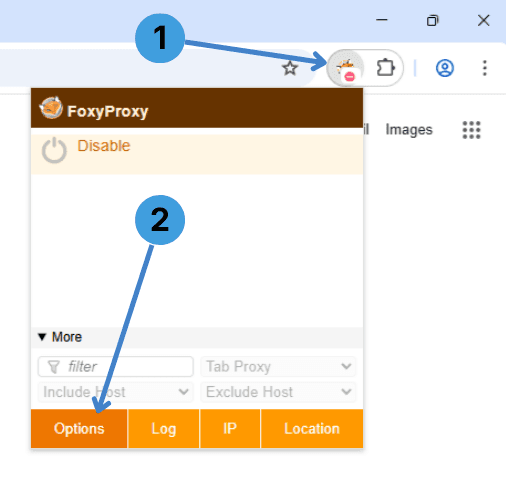
- Click the FoxyProxy icon in the toolbar.
- Click Options to open the settings page.
5. Open the Proxies Tab
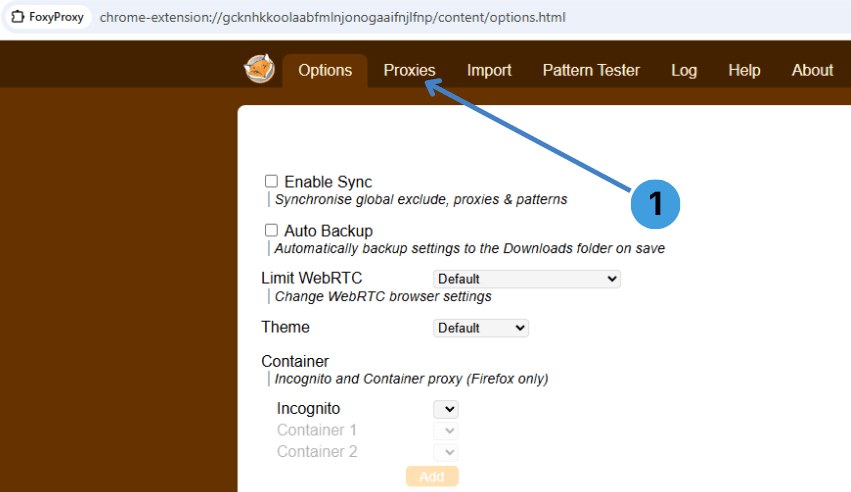
In FoxyProxy, open the Proxies tab (this is where you create and edit proxy profiles).
6. Add a Proxy Profile (Chrome)
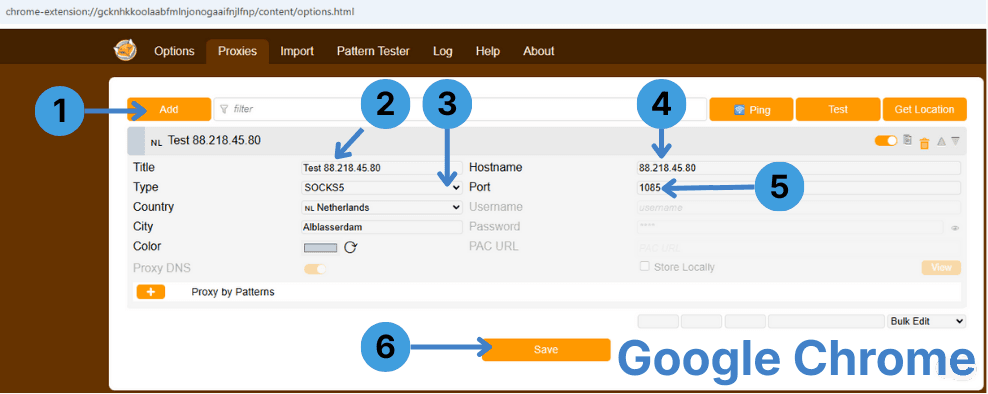
- Click Add.
- Enter a Title (any name you want).
- Set Type (example: SOCKS5).
- Enter the proxy Hostname (or IP address).
- Enter the Port.
- Click Save.
7. Add a Proxy Profile (Firefox)
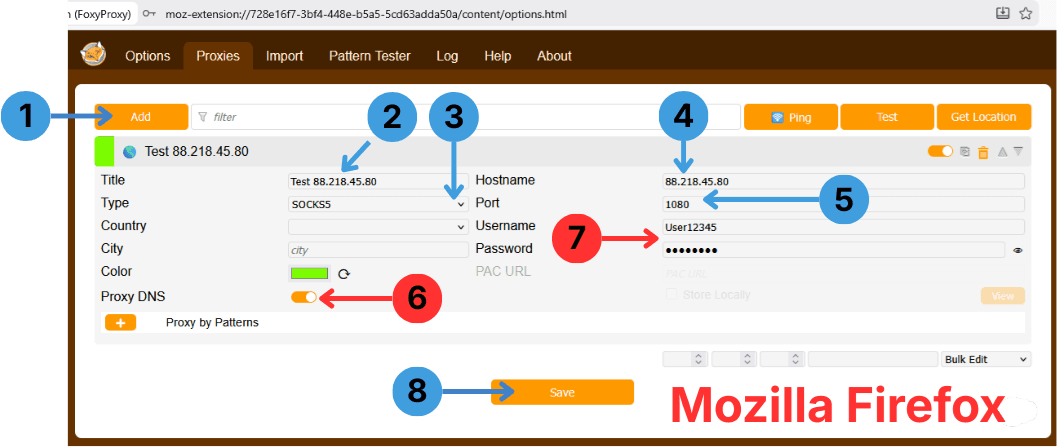
If you are using Firefox, you will also see two extra SOCKS5 options:
- Click Add.
- Enter a Title.
- Set Type (example: SOCKS5).
- Enter Hostname (or IP).
- Enter the Port.
- Optional: enable Proxy DNS to resolve website domains through the proxy (useful when local DNS filtering blocks access).
- Optional: enter Username/Password for SOCKS5 proxies that use credentials instead of IP whitelisting.
- Click Save.
8. Import a Proxy List
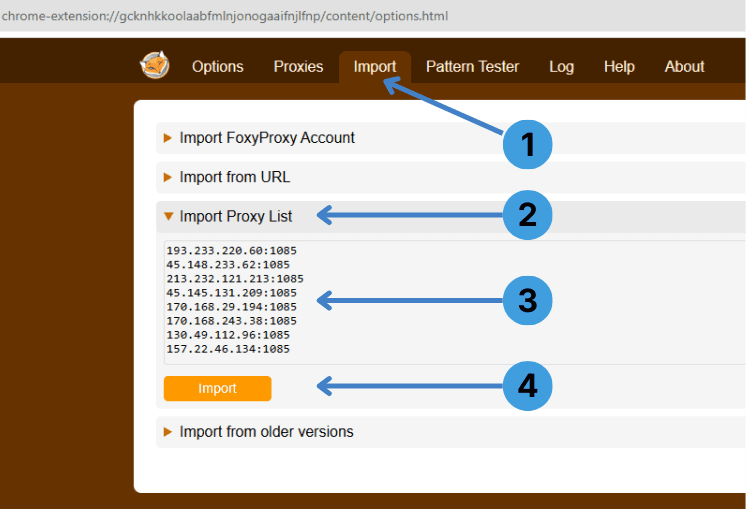
- Open the Import tab.
- Expand Import Proxy List.
- Paste your proxy list (one proxy per line, like IP:PORT).
- Click Import.
9. Disable the Proxy (or Switch Proxies)
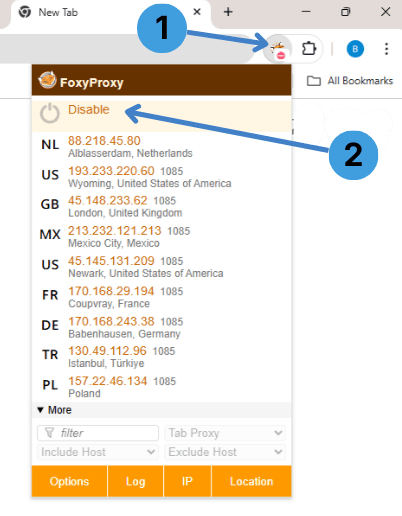
- Click the FoxyProxy icon in the toolbar.
- Click Disable to turn the proxy off, or select a proxy profile to switch to it.
FAQ
Can I use different proxies in Chrome and Firefox at the same time?
What’s the most anonymous FoxyProxy setup?
Why we prefer it: when a proxy uses Username/Password, it often gives itself away during a simple port scan because it replies with an “authentication required” prompt on the proxy port. Some networks and scanners use that response to identify proxy endpoints. With IP authentication, there’s no username/password challenge to reveal, so that particular fingerprint is missing. Proxy DNS also keeps DNS lookups on the proxy side instead of your local DNS.