
Midori allows you to route browser traffic through HTTP or SOCKS proxies directly from its own network settings dialog.
This article walks through manual proxy configuration in Midori and mentions other ways to connect through a proxy. It sits inside our main reference on regular browser support at ProxyData’s guide to standard web browsers.
Midori and proxy support
Modern Midori (the Astian version) is based on the Gecko engine and is closely related to Firefox ESR and the Floorp browser.
On desktop it offers a built-in “Connection Settings” window where you can select no proxy, use the system proxy, or define HTTP and SOCKS proxies just for Midori. Midori also supports many Mozilla-style extensions that can be installed from addons.mozilla.org, including various proxy add ons.
Step by step: setting proxy settings in Midori
Midori uses its own connection dialog, so the proxy works only inside the browser and does not change system-wide proxy settings.
Open Midori settings
Step 1
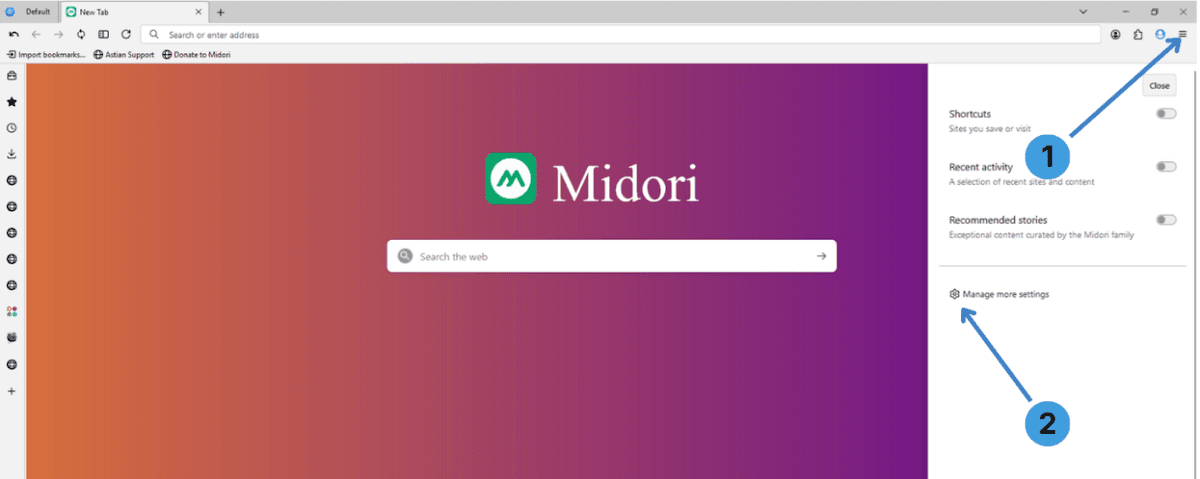
On the start page click the menu button with three horizontal lines in the upper right corner (the icon highlighted with label 1 on the first screenshot).
Step 2
In the panel that opens on the right, choose Manage more settings (label 2). Midori opens the main Settings tab.
Open the network section
Step 1
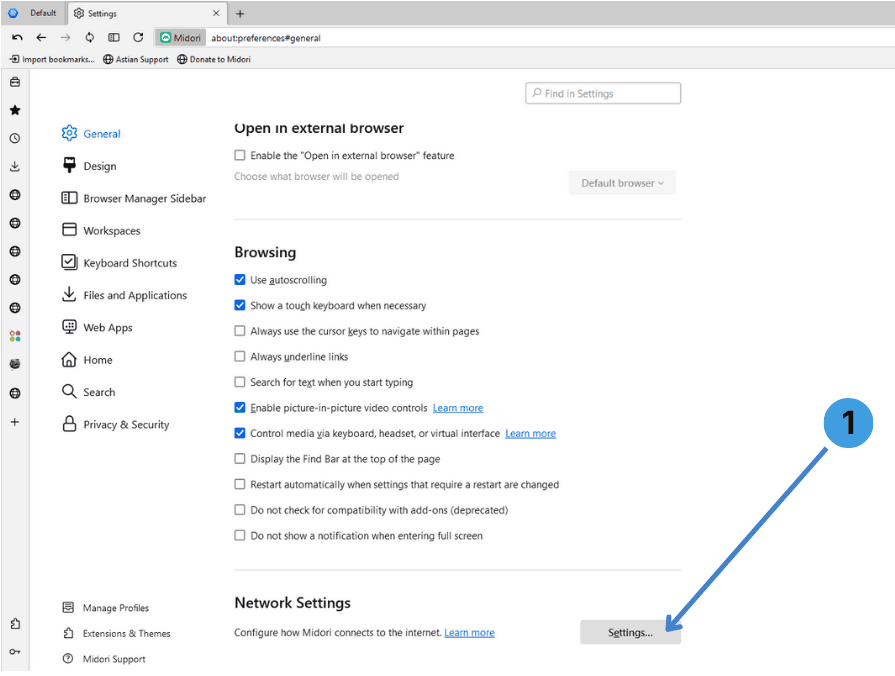
In Settings, stay on the General section. Scroll down to Network Settings and press the Settings… button at the bottom (marked as 1 on the second screenshot). This opens the Connection Settings window.
Configure HTTP and SOCKS proxies
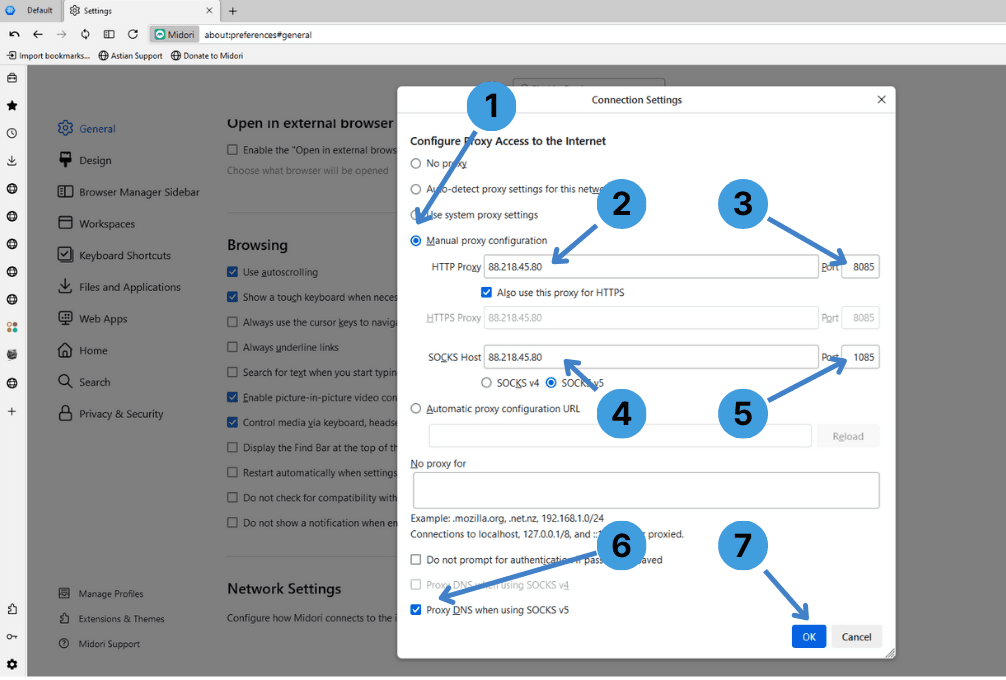
In the Connection Settings window you can define the proxy server.
Step 1
Select Manual proxy configuration (label 1). This tells Midori to ignore system proxy settings and use the values you enter below.
Step 2
In the HTTP Proxy field (label 2) type the proxy server address or IP (for example 88.218.45.80).
Step 3
In the HTTP Port box on the right (label 3), enter the port provided by your proxy service, such as 8085.
If you want the same HTTP proxy to handle HTTPS traffic, keep Also use this proxy for HTTPS enabled.
Step 4
In the SOCKS Host field (label 4) enter the SOCKS proxy address if you use a SOCKS4 or SOCKS5 proxy, for example 88.218.45.80.
Step 5
In the SOCKS Port field (label 5) type the SOCKS port, such as 1085, and choose SOCKS v5 if your provider specifies it.
Step 6
Tick Proxy DNS when using SOCKS v5 (label 6) if you want DNS requests to go through the SOCKS proxy instead of your local resolver. This helps avoid DNS leaks when using SOCKS5.
Step 7
Click OK (label 7) to save the configuration and close the dialog. All Midori tabs will now use the configured HTTP and/or SOCKS proxy.
Turning the proxy off in Midori
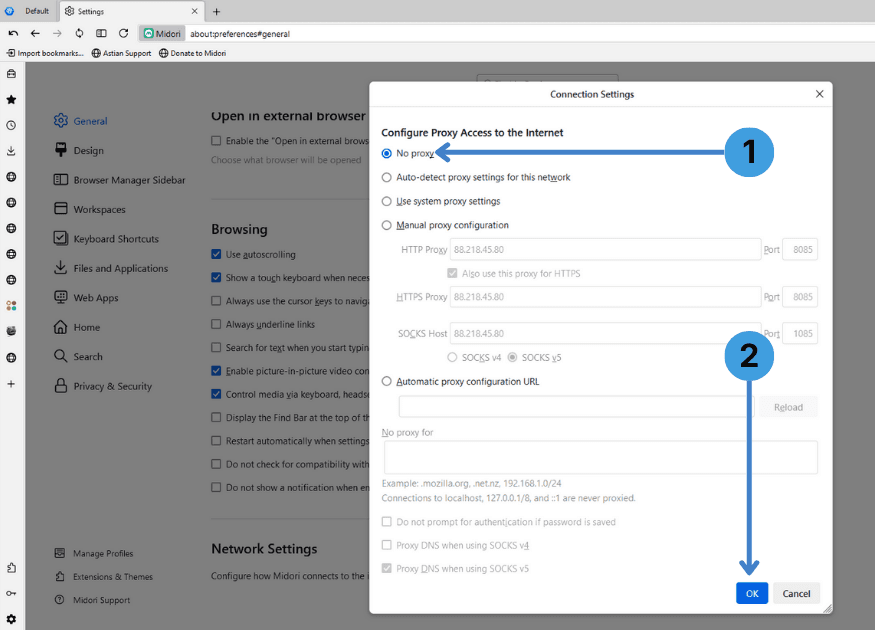
To go back to a direct internet connection without a proxy:
Step 1
Open Connection Settings again from General → Network Settings → Settings… and choose No proxy (label 1 on the last screenshot).
Step 2
Press OK (label 2). Midori will connect directly without using any proxy server.
Alternative: proxy extensions in Midori
Because Midori can install many Mozilla extensions from the Firefox add-on ecosystem, another option is to use a proxy manager extension such as FoxyProxy, SwitchyOmega-style tools, or similar add ons from addons.mozilla.org.
These extensions let you define multiple proxy profiles, switch between them with one click, or route only specific sites through a proxy. For a general explanation of how such extensions work and which ones are commonly used, see our short guide to proxy extensions.
Alternative: using standalone proxy clients with Midori
Instead of configuring each browser separately, you can run a standalone proxy client on the operating system, such as Proxifier or ProxyCap. These tools intercept outbound connections from selected applications and send them through a proxy, so Midori follows the same rules as other software on the machine. For more background on this approach, look at our summary of standalone proxy tools.
Conclusion
Midori allows proxy configuration directly in its connection settings window and can work with both HTTP and SOCKS proxies, or fall back to the system proxy. On top of that, Mozilla-compatible proxy extensions and external proxy clients give extra flexibility for more advanced setups. Choose the method that matches how you prefer to manage proxy servers across your apps and devices.