
Maxthon Browser can work through a proxy server, which is useful when traffic must go through a specific IP range or gateway. This article explains how to configure a proxy for Maxthon, how to switch it off, and what other options are available. For a wider context of how regular browsers handle proxies, see our guide in the general reference on standard web browsers.
Maxthon and proxy configuration options
Recent Maxthon versions are based on the Chromium engine, so the browser follows the same general approach as Chrome. Maxthon itself does not provide a full internal proxy dialog; instead it opens the operating system proxy settings (on Windows this is the “Network & internet → Proxy” panel). In addition, Chromium compatibility often allows using proxy extensions, and Maxthon traffic can also be routed through system-wide proxy clients such as Proxifier or ProxyCap.
Step by step: setting up a proxy in Maxthon
In Maxthon, the browser settings simply open the Windows system proxy configuration. The actual proxy IP address and port are entered in the Windows dialog.
Step 1 – Open Maxthon settings
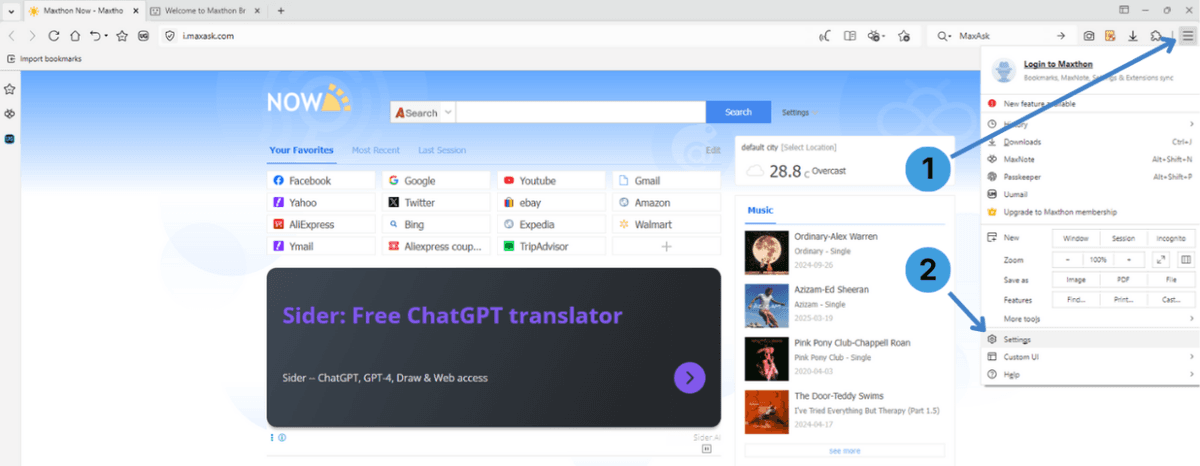
- Step 1: Click the main browser menu button in the upper-right corner (marker 1 on the first screenshot).
- Step 2: In the menu that opens, choose “Settings” (marker 2 on the first screenshot). This opens a new Settings tab inside Maxthon.
Step 2 – Go to the Advanced section and open system proxy settings
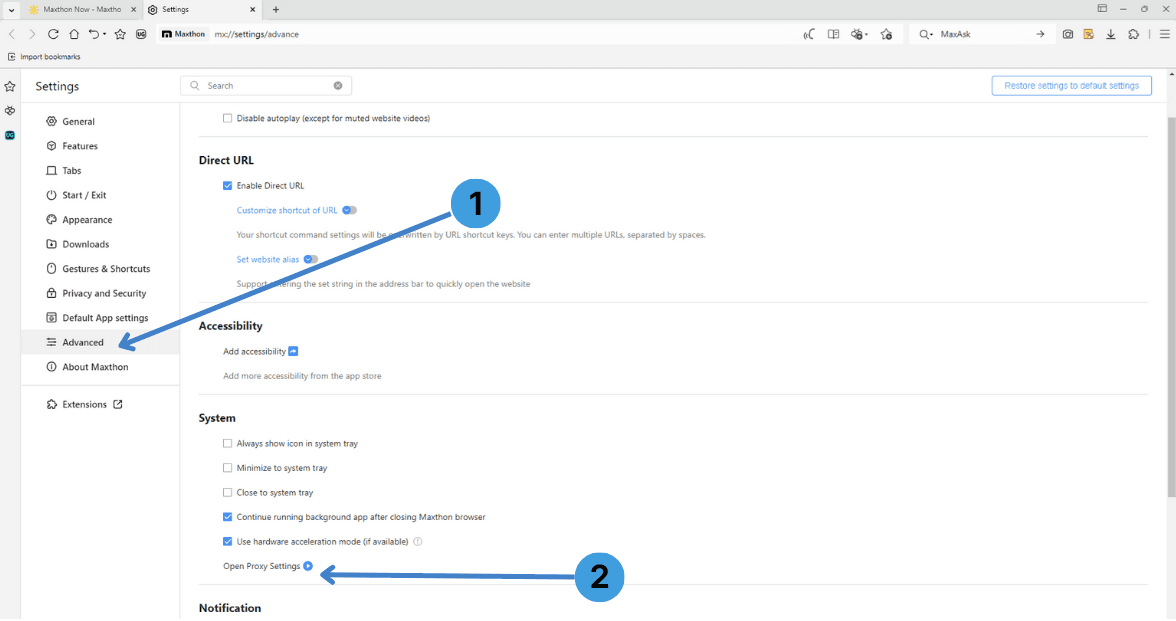
- Step 3: In the Settings tab, select “Advanced” in the left sidebar (marker 1 on the second screenshot).
- Step 4: Scroll down to the System section and click “Open Proxy Settings” (marker 2 on the second screenshot).
Maxthon now opens the Windows Network & internet → Proxy settings window.
Step 3 – Open manual proxy setup in Windows
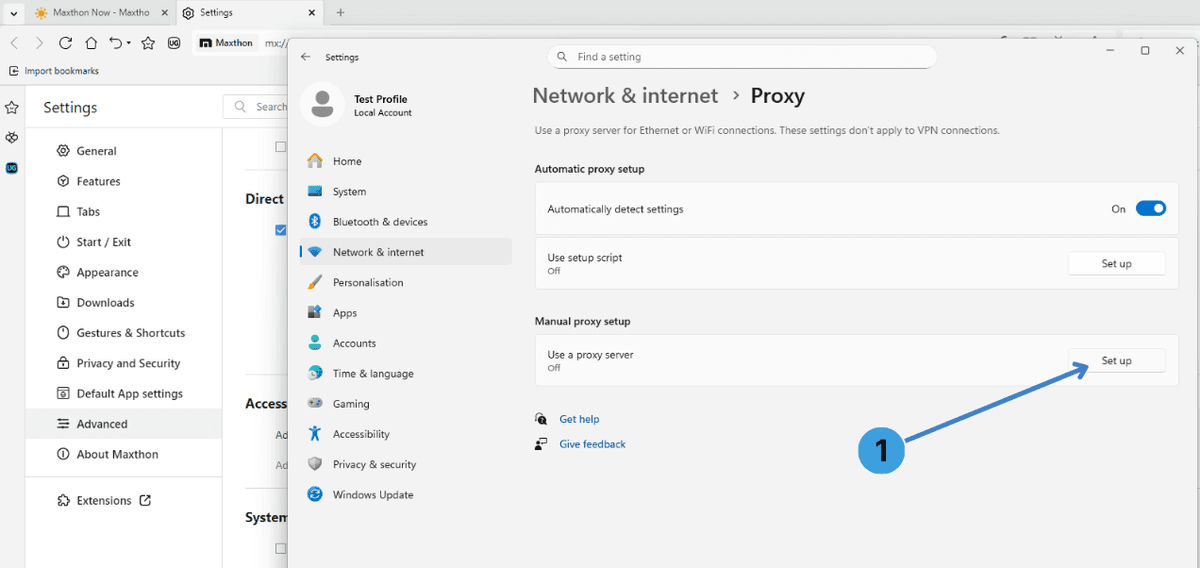
- Step 5: In the Windows Proxy panel, under “Manual proxy setup”, click “Set up” next to “Use a proxy server” (marker 1 on the third screenshot).
This opens the Edit proxy server dialog.
Step 4 – Enable the proxy and enter your server details
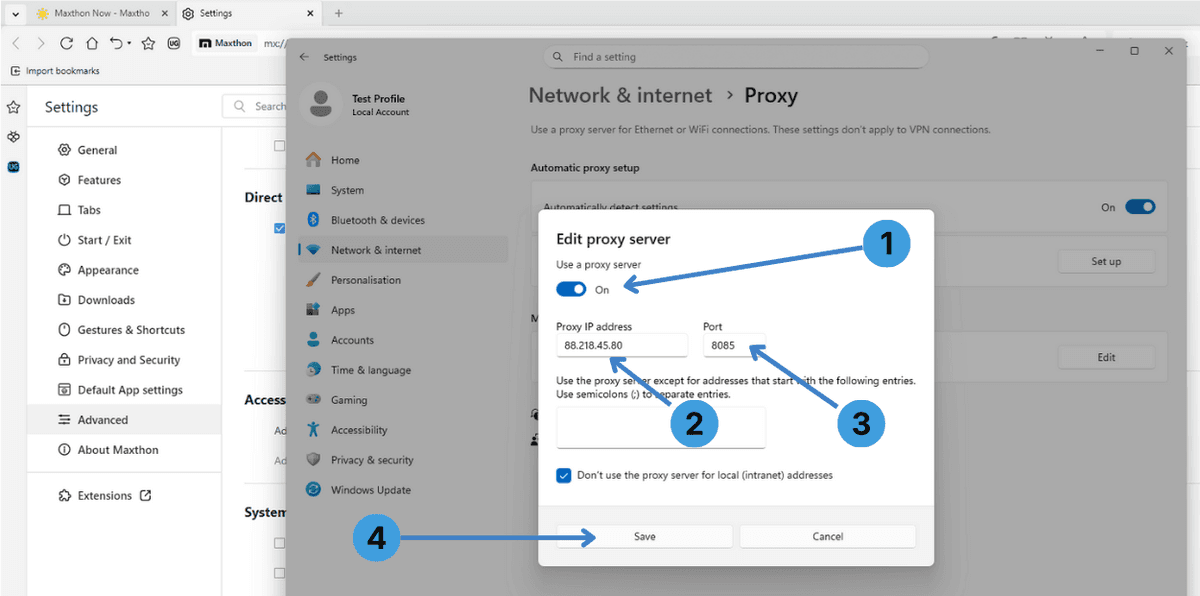
- Step 6: In the Edit proxy server dialog, turn “Use a proxy server” to On (marker 1 on the fourth screenshot).
- Step 7: In the Proxy IP address field, enter the IP (or hostname) of your proxy server (marker 2).
- Step 8: In the Port field, enter the port provided by your proxy provider (marker 3). Typical HTTP/HTTPS ports are 8080, 3128, etc., but always use the value given in your proxy panel.
- Step 9: Leave the exceptions field empty unless you want to bypass the proxy for specific local addresses.
- Step 10: Click “Save” (marker 4).
Once saved, Windows starts sending all HTTP/HTTPS traffic through this proxy, and Maxthon uses it automatically.
Step 5 – Turn the proxy off again
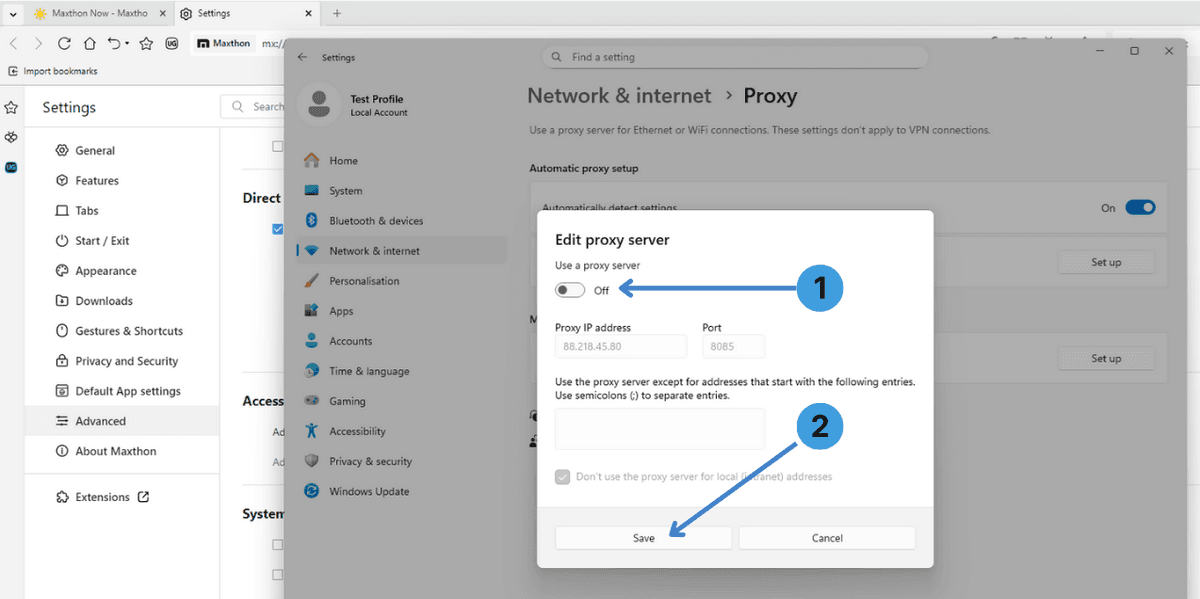
When you no longer need the proxy:
- Step 11: Open the same Edit proxy server dialog as above, then toggle “Use a proxy server” to Off (marker 1 on the fifth screenshot).
- Step 12: Click “Save” (marker 2).
After this, Maxthon and other apps using system settings will connect directly without the proxy.
Alternative: proxy extensions in Maxthon
Because Maxthon is Chromium-based, some Chrome-style extensions may work, although availability can depend on your Maxthon version and extension source. Where compatible, this allows managing several proxy profiles from inside the browser instead of using the system proxy for everything.
Popular proxy managers include SwitchyOmega, ZeroOmega, FoxyProxy, and Proxy Switcher & Manager. They let you:
- Store multiple proxy profiles (different IPs or locations).
- Switch proxies per tab or per URL pattern.
- Quickly turn proxy usage on or off without touching Windows settings.
For general notes on choosing and using such add-ons, see our article about proxy extensions for browsers.
Alternative: using standalone proxy clients with Maxthon
Another option is to route Maxthon traffic through a desktop proxy client. Tools like Proxifier, ProxyCap, and similar software can capture connections from selected applications and forward them through a proxy server. This is helpful if:
- You want only Maxthon (or a few programs) to use a proxy, not the whole system.
- The browser has limited proxy configuration features.
- You manage several different proxies in one central place.
More background on these tools is available in our overview of standalone proxy client software.
Conclusion
Maxthon relies on the Windows system proxy panel, so the main method is to open Settings → Advanced → Open Proxy Settings and then configure the proxy in the OS dialog. On top of that, compatible proxy extensions or standalone proxy clients can give more flexible control when working with multiple proxy profiles or apps. Choose the method that matches how you use Maxthon and how broadly you want the proxy applied.