
K-Meleon allows custom proxy profiles, so it can work through HTTP or SOCKS servers instead of connecting directly to the internet.
This guide explains how to add, edit, and remove proxy settings in K-Meleon and mentions other ways to route its traffic through a proxy. It is part of our wider overview of proxy setup in desktop browsers, described in our main guide to regular web browsers.
K-Meleon and proxy support
K-Meleon is a lightweight Gecko based browser for Windows. It includes its own proxy configuration dialog, where users can define manual HTTP and SOCKS proxy settings and save several profiles. Typical Chrome or Firefox proxy extensions are not available, but K-Meleon can still work behind external system wide or desktop proxy clients.
Step by step: Configuring a proxy in K-Meleon
K-Meleon uses a built in proxy settings dialog inside its Preferences window.
Step 1. Open Preferences
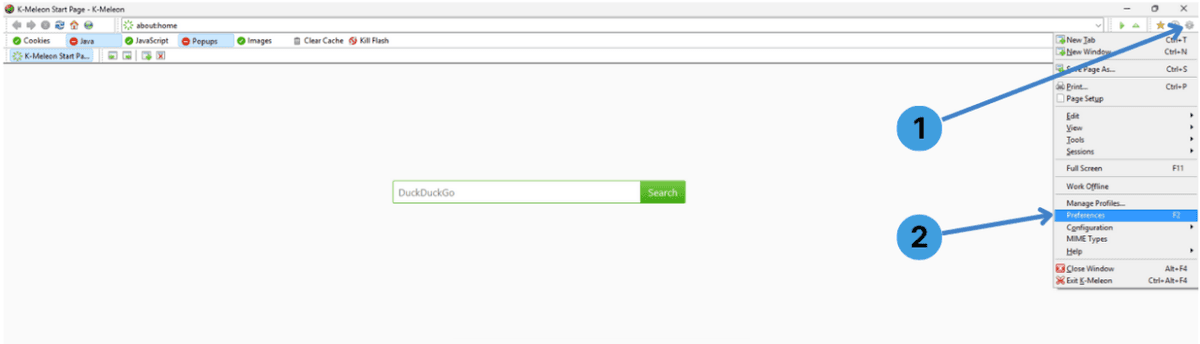
- Click the main K-Meleon menu button in the top right corner of the browser window (label 1 on the screenshot).
- In the menu, choose Preferences (label 2). The Preferences window will open.
Step 2. Open proxy settings and create a new configuration
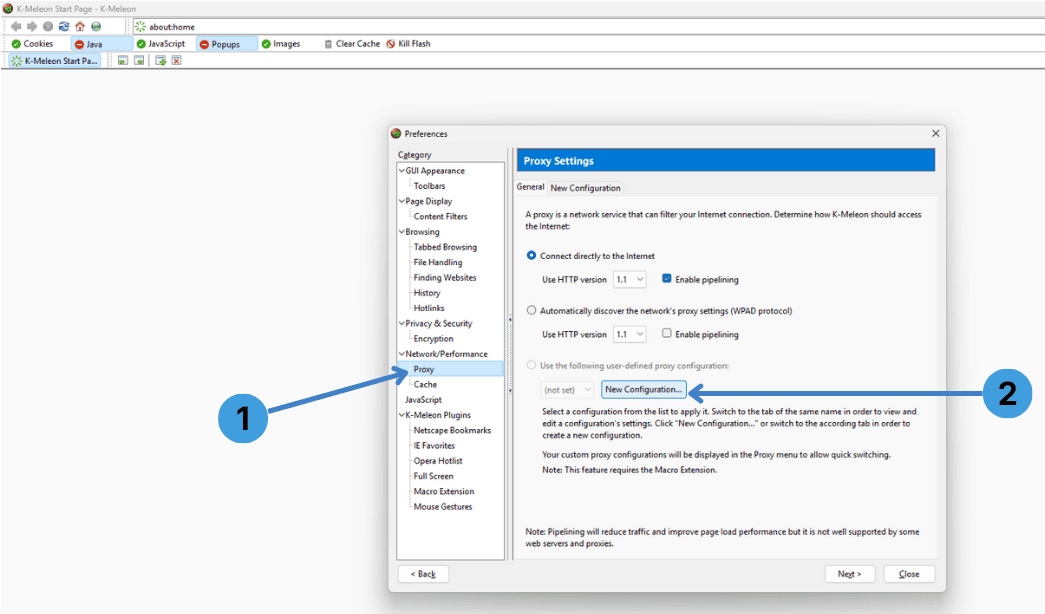
- In the left sidebar of the Preferences window, expand Network/Performance and click Proxy (label 1).
- In the Proxy Settings panel, under Use the following user-defined proxy configuration, click New Configuration... (label 2). A new tab for this configuration appears.
Step 3. Insert proxy data into the configuration
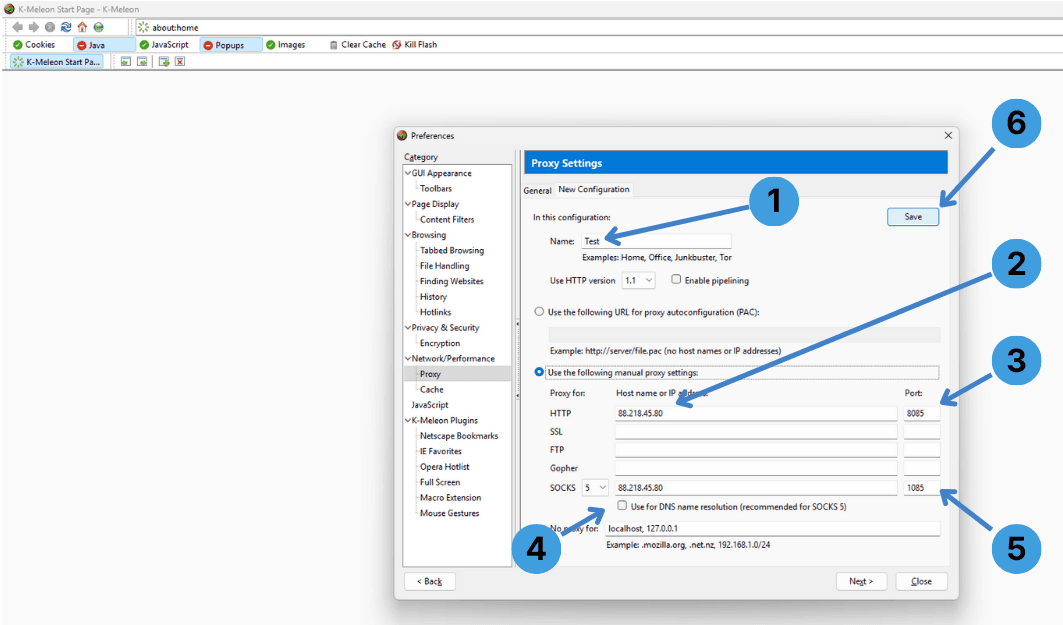
In the New Configuration tab:
- In the Name field (label 1), enter a clear name for this proxy profile, for example "USA SOCKS5" or "Office HTTP".
- Make sure Use the following manual proxy settings is selected (label 2). This tells K-Meleon to use the proxy servers you enter below.
- In the HTTP row, under Host name or IP address and Port (label 3), enter the proxy server address and port if you want to use an HTTP proxy. For example:
- Host name or IP address: 88.218.45.80
- Port: 8085
You can leave SSL/FTP/Gopher fields empty if you do not use them or if the same proxy is only needed for SOCKS.
- In the SOCKS row, choose the SOCKS version from the dropdown (label 4). For most modern services this will be SOCKS5.
- In the SOCKS Host name or IP address and Port boxes (label 5), enter the SOCKS proxy server address and port, for example 88.218.45.80 and 1085. Optionally tick Use for DNS name resolution if your provider recommends sending DNS queries through the SOCKS proxy.
- Click Save (label 6) to store this configuration. You can now switch between configurations using the tabs at the top of the Proxy Settings window and the Proxy menu in K-Meleon.
When everything is set, click Apply if needed and close the Preferences window. K-Meleon will now send web traffic through the selected proxy profile.
Step 4. Delete a proxy configuration
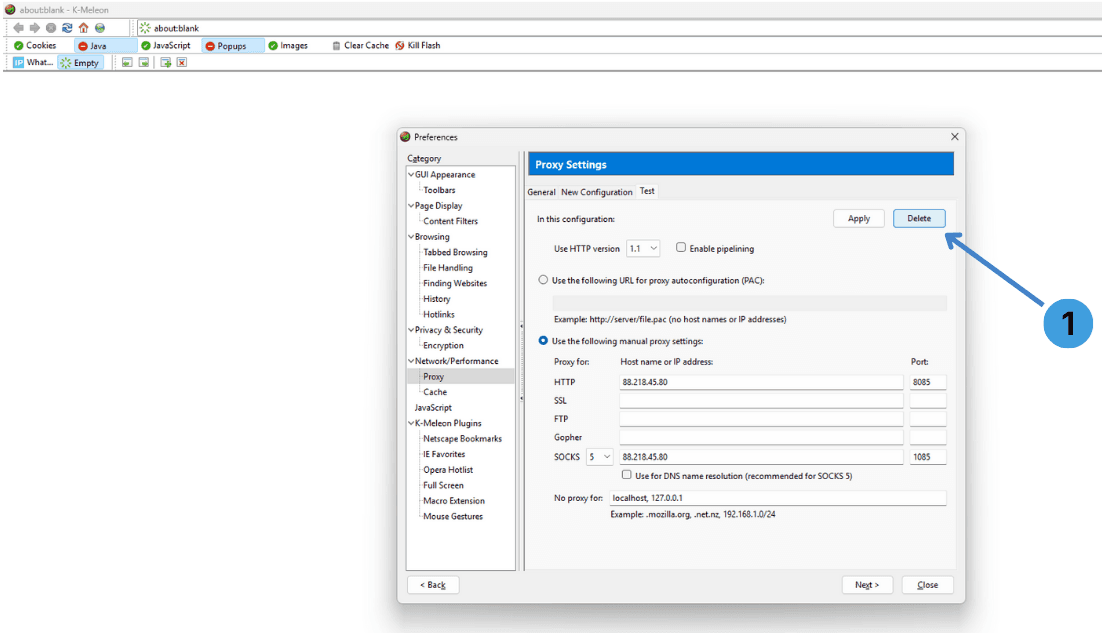
If a proxy profile is no longer required:
- Open Preferences → Network/Performance → Proxy again and switch to the tab with the configuration you want to remove.
- Click Delete (label 1 on the screenshot). The configuration will be removed from the list.
Alternative: Proxy browser extensions for K-Meleon
K-Meleon does not use the same extension system as modern Chromium or Firefox based browsers, so common proxy managers like SwitchyOmega or FoxyProxy are usually not available. For users who rely heavily on such extensions, another browser with full extension support might be more convenient.
For a general overview of proxy extensions and how they work in other browsers, see our documentation on proxy extensions.
Alternative: Using standalone proxy clients with K-Meleon
Another option is to use a standalone desktop proxy client that redirects application or system traffic through a proxy. Tools like Proxifier, ProxyCap and similar software can force selected programs, including K-Meleon, to use specified HTTP, HTTPS or SOCKS proxies. This approach is useful when the browser’s own proxy settings are limited or when central control of multiple applications is required.
More details about such tools are available in our overview of standalone proxy clients.
K-Meleon supports direct proxy configuration through its Preferences window and can also work behind external proxy clients. Choose the option that best fits your workflow, whether that is editing profiles in the Proxy Settings dialog or routing all browser traffic through a separate proxy tool.