
Mozilla Firefox allows direct proxy configuration inside the browser, so it is easy to route traffic through HTTP or SOCKS servers. This article explains the main ways to connect Firefox through a proxy and how to turn the proxy off again. It is part of a broader overview of proxy use in standard browsers, described on our main reference page on regular desktop browsers.
Firefox and proxy support
Firefox is based on the Gecko engine and ships with its own connection settings dialog. From there it can use no proxy, automatic detection, the system proxy settings, or a manual proxy setup that supports HTTP, HTTPS and SOCKS4/SOCKS5. Firefox also works well with proxy extensions and can be used together with external desktop proxy clients if a system wide proxy is preferred.
Proxy configuration in Mozilla Firefox
Firefox uses a built in connection settings window for proxy setup, not the operating system settings. Follow the numbered steps that match the on screen markers.
Step 1. Open the Firefox settings
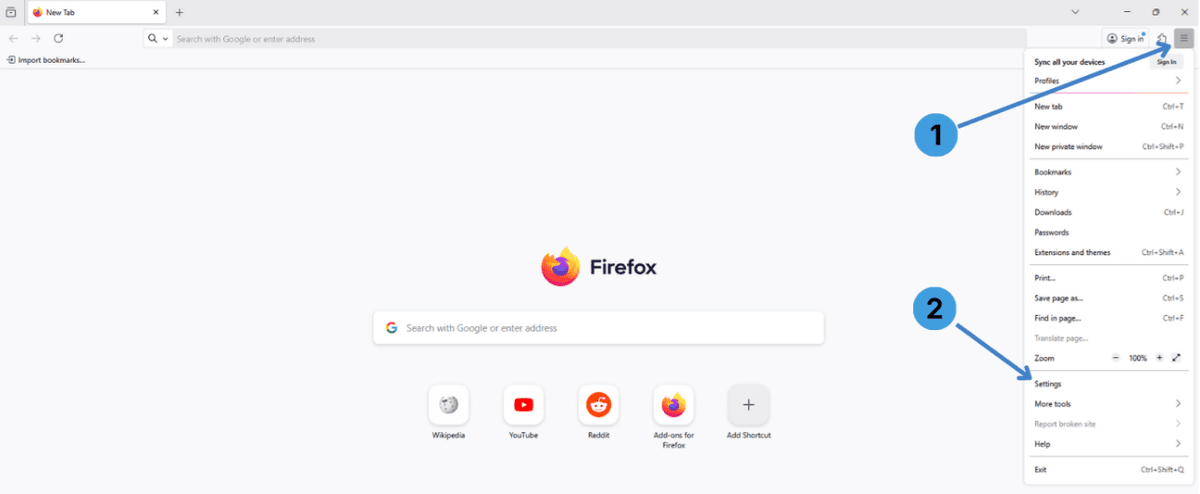
- Click the menu button in the top right corner of the Firefox window (marker 1 on the screenshot).
- In the menu that opens, choose Settings (marker 2). This opens the main settings page in a new tab.
Step 2. Open Network Settings
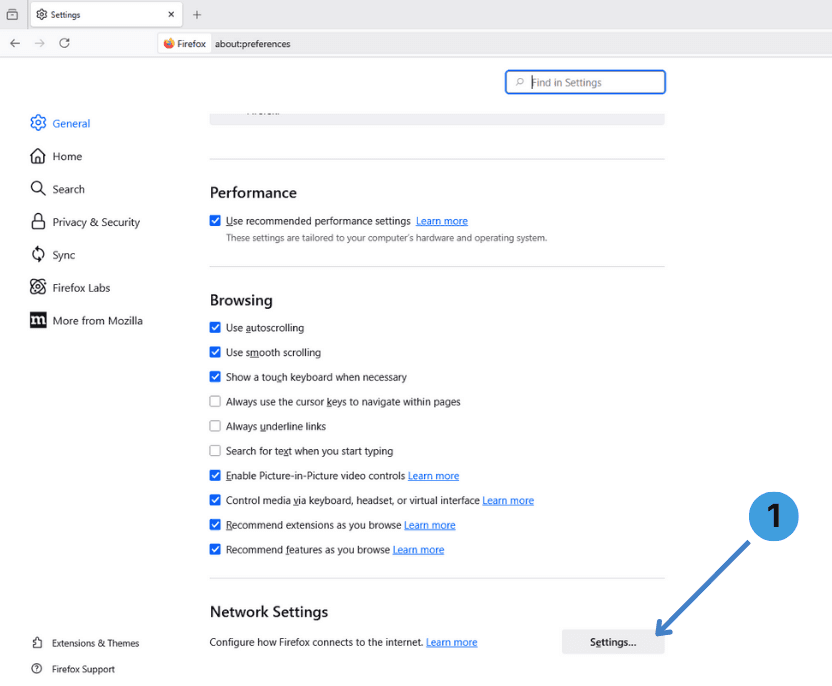
- On the General tab, scroll to the Network Settings section at the bottom and click the Settings... button (marker 1).
This opens the Connection Settings window where all proxy options are configured.
Step 3. Set up an HTTP or HTTPS proxy
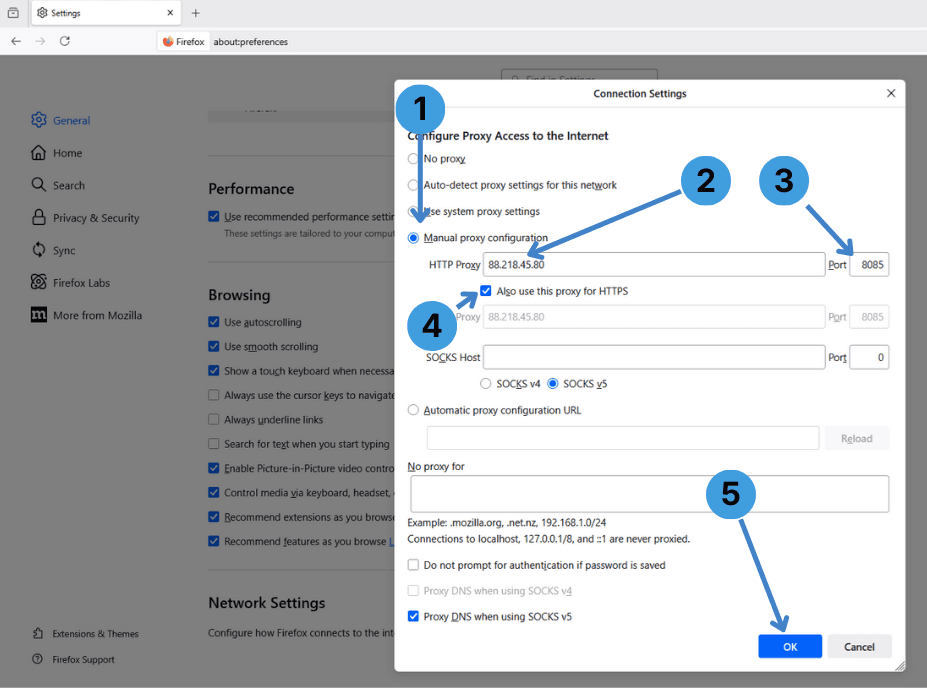
Use this when the proxy provider gives you an HTTP or HTTPS proxy address and port.
In the Connection Settings window:
- Select Manual proxy configuration (marker 1).
- In the HTTP Proxy field (marker 2), enter the proxy server hostname or IP address, for example 88.218.45.80.
- In the Port field next to it (marker 3), enter the port number from your provider, for example 8085.
- If the same proxy should handle HTTPS traffic, tick Also use this proxy for HTTPS (marker 4). This copies the address and port into the HTTPS Proxy field.
- Leave other fields as they are and click OK (marker 5) to save the configuration.
When you next open a website, Firefox will route traffic through the HTTP or HTTPS proxy. If your proxy requires Username/Password authentication, Firefox will show a login prompt.
Step 4. Set up a SOCKS5 proxy
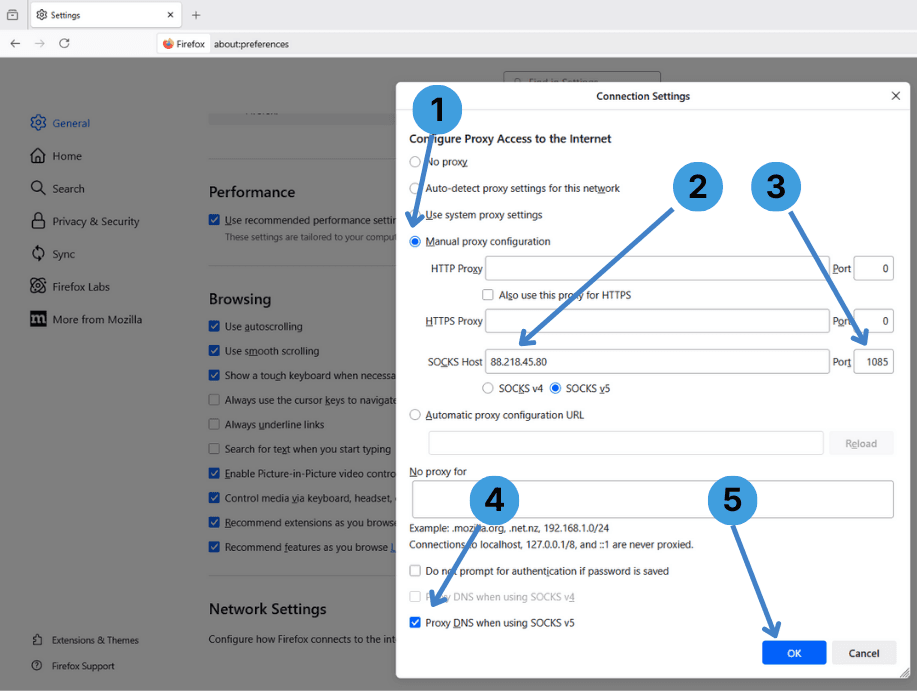
Use this when you have a SOCKS4 or SOCKS5 proxy. These can forward any type of TCP traffic and are often used for tools that need more than just web browsing.
In the Connection Settings window:
- Again, select Manual proxy configuration (marker 1) if it is not already active.
- In the SOCKS Host field (marker 2), type the SOCKS server IP address or hostname, for example 88.218.45.80.
- In the Port box next to it (marker 3), enter the SOCKS port, for example 1085.
- Choose the correct SOCKS version below the field. For most modern services this is SOCKS v5 and in that case you can keep Proxy DNS when using SOCKS v5 enabled (marker 4) so DNS requests also go through the proxy.
- Click OK (marker 5) to apply the SOCKS proxy settings.
Again, Firefox may ask for Username/Password if the SOCKS server requires authentication.
Step 5. Turn the proxy off (No proxy)
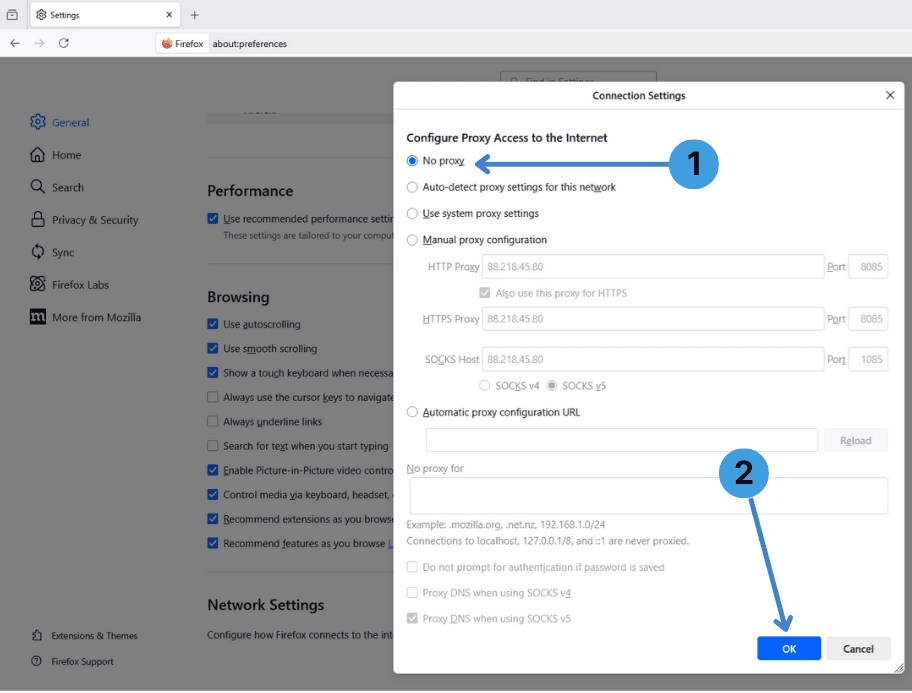
If you want Firefox to connect directly without any proxy:
- Open Connection Settings as in Step 2 and select No proxy (marker 1).
- Click OK (marker 2). All manual proxy entries will be ignored and Firefox will use a direct connection.
Alternative: using proxy extensions in Mozilla Firefox
Mozilla Firefox supports a wide range of browser extensions, including proxy managers. Instead of configuring proxies in the built in connection dialog, you can install add ons like SwitchyOmega, FoxyProxy or other proxy switchers and control per tab or per site routing from the toolbar. These tools are described in more detail in our dedicated guide to proxy extensions for browsers.
Alternative: routing Firefox through standalone proxy clients
Another approach is to keep Firefox itself unmodified and route its traffic through a system wide or app specific proxy client. Programs such as Proxifier or ProxyCap can intercept connections from selected applications and send them through a configured proxy list. This is useful if you want to manage all traffic from several browsers and tools in one place. More information is available in our separate overview of standalone desktop proxy clients.
Conclusion
Mozilla Firefox provides a flexible proxy setup through its own connection settings, allowing HTTP, HTTPS and SOCKS proxies, plus quick disabling when you no longer need them. On top of this, proxy extensions and external proxy clients offer additional control for users who prefer profile based or system level management. Choose the method that best matches how you use Firefox and how you organize your proxy infrastructure.