
Microsoft Edge allows traffic to be routed through an HTTP or HTTPS proxy so that all browser requests are sent through a remote server.
This article shows how to configure that in Edge on Windows, plus alternative methods with extensions and desktop proxy tools.
For other browsers, see our overview of proxy configuration in regular web browsers.
Microsoft Edge is a Chromium based browser. On Windows it does not have its own separate proxy form but instead opens the system proxy page in the Windows Settings app. Proxies can also be controlled through browser extensions or external proxy clients that redirect application traffic.
Step by step: proxy settings in Microsoft Edge
In this method Edge uses the Windows system proxy settings. The proxy you enter here will normally apply to all HTTP or HTTPS connections from the computer, not only to Edge.
Step 1. Open the Edge menu and Settings
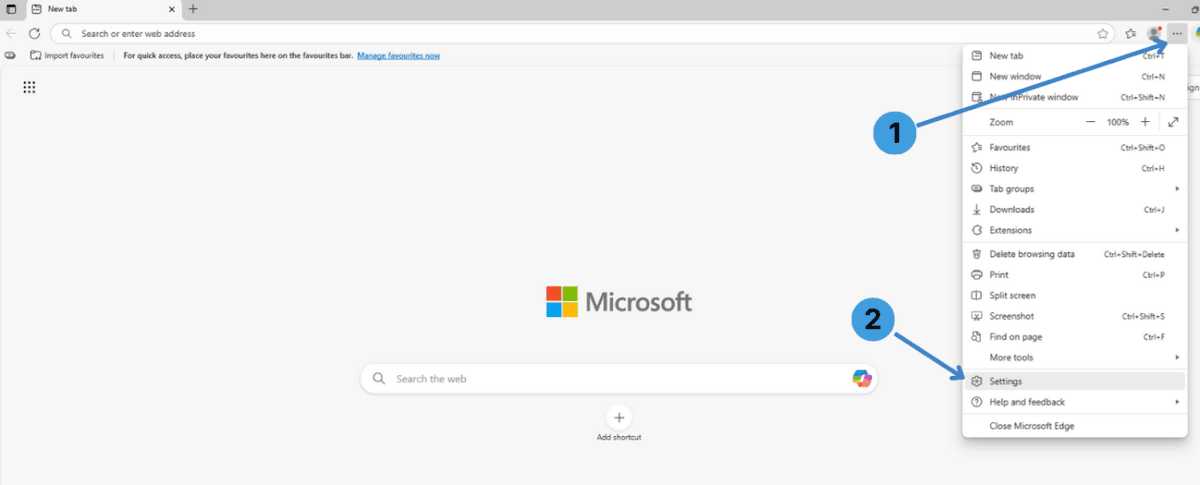
Click the three dots menu button in the top right corner of the window (1) and then select Settings (2).
Step 2. Go to System and performance and open proxy settings
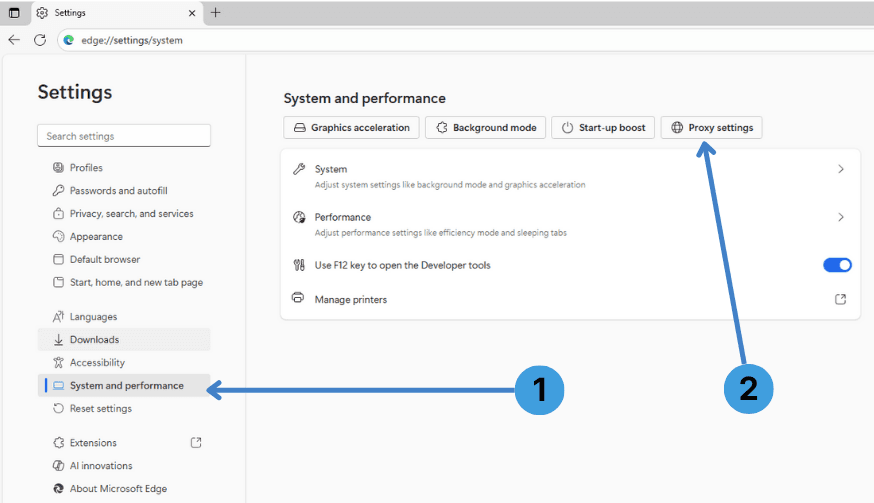
In the left sidebar of the Settings page, choose System and performance (1).
On the right side click the Proxy settings button (2).
Step 3. Launch Windows proxy settings
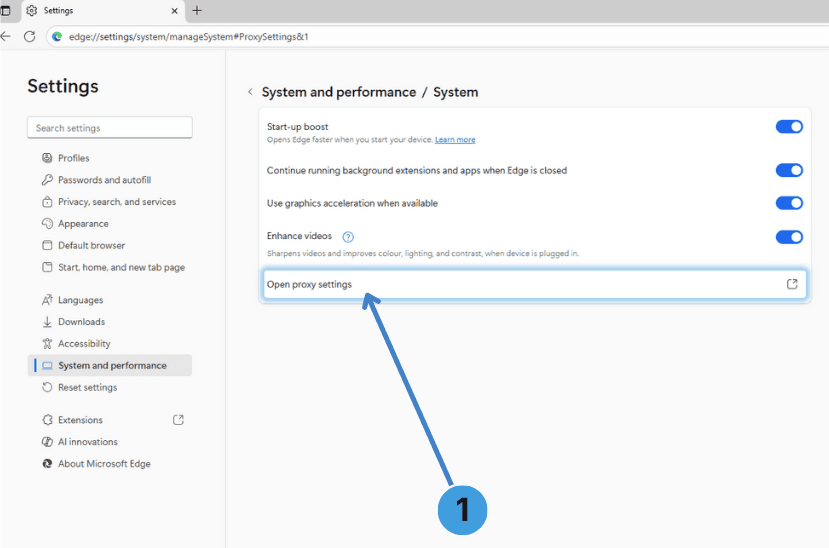
On the System and performance / System page click Open proxy settings (1).
Edge opens the Windows Network & internet > Proxy panel.
Step 4. Open manual proxy setup
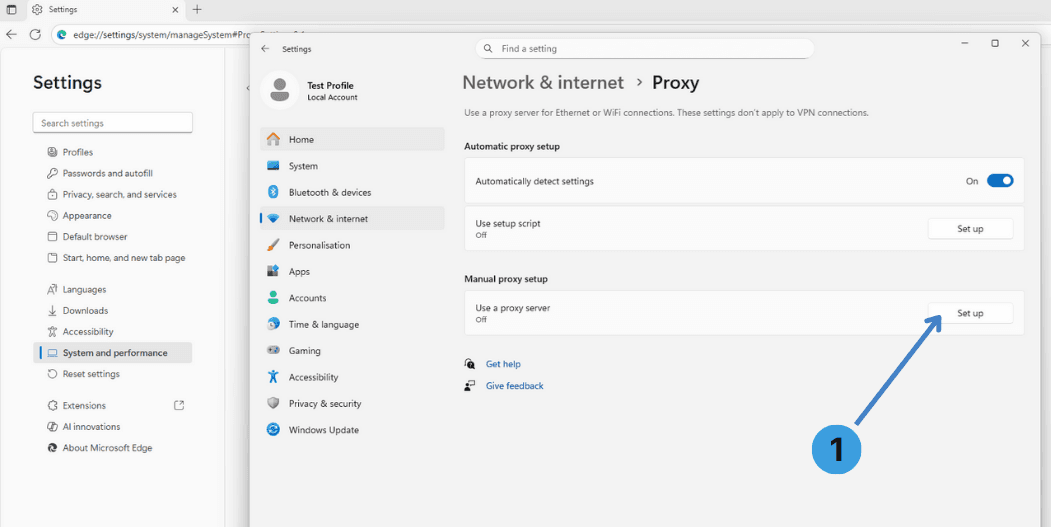
In the Windows proxy panel, under Manual proxy setup, click Set up (1) next to Use a proxy server.
Step 5. Configure a manual proxy server
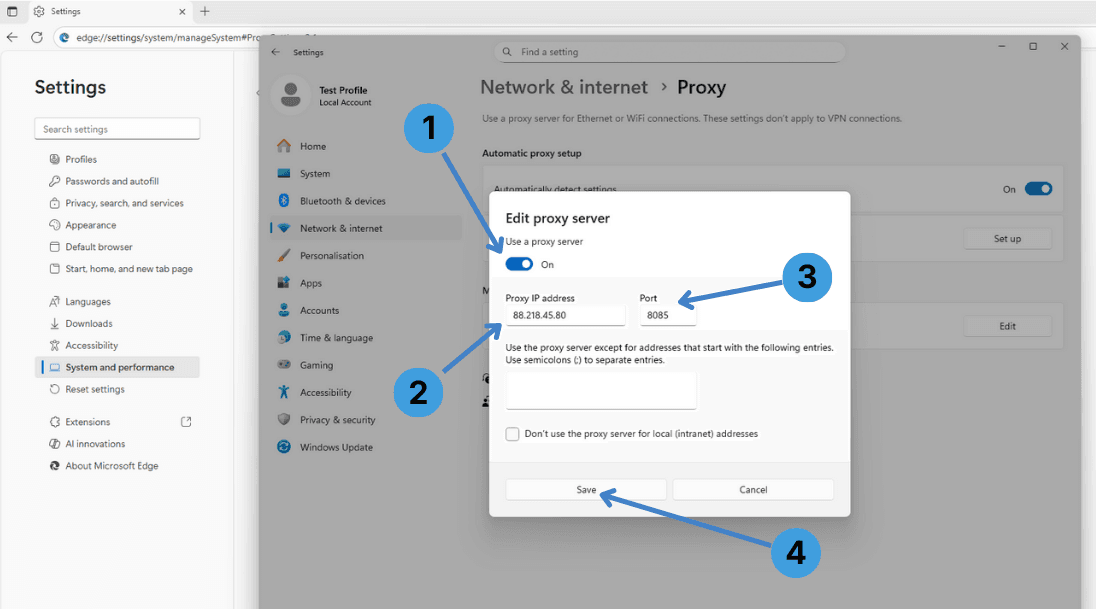
In the Edit proxy server dialog:
- Turn Use a proxy server to On (1).
- In Proxy IP address enter the proxy server address provided by your proxy service and in Port enter the port number (3).
- If needed, add websites that should bypass the proxy in the exceptions field (2), separating entries with semicolons.
- Click Save (4) to apply the settings.
From now on Edge and other apps that follow the system proxy will send their traffic through this proxy server.
Step 6. Turn the proxy server off again
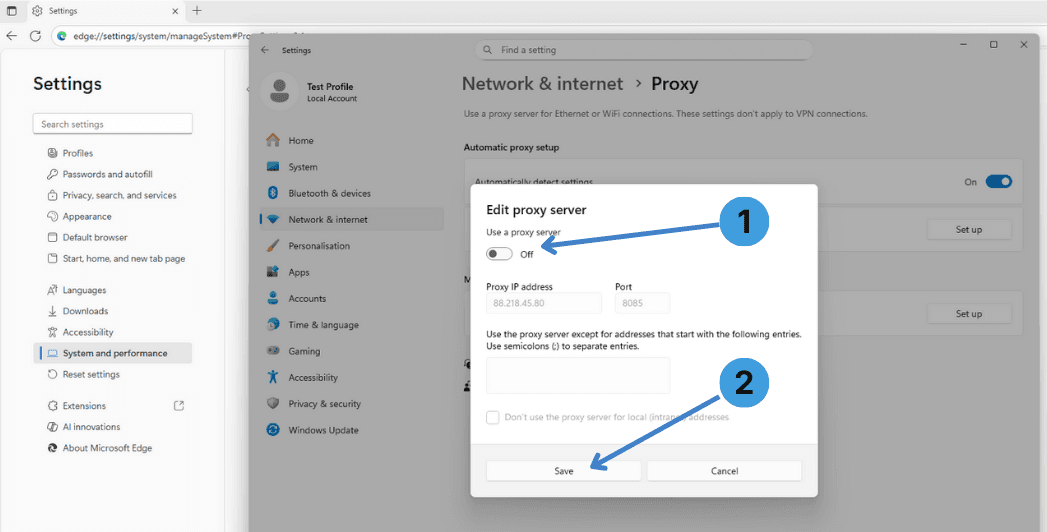
To disable the proxy, return to the same Edit proxy server dialog, set Use a proxy server to Off (1) and click Save (2).
Windows will stop routing connections through the proxy.
Alternative 1: Using proxy extensions in Microsoft Edge
Another option is to install a proxy management extension. Microsoft Edge supports extensions from the Microsoft Edge Add ons store and, if enabled, from the Chrome Web Store, so tools like SwitchyOmega, FoxyProxy or Proxy Switcher can be used to create separate proxy profiles and rules per site or tab.
General information about these add ons is available in our reference on proxy browser extensions.
Alternative 2: Using standalone proxy clients with Microsoft Edge
Standalone proxy clients such as Proxifier or ProxyCap can redirect traffic from Edge and other programs through a proxy without changing system settings manually. This is useful when several apps must use different proxies or when a central tool is preferred for all connections. You can read more about these tools in our article about standalone proxy clients.
Conclusion
Microsoft Edge can work with proxies primarily through the Windows system proxy settings, with additional control possible via extensions or external proxy clients. Choose the option that best fits how you manage network access across your applications, and use the linked documentation if you need more detail on extensions or standalone tools.