
Opera is a Chromium based browser, so it follows the same pattern as Chrome and other Chromium browsers for proxy support. This article shows how to connect Opera to a proxy via the Windows system proxy dialog, then outlines options with proxy extensions and desktop proxy clients. Opera is also covered together with other browsers in our main guide to regular web browsers.
Opera does not keep a full separate proxy page of its own. Instead it links to the operating system proxy settings. On desktop systems you can therefore control Opera traffic through the system proxy, through browser extensions that speak to proxy servers, or through standalone proxy software that redirects connections from all apps.
Step by step: using a proxy with Opera on Windows
This method uses Opera’s link to the Windows system proxy settings. Changes here affect Opera and any other apps that rely on the Windows proxy.
Step 1. Open Easy Setup and full settings
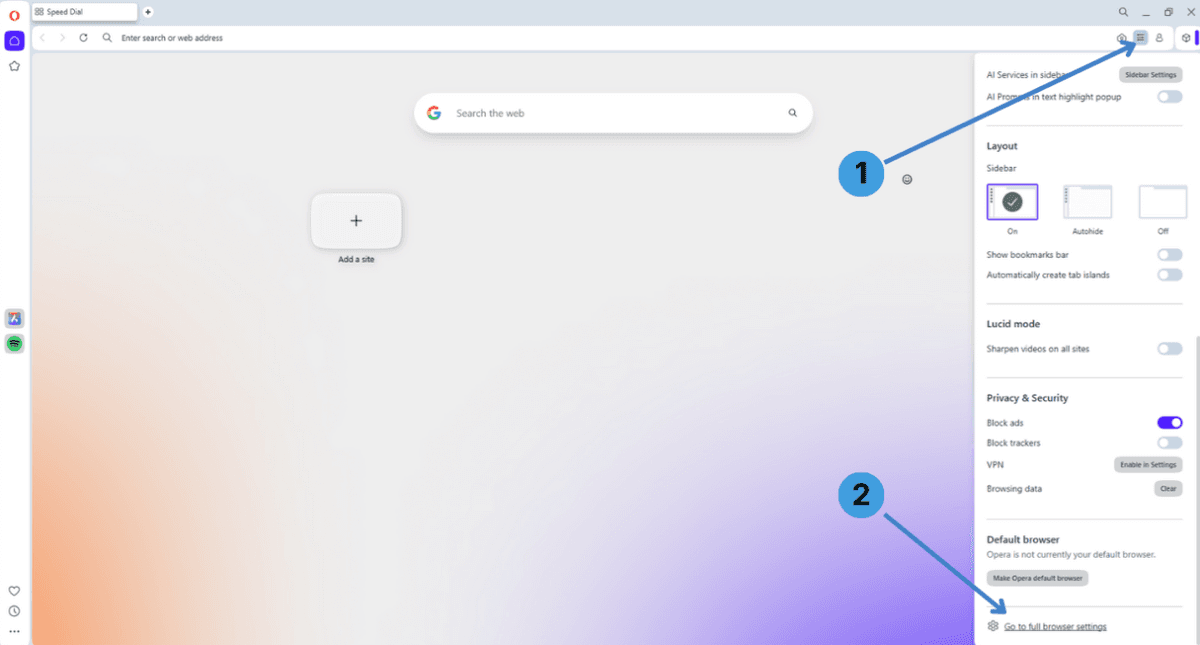
- Click the Easy Setup icon in the top right of the Opera window (1).
- In the panel that opens, scroll down and click Go to full browser settings (2).
Step 2. Open your computer’s proxy settings from Opera
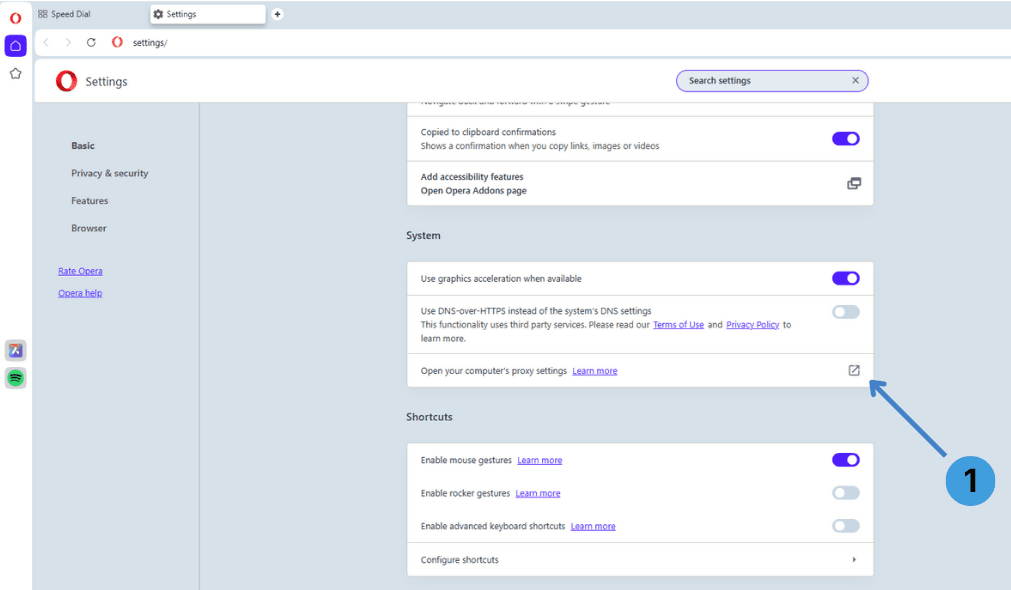
In the Opera Settings page, scroll to the System section, then:
- Click Open your computer’s proxy settings (1).
This opens the Windows Settings dialog for network proxy configuration.
Step 3. Open the manual proxy setup dialog in Windows
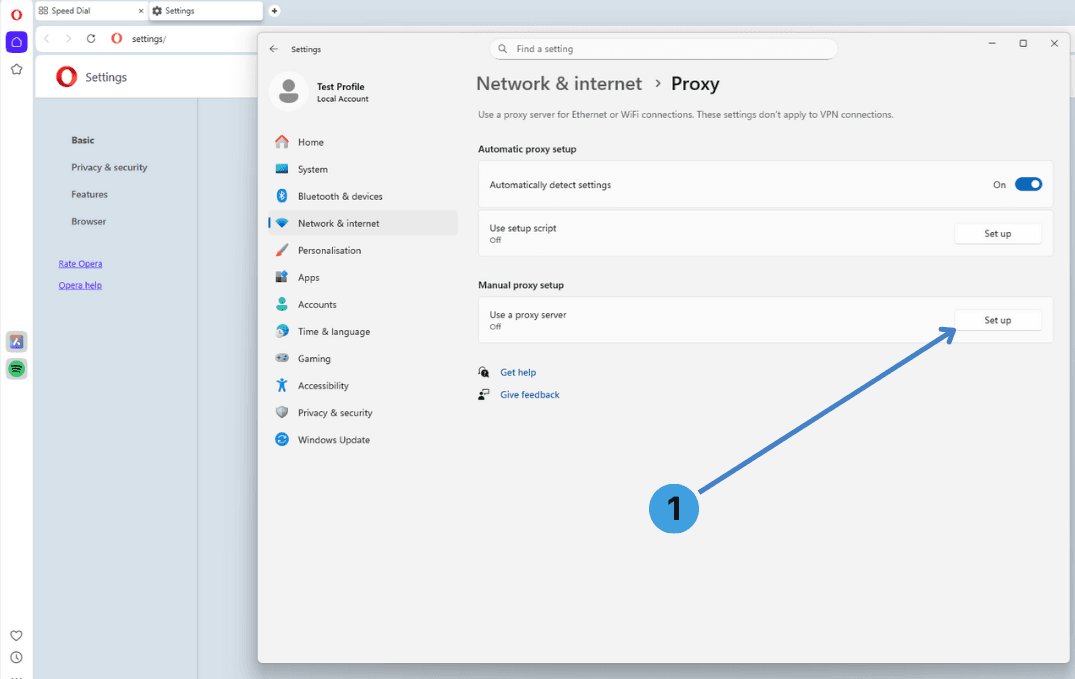
In Windows Settings, under Network & internet → Proxy you will see the system proxy options.
- Under Manual proxy setup, click Set up next to Use a proxy server (1).
This opens the window where you enter the actual proxy server data.
Step 4. Turn the proxy on and save the server data
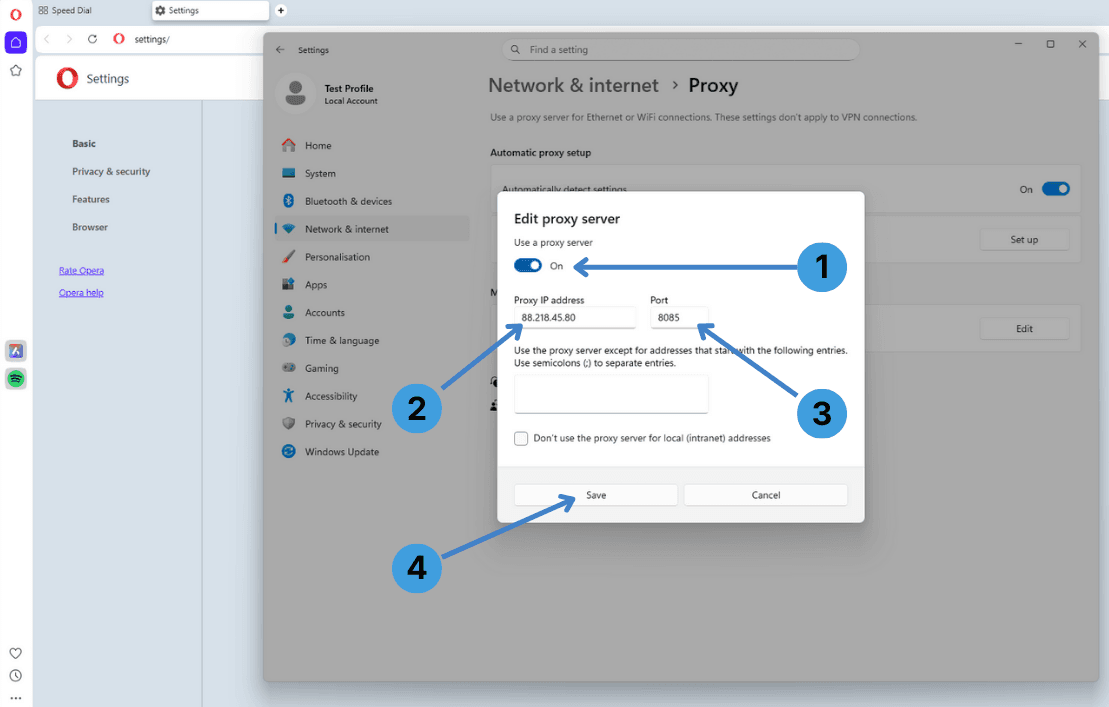
In the Edit proxy server window:
- Switch Use a proxy server to On (1).
- Enter the proxy IP address in the Proxy IP address field (2).
- Enter the proxy Port that your provider gave you (3).
- Click Save (4).
From now on, Opera will send its HTTP and HTTPS traffic through this proxy. If the proxy requires Username/Password authentication, Opera will prompt you for these credentials when they are needed, since Windows does not show separate login fields in this dialog.
Step 5. Disable the proxy when you are done
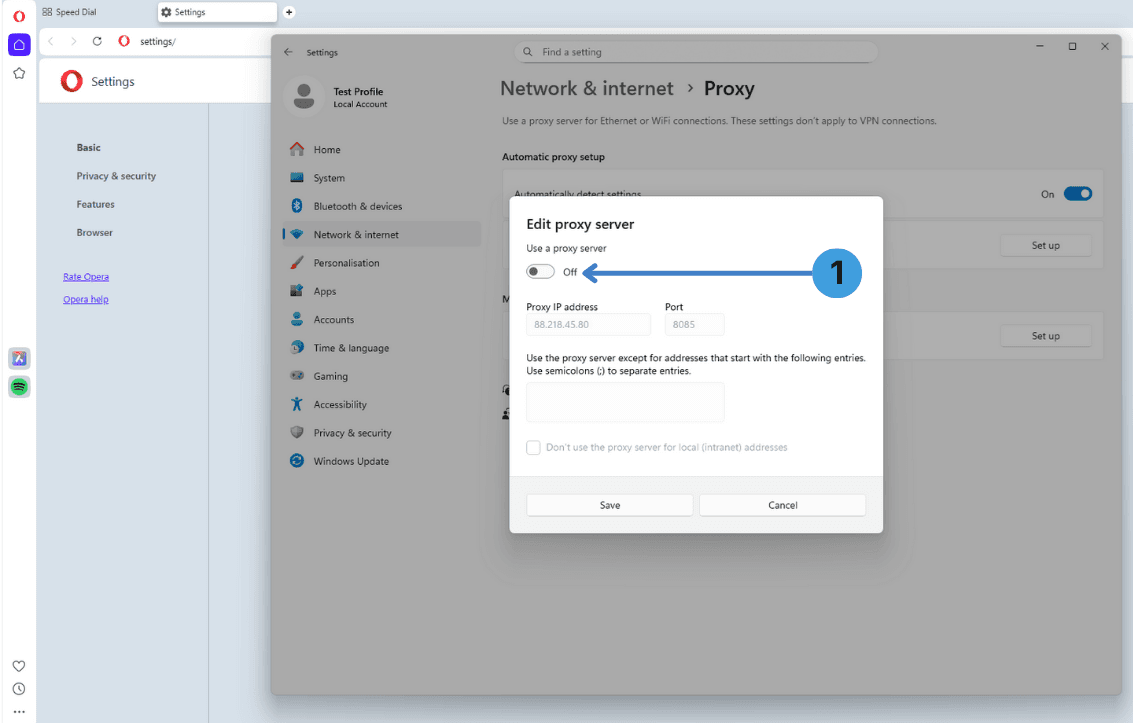
To stop using the proxy:
- Open the same Edit proxy server window again and move Use a proxy server to Off (1).
- Click Save to confirm.
Opera and other Windows apps will then return to a direct connection without a proxy.
Alternative: proxy extensions in Opera
Another option is to control proxies inside Opera with extensions. Opera supports Chromium style extensions, so popular proxy managers such as SwitchyOmega, ZeroOmega, FoxyProxy, Proxy Switcher, or Proxy Switcher and Manager can usually be installed either from the Opera Add-ons catalog or from the Chrome Web Store once support is enabled.
These tools let you define multiple proxy profiles and switch between them per tab or per site instead of using a single system wide proxy. General advice and examples are collected in this guide to proxy add ons for browsers.
Alternative: using standalone proxy clients with Opera
If you prefer to manage all outbound connections in one place, you can place Opera behind a desktop proxy client such as Proxifier or ProxyCap. These programs sit between applications and the network stack and can route Opera’s traffic, along with other software, through one or more proxy servers based on rules you define.
You can read more about these tools and how they work in our standalone proxy client overview.
Conclusion
Opera can work with proxies through the Windows system proxy dialog, through extension based managers, or via external proxy clients that affect all apps. Choose the method that matches how strictly you want to separate browser traffic from other software and how often you switch between different proxy servers. For more complex setups it is common to combine system settings with proxy extensions or desktop tools to keep control over multiple proxy profiles.