
This article explains the main ways to connect Comodo IceDragon through a proxy server, using the browser settings, extensions, or external tools. It is part of a wider overview of proxy configuration in regular browsers, which you can find in our main guide to standard web browsers.
Comodo IceDragon and proxy support
Comodo IceDragon is a Firefox-based browser for Windows that keeps the familiar Firefox settings layout. It has its own connection settings window where you can use the system proxy or set up manual HTTP and SOCKS proxies directly in the browser. IceDragon is compatible with most Firefox extensions, including many proxy managers, because it is built on the Firefox codebase and keeps support for Firefox add-ons and profiles.
Step by step: Configuring a proxy in Comodo IceDragon
In IceDragon, the proxy is configured through the built-in Connection Settings window.
Step 1 – Open the IceDragon menu
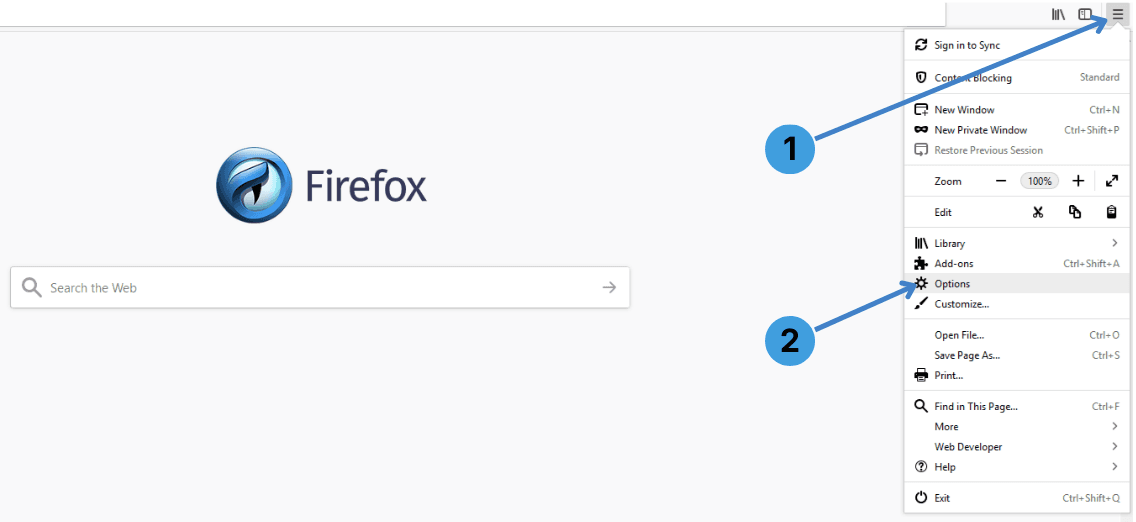
- Click the menu button with three horizontal lines in the top-right corner (label 1).
- In the menu, click Options (label 2) to open the settings tab.
Step 2 – Open Network Settings
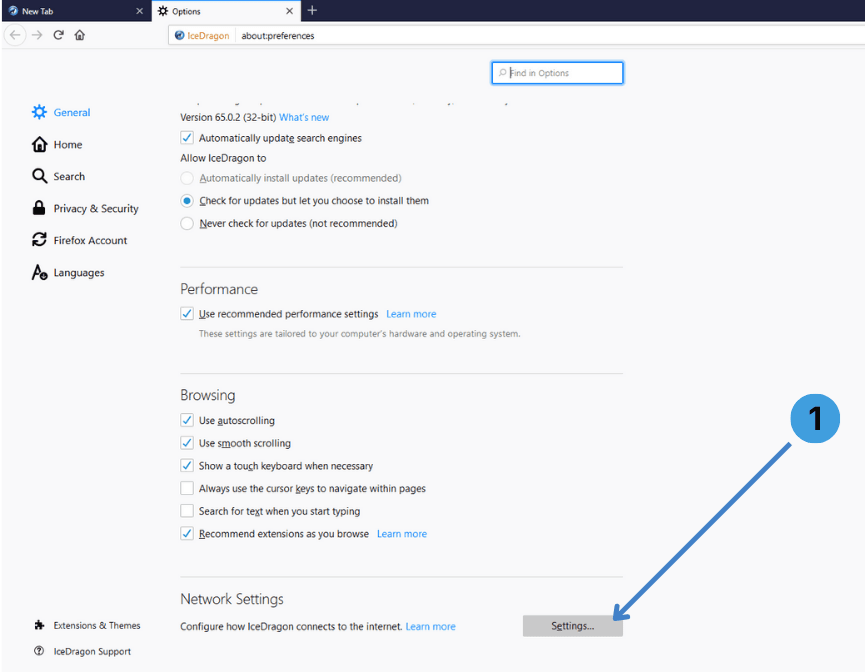
- On the General page, scroll down to Network Settings.
- Click the Settings… button (label 1). This opens the Connection Settings window.
Step 3 – Configure HTTP and SOCKS proxies
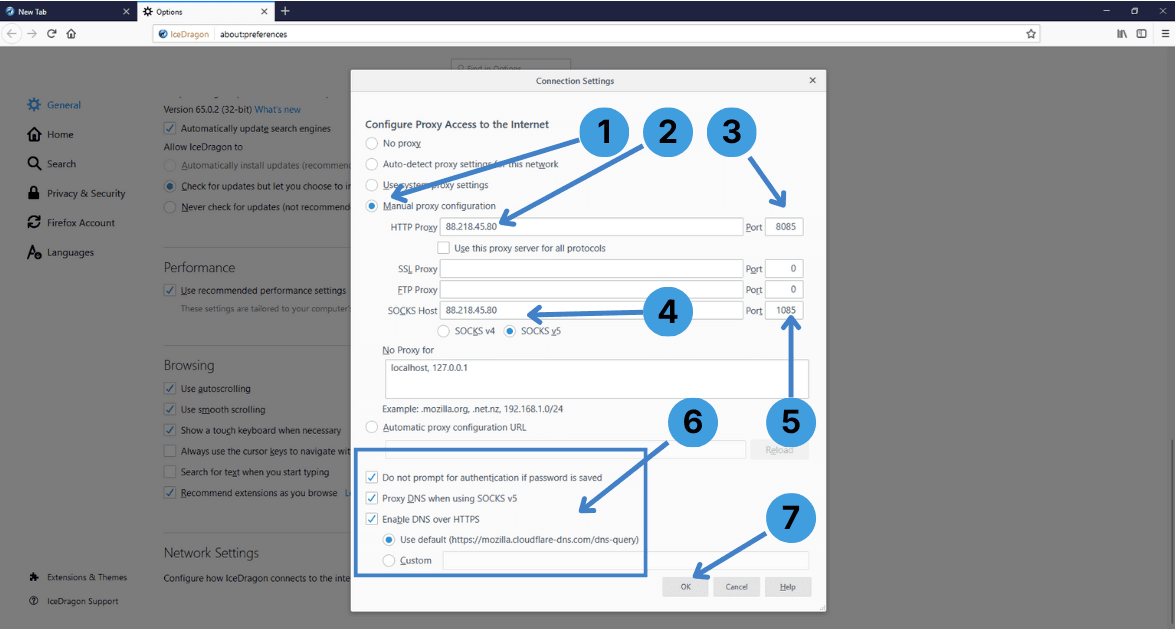
- At 1, select Manual proxy configuration so IceDragon uses your custom proxy.
- At 2, enter the HTTP proxy server address (host or IP).
- At 3, enter the HTTP proxy port (for example 8085).
- At 4, enter the SOCKS proxy address in SOCKS Host and choose the correct type (SOCKS v4 or SOCKS v5) as required by your provider.
- At 5, enter the SOCKS proxy port (for example 1085).
- At 6, adjust extra options if needed:
- Do not prompt for authentication if password is saved
- Proxy DNS when using SOCKS v5
- Enable DNS over HTTPS (with default or custom DoH URL)
- Do not prompt for authentication if password is saved
- When everything is set, click OK at 7 to save the configuration.
IceDragon will now send its traffic through the configured HTTP and/or SOCKS proxy.
Step 4 – Disable the proxy
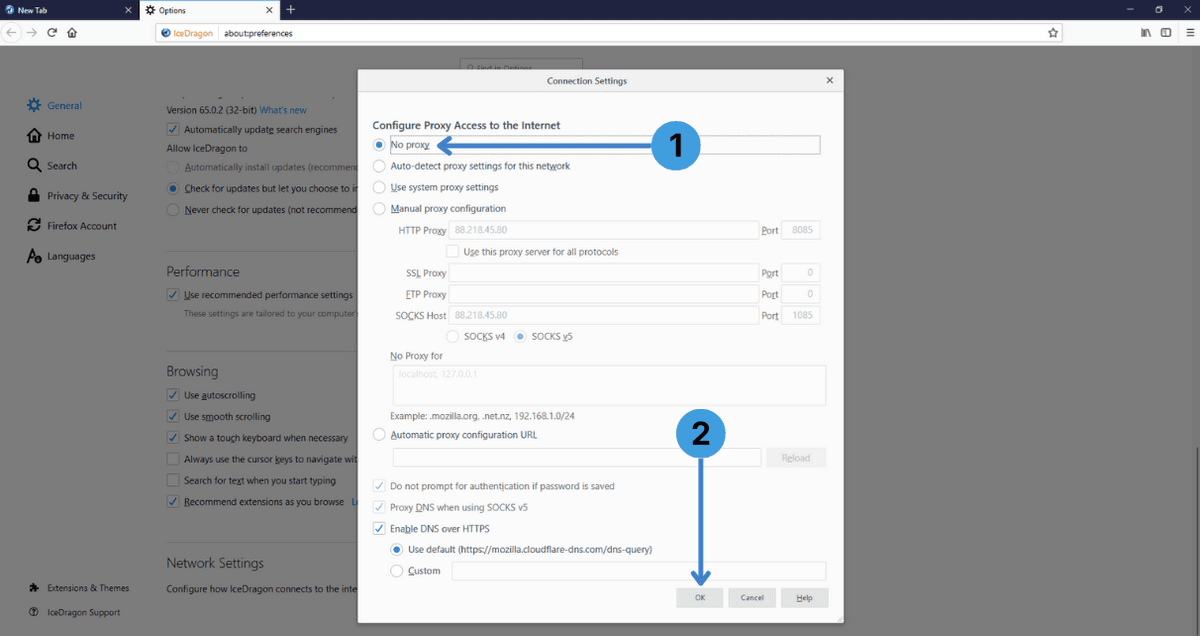
- At 1, select No proxy to revert to a direct connection.
- Click OK at 2 to apply the change and close the window.
After this, IceDragon will stop using the proxy and will connect to the internet directly.
Alternative: Proxy extensions in Comodo IceDragon
Because IceDragon is based on Firefox and supports most Firefox extensions, it can usually work with proxy add-ons such as SwitchyOmega, ZeroOmega, FoxyProxy, or Proxy Switcher.
These extensions let you create multiple proxy profiles, switch between them quickly, and define rules for different sites.
You can install a suitable extension from the Firefox Add-ons site or from the extension developer, then configure the server address, port, and Username/Password inside the add-on. For a broader overview of how these tools work, see our general guide to proxy browser extensions.
Alternative: Using standalone proxy clients with IceDragon
Another option is to route IceDragon traffic through a desktop proxy client such as Proxifier or ProxyCap. These programs sit between applications and the network stack and can redirect connections from IceDragon (and other apps) through one or more proxies, often with per-rule control. This approach is useful when the browser’s own proxy settings are not enough or when you want to manage all applications in one place. You can read more about these tools in our separate article on standalone proxy clients.
Conclusion
Comodo IceDragon lets you work with proxies through its internal Connection Settings dialog, through extension based managers, or via external proxy clients that handle all app traffic. Choose the method that fits best into your workflow and how you prefer to manage IPs and connection rules. If you need more detail, the related documentation on extensions and standalone clients expands on the two alternative approaches.