
Cốc Cốc is a Chromium based browser popular in Vietnam, so proxy setup in it is very similar to Google Chrome. This article shows how to connect Cốc Cốc to a proxy via Windows system settings and how to switch it off when needed. It is part of a wider overview of proxy setup in regular browsers that you can find in our reference page for standard web browsers.
Cốc Cốc and proxy support
Since Cốc Cốc is built on Chromium, it relies on the operating system proxy settings on desktop platforms instead of having its own standalone proxy page. On Windows this means the browser uses the same proxy configuration as the system network settings. In addition, Cốc Cốc supports Chrome compatible extensions, so proxy switcher add ons from the Chrome Web Store can be used. Another option is to route all traffic through a desktop proxy client such as Proxifier or ProxyCap.
Step by step: proxy setup in Cốc Cốc
Cốc Cốc uses the Windows system proxy configuration. The steps below show how to open the Windows proxy panel from the browser and how to enable or disable a manual proxy.
At a high level, you first open the Cốc Cốc settings, then switch to the System section, follow the link to your computer's proxy settings, and configure the proxy server in the Windows dialog.
Step 1. Open the Cốc Cốc menu and go to Settings
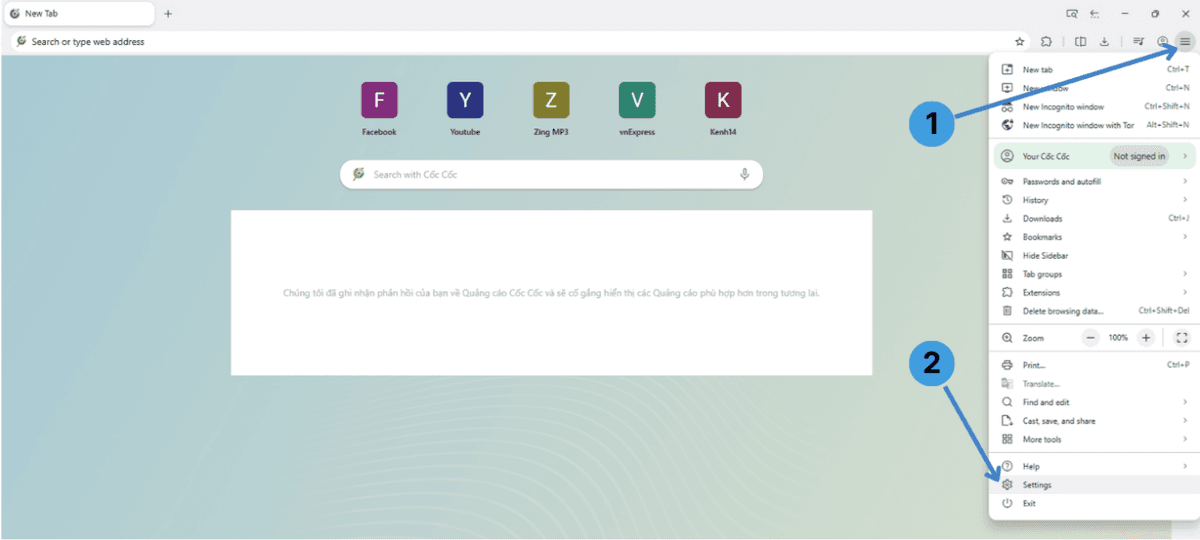
- Click the three dots menu button in the top right corner of the Cốc Cốc window.
- In the dropdown menu choose Settings at the bottom.
This opens the main Cốc Cốc settings tab.
Step 2. Switch to the System section
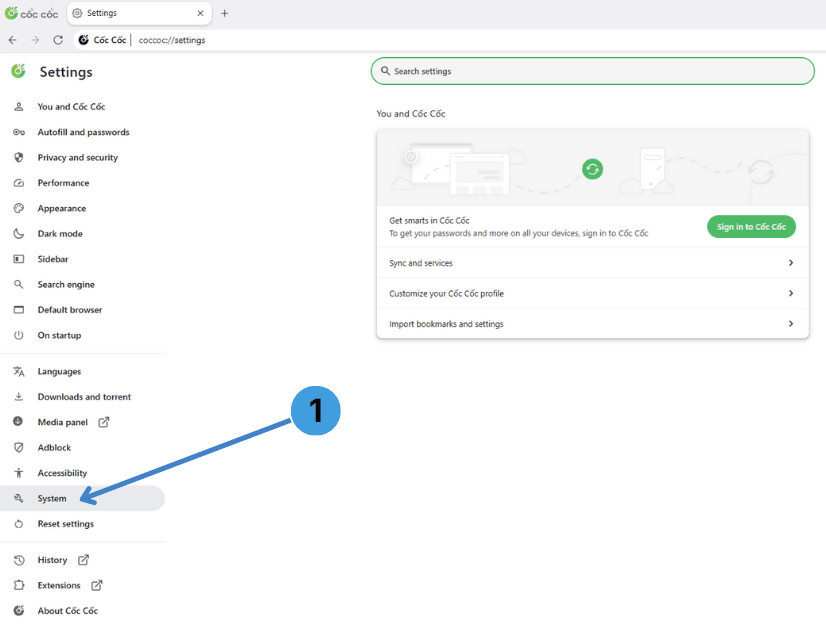
- In the left sidebar of the settings page select System.
This section contains the option that links to the Windows proxy configuration.
Step 3. Open your computer’s proxy settings
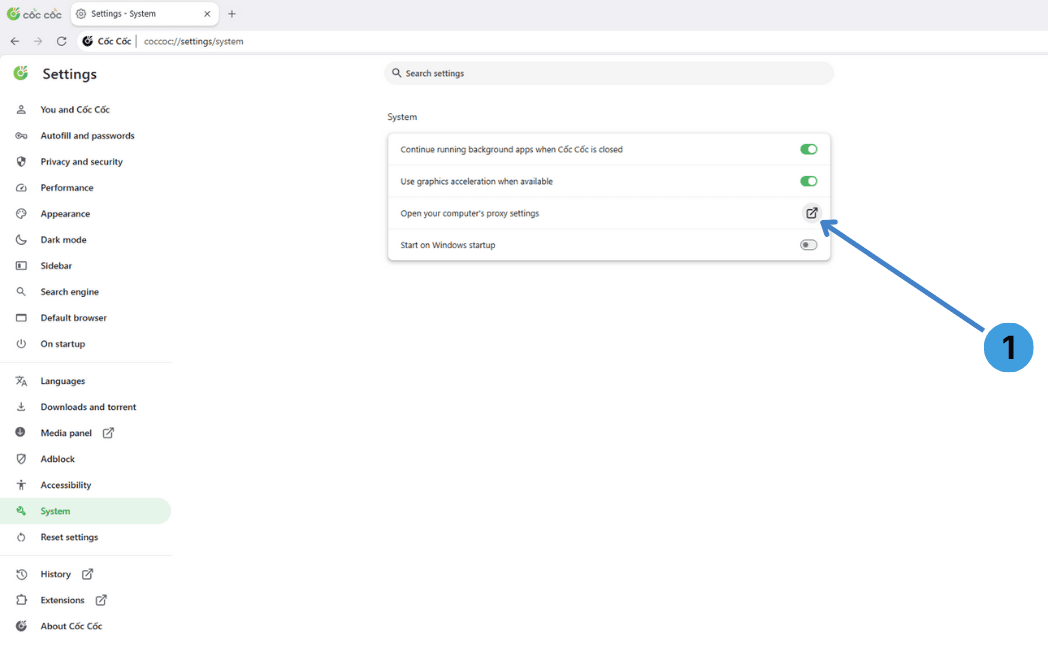
- In the System page find the line Open your computer's proxy settings and click the small external link icon on the right.
Windows Settings will open on the Network & internet > Proxy page.
Step 4. Open the Windows Proxy settings panel
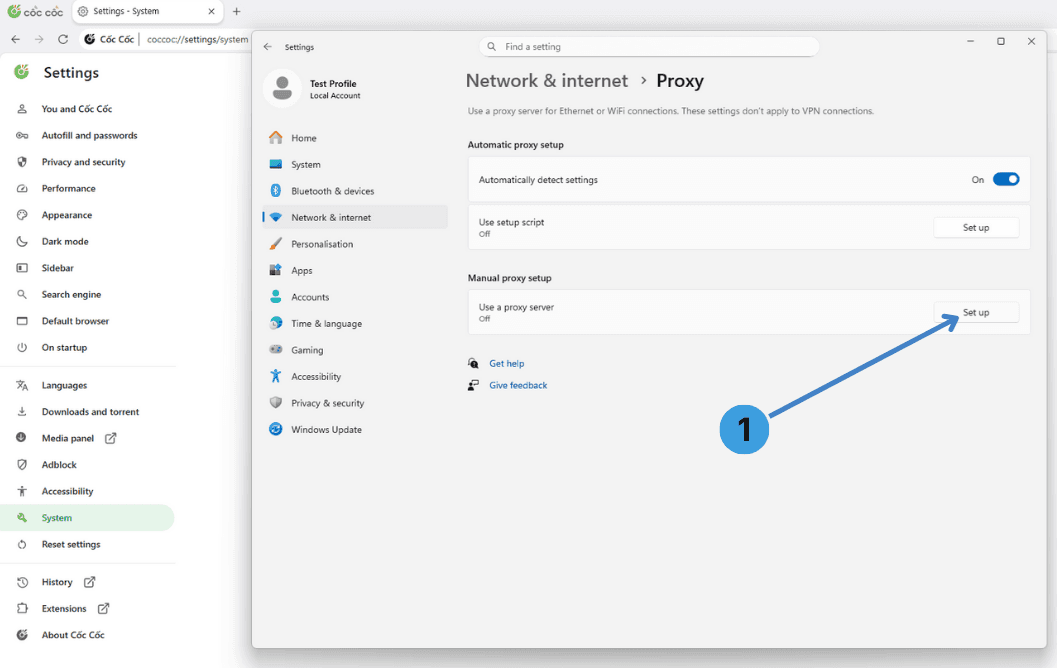
- In the Windows Proxy page, under Manual proxy setup, click the Set up button next to Use a proxy server.
A dialog titled Edit proxy server appears.
Step 5. Turn the proxy on and enter IP address and port
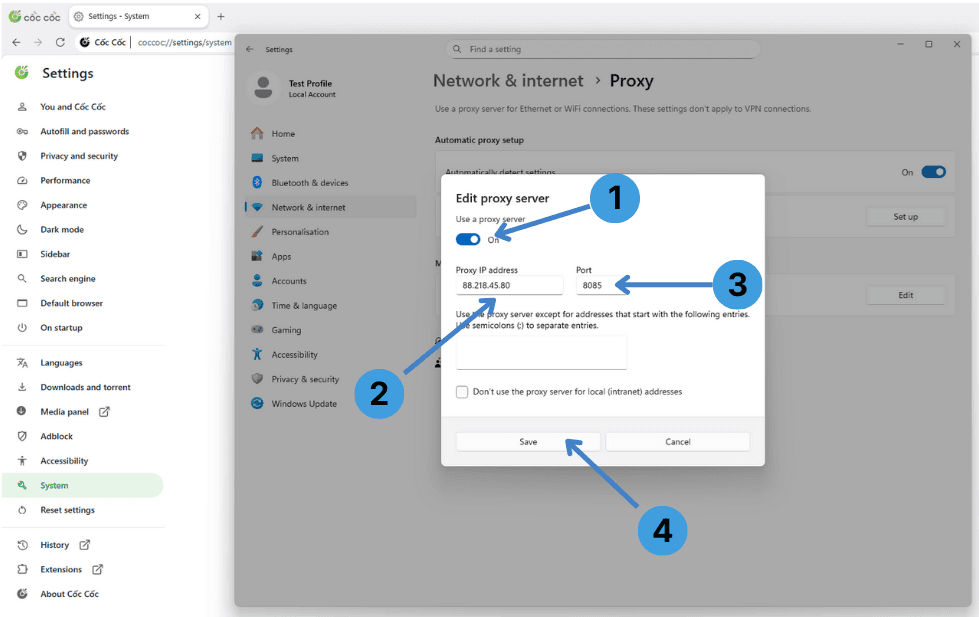
- In the Edit proxy server dialog, enable the Use a proxy server switch.
- In the Proxy IP address field enter the proxy host or IP address given by your provider.
- In the Port field enter the proxy port (for example 8085 or the value from your provider).
- Optionally, in the text box below you can specify addresses that should bypass the proxy, separated by semicolons.
- Click Save to apply the proxy settings.
After this, Cốc Cốc (and other Windows applications that rely on system proxy settings) will send traffic through the configured proxy server.
Step 6. Turn the proxy off
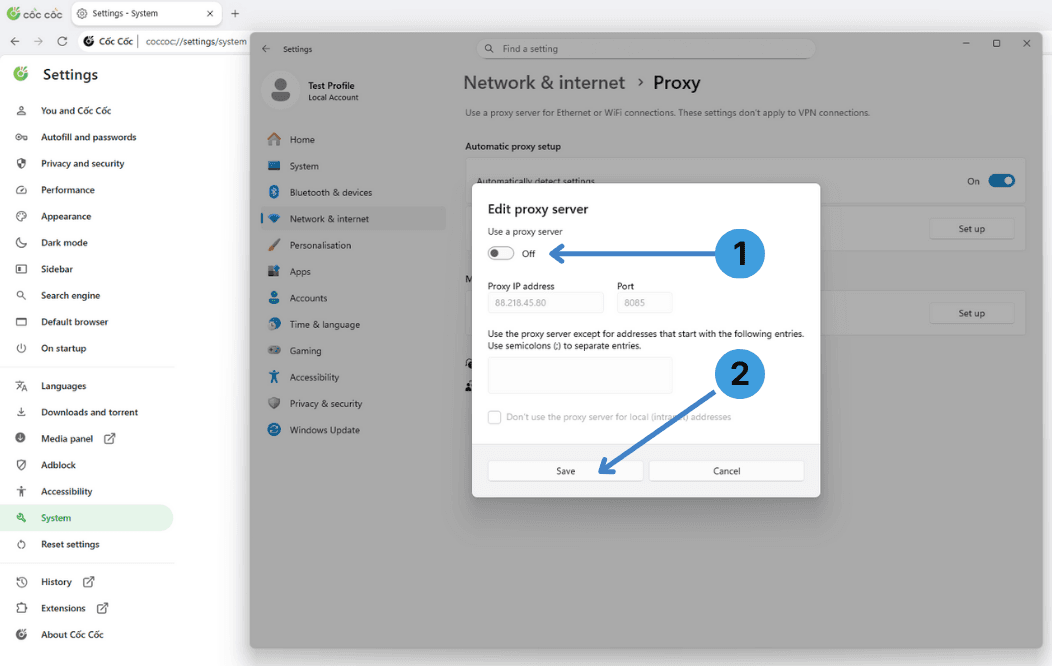
- When you need to disable the proxy, open the same Edit proxy server dialog again from the Use a proxy server section.
- Set the Use a proxy server switch to Off, then click Save.
The system proxy is now disabled and Cốc Cốc will connect directly without using a proxy.
Alternative: proxy extensions for Cốc Cốc
Because Cốc Cốc is Chromium based, it can usually install extensions from the Chrome Web Store. Instead of changing the Windows system proxy, you can install a proxy manager extension such as SwitchyOmega, FoxyProxy or Proxy Switcher & Manager and use it to control proxy profiles per tab or per site inside the browser. For an overview of common proxy extensions and how they work, see our guide to proxy related browser add ons.
Alternative: using standalone proxy clients with Cốc Cốc
Another route is to keep Cốc Cốc itself unmodified and let a desktop proxy client redirect the browser’s traffic. Tools like Proxifier or ProxyCap install on Windows and can capture connections from selected applications, then forward them through a proxy server of your choice. This is handy when you want a single proxy setup for multiple browsers or tools at once. For more background on this option, check our article about standalone proxy client software.
Conclusion
Cốc Cốc supports proxy use through the Windows system proxy settings, which you can reach from the browser’s System section, and it can also work with Chrome style proxy extensions. If you prefer to manage connections outside the browser, standalone proxy clients provide another flexible option. Choose the approach that matches how you want to control and switch your proxies day to day.