
Comodo Dragon does not have its own separate proxy menu. Instead, it relies on the operating system proxy settings that apply to all apps. This article walks through how to route Comodo Dragon traffic through a proxy and how to turn it off again when you are done. For more context on browser support, see our central guide to proxy settings in common web browsers.
Comodo Dragon is a Chromium based browser, so its networking stack works similarly to Google Chrome. On desktop it uses the system proxy configuration window and also supports Chrome style proxy extensions from the Chrome Web Store. When that is not enough, Comodo Dragon traffic can also be routed through external desktop proxy tools that handle connections for the whole system.
Step by step: setting a proxy in Comodo Dragon
Comodo Dragon uses the system proxy settings via a link in its own settings page. The steps below follow the numbering on the screenshots.
Step 1. Open the Comodo Dragon menu and Settings
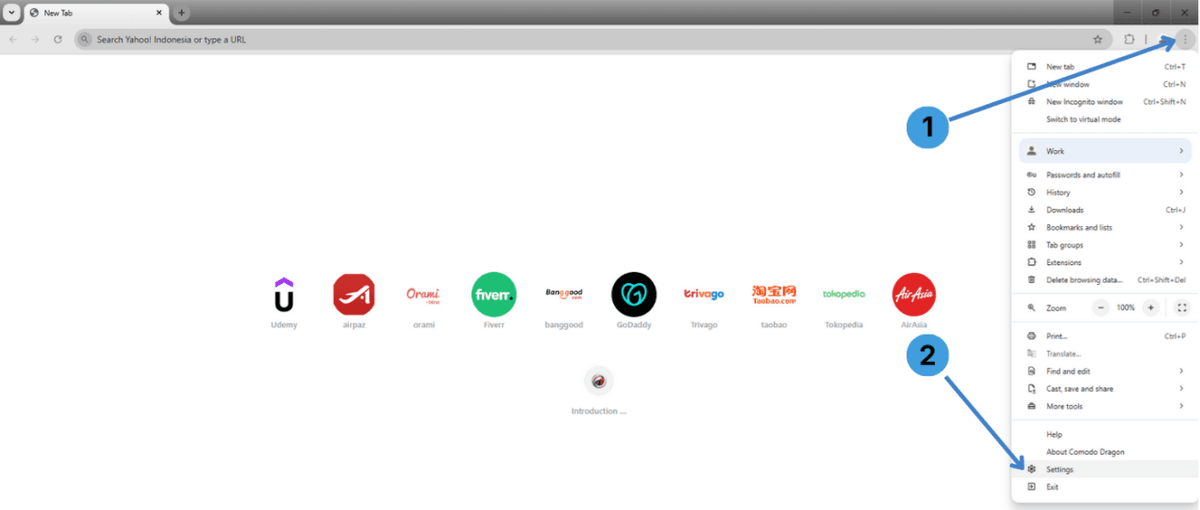
Click the three dots menu in the top right corner (1) and select Settings (2) from the dropdown.
Step 2. Go to the System section in browser settings
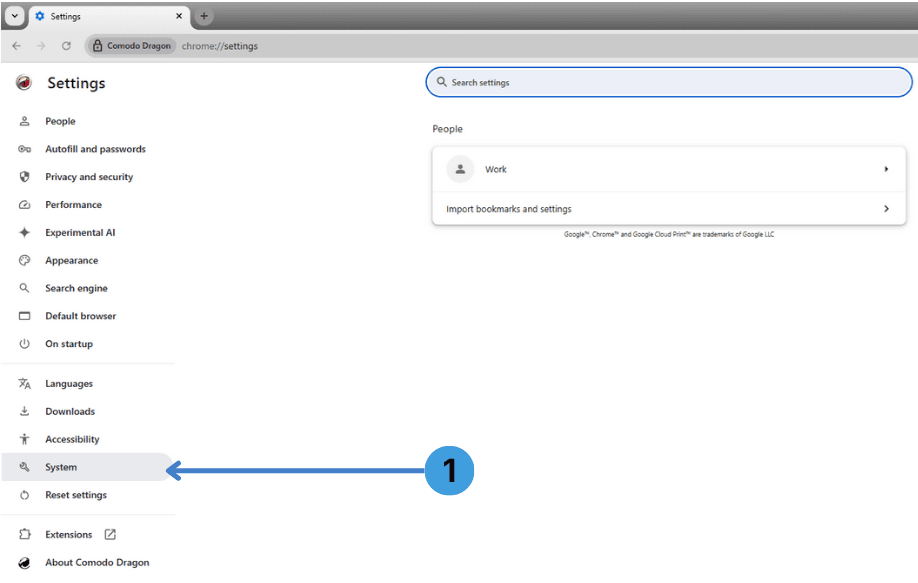
In the left sidebar of the Settings page, choose System (1) to open system related options.
Step 3. Open your computer’s proxy settings
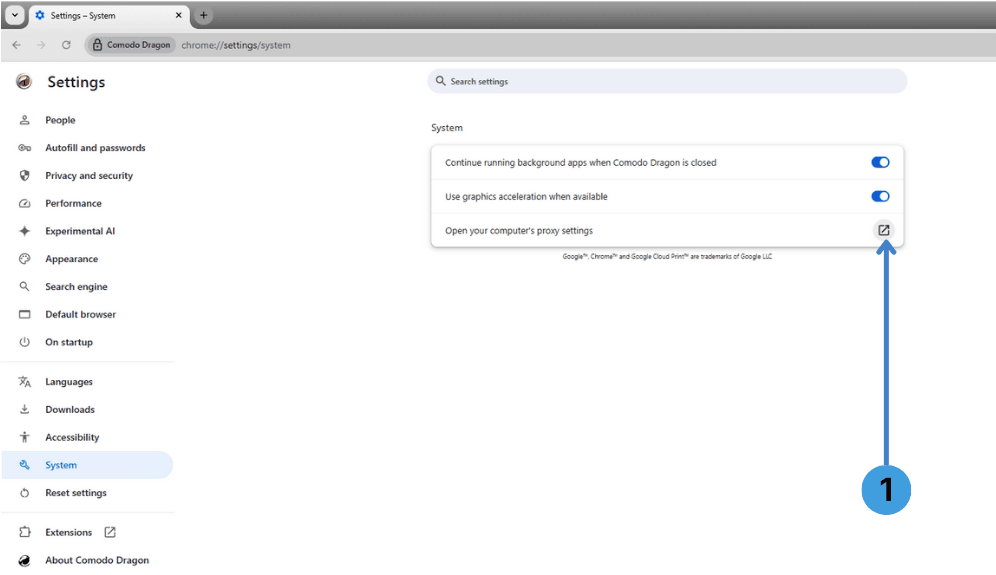
On the System page, click Open your computer’s proxy settings (1). Windows will open the Network & internet > Proxy window.
Step 4. Open manual proxy server setup in Windows
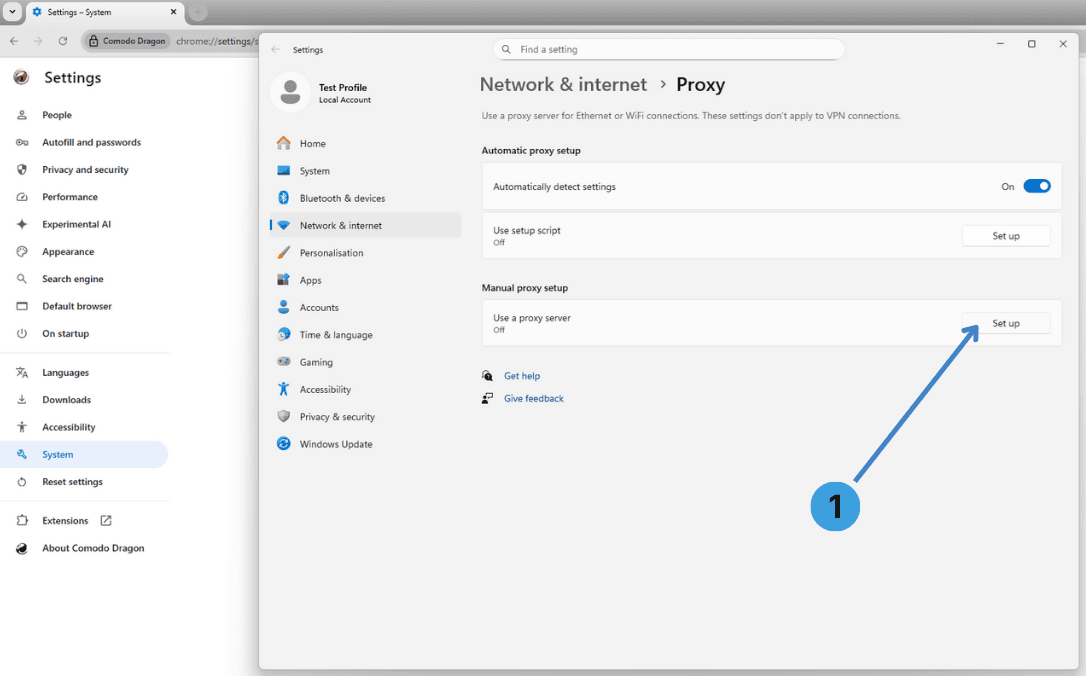
In the Windows Proxy settings, find the Manual proxy setup block and click Set up (1) next to Use a proxy server to edit the proxy configuration.
Step 5. Enable the proxy and enter server details
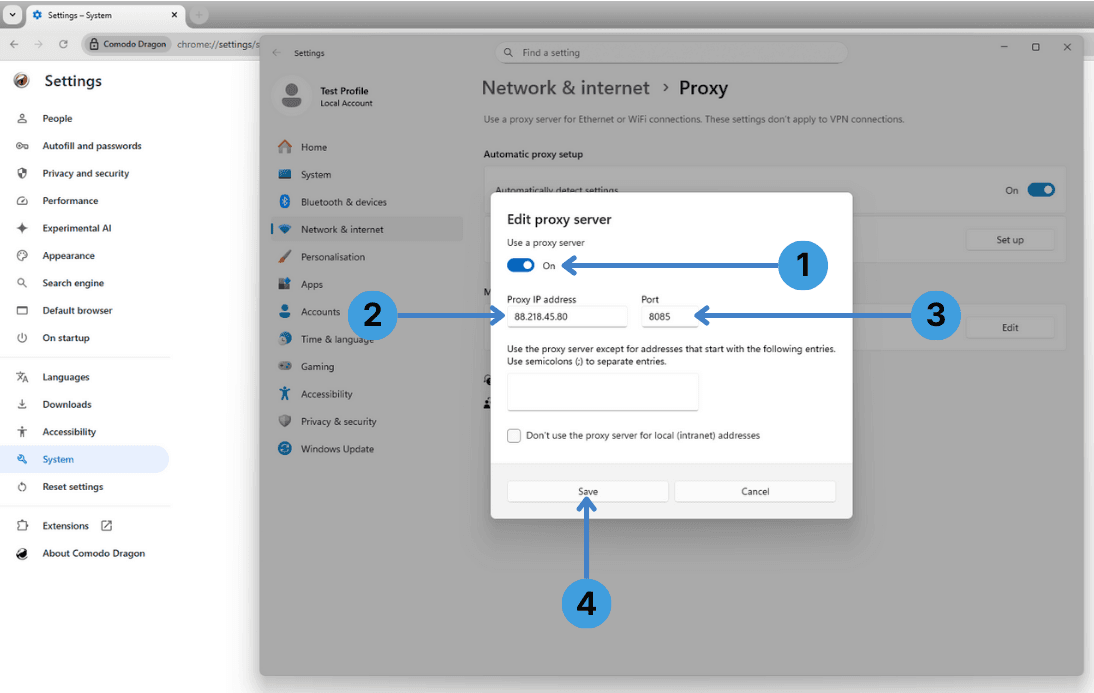
In the Edit proxy server dialog:
- Turn Use a proxy server to On (1).
- Enter the proxy host or IP in the Proxy IP address field (2).
- Enter the proxy Port value (3), for example 8080 or another port given by your provider.
- Click Save (4) so Windows and Comodo Dragon start using this proxy.
Step 6. Turn the proxy off when you no longer need it
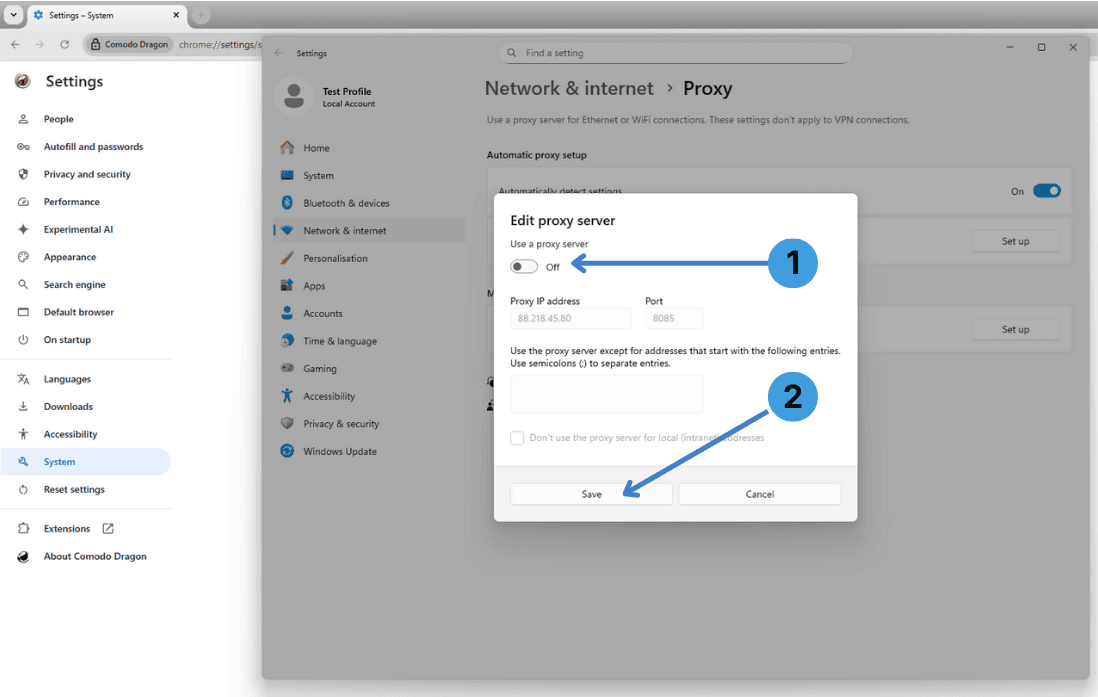
To disable the proxy later, open the Edit proxy server window again. Switch Use a proxy server to Off (1) and click Save (2). The browser will then connect without this proxy.
Alternative: proxy extensions in Comodo Dragon
Because Comodo Dragon is based on Chromium, it generally supports the same proxy extensions as Google Chrome. Instead of changing system settings, you can install a proxy manager such as SwitchyOmega, ZeroOmega, FoxyProxy or Proxy Switcher from the Chrome Web Store. These extensions let you define profiles with different proxy IPs and switch between them directly in the browser toolbar. For a broader overview of this method, see this overview of proxy browser extensions.
Alternative: using standalone proxy clients with Comodo Dragon
Another option is to use standalone proxy clients on the desktop. Tools like Proxifier or ProxyCap can capture connections from selected applications, including Comodo Dragon, and redirect them through a proxy server without changing browser menus at all. This is useful if you need several programs to share the same proxy setup or if you want more advanced routing rules. You can read more about this approach in our article on system wide proxy clients.
Conclusion
Comodo Dragon relies on the operating system for its main proxy configuration, but thanks to its Chromium base it also works well with proxy extensions and external proxy clients. Choose the system proxy method when you want all traffic on the machine to use the same proxy, use extensions when you only want to control Comodo Dragon traffic, or use standalone tools when you need advanced routing rules across several applications.