
Avant Browser lets you connect through HTTP proxies using its own proxy menu or the Windows / Internet Explorer settings.
This article explains both options and is part of our main guide to regular web browsers.
Avant Browser and proxy support
Avant Browser is a free Windows browser built as a shell around Internet Explorer and later versions can also use Firefox and Chrome engines (Trident, Gecko and WebKit/Blink).
It has a built in Proxy Server dialog where you can store proxy addresses, and a Proxy → Internet Explorer Setting mode that simply follows the system proxy from Internet Options. You can also route Avant traffic through external proxy clients such as Proxifier or ProxyCap.
Step by step: Configuring a proxy in Avant Browser
This procedure uses Avant Browser’s built in proxy menu.
Step group 1 – Open the proxy menu
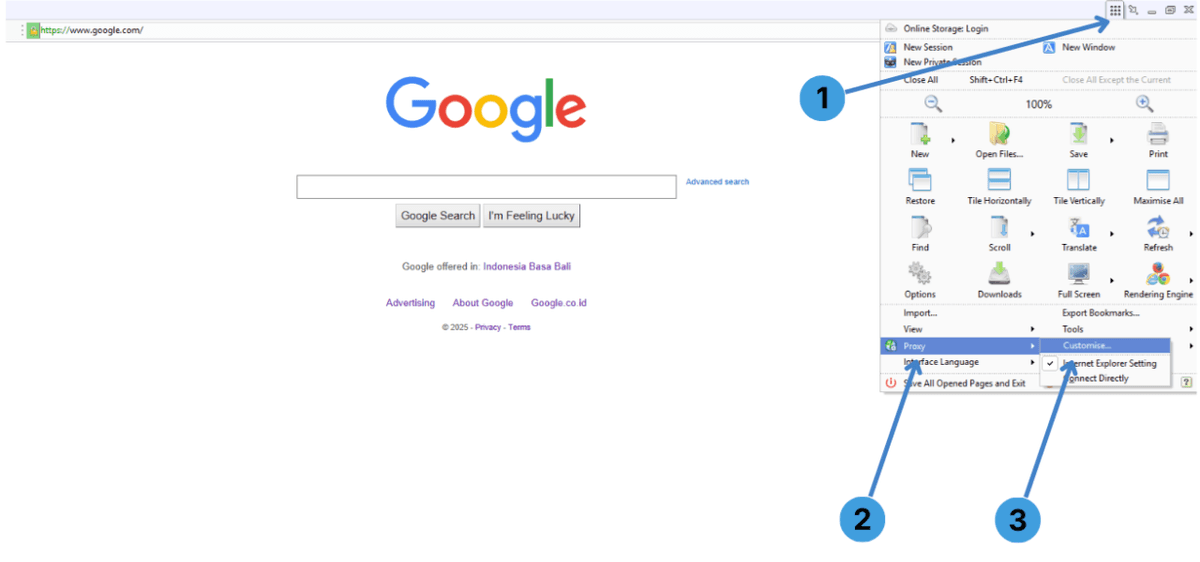
Step 1. Click the menu button with the grid icon in the top right corner of the browser window.
Step 2. In the menu, point to Proxy near the bottom.
Step 3. In the Proxy submenu, choose Customise... to open the Avant Browser Options → Proxy Server window.
Note: In the same submenu you can also pick Internet Explorer Setting to follow the Windows system proxy or Connect Directly to turn off all proxies without editing the list.
Step group 2 – Add a proxy server
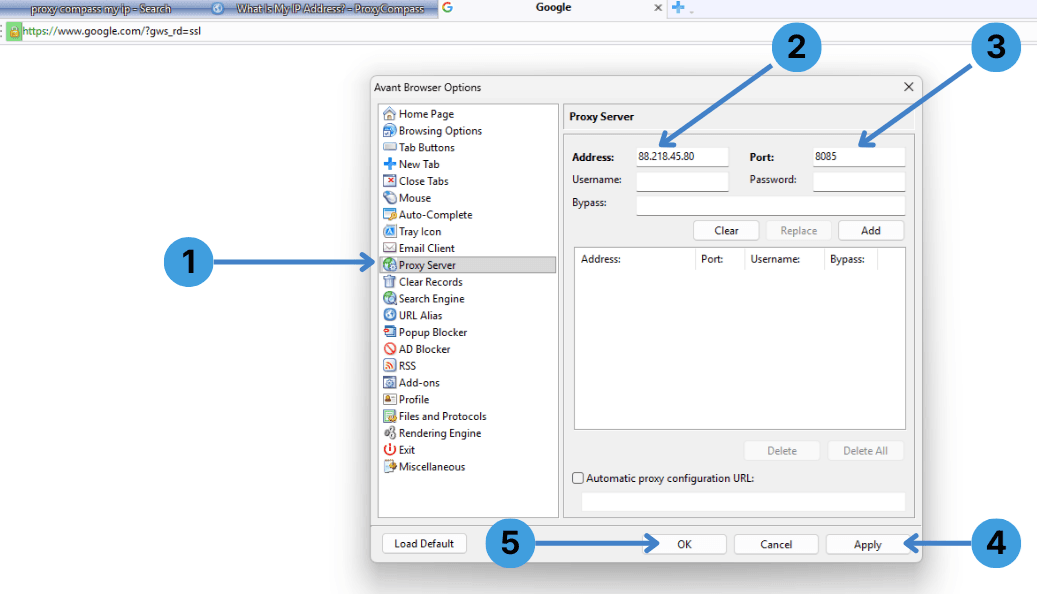
Step 1. In the Avant Browser Options window, select Proxy Server in the left column.
Step 2. In the Address field, enter the proxy server host or IP address. In the Port field, enter the port number your provider gave you (for example 8085).
Step 3. If your proxy uses Username/Password authentication, fill in Username and Password; leave them empty for IP-based access. The Bypass field can hold sites that should skip the proxy.
Step 4. Click Apply to save the new proxy entry in the list.
Step 5. Click OK to close the window and start browsing through this proxy.
If your provider gives you a PAC file, you can instead tick Automatic proxy configuration URL at the bottom and paste the URL there.
Step group 3 – Disable the proxy server
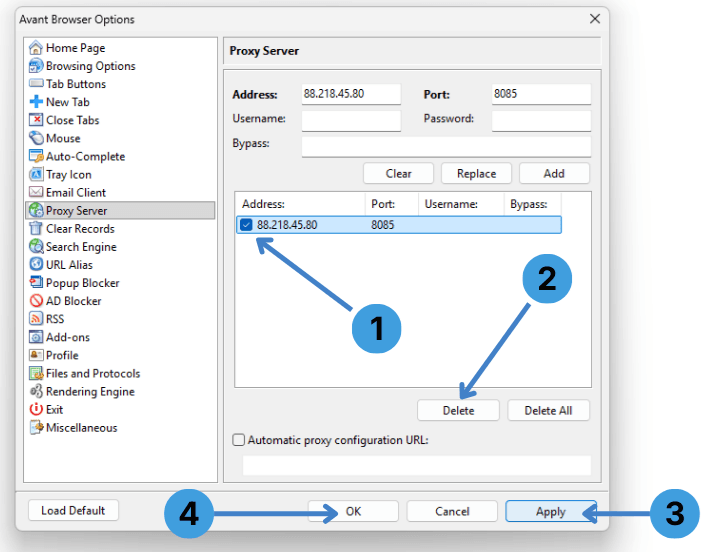
Step 1. Open Proxy Server again and in the list select the proxy address and port you no longer want to use.
Step 2. Click Delete to remove the selected proxy (or Delete All to clear the list).
Step 3. Click Apply so Avant stops using the deleted proxy.
Step 4. Click OK to close the options window; Avant will now either connect directly or follow Internet Explorer Setting, depending on what is selected in the Proxy submenu.
Alternative: Proxy browser extensions for Avant Browser
Avant Browser does not use the Chrome Web Store or Firefox Add-ons system, so common proxy extensions such as SwitchyOmega or FoxyProxy cannot be installed in the usual way.
For other browsers that support extensions, see our documentation on proxy extensions for examples of extension based proxy management.
Alternative: Using standalone proxy clients with Avant Browser
Another option is to route Avant Browser traffic through a separate desktop proxy client. Tools like Proxifier or ProxyCap can capture outgoing connections from selected applications and send them through HTTP, HTTPS, or SOCKS proxies without changing browser menus. This approach is useful if Avant’s own proxy list is too limited or you want one place to manage proxies for several programs. You can find more details in our overview of standalone proxy clients.
Conclusion
Avant Browser supports proxy use through its own Proxy Server dialog and through the Windows / Internet Explorer system proxy. Users who need more advanced routing can rely on external proxy tools instead. Other sections of the documentation describe how to handle proxies with extension friendly browsers and with dedicated proxy clients.