
VMLogin allows each browser profile to use its own proxy, which is useful when many accounts must appear to come from different IP addresses. This article shows the available proxy configuration method in VMLogin and walks through it step by step. It is part of a comparison table of anti-detect browsers on ProxyData.
VMLogin is a Chromium-based anti-detect browser for Windows that focuses on virtual browser profiles. Each profile has isolated cookies and cache, can be stored locally or in the cloud, and can be automated through an API or tools such as Selenium and Puppeteer.
Beyond proxy settings, VMLogin provides detailed fingerprint controls for user agent, screen resolution, platform, WebRTC, Canvas, WebGL, fonts, media devices, time zone, and more. Browser automation and profile sharing functions help teams manage large sets of profiles while keeping storage and fingerprints separate for each one.
Proxy setup options in VMLogin
In VMLogin, proxies are attached to individual browser profiles. A proxy is stored as part of the profile configuration and includes fields for protocol (HTTP, HTTPS, SOCKS4, SOCKS5), host, port, Username, Password, and a test URL. These settings affect only the selected VMLogin profile and do not change proxy parameters for the operating system or other applications.
You can open the same proxy dialog in two situations: while creating a new profile in the Basic configuration tab, or later from the Browser profile list through the Edit Proxy configuration command. In both cases, the proxy server is enabled or disabled with a toggle and then saved directly into that profile, so each profile can have its own proxy or no proxy at all.
Step-by-step proxy setup in VMLogin
Step 1. Create a browser profile
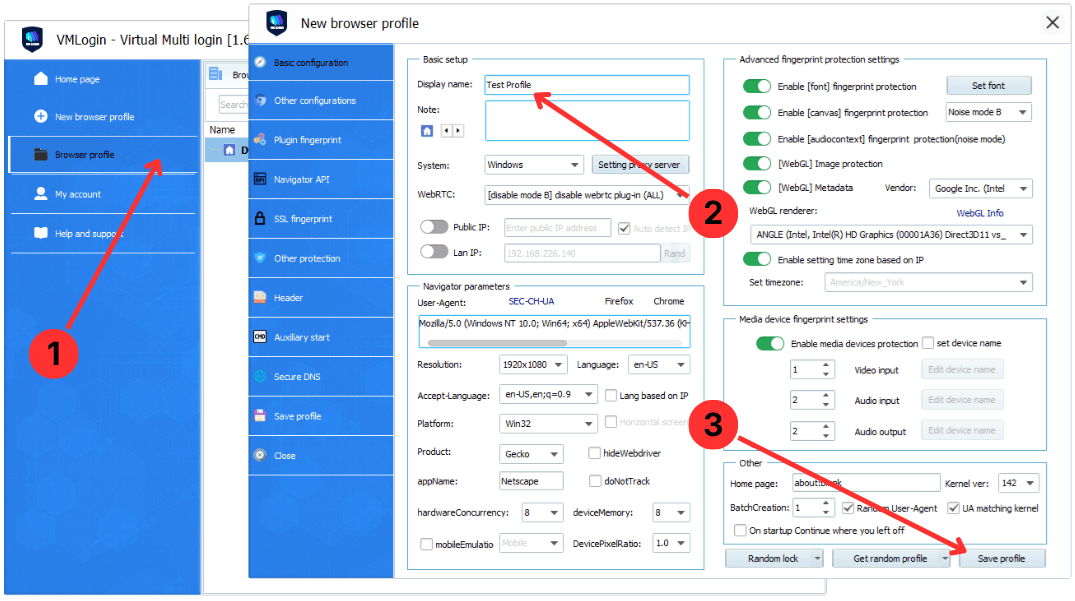
- In the left navigation, click Browser profile to open the profile list and configuration area (1).
- In the New browser profile window, enter a Display name so you can identify this profile later, for example “Test Profile” (2).
- After adjusting other profile parameters as needed, click Save profile to create and store the new browser profile (3).
Step 2. Open proxy configuration for the profile
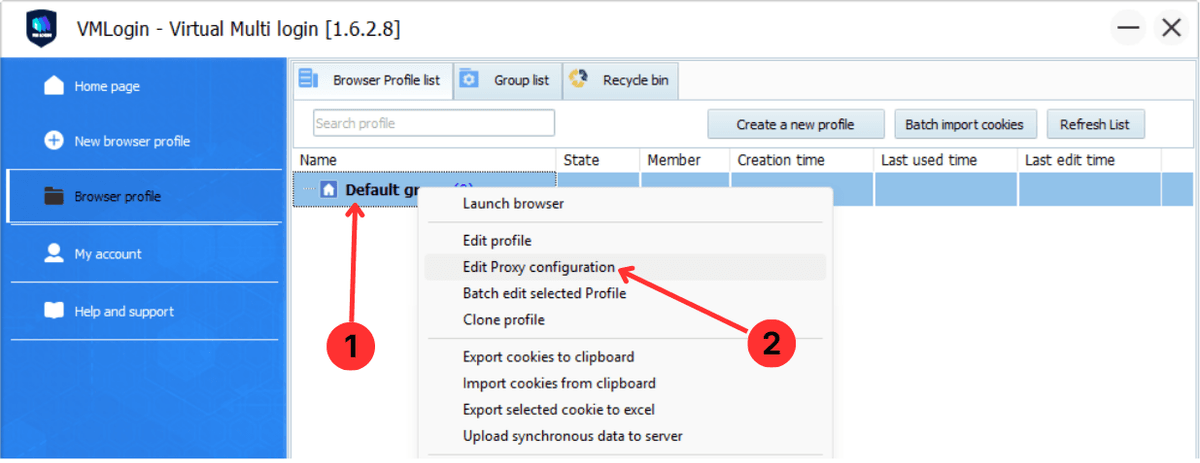
- In the Browser profile list, select the profile that should use a proxy, such as the default group or a named profile you created earlier (1).
- Right-click the selected profile and choose Edit Proxy configuration from the context menu to open the Proxy settings dialog (2).
Step 3. Enter and test proxy settings
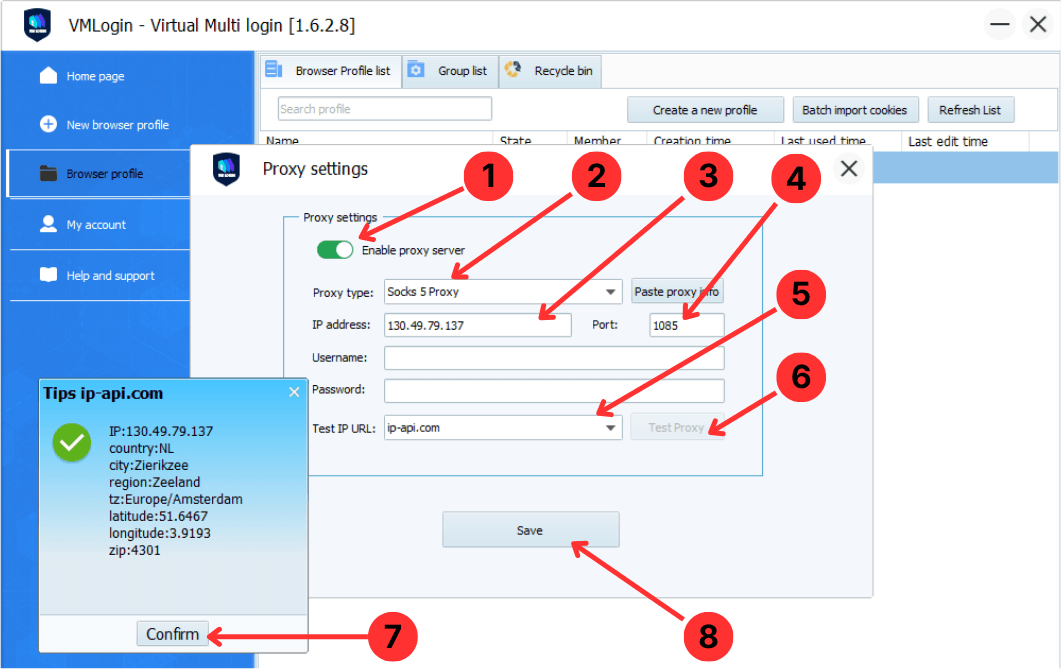
- In the Proxy settings window, switch on Enable proxy server to activate proxy use for this profile (1).
- Enter the proxy host in the IP address field, using the IP or domain provided by the proxy service (2).
- If you received the proxy as a single line (for example ip:port:username:password), click Paste proxy info to fill the fields automatically (3).
- Type the proxy port value in the Port field, matching the number given by the provider (4).
- If authentication is required, fill in Username and Password with the credentials for this proxy (5).
- Choose a Test IP URL, click Test Proxy, and when the IP checker window appears, review the information and press Confirm to close the result (6, 7).
- Click Save to store the proxy configuration and return to the profile list with the proxy bound to this browser profile (8).
Summary
After following these steps, each VMLogin browser profile can use its own proxy, including SOCKS or HTTP/HTTPS servers with optional Username/Password authentication. You can repeat the same process for any number of profiles to keep IP settings separate.