
MoreLogin includes its own proxy manager, so proxies can be added once and reused across different profiles.
This article walks through all available proxy setup methods in MoreLogin, from a single proxy to bulk import. It is part of a larger article about anti-detect browsers.
MoreLogin is a Chromium-based anti-detect browser available for Windows and macOS. It lets users create many isolated browser profiles on one machine, each with its own cookies, cache, and local storage, and can store those profiles locally or in encrypted cloud storage.
Beyond proxy support, MoreLogin focuses on browser fingerprint control: Canvas and WebGL spoofing, User-Agent and Client Hints settings, timezone and language overrides, WebRTC handling, plus a local API that works with tools such as Selenium and Puppeteer for scripted automation.
Proxy setup options in MoreLogin
MoreLogin uses a dedicated Proxies section in the left sidebar for network configuration. From there, you can:
- Add a single proxy using a form with fields for protocol, host, port, and optional Username/Password authentication.
- Import multiple proxies in bulk by pasting a list of proxy lines into a text box and choosing the protocol and IP checking service.
These proxy settings apply inside MoreLogin only. After they are saved, profiles show the assigned proxy in the Proxy information column, and each profile uses its configured proxy when started.
Step-by-step proxy setup in MoreLogin
Step 1. Open the Proxies page
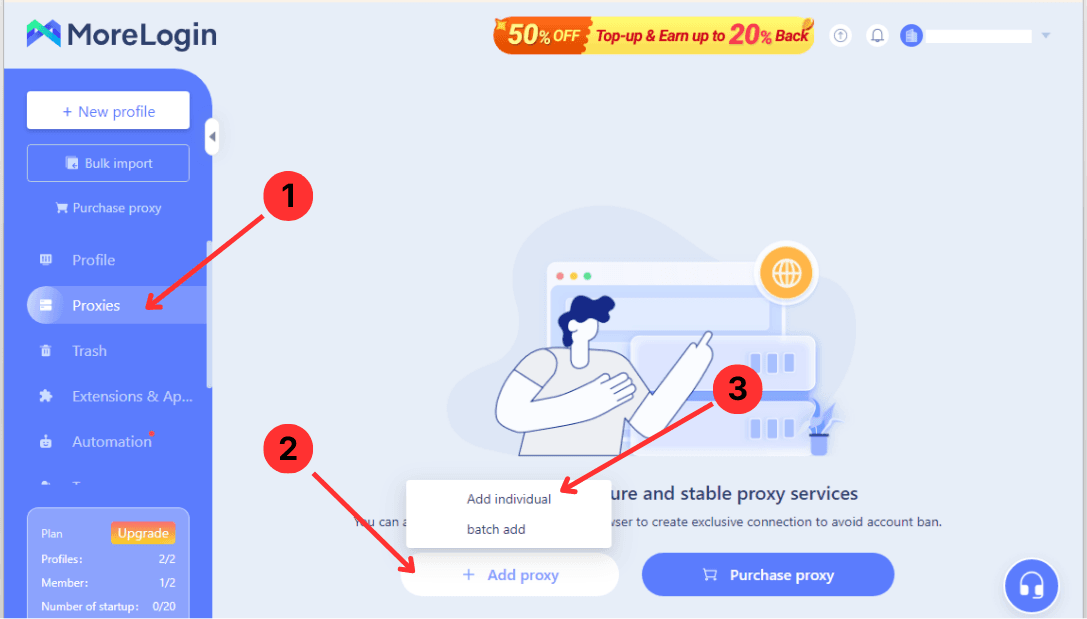
- In the left sidebar, click Proxies (1).
- In the main area, select Add proxy at the bottom (2).
- From the menu, choose Add individual to create one proxy or batch add to import several at once (3).
Step 2. Add a single proxy
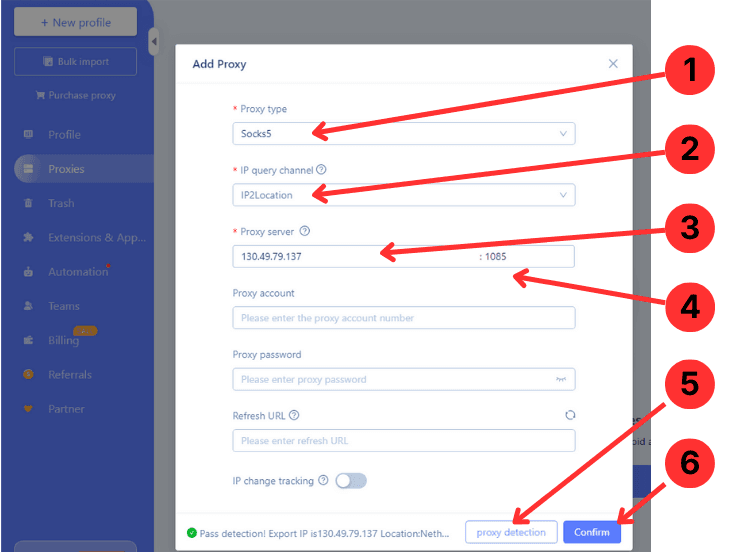
- In the Proxy type dropdown, pick the protocol for your proxy, for example HTTP, HTTPS, or Socks5 (1).
- In IP query channel, select the service that will be used to check the external IP, such as IP2Location (2).
- Enter the proxy IP address in the Proxy server field and the port number in the box after the colon (3, 4).
- If the proxy requires authentication, fill Proxy account and Proxy password, then click proxy detection to test the connection (5) and Confirm to save it (6).
Step 3. Add proxies in bulk
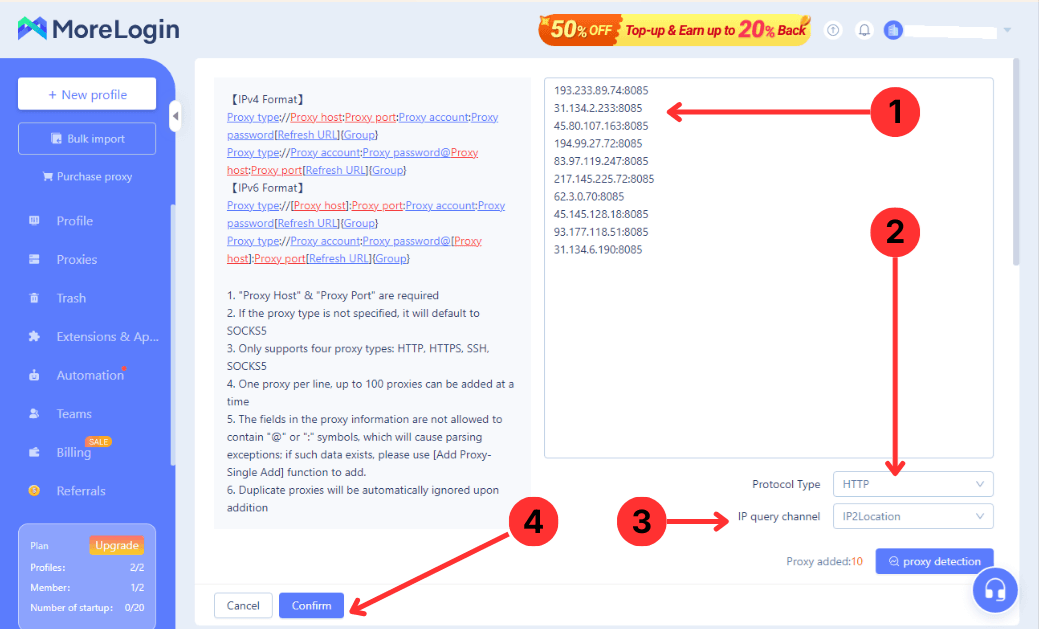
- Paste your proxies into the large text box on the right, one proxy per line in the supported format, for example IP:Port or Proxy_type//Proxy_host:Proxy_port (1).
- Scroll through the list to review all entries and make sure there are no duplicates or formatting errors (2).
- Choose the Protocol Type and IP query channel so MoreLogin knows which protocol and IP check service to use for this batch (3).
- Click Confirm to add all valid proxies from the list in one action (4).
Step 4. Use profiles with saved proxies
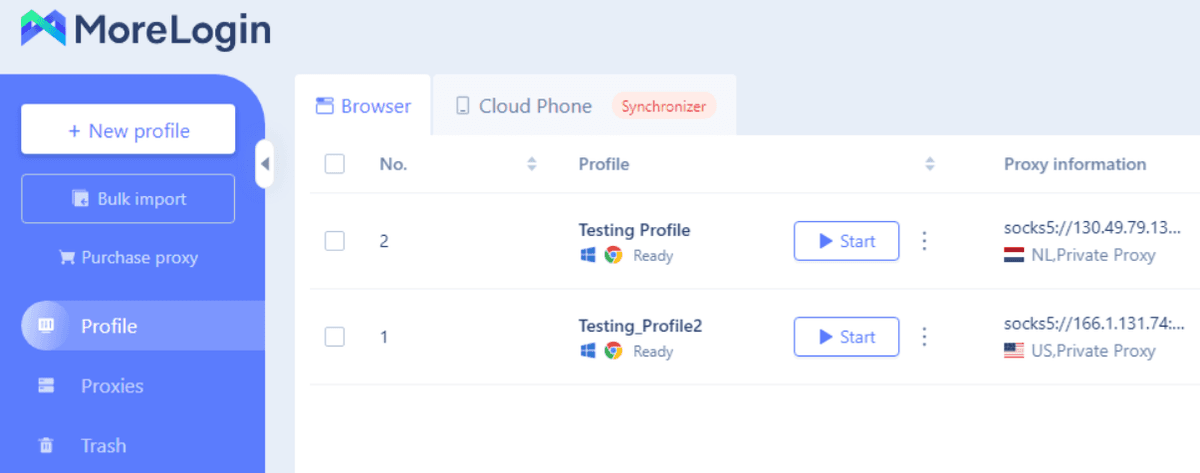
- Go to the Profile section in the sidebar to see your browser profiles.
- Look at the Proxy information column to verify that each profile shows the expected protocol, IP address, port, and country label.
- Click Start for a profile to launch a browser window that connects through the assigned proxy.
Summary
MoreLogin offers a built-in proxy manager with both single-proxy and bulk import workflows, so you can prepare a proxy pool and attach entries to profiles as needed. After following the steps above, profiles in MoreLogin will use the proxies you configured.