
Lalicat Browser is an anti-detect browser where each profile can use its own proxy server. This article shows how to add a proxy in Lalicat, both for a single profile and in the global settings. It is part of the ProxyData anti-detect proxy comparison table.
Lalicat Browser is a multi-profile application built on a modified Chromium engine. It can simulate different desktop and mobile environments, store each profile’s cookies and local data separately, and control profiles through a local REST API for automation.
Besides proxies, Lalicat can adjust many fingerprint parameters: user-agent, timezone, language, screen resolution, fonts, WebRTC, Canvas, WebGL, and hardware values such as CPU, memory, and GPU. It can also simulate different operating systems, manage multiple accounts in parallel, and keep profile fingerprints and storage isolated from each other.
Proxy setup options in Lalicat Browser
Lalicat offers two proxy configuration paths that are shown in this guide:
- Profile proxy (basic configuration tab).
Each browser profile has a proxy settings section in its basic configuration tab. The proxy defined here applies only to that specific profile. You can choose HTTP, HTTPS, SOCKS4, or SOCKS5 and enter the IP address, port, and optional Username/Password. - Global proxy (Global Setting → Proxy Setting).
The Global Setting menu under My Account contains a Proxy Setting panel. Here you configure a proxy at the account level in a separate dialog. This global proxy is stored once and can be reused wherever Lalicat refers to the global proxy settings, without changing the system proxy outside the browser.
The steps below walk through both methods: first a profile-level SOCKS5 proxy, then a SOCKS5 proxy in the global settings.
Step-by-step proxy setup in Lalicat Browser
Step 1. Create a profile and select SOCKS5
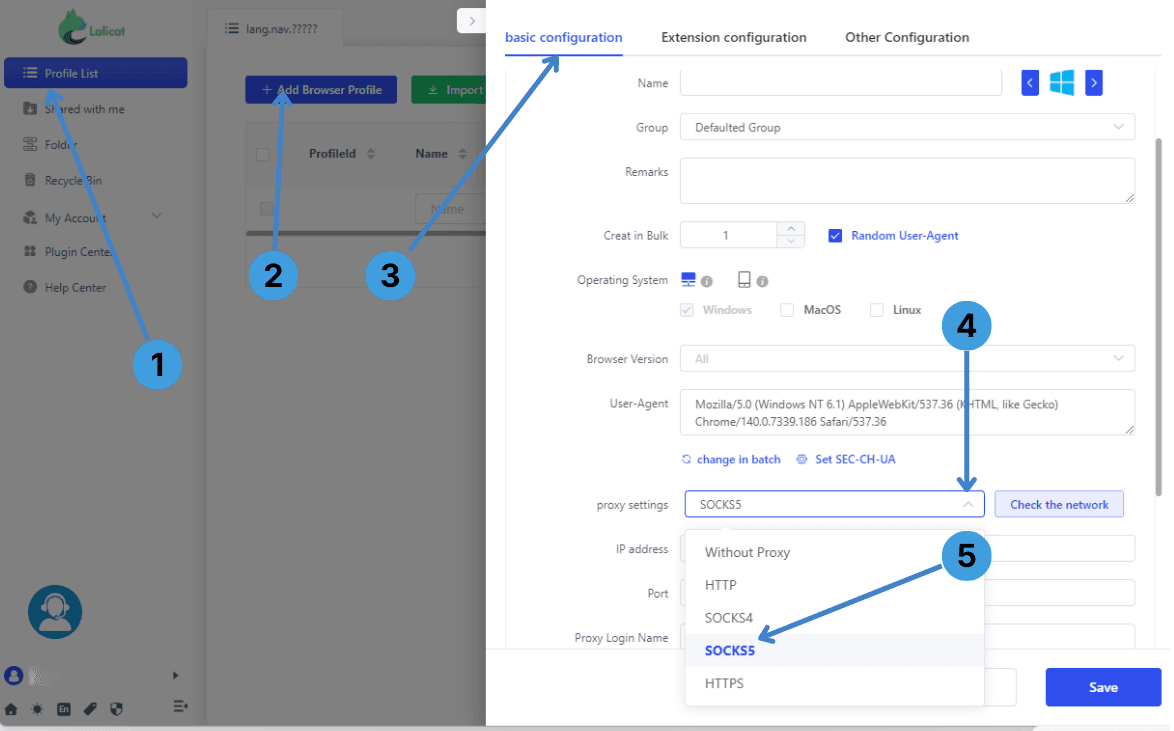
- In the left sidebar, open Profile List (1).
- Click Add Browser Profile at the top of the profile table (2).
- In the profile window, switch to the basic configuration tab so it is active (3).
- Find the proxy settings dropdown in the basic configuration section and click it (4).
- From the list, choose SOCKS5 as the proxy type (5). You can pick another protocol here if your provider uses HTTP, HTTPS, or SOCKS4 instead.
Step 2. Enter proxy details in the profile
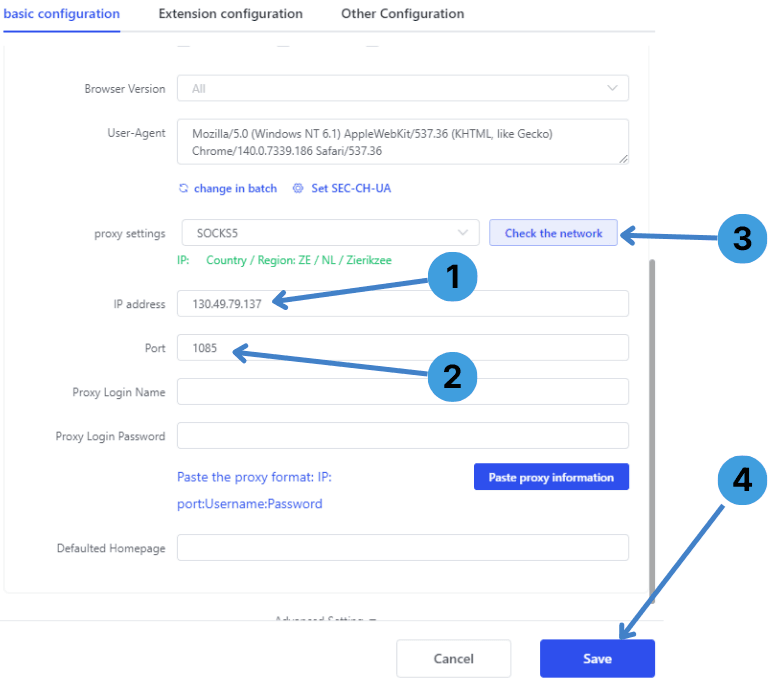
- In IP address, type the proxy host from your provider, either an IP or domain name (1).
- In Port, enter the port assigned to this proxy (2).
- Click Check the network to test that the profile can reach the proxy and that the IP is working (3).
- If the test is successful, press Save to store the profile with the proxy attached to it (4). If your proxy requires Username/Password authentication, fill in Proxy Login Name and Proxy Login Password before saving.
Step 3. Open global proxy settings
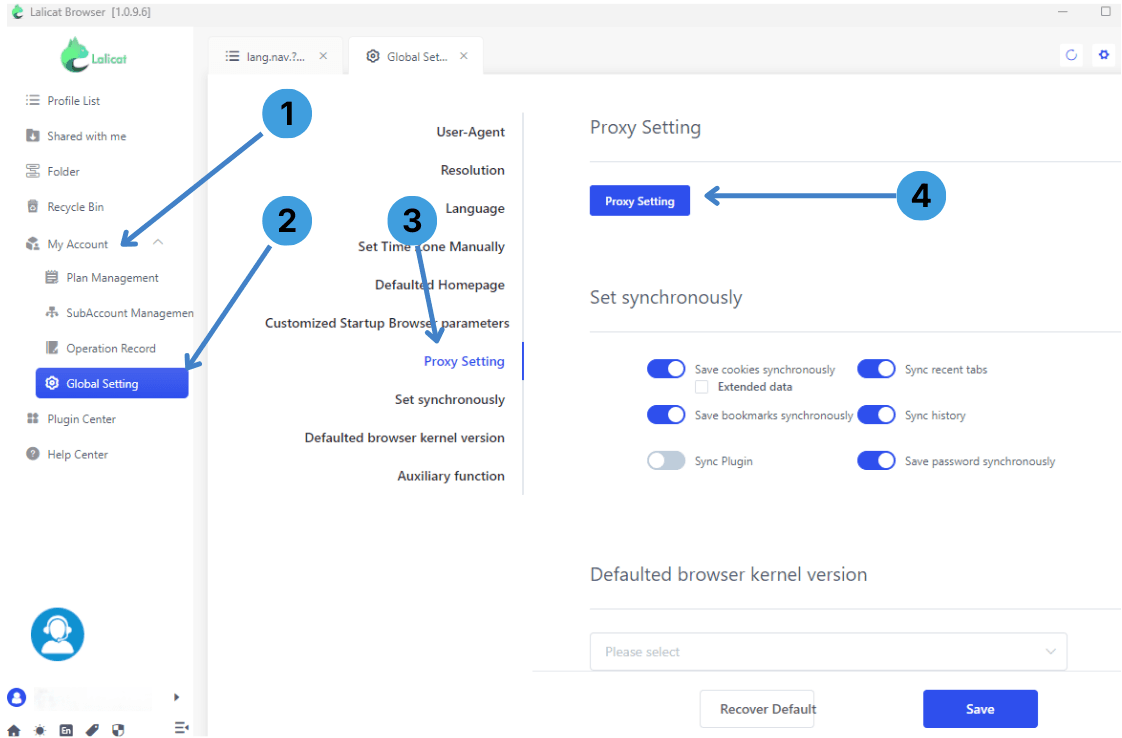
- In the left sidebar, go to My Account (1).
- Under this section, select Global Setting (2).
- In the list of global options, click Proxy Setting (3).
- On the right side of the window, press the blue Proxy Setting button to open the global proxy dialog (4).
Step 4. Configure a global SOCKS5 proxy
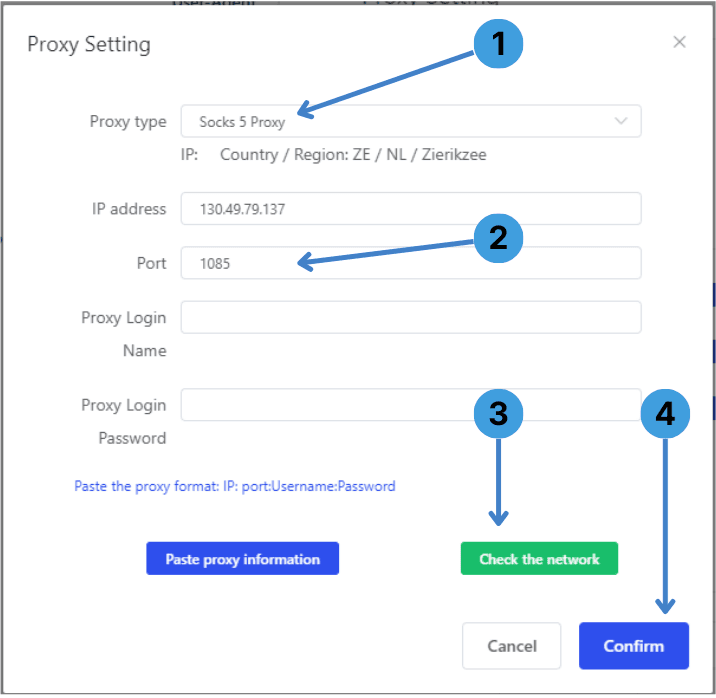
- In the Proxy type dropdown, choose Socks 5 Proxy or another protocol that matches your proxy service (1).
- Enter the proxy host in IP address and the corresponding port in Port (2). Use the same details that you would for a profile proxy.
- If the proxy uses Username/Password authentication, fill in Proxy Login Name and Proxy Login Password, or use Paste proxy information to insert a full IP:port:Username:Password string (3).
- Click Check the network to verify the connection, then press Confirm to save the global proxy settings (4).
Summary
Lalicat Browser lets you apply proxies either per profile in the basic configuration tab or once in the Global Setting section through Proxy Setting. After following the steps above, you can attach a working HTTP or SOCKS proxy to Lalicat in whichever way fits your workflow.