
Undetectable Browser works with proxies through its built-in Proxy Manager and profile settings. In this article we show how to add proxies from partner providers or your own service, check that they work, and assign them to browser profiles. The article is part of the Anti-Detect Browsers section on ProxyData and is linked from the anti-detect proxy comparison table.
Undetectable Browser is a multi-profile application built on a Chromium-based engine and aimed at working with many separate browser profiles on one machine. It runs on desktop systems such as Windows and macOS and supports both local and cloud profiles, mass profile creation, and an API for automation tasks through tools like Puppeteer, Playwright, and Selenium.
Besides proxy support, Undetectable Browser includes fingerprint controls for User-Agent, operating system, screen size, time zone, WebRTC, WebGL, and media devices. Each browser profile stores its own cookies, storage, extensions, and other identifiers so that sites see them as separate environments. Tagging, grouping, and role-based access help to organize many profiles and use them in team workflows.
Proxy setup options in Undetectable Browser
Undetectable Browser uses a dedicated Proxy Manager. Proxies are stored there once and can then be assigned to any number of browser profiles.
There are two main ways to add proxies in this interface:
- Partnership Proxy window. Undetectable Browser can connect to selected partner proxy services. From the Partnership Proxy dialog, you choose a provider and protocol, then generate ready-to-use proxy records that appear in Proxy Manager.
- Manual proxy entry. You can create proxies manually by entering the protocol (HTTP/HTTPS or SOCKS5), host, port, and, if needed, Username/Password credentials.
- Profile-level assignment. Each browser profile has a Proxy field. When you select a proxy there, only that profile uses it. Network settings of the operating system stay unchanged.
The steps below show how to use these options and end with a profile that runs through the chosen proxy.
Step-by-step proxy setup in Undetectable Browser
Step 1. Use partnership proxies (optional)
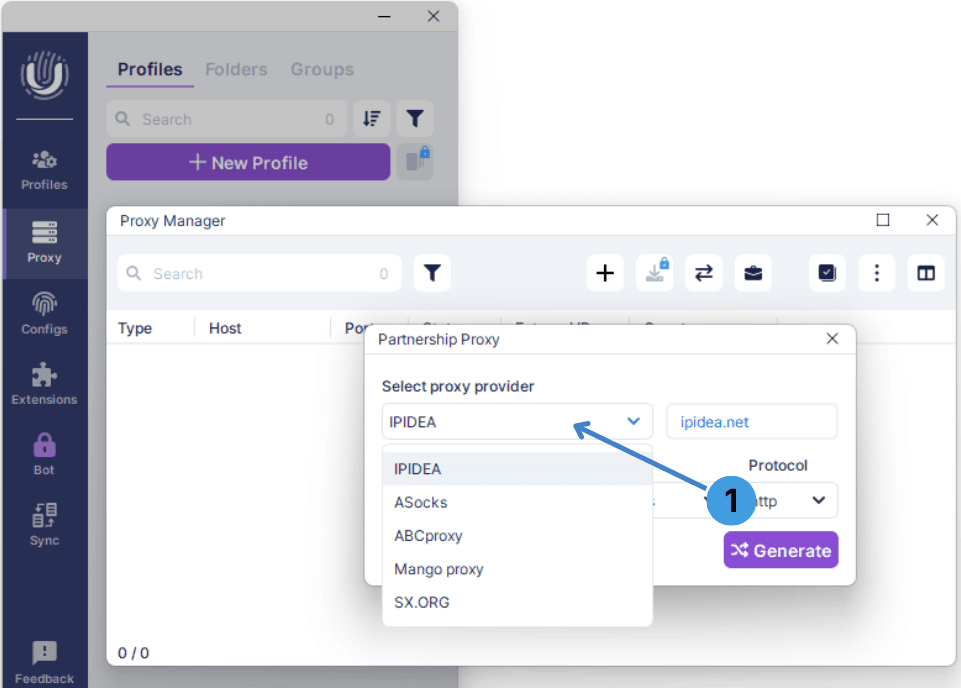
- Open Proxy Manager from the left sidebar and click the button that opens the Partnership Proxy window.
- In Select proxy provider, choose the required service such as IPIDEA (1).
- Adjust the Protocol field if needed and click Generate so the browser adds proxy entries from this provider into Proxy Manager.
Step 2. Add a proxy in Proxy Manager manually
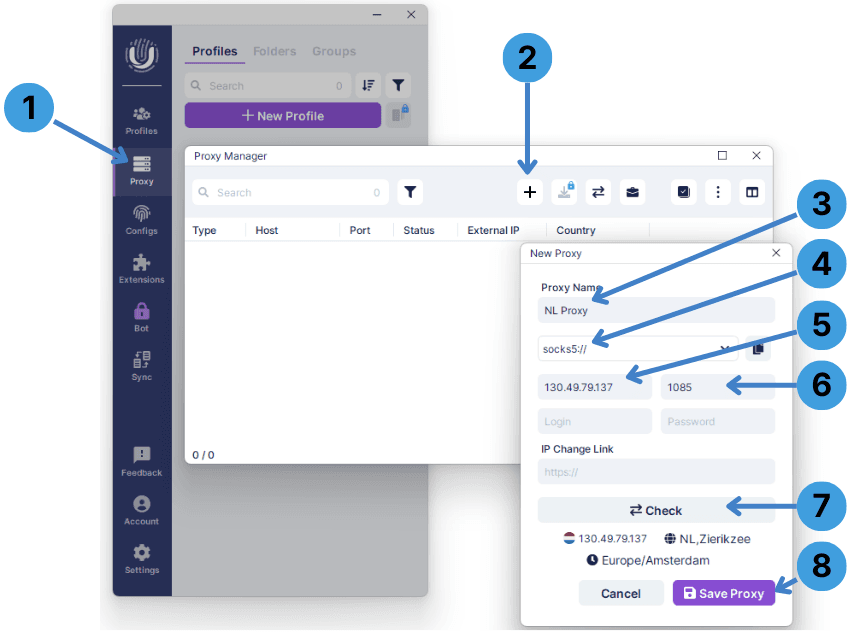
- Click Proxy in the left sidebar to open Proxy Manager (1), then press the + button to add a new proxy entry (2).
- In Proxy Name, type a clear label for this proxy, for example “NL Proxy” (3).
- Choose the proxy Type, such as socks5://, from the list (4). If your provider gives a full proxy string, you can use the paste icon to insert it into this field (5).
- In the Host field, enter the proxy IP address or domain, and in Port type the port number from your provider (6).
- Click Check to test that the proxy is reachable (7), then select Save Proxy to store it in the list (8).
Step 3. Check the proxy status
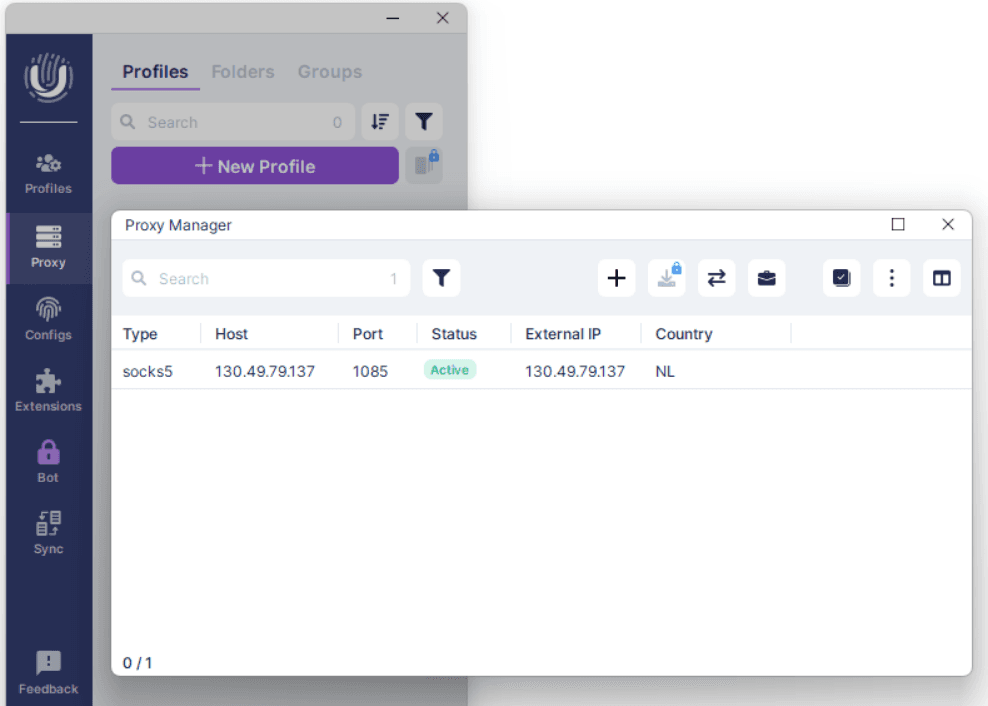
- Look at the new entry in Proxy Manager and confirm that the Type, Host, and Port columns match the data you entered.
- Check the Status column; it should show Active after a successful test. If the status is not active, run the check again or edit the proxy settings.
- Verify that External IP and Country correspond to the IP address supplied by your proxy provider.
Step 4. Create a profile and attach a proxy
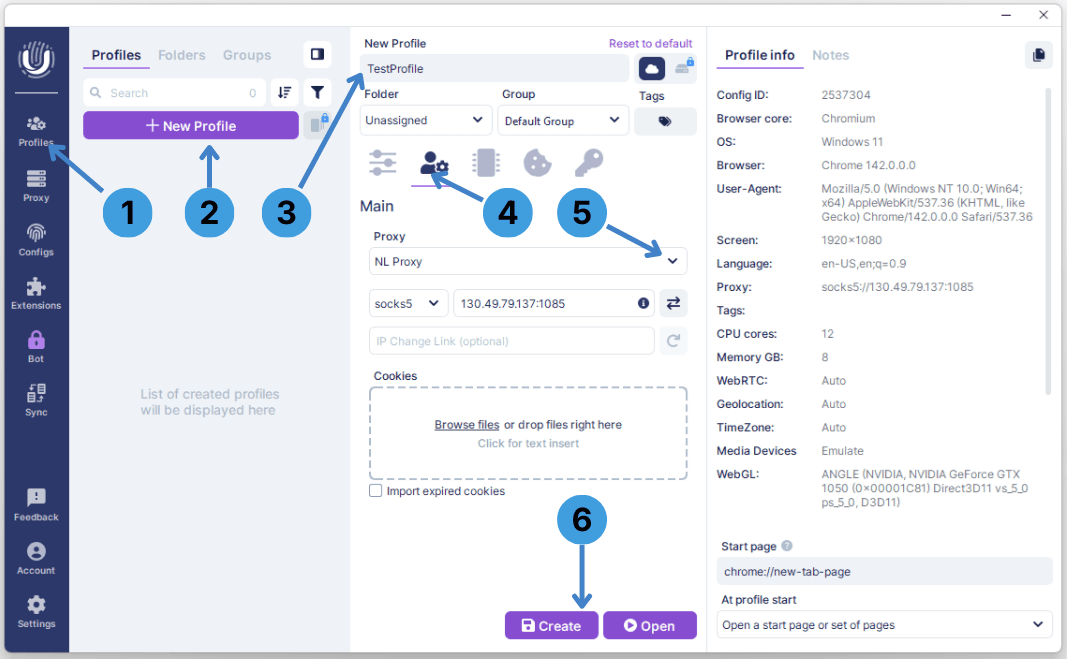
- Click Profiles in the left sidebar to switch to the profile list (1), then press + New Profile to open the profile creation form (2).
- Enter a profile name in the New Profile panel. New profiles will appear in the list on the left once they are saved (3).
- Make sure the Main section with the user icon is selected so that proxy settings are visible in the form (4).
- In the Proxy dropdown, choose the proxy you added earlier in Proxy Manager, for example NL Proxy (5).
- Choose what to do next: click Create to save the profile for later use, or Open to launch it immediately with the attached proxy (6).
Summary
Undetectable Browser routes traffic through proxies on a per-profile basis using Proxy Manager and profile settings. You can either rely on partnership proxy providers or add your own proxies manually, then attach them to any profile that needs them.