
1Browser lets you use different proxy modes for each profile. This guide shows how to set up a custom proxy, switch to the built-in free proxies, and route traffic through Tor. It is part of the anti-detect browser guide on ProxyData.
1Browser is a Chromium-based anti-detect browser with a Chrome-like interface, cloud-synced profiles, and support for major desktop systems including Windows, macOS, and Linux. Each profile runs as an isolated browser instance with its own cookies, storage, and network settings.
Beyond proxy management, 1Browser focuses on fingerprint control for multi-account work. Profiles can have different device and browser parameters such as user agent, timezone, screen size, and other fingerprint values, helping separate accounts by environment as well as by IP address.
Proxy setup options in 1Browser
1Browser configures proxies directly inside the active profile, so changes apply only to that profile and do not touch system-wide settings.
Available options used in this guide:
- User proxy – a custom proxy from any provider. You paste a full proxy URL or address, and only this profile sends traffic through it.
- Free proxy – built-in free proxies from 1Browser, with a country selector so each profile can use a different location. 1browser
- Tor proxy – traffic goes through the Tor network, with a separate country selector for the exit location.
You can switch between these modes at any time; the active radio button defines which route the profile uses.
Step-by-step proxy setup in 1Browser
Step 1. Configure a custom user proxy
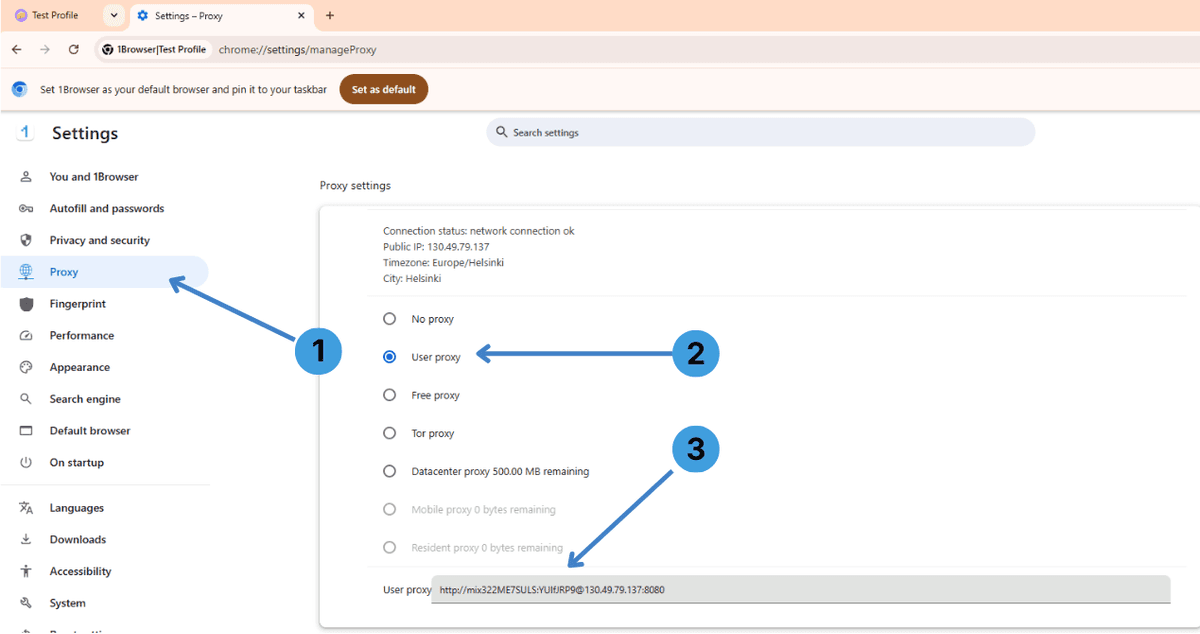
- Open the profile and go to Settings → Proxy in the left sidebar (1).
- In Proxy settings, select User proxy as the active mode (2).
- In the User proxy field, paste your proxy in a supported format such as http://username:password@IP:port or socks5://IP:port (3).
Step 2. Use the built-in free proxy
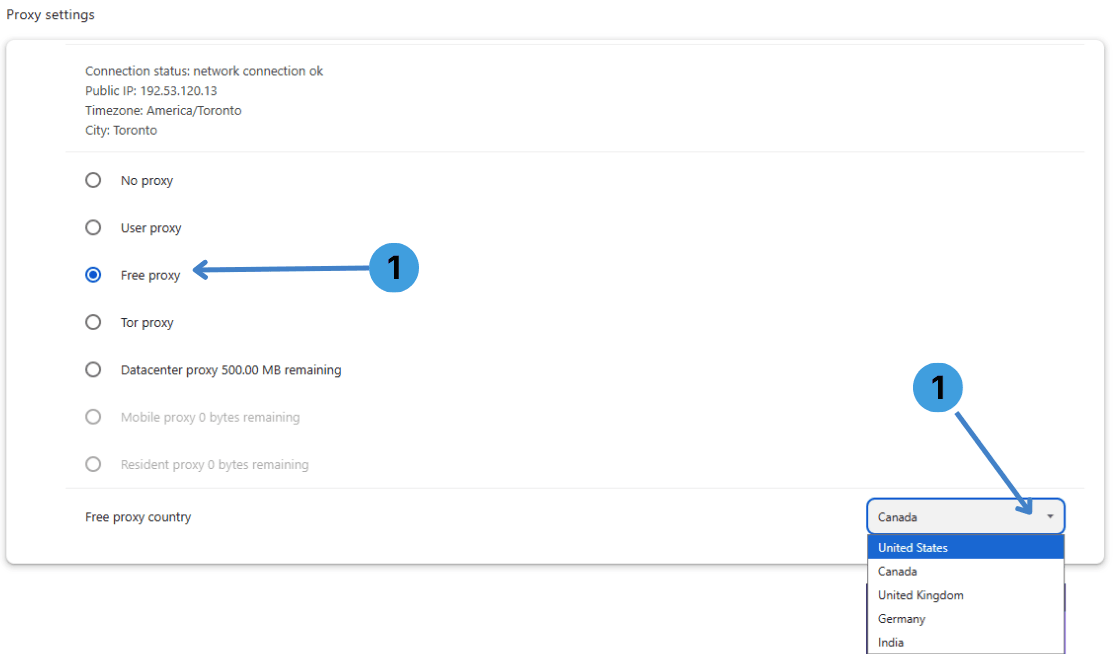
- In Proxy settings, choose Free proxy from the list of modes (1).
- Under Free proxy country, open the dropdown and select the country for this profile’s free proxy (1).
Step 3. Enable Tor proxy mode
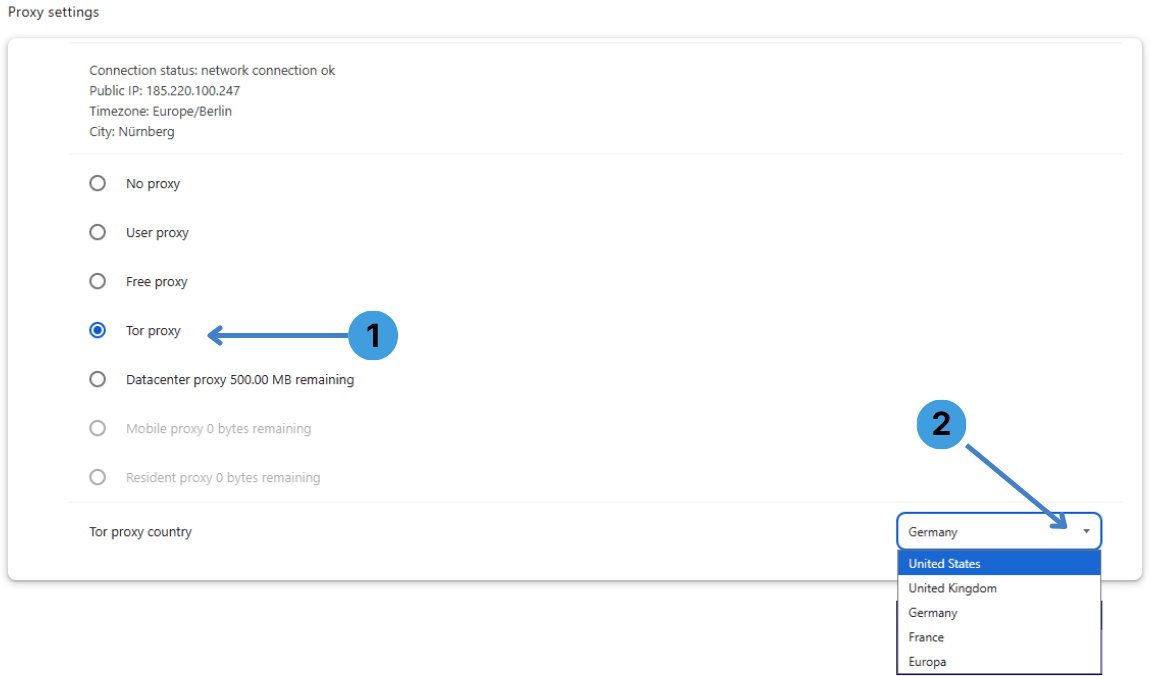
- In Proxy settings, select Tor proxy so the profile routes traffic through Tor (1).
- Under Tor proxy country, use the dropdown to choose the preferred exit country for the Tor connection (2).
Summary
1Browser lets you attach a custom proxy, switch to built-in free proxies, or route a profile through Tor directly from the Proxy settings page. After following the steps above, you can adjust the mode and country per profile without changing anything on the system side.