
MarketerBrowser is an anti-detect browser focused on profile-based work. This guide shows how to set up a proxy for a profile and start the browser through that proxy. The article is part of the ProxyData anti-detect browser comparison table.
MarketerBrowser is built as a multi-profile environment on a desktop browser engine similar to Chromium. It lets you create and manage separate profiles, group them, and start them from a central panel. Each profile can have its own user agent, system preset, and proxy, which is useful when working with multiple accounts.
As an anti-detect tool, MarketerBrowser offers profile isolation, separate cookies and local storage, control over system presets (Windows, macOS, Linux, mobile platforms), browser version, and UserAgent. It can randomize or tune these parameters per profile, and it supports tags, notes, and group management so that profiles stay organized and do not interfere with one another.
Proxy setup options in MarketerBrowser
In this workflow, the proxy is configured directly in the profile editor under the Proxy (Optional) section. The proxy type, server, port, and optional Username/Password are stored as part of a single profile.
These settings apply only to the selected profile. Other profiles can use different proxies or no proxy at all, and the operating system proxy configuration is not changed by this method.
Step-by-step proxy setup in MarketerBrowser
Step 1. Create a profile and add a proxy
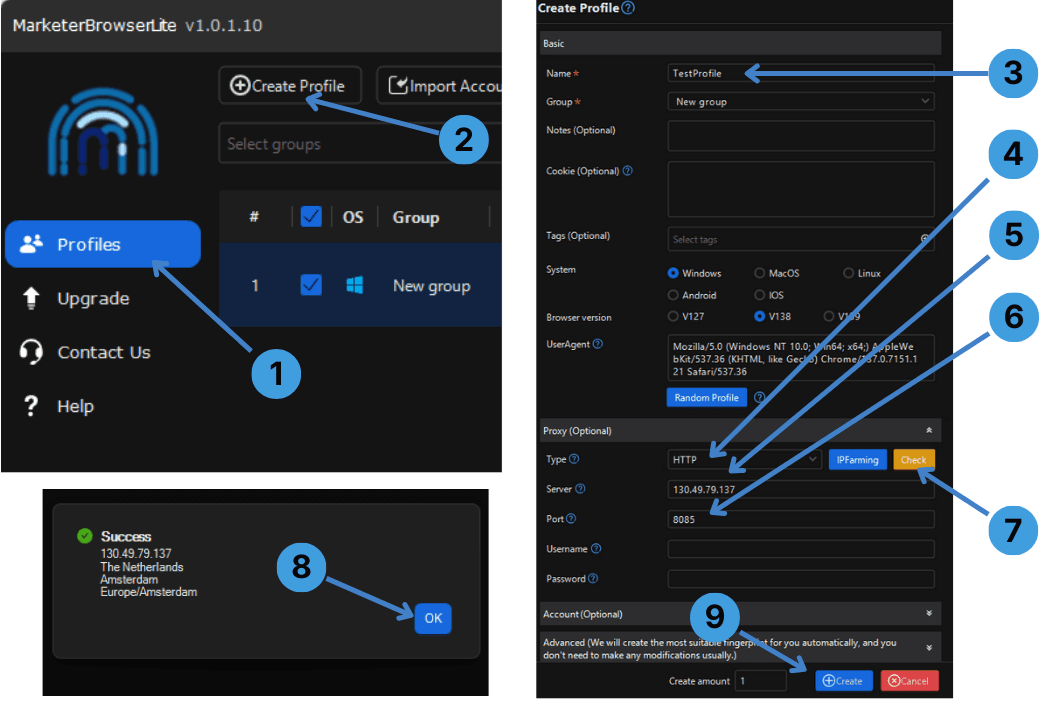
- In the main window, open the Profiles section in the left sidebar (1).
- Click Create Profile at the top to open the profile creation dialog (2).
- Enter a profile name in the Name field and, if needed, choose a Group to keep profiles organized (3, 4).
- In System, select the platform preset the profile should use and adjust browser version or UserAgent if required (5).
- In the Proxy (Optional) block, choose the proxy Type (for example HTTP or SOCKS) and enter the proxy address in Server and the port number in Port (6).
- If the proxy uses Username/Password auth, fill the Username and Password fields with the credentials from the provider (6).
- Click Check to test the proxy and wait for the result dialog with detected IP data (7).
- When the success window appears, confirm that the IP information is correct and click OK (8).
- Back in the profile editor, set Create amount if you want several identical profiles, then click Create to save the profile with this proxy assigned (9).
Step 2. Start the profile through the proxy
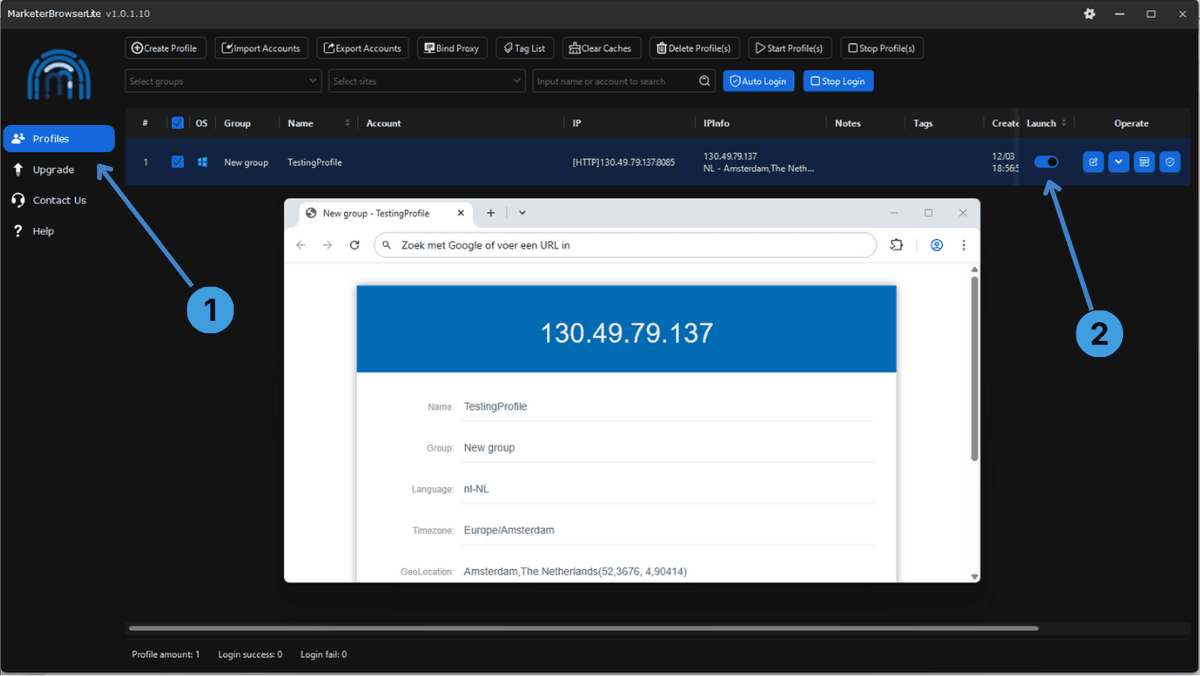
- In the main interface, stay in the Profiles section to see the list of created profiles (1).
- Find the profile that has the proxy configured and click the Launch button in its row to start it (2).
- Wait until the browser window opens and check an IP lookup page to verify that the connection uses the proxy address instead of the local network.
Summary
MarketerBrowser lets you bind a proxy directly to each profile so that every account runs through its own connection. By following these steps, you can create a profile, assign proxy credentials, test the connection, and then launch the profile through that proxy.