
Kameleo lets you use proxy servers with all browser profiles. This article explains how to set a default proxy for new profiles and how to apply the same proxy when creating a profile. It is part of the ProxyData guide to anti-detect browsers.
Kameleo is an anti-detect environment that manages multiple browser profiles based on popular engines such as Chromium and Firefox. Profiles can be stored locally or in the cloud, started with different device presets, and launched with separate browser configurations for parallel work.
Besides proxy settings, Kameleo offers many anti-detect controls: browser fingerprint templates, profile isolation, cookie and storage separation, and options to adjust User-Agent, timezone, WebRTC, Canvas, WebGL, fonts, and other browser parameters. These switches help each profile look like a separate device while staying manageable from a single interface.
Proxy setup options in Kameleo
Kameleo uses a built-in proxy panel that applies only inside the application. It does not change the system proxy for other programs.
There are two relevant options:
- Default proxy for new profiles in the Settings menu. When enabled, every new profile starts with this proxy already filled in, although you can still change it later.
- Per-profile proxy inside the profile editor. Here you can keep the default proxy, turn the proxy off, or replace it with another one. The change affects only this profile.
The steps below show how to configure a SOCKS5 proxy as the default and how to create a profile that uses it.
Step-by-step proxy setup in Kameleo
Step 1. Configure default proxy for new profiles
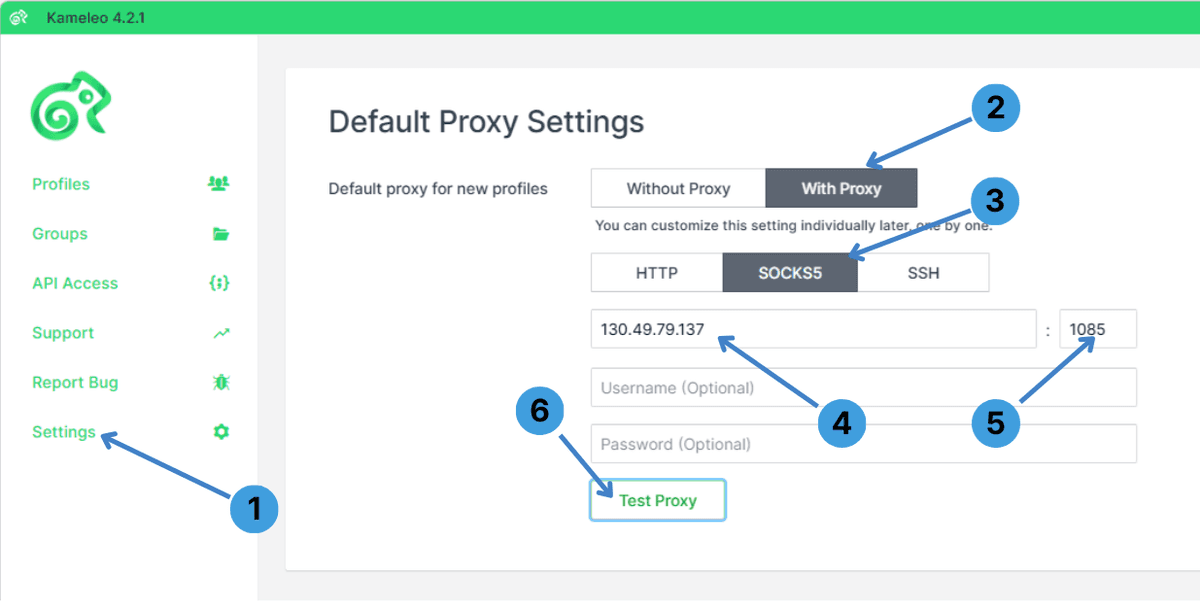
- In the left sidebar, click Settings (1).
- In the Default proxy for new profiles section, switch from Without Proxy to With Proxy (2).
- Choose the protocol you need, for example SOCKS5, in the proxy type row (3).
- Enter the proxy host (IP address or domain) in the first field and the port number in the smaller field on the right (4, 5).
- If your proxy uses authentication, fill in Username (Optional) and Password (Optional), then click Test Proxy to check the connection (6).
Step 2. Create a profile that uses this proxy
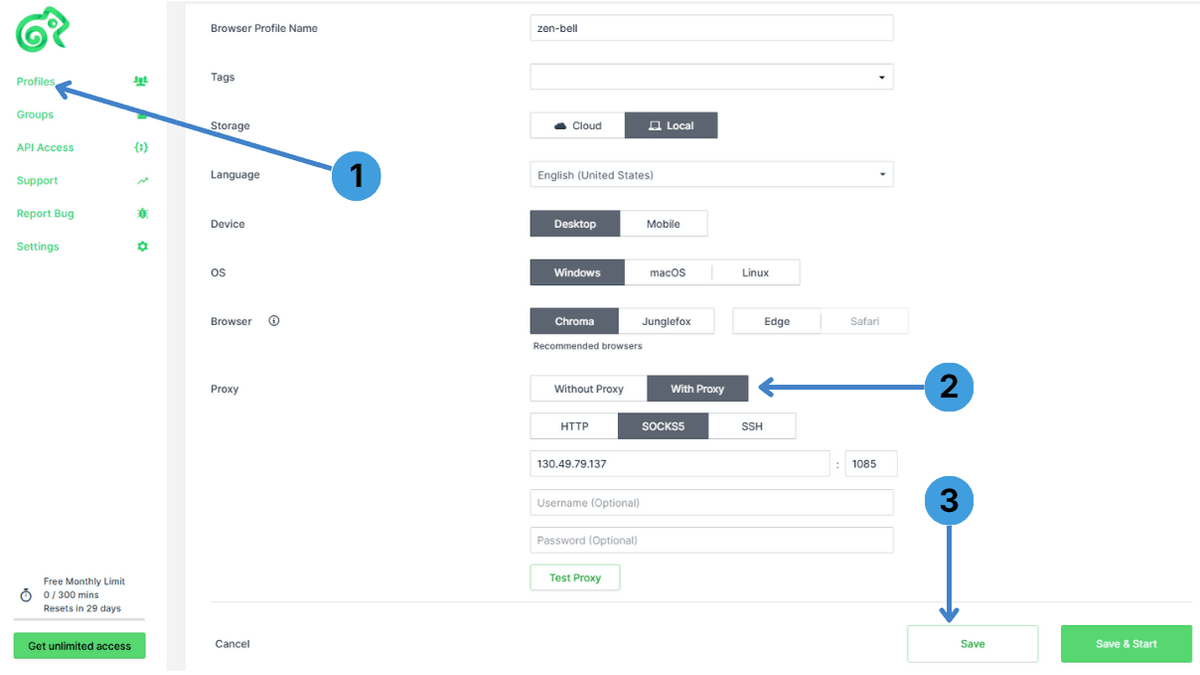
- Click Profiles in the sidebar to open the profile list and start creating a new profile or editing an existing one (1).
- In the Proxy section of the profile editor, select With Proxy so that the SOCKS5 settings from the default configuration appear for this profile (2).
- Adjust the host, port, and optional Username/Password if needed, test the proxy again if you changed anything, and press Save to store the profile settings (3).
Step 3. Confirm the profile is running through the proxy
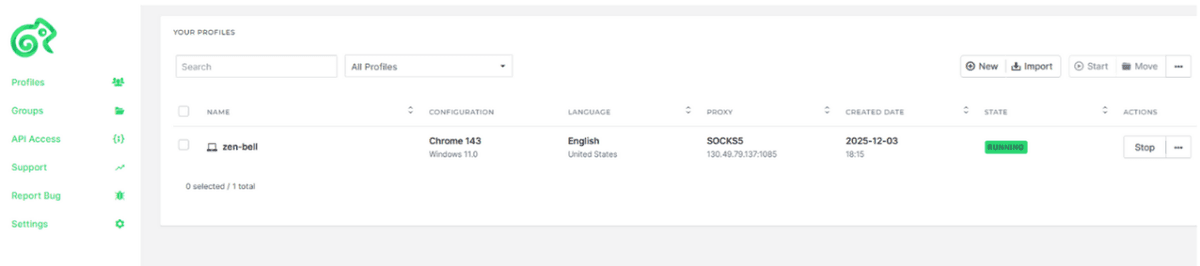
- Return to Profiles and find the profile you configured.
- Check the Proxy column to confirm that it shows the expected protocol and IP:port pair for this profile.
- Make sure the State column shows the profile as RUNNING; this indicates the active session is using the assigned proxy.
Summary
Kameleo lets you define a default proxy for all new profiles and then fine-tune or replace that proxy inside each profile. After following these steps, you can see in the profile list which proxy is assigned and running for every session.