
AdsPower is an anti-detect browser that lets you attach a separate proxy to each profile. This guide explains the available ways to set a proxy inside AdsPower using its built in proxy list and profile settings. It is part of a broader guide to anti-detect browsers at a broader guide to anti-detect browsers.
AdsPower Browser is a multi profile environment built for running many accounts in parallel. It offers SunBrowser based on the Chromium engine and FlowerBrowser based on Firefox, and it runs on Windows, macOS, and Linux.
Beyond proxy settings, AdsPower provides detailed control over browser fingerprints. For each profile you can adjust User Agent, screen resolution, WebRTC behavior, timezone, language, geolocation, Canvas and WebGL parameters, cookies, and other values so that every profile looks like a separate device.
Proxy setup options in AdsPower
AdsPower uses profile based networking. Proxies are stored in a central Proxies section, then linked to browser profiles.
In this guide you will:
- Create a shared proxy list in the Proxies menu.
- Add several proxies at once and check that they work.
- Assign one saved proxy to a profile in the New Browser Profile window.
All changes here affect only AdsPower profiles. System wide proxy settings in the operating system stay unchanged.
Step-by-step proxy setup in AdsPower
Step 1. Open the Proxies page and start adding
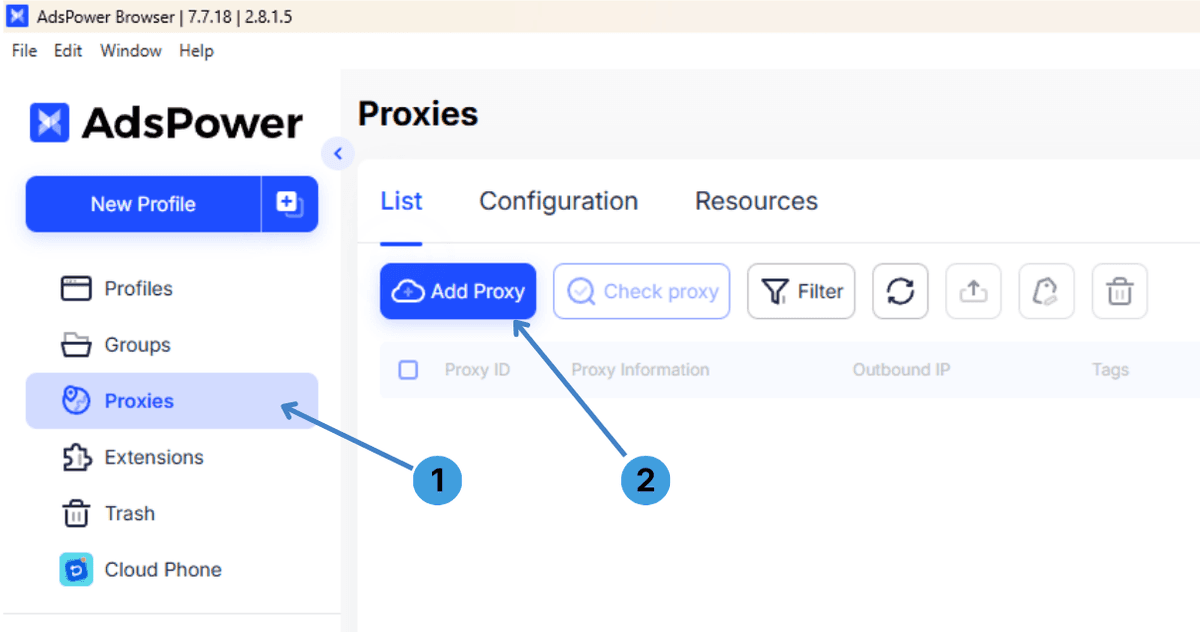
- In the left sidebar, click Proxies to open the proxy management section (1).
- Make sure the List tab is selected at the top of the page.
- Press Add Proxy to open the bulk add dialog for new proxies (2).
Step 2. Add proxies in bulk and test them
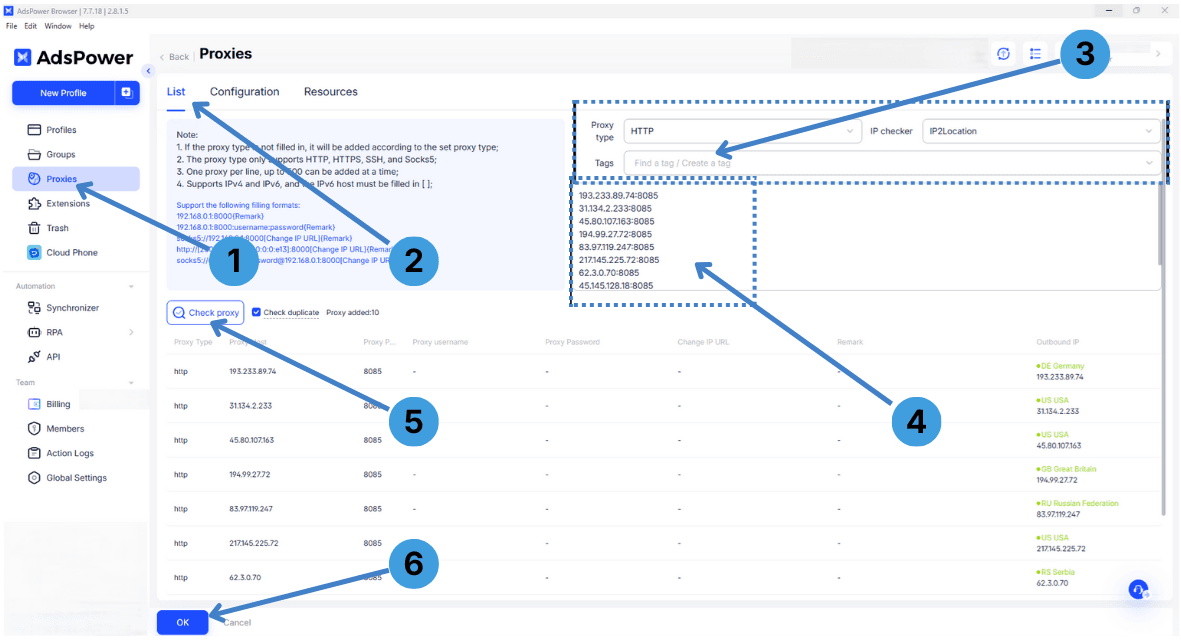
- Check that you are still in the Proxies section on the List tab, where notes and format hints are shown (1).
- Read the note area to see supported proxy formats and examples for how to write each line (2).
- In the upper right, choose the Proxy type, select an IP checker, and set any Tags you want to apply to the new proxies (3).
- Paste your proxy entries from the provider into the large input field, one proxy per line, using the formats recommended in the note area (4).
- Click Check proxy to test the new entries so AdsPower can verify which proxies are working (5).
- After the check is finished and the list looks correct, press OK to save these proxies into the AdsPower proxy list (6).
Step 3. Assign a saved proxy to a browser profile
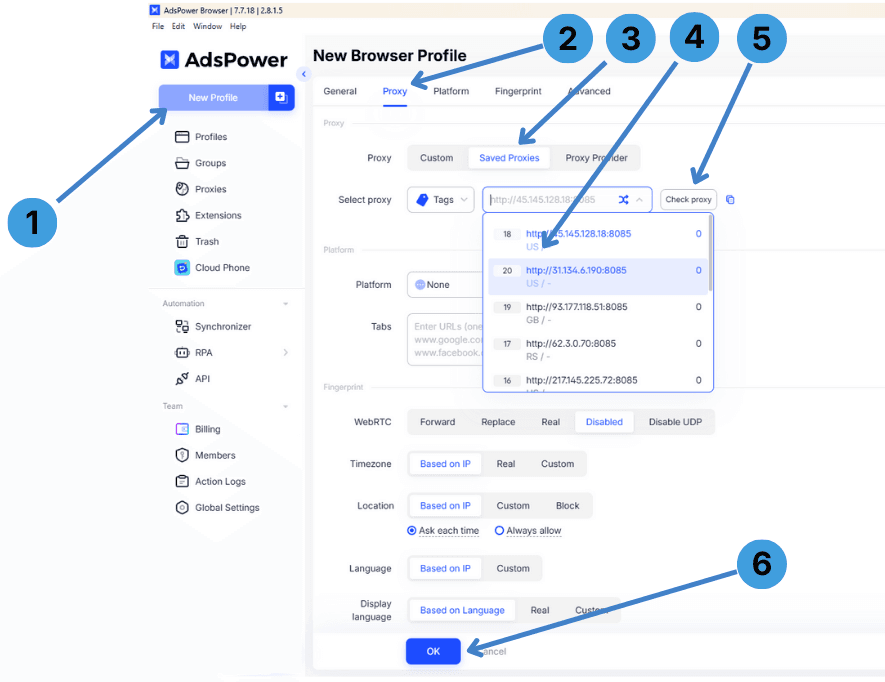
- In the sidebar, click New Profile to create a new browser profile or edit an existing one (1).
- In the profile window, open the Proxy tab to configure network settings for this profile (2).
- Inside the proxy section, switch to the Saved Proxies subtab so you can use the proxies stored in the list (3).
- Open the Select proxy field, optionally filter by Tags, and display the list of available proxies (4).
- From the drop down list, choose the proxy you want for this profile, checking its address and location information (5).
- Click OK at the bottom of the profile window to save the profile so that AdsPower will use the selected proxy whenever this profile is launched (6).
Summary
Using these steps you can load proxies into AdsPower, test them in bulk, and attach a specific proxy to each browser profile. This allows every profile to work through its own IP without changing system settings.