
BitBrowser supports several ways to configure proxy settings inside the application. This article explains how to add and test proxies in the BitBrowser anti-detect browser. It is part of the ProxyData anti-detect browser comparison table.
BitBrowser is a desktop anti-detect browser based on Chrome and Firefox open-source engines. It is designed around browser profiles that can hold separate fingerprints, cookies, and settings for multi-account workflows. Proxies are attached to these profiles so that each one can run through its own network route without affecting the others.
Beyond proxy support, BitBrowser offers fingerprint configuration for user agent, operating system, language, screen resolution, time zone, WebRTC, Canvas, WebGL, and other browser APIs. Profiles have isolated cookies and local storage, and the tool includes automation and team features for managing many profiles in one place.
Proxy setup options in BitBrowser
BitBrowser uses a dedicated Proxy IP section to manage proxy servers for all profiles. Inside this section, the Proxy Management tab shows a table of stored proxies with their type, host, port, detected IP, and the number of bound profiles.
Proxies are added in bulk through the Add → Batch Add dialog, where you paste a list of proxy lines and run automatic detection. The detection tool checks reachability and displays the detected IP and country before saving proxies into the table.
The proxies configured here apply only inside BitBrowser. They do not change the proxy settings of the operating system. Each entry can later be linked to one or more browser profiles, so the same proxy pool can be reused across many accounts.
The More menu above the table provides bulk actions such as exporting proxies, publishing or unpublishing them for employee accounts, batch editing proxy configuration, and deleting entries.
Step-by-step proxy setup in BitBrowser
Step 1. Open Proxy IP management
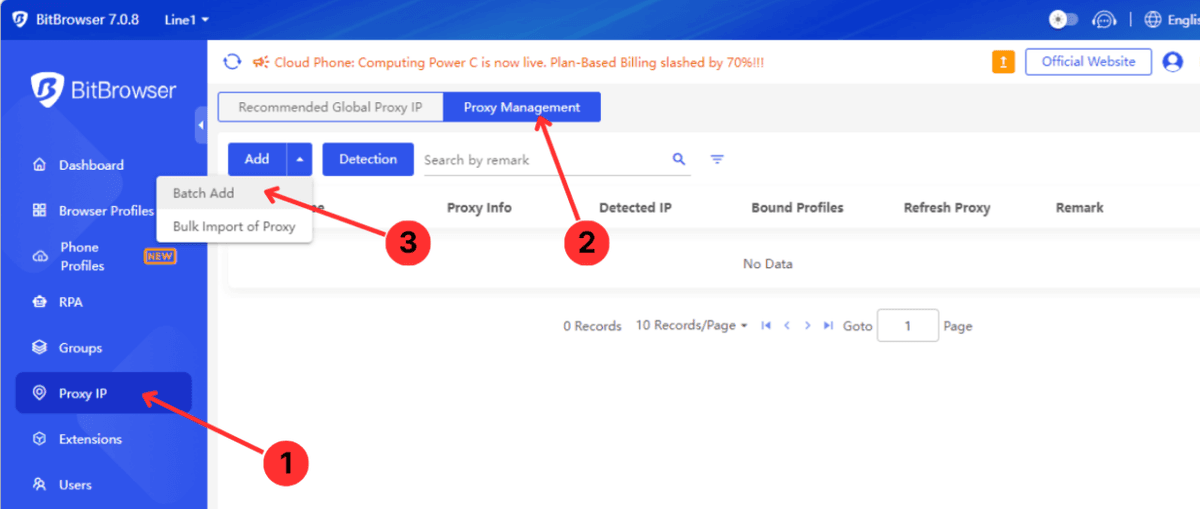
- In the main window, click Proxy IP in the left sidebar (1).
- At the top of the page, open the Proxy Management tab (2).
- Click Add and choose Batch Add from the dropdown menu (3).
Step 2. Batch add and test proxies
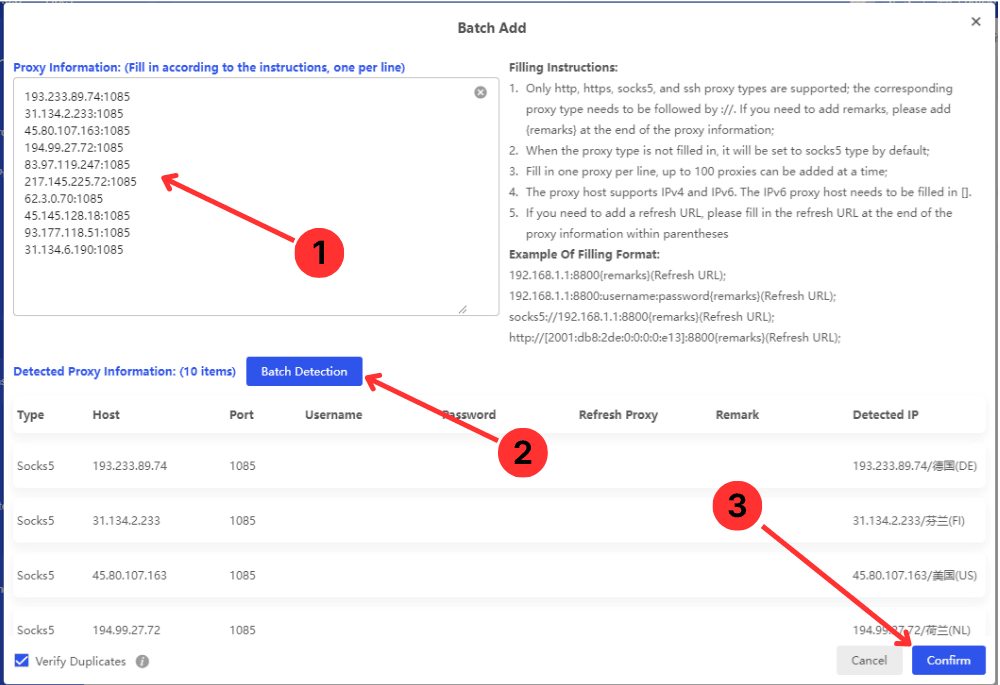
- Paste your proxies into the Proxy Information field, one per line (1).
- Use formats such as
http://IP:Port,
https://IP:Port,
socks5://IP:Port,
or plain IP:Port for SOCKS5. - Click Batch Detection (2) to test the proxies.
- After the check completes, press Confirm (3) to save the working proxies into the management table.
Step 3. Manage the proxy list
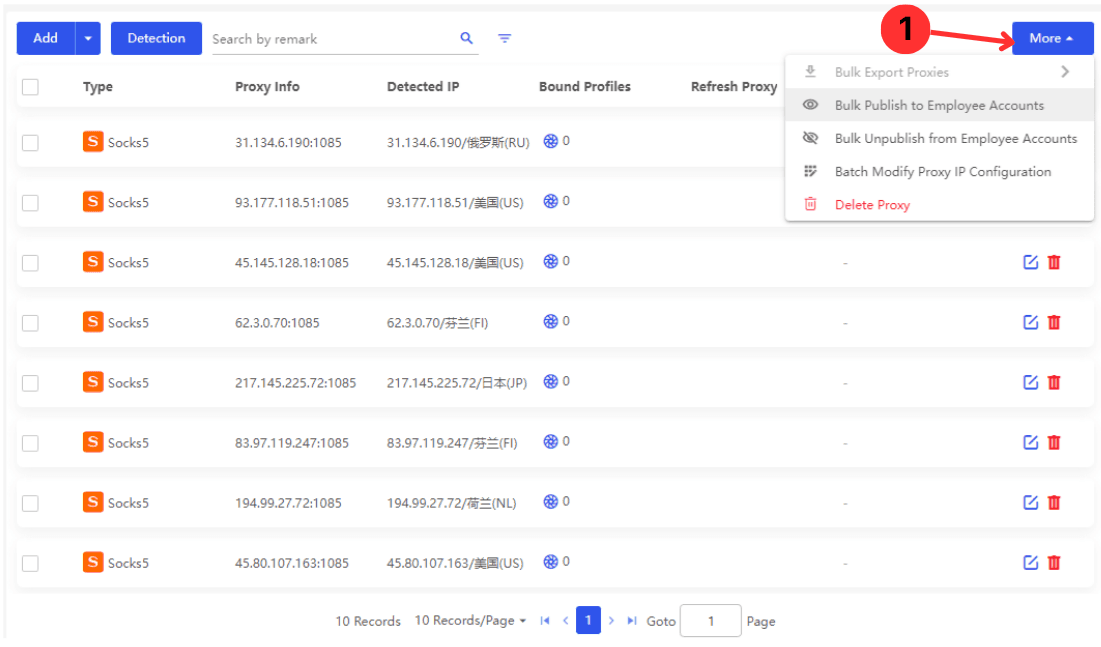
- Review the saved entries in the Proxy Management table, including type, proxy info, detected IP, and the Bound Profiles column.
- Click More in the top-right corner (1) to export proxies, bulk publish or unpublish them to employee accounts, batch modify proxy configuration, or delete selected items.
- As you attach proxies to profiles, use the Bound Profiles column to monitor how many profiles use each proxy and keep the pool organised.
Summary
BitBrowser stores proxies in a central Proxy IP list and then connects them to individual browser profiles. Using the steps above, you can add proxies in bulk, test them, and manage the pool for later use in your profiles.