
Dolphin{anty} lets you store proxies in a central list and attach them to individual browser profiles. This article explains all available ways to add and use proxies in Dolphin{anty}. It is part of the ProxyData guide to anti-detect browsers.
Dolphin{anty} is a Chromium-based anti-detect browser focused on profile management. It offers multiple browser profiles with separate cookies, local storage, and extensions. Proxies are stored in a dedicated section so they can be reused across profiles.
Besides proxy management, Dolphin{anty} supports detailed browser fingerprint settings. You can control User-Agent, timezone, language, WebRTC, Canvas and WebGL parameters, and other profile attributes to keep each profile separated from the others.
Proxy setup options in Dolphin{anty}
Dolphin{anty} uses a built-in proxy manager. Proxies are added once in the Proxy section and stored in a list. Each entry contains the type (HTTP, SOCKS4, SOCKS5 or SSH), host, port, and optional credentials and name.
When you create or edit a profile, you can choose New proxy, Saved proxies, or Get free proxy in the Proxy block. In this guide, the proxy is created from the proxy manager and then attached to a profile through the New proxy option. Settings affect only Dolphin{anty} traffic for the selected profile, not the whole operating system.
Step-by-step proxy setup in Dolphin{anty}
Step 1. Add a new proxy
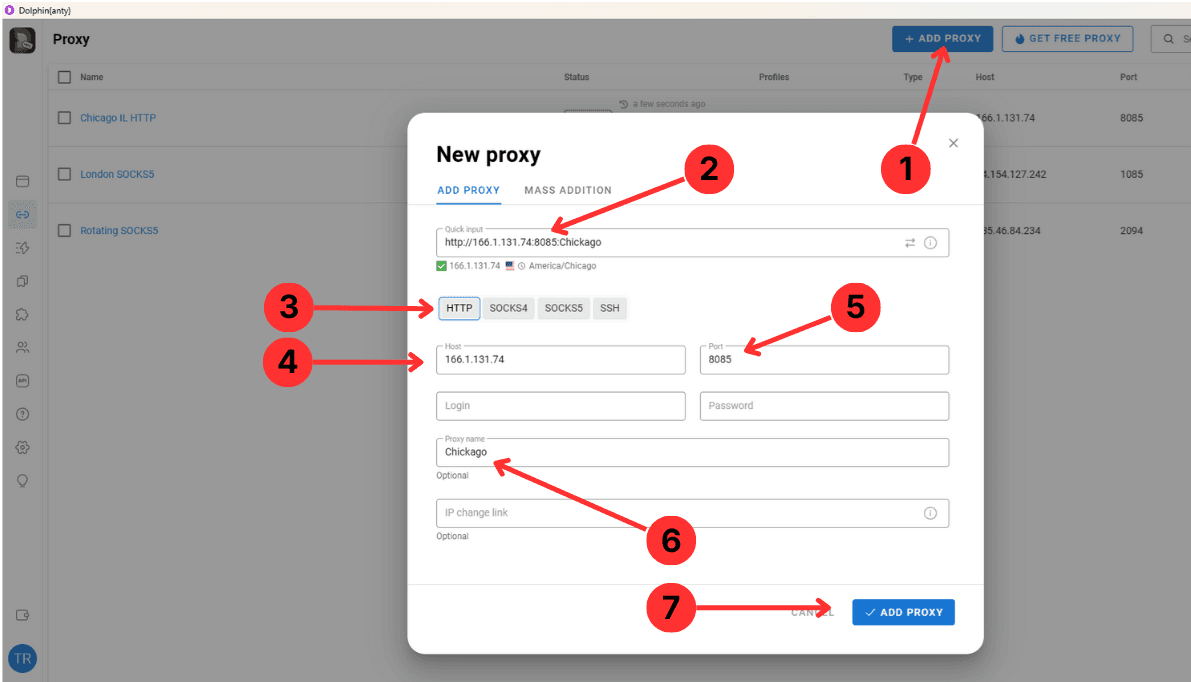
- Open the Proxy section and click + ADD PROXY at the top right of the window (1).
- In the Quick input field, paste the proxy in a single line such as http://IP:Port:Name if you prefer to add everything at once (2).
- Choose the proxy protocol by clicking HTTP, SOCKS4, SOCKS5, or SSH; in this example HTTP is selected (3).
- Enter the proxy Host value, which is the IP address or domain from your provider (4).
- Type the Port number assigned to this proxy in the port field (5).
- Optionally fill in Login and Password if the proxy uses Username/Password authentication and set a clear Proxy name label to identify it later (6).
- When the details are correct, press ADD PROXY at the bottom of the dialog to save the entry to the proxy list (7).
Step 2. Attach the proxy to a profile
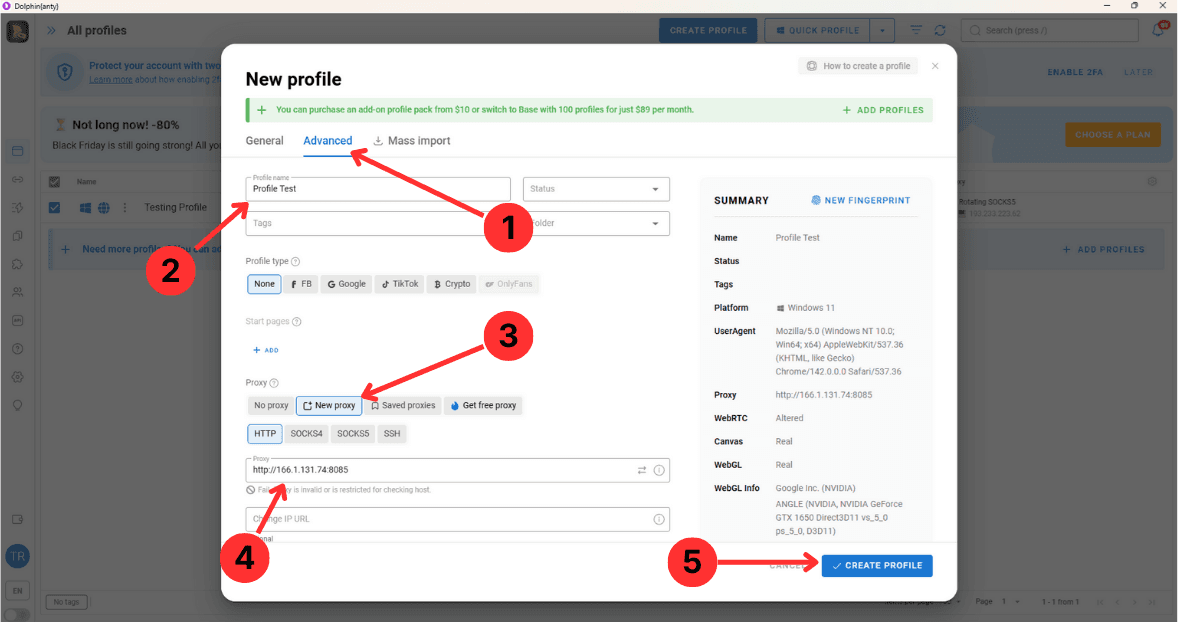
- In the profiles area, open the profile dialog and switch to the Advanced tab to access network settings (1).
- Enter a Profile name so you can easily find this profile in the list (2).
- In the Proxy section, select New proxy so the profile will use the proxy you just added instead of direct connection or existing saved entries (3).
- Make sure the correct protocol is highlighted (for example HTTP) and that the proxy line below shows the host and port from the proxy you created, such as http://166.1.131.74:8085 (4).
- Review the summary on the right, then click CREATE PROFILE to save the profile with the linked proxy settings (5).
Step 3. Check and manage saved proxies
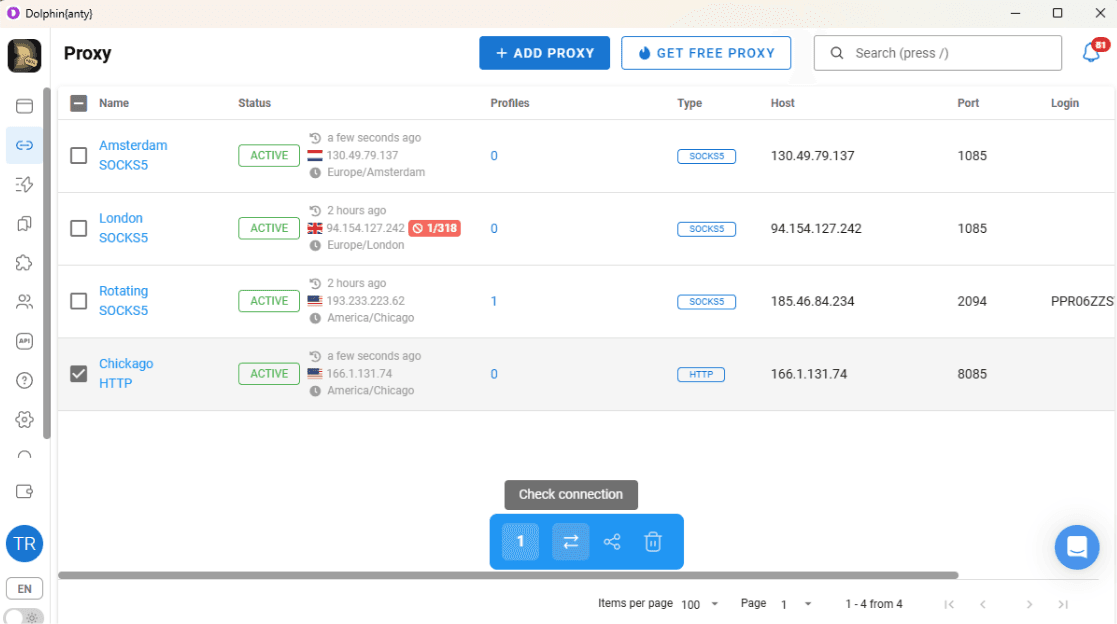
- Return to the Proxy section to see the table with all proxy entries, including the one you just created.
- Tick the checkbox next to a proxy to select it and view its status, type, host, port, and the number of profiles currently using it.
- Use the toolbar at the bottom to check the connection for the selected proxy, edit its parameters, duplicate it, or delete it if it is no longer needed.
Summary
Dolphin{anty} uses a central proxy list that makes it easy to add a proxy once and reuse it across multiple profiles. By following these steps, you can create a proxy entry, bind it to a new profile, and keep the proxy list under control.