
Incogniton is an anti-detect browser that lets you work with multiple isolated browser profiles. This guide shows how to assign a proxy to Incogniton, either directly in the profile settings or through the shared Proxy Management module. It is part of the ProxyData anti-detect browser comparison table, where Incogniton is listed alongside other tools.
Incogniton is based on the Chromium engine and runs as a standalone browser with its own profile storage. Each profile has separate cookies, local storage, and browser settings, which helps keep logins and sessions apart. The interface is focused on bulk profile creation and quick switching between them.
Beyond proxy settings, Incogniton provides typical anti-detect features such as fingerprint randomization, control of User-Agent and operating system, timezone, geolocation, WebRTC, Canvas and WebGL behavior, as well as media and font settings. Profiles can be grouped and reused, while hardware and navigator parameters can be adjusted per profile to vary browser fingerprints.
Proxy setup options in Incogniton
Incogniton offers two main ways to work with proxies. First, a proxy can be assigned directly in the settings of a specific browser profile. In this case, the proxy is used only when that profile is started. Second, proxies can be added in bulk to the central Proxy Management list and then reused for multiple profiles. The Proxy Management view stores proxy type (HTTP or SOCKS5), validity, rotation flag, group, and the number of profiles using each entry.
Step-by-step proxy setup in Incogniton
Step 1. Create a browser profile
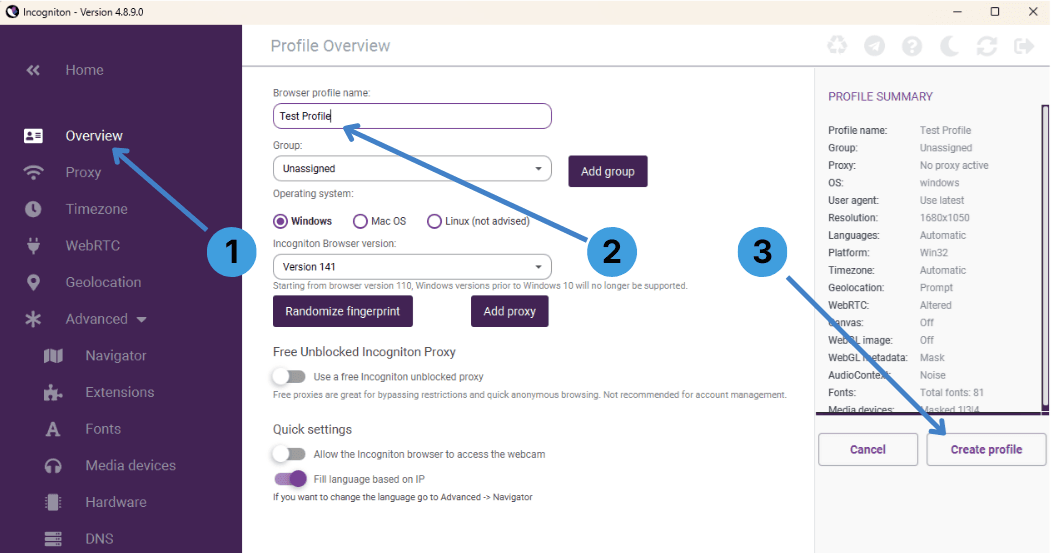
- In the left sidebar, open Overview to access profile settings (1).
- In Browser profile name, enter a name for the new profile, for example “Test Profile” (2).
- Adjust group and operating system if needed, then click Create profile to save it (3).
Step 2. Open proxy settings for a profile
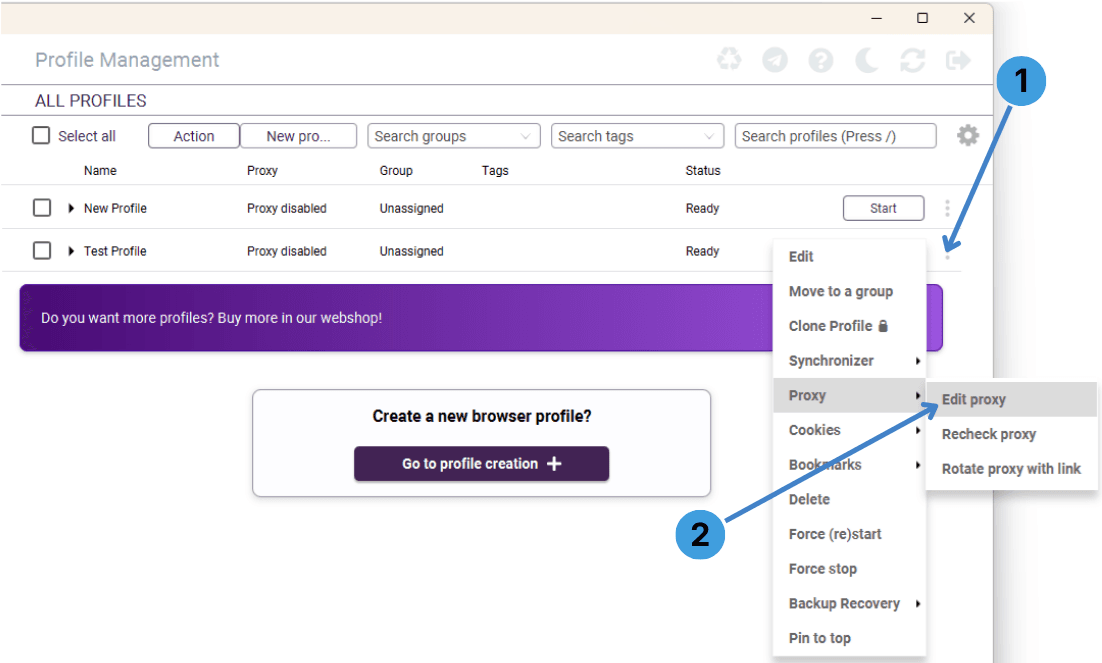
- Go to Profile Management and find the profile that should use a proxy.
- Click the three-dot menu on the right side of this profile row (1).
- In the menu, move to Proxy and choose Edit proxy to open the proxy dialog (2).
Step 3. Add proxy details to the profile
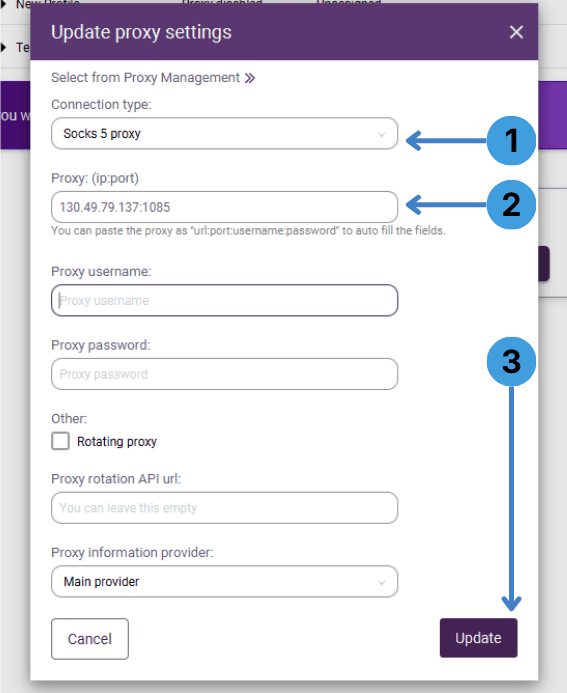
- In the Connection type dropdown, choose the required protocol, such as Socks 5 proxy or HTTP proxy (1).
- In Proxy (ip:port), enter the proxy host and port, for example 130.49.79.137:1085; you can also paste ip:port:username:password to fill the fields automatically (2).
- If the proxy requires authentication, fill Proxy username and Proxy password, optionally enable Rotating proxy, then click Update to save the settings (3).
Step 4. Check proxy connectivity for a profile
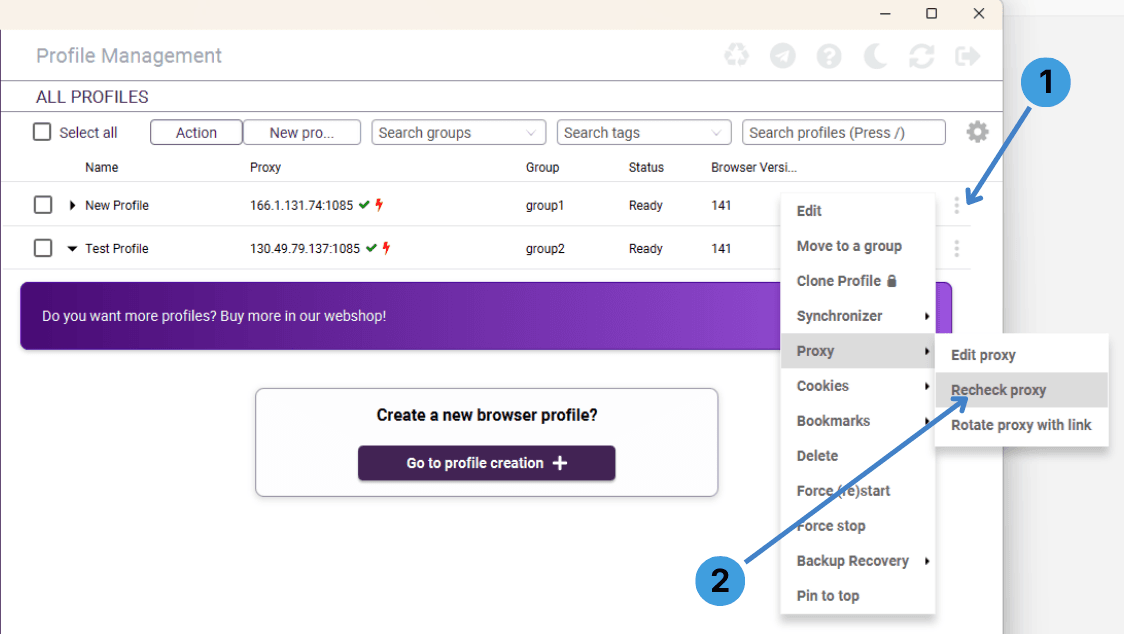
- In Profile Management, open the three-dot menu next to the profile whose proxy you configured (1).
- Under Proxy, select Recheck proxy to test the connection and refresh the status icons for that proxy (2).
Step 5. Open the global Proxy Management panel
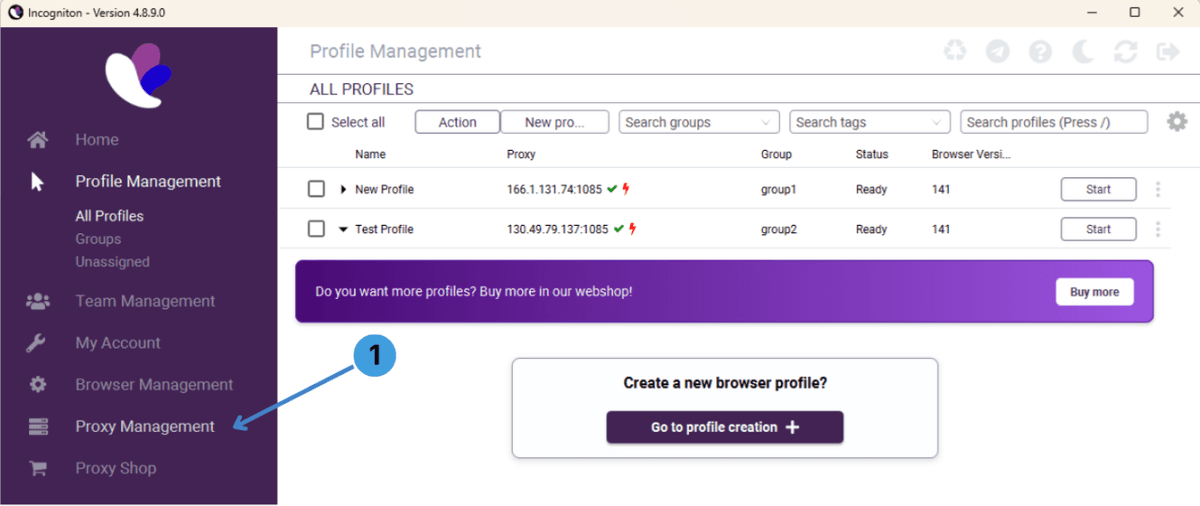
- In the left navigation, click Proxy Management to work with the shared proxy list (1).
- Use this section when you want to maintain a pool of proxies that can later be attached to different profiles.
Step 6. Import multiple proxies in bulk
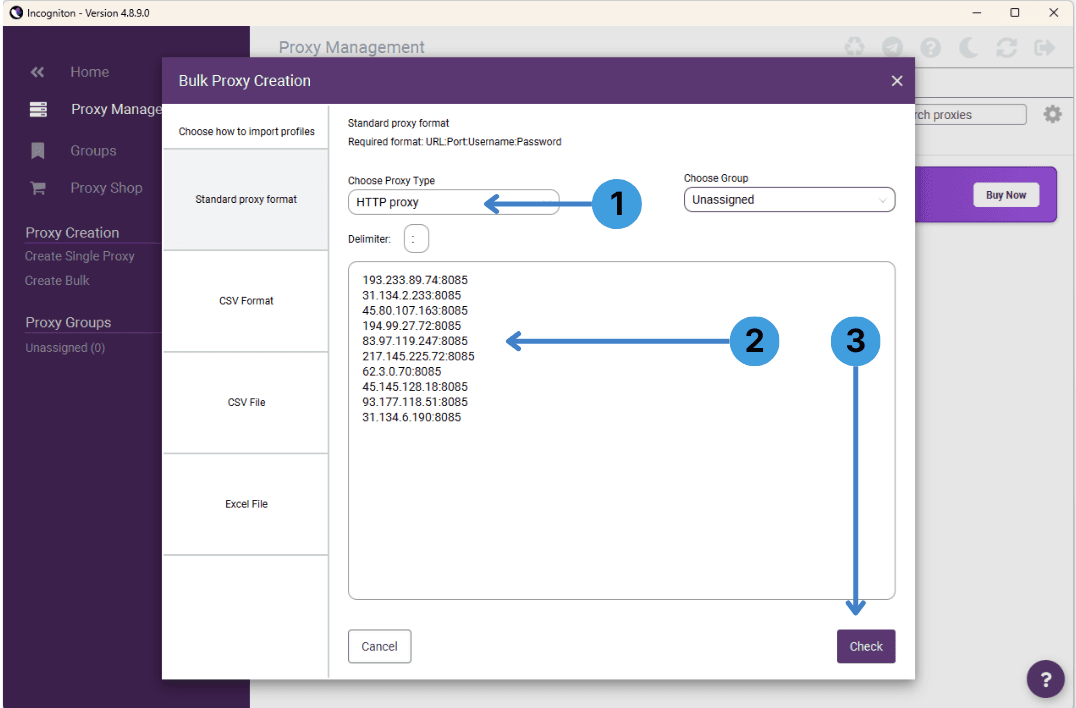
- In Proxy Management, start Create Bulk and stay on the Standard proxy format tab, then choose the required Proxy Type, such as HTTP proxy (1).
- Paste your proxies into the large text box in the required format (for example IP:Port or URL:Port:Username:Password), one proxy per line (2).
- When finished, click Check to validate the list and add the proxies to the selected group (3).
Step 7. Use the saved proxies from Proxy Management
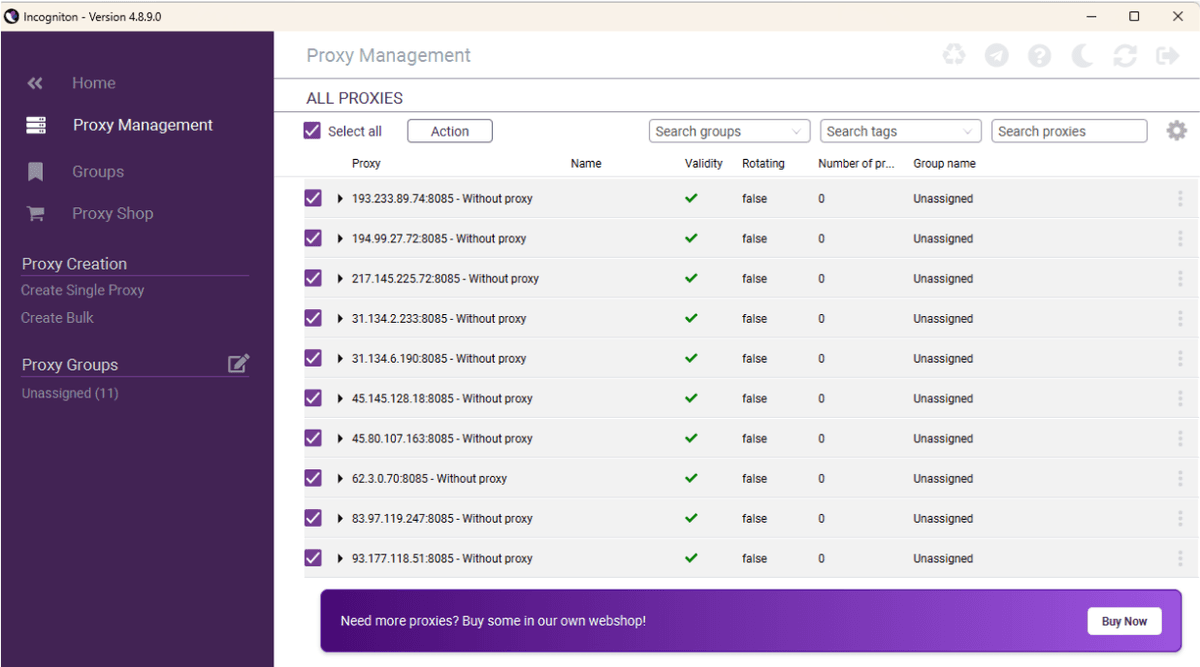
- After validation, review all entries under All proxies in Proxy Management; each row shows validity, rotation flag, and how many profiles use that proxy.
- Select one or more proxies and assign them to groups if needed, so they are easier to manage later.
- When editing a profile, you can either enter proxy data manually or use the Select from Proxy Management option in the proxy dialog to attach one of the saved proxies.
Summary
Incogniton lets you either configure a proxy directly for each profile or keep a reusable pool of proxies in Proxy Management and connect them to profiles as needed. With the steps above, you can create profiles, add single proxies or bulk lists, and verify that each proxy works before starting a session.