
GoLogin lets you manage multiple browser profiles and connect each one through separate proxies. This article explains all available ways to add external proxies and assign them to profiles in the GoLogin anti-detect browser. It is part of a general reference on anti-detect platforms at the general reference on anti-detect platforms.
GoLogin is an anti-detect browser based on the Chromium engine. It provides separate browser profiles with isolated cookies, local storage, and browser settings so that each profile behaves like a separate installation. The desktop app is available for major operating systems and can run many profiles for account work in parallel.
Besides proxy support, GoLogin offers fine-grained control of browser fingerprints per profile. You can adjust User-Agent strings, screen size, fonts, time zone, language, WebRTC, Canvas, WebGL, geolocation, and other parameters. Cookie storage is kept per profile, and you can sync or clear it independently to keep environments apart.
Proxy setup options in GoLogin
GoLogin uses its own proxy manager where all external proxies are stored. In the Proxies section you can add entries one by one or import a list of addresses in bulk, then edit details such as type, host, port, and authentication. These settings stay inside GoLogin and do not modify system proxy settings.
When you open a browser profile, the Proxy tab offers three choices: Gologin proxy, Your proxy, and Without proxy. This guide focuses on Your proxy, which links a profile to one of the saved entries from the proxy manager. Each profile can use a different proxy or share the same entry with others, depending on how you assign them.
Step-by-step proxy setup in GoLogin
Step 1. Open the Proxies section
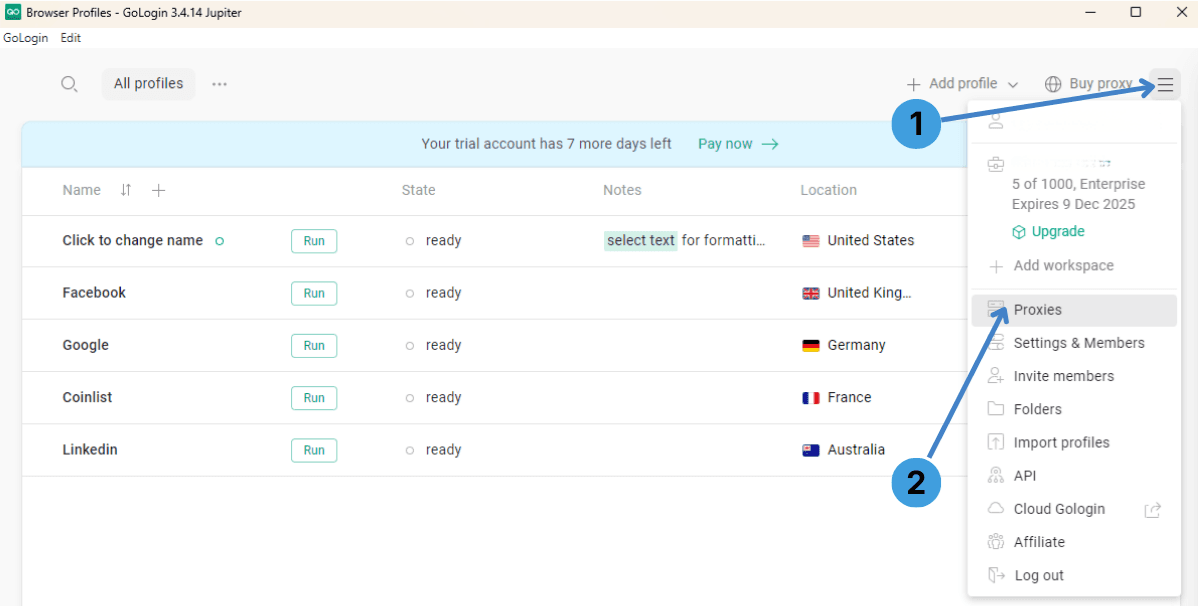
- Start GoLogin and stay on the Browser Profiles page.
- Click the three-line menu in the top-right corner of the window (1).
- In the menu, choose Proxies to open the proxy manager (2).
Step 2. Open bulk proxy import
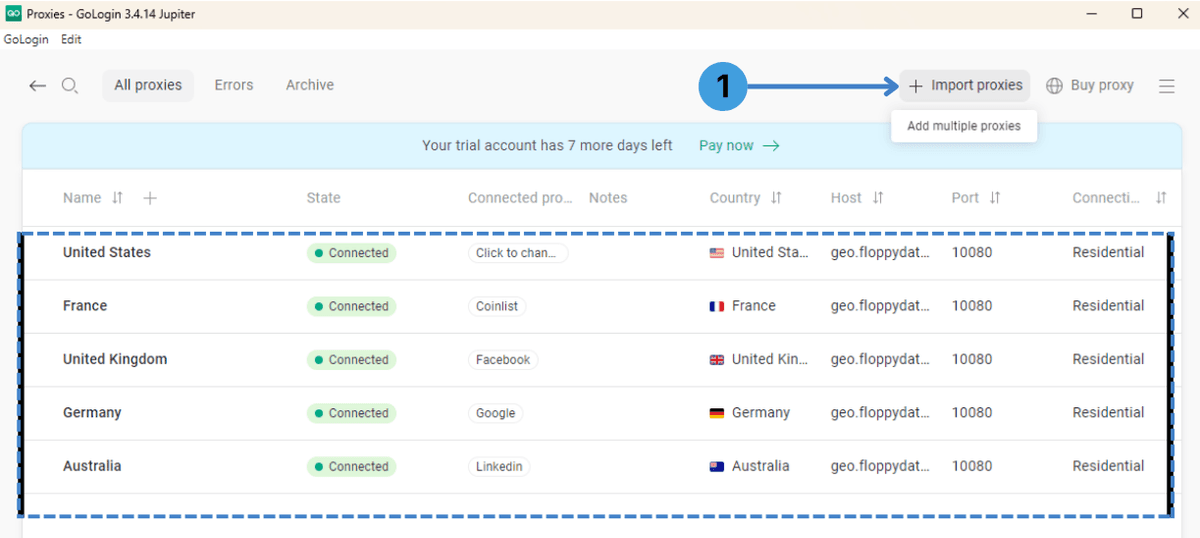
- In the Proxies list, check existing entries if needed.
- Click Import proxies at the top-right to add multiple proxies at once (1).
Step 3. Paste your proxy list and import
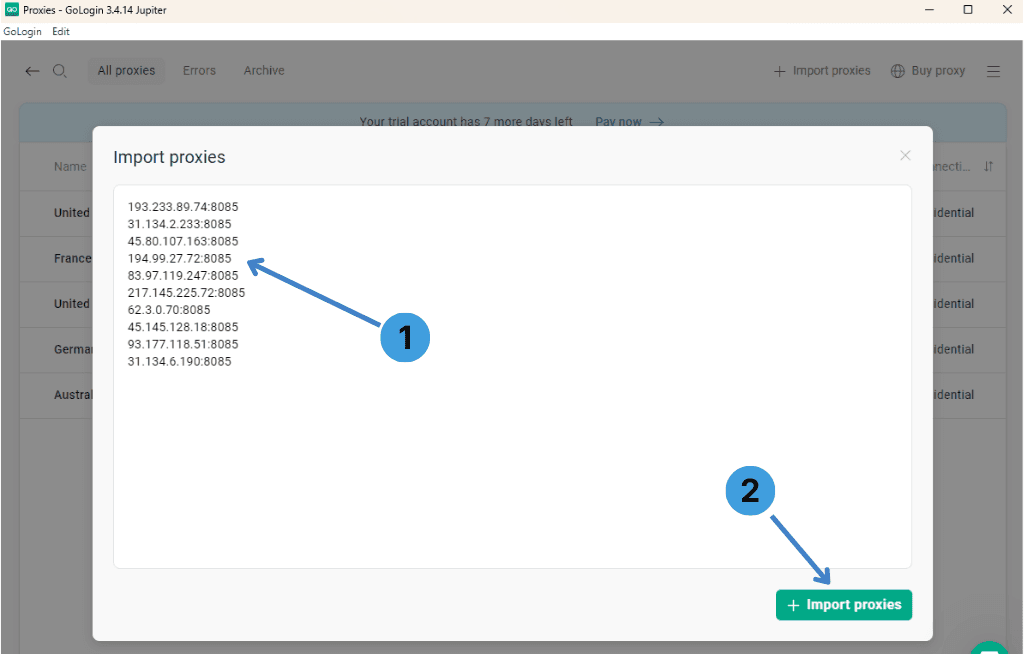
- In the Import proxies window, paste your proxy list into the text area (1), one proxy per line.
- Use a simple IP:Port format as provided by your proxy provider.
- Click Import proxies to create these proxies in GoLogin (2).
Step 4. Open proxy settings
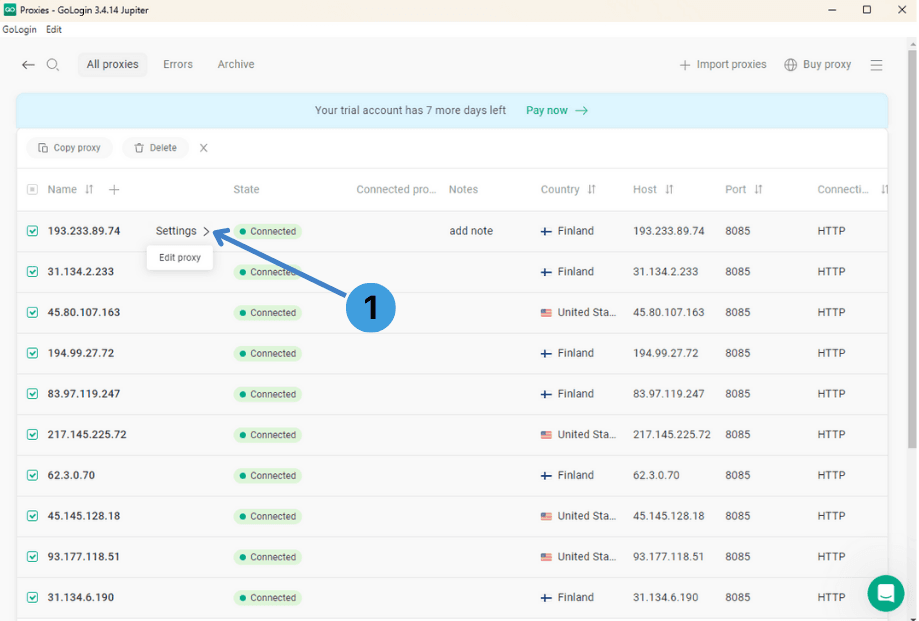
- Back in the Proxies list, find the proxy you want to configure or test.
- Click Settings next to this proxy entry (1).
- Choose Edit proxy from the small menu to open the detailed view.
Step 5. Fill in proxy details
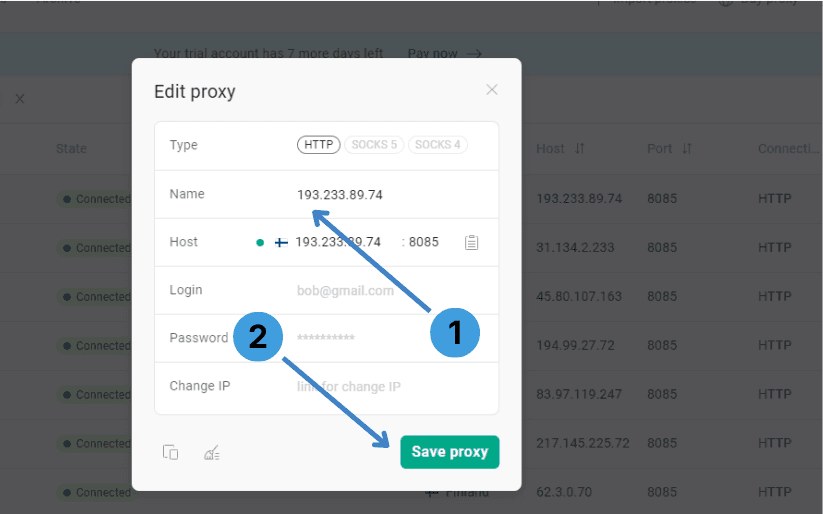
- In the Edit proxy window, select the correct Type (HTTP, SOCKS5, or SOCKS4) and check the Name and Host fields with the IP address and port from your provider (1).
- If the proxy uses Username/Password authentication, enter the credentials in the Login and Password fields (2).
- Click Save proxy to store the updated configuration (2).
Step 6. Assign a proxy to a profile
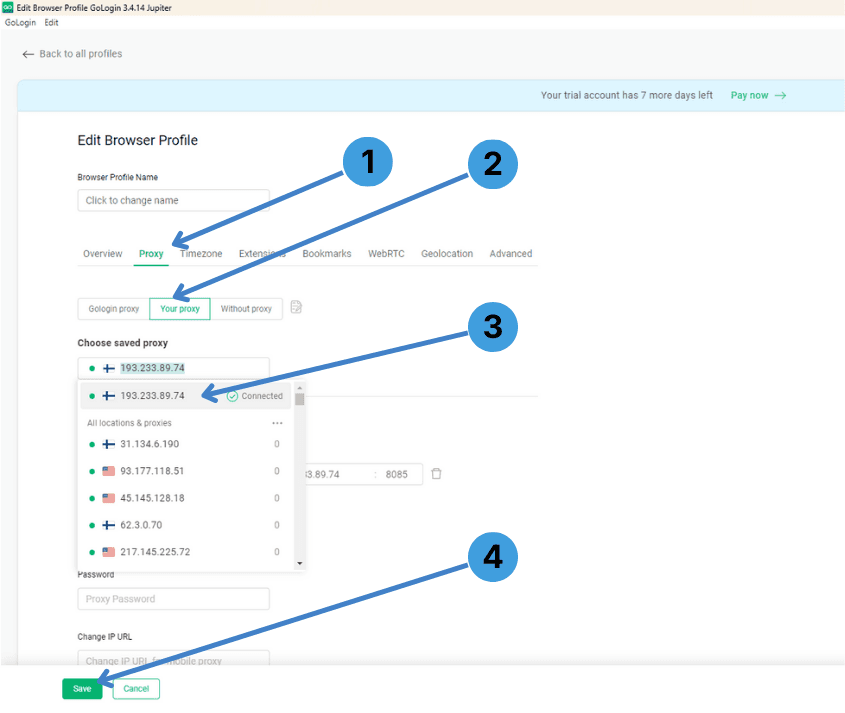
- Open the browser profile you want to run and confirm its name in the Edit Browser Profile window (1).
- Go to the Proxy tab and select Your proxy so the profile will use one of your saved entries (2).
- In Choose saved proxy, pick the proxy you configured; the row should show its status, such as Connected (3).
- Click Save at the bottom of the profile window to apply this proxy to the selected profile (4).
Summary
You can now import external proxies into GoLogin, adjust their connection details, and bind each browser profile to a specific proxy entry.